
Tutorials
Customize the widget and add it to your site
Make the chat widget match your brand, then add it to your website with the embed code.
In this tutorial you make the chat widget match your brand (name, colors, icon, quick prompts, greeting and closing messages), then put it on your website with the embed code. It is meant for account owners, marketers and web developers.
Before you start:
- An AI Agent with a working Knowledge Base (see Build your AI Agent).
- Access to edit your website's HTML, or a developer who can paste the code for you.
The widget's look is set on the Customize (تخصيص) page, not on the Embed (تضمين) page. The Embed page only gives you the code.
Appearance
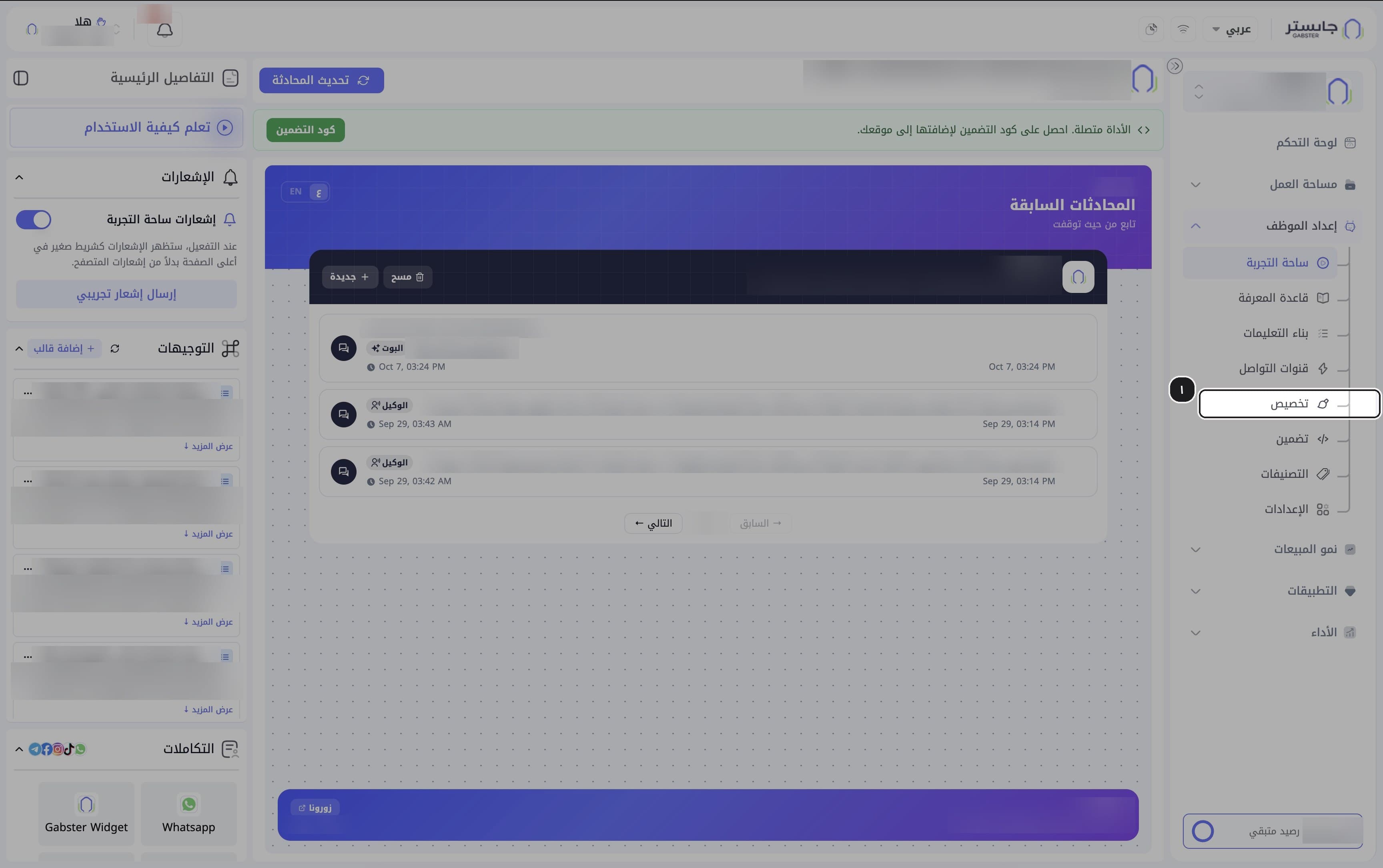
Open Customize
In the sidebar, open the AI Agent Setup (إعداد الموظف) group and choose Customize (تخصيص).
Result: the page opens on the Appearance (المظهر) tab.
Set the name
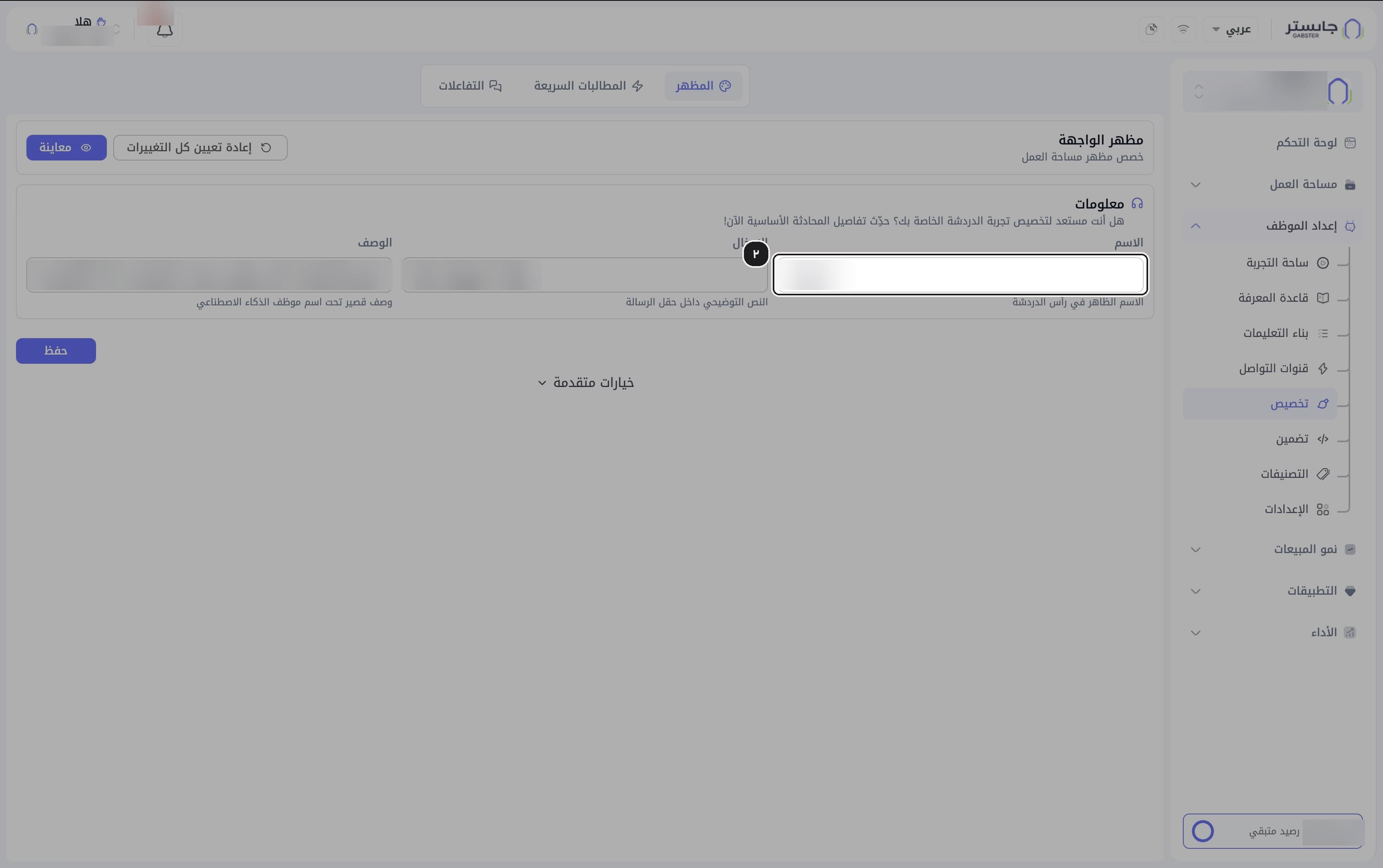
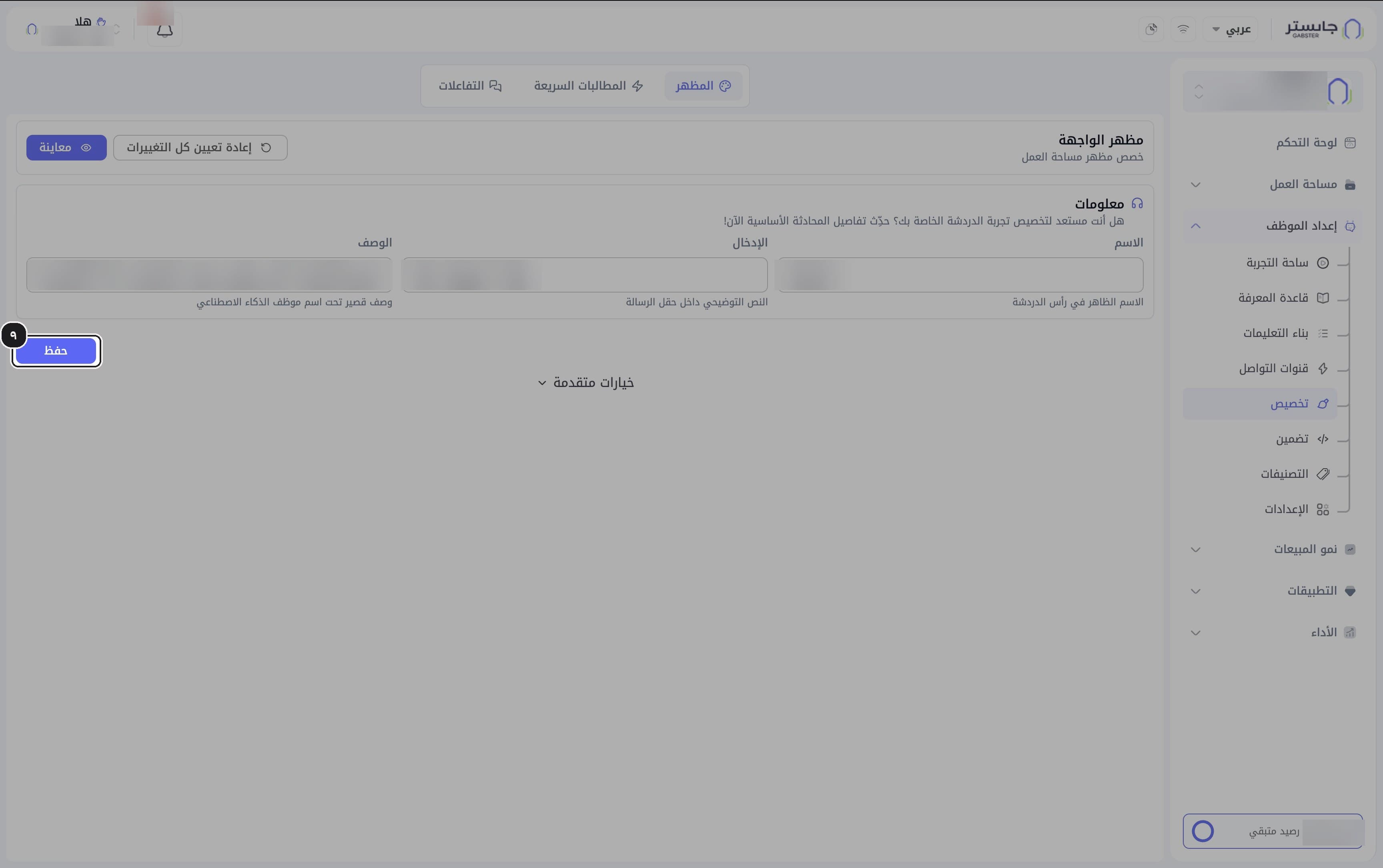
In Name (الاسم), enter the name you want in the chat widget's header.
Result: the name appears as the bold title in the widget header.
Set the placeholder and description
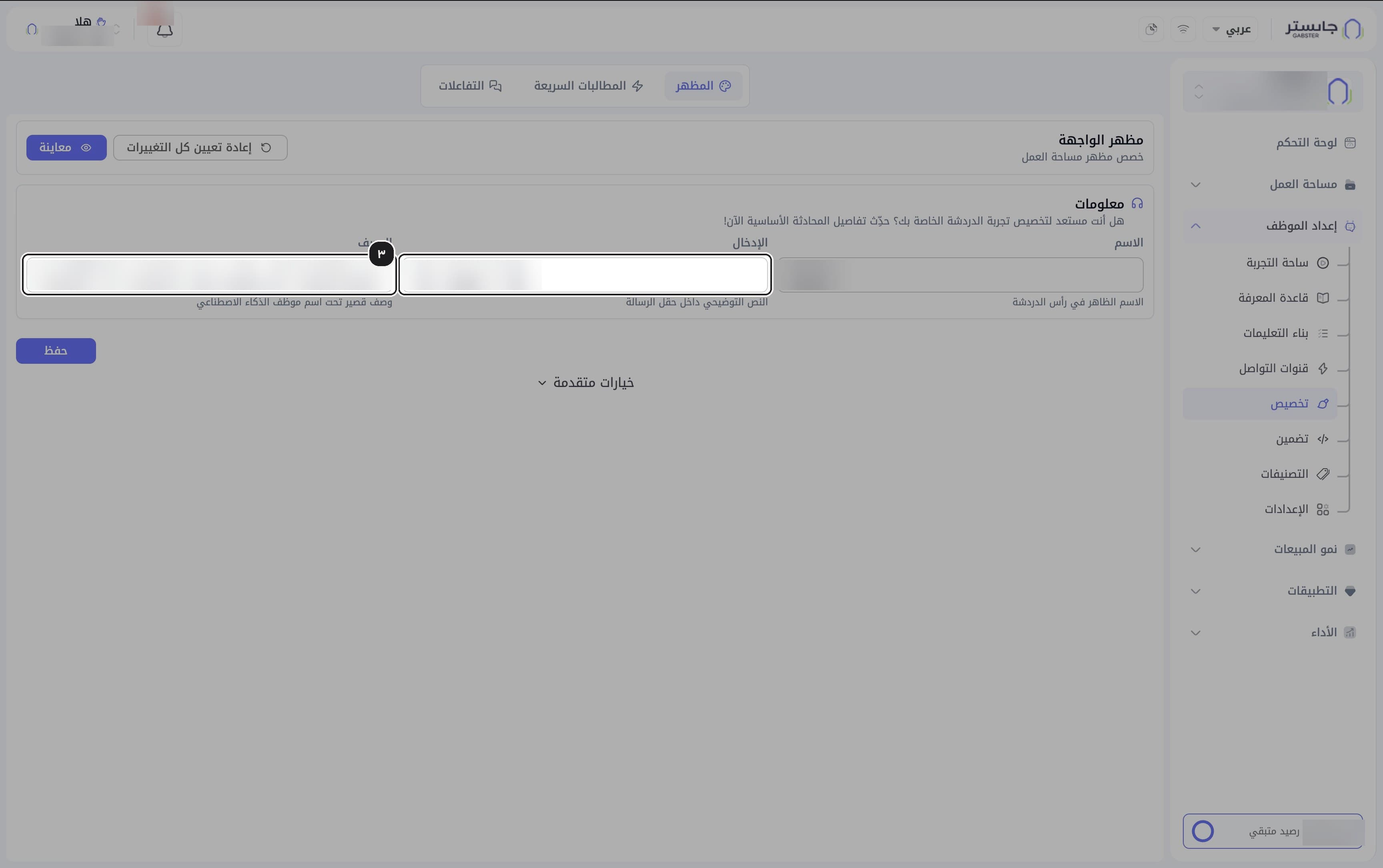
In Input (الإدخال), enter the placeholder text shown inside the message field; in Description (الوصف), a short line shown under your AI Agent's name.
Result: the values appear in the widget preview.
Open the advanced options
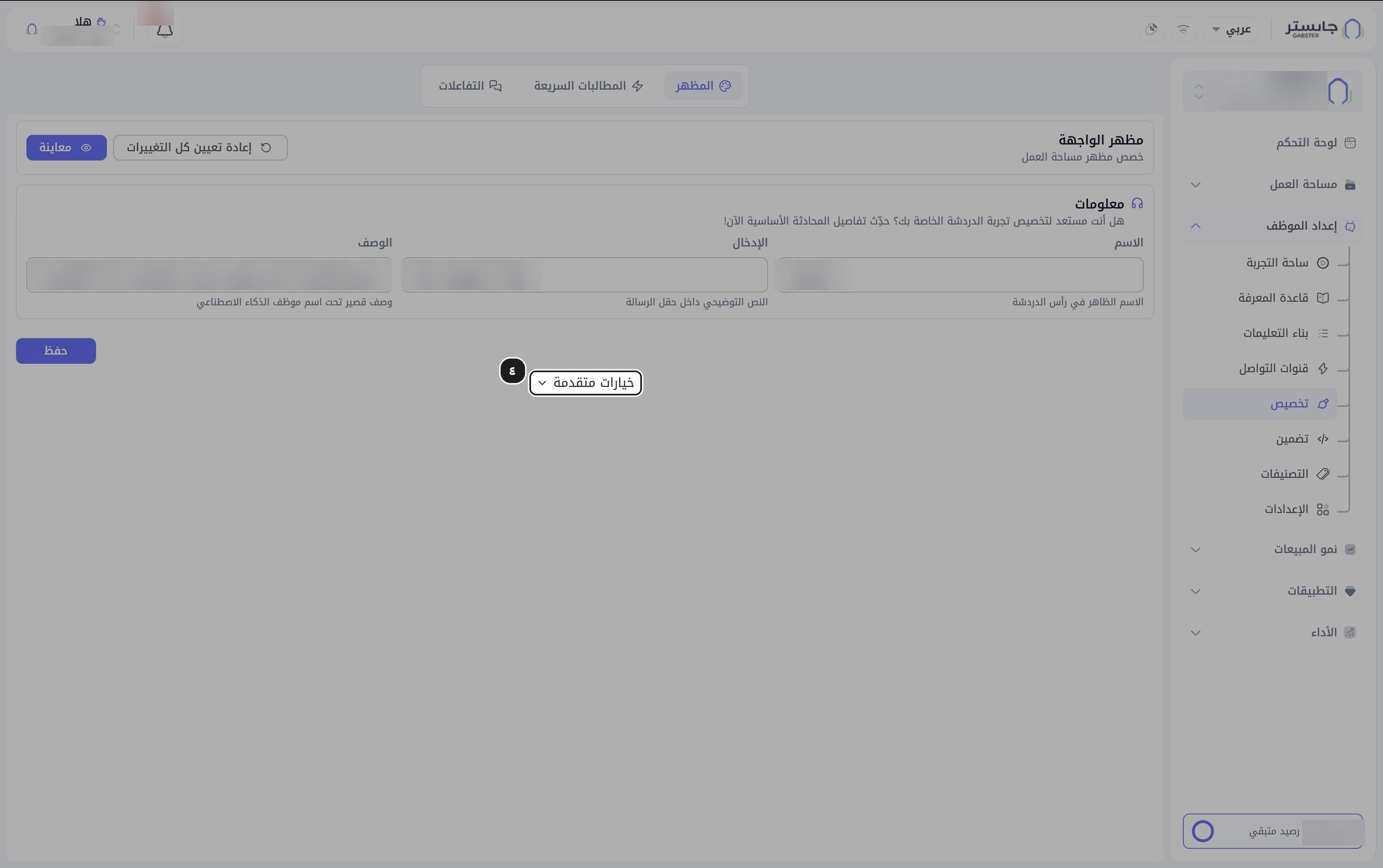
Click Advanced options (خيارات متقدمة).
Result: cards appear for message colors, Right-to-left mode (الوضع من اليمين لليسار), the live preview, General settings (الإعدادات العامة), Visibility options (خيارات الظهور), the Widget icon (أيقونة الودجة) and Background (الخلفية).
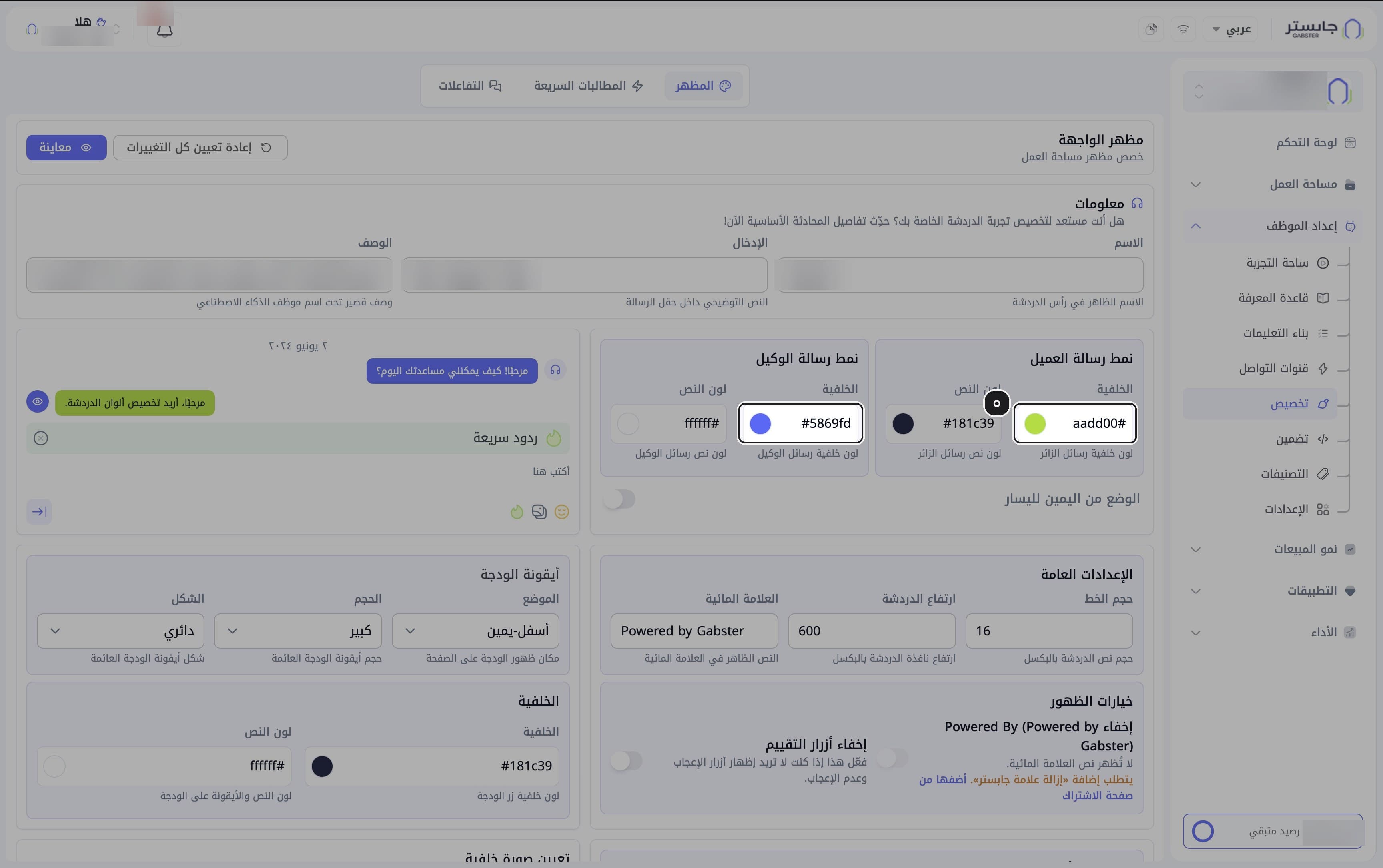
Pick the message colors
Choose a Background (الخلفية) and Text color (لون النص) under Customer message style (نمط رسالة العميل) and under AI Agent message style (نمط رسالة الوكيل).
Result: the preview shows the chosen colors.
On the Arabic interface, color codes may appear reversed (for example aadd00#); write them the usual way: #aadd00.
Turn on right-to-left mode
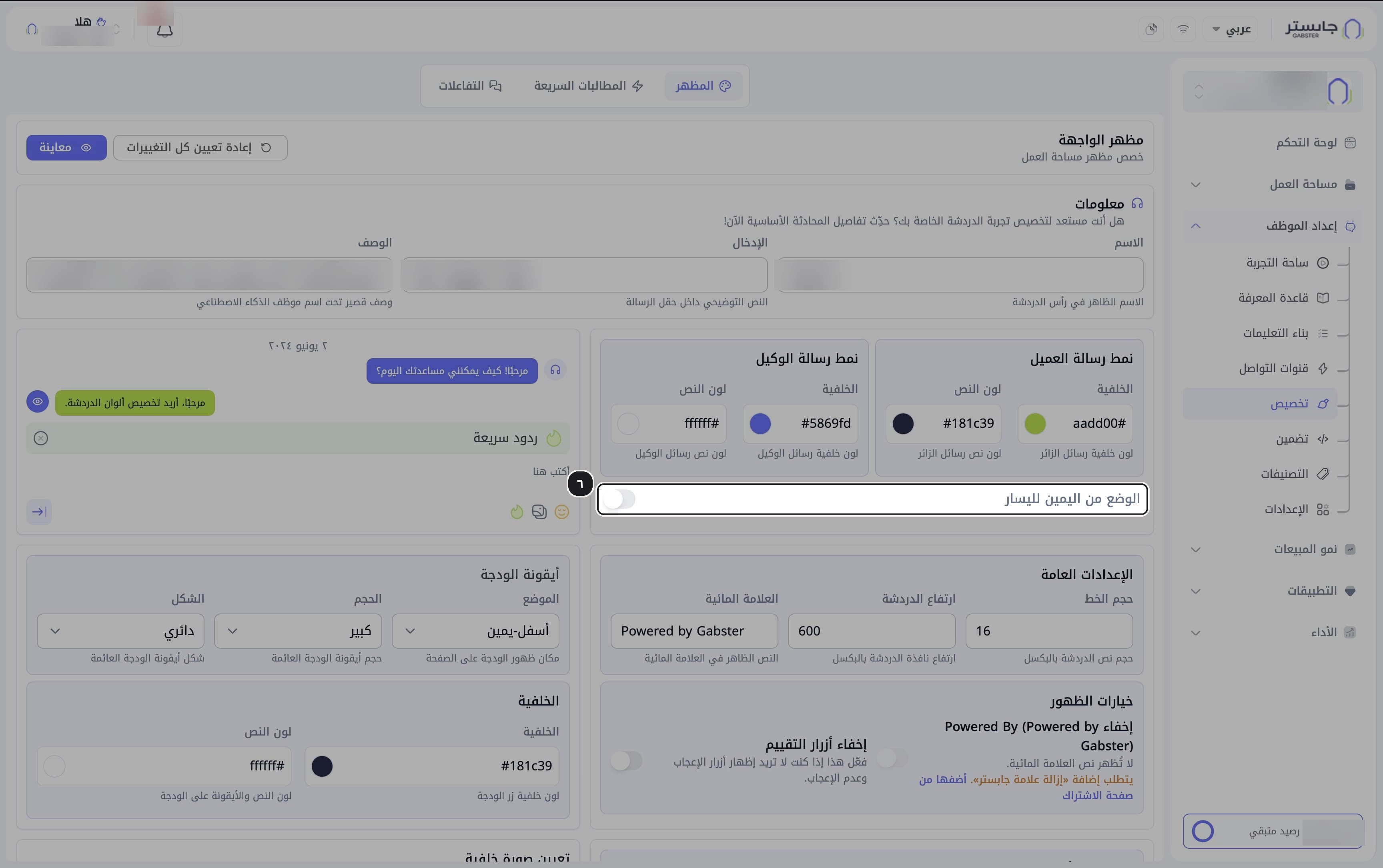
If your website is in Arabic, turn on Right-to-left mode (الوضع من اليمين لليسار).
Set font size, height and watermark
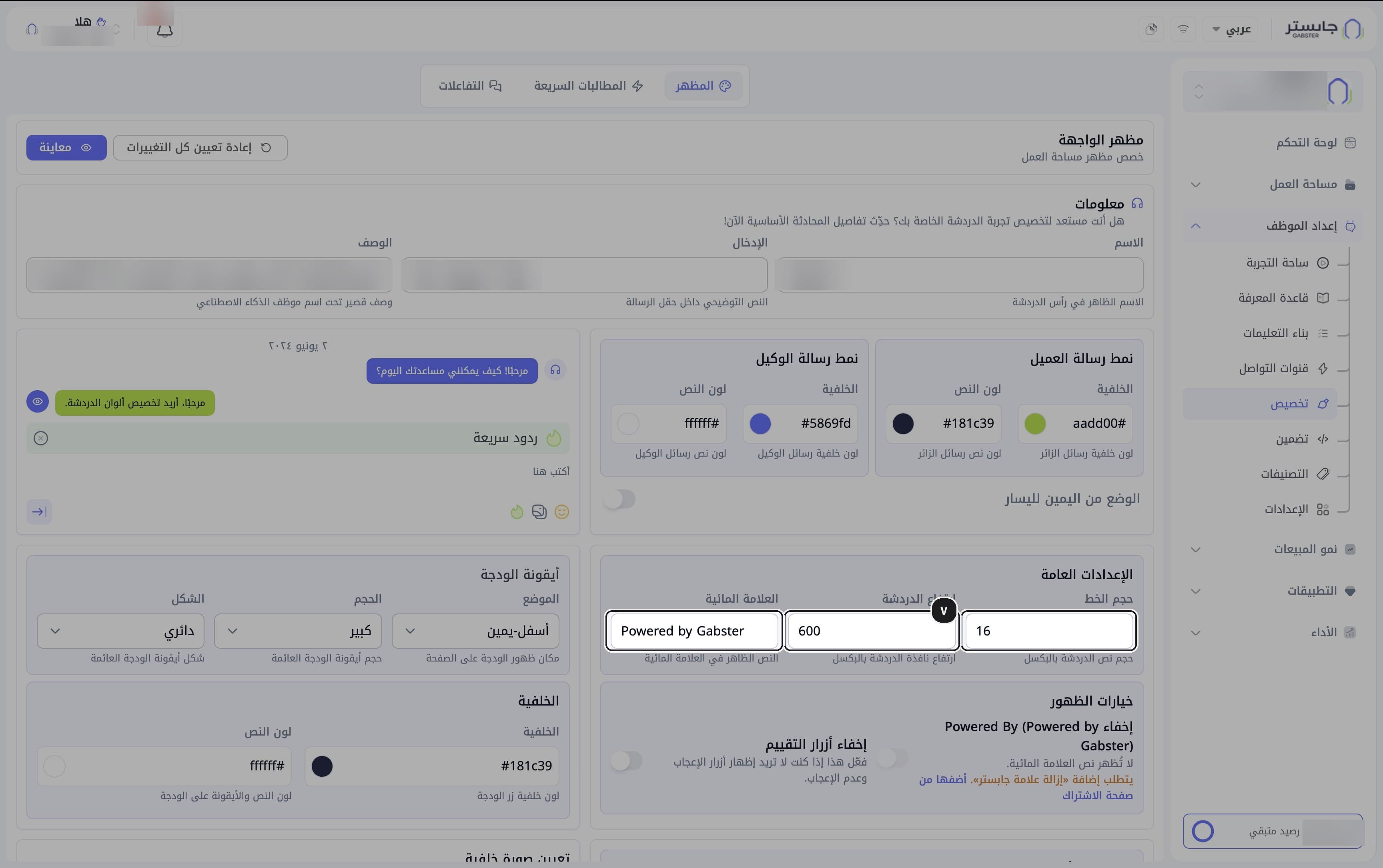
Under General settings, set Font size (حجم الخط) and Chat height (ارتفاع الدردشة) in pixels, and the Watermark (العلامة المائية) text.
Result: the defaults are 16 for the font size, 600 for the height, and "Powered by Gabster" for the watermark.
Visibility options has two switches: Hide Powered By (إخفاء Powered By) hides the watermark text and requires the paid Remove Gabster branding (إزالة علامة جابستر) add-on, which you add from the subscription page; Hide rating buttons (إخفاء أزرار التقييم) hides the like and dislike buttons.
Set up the widget icon
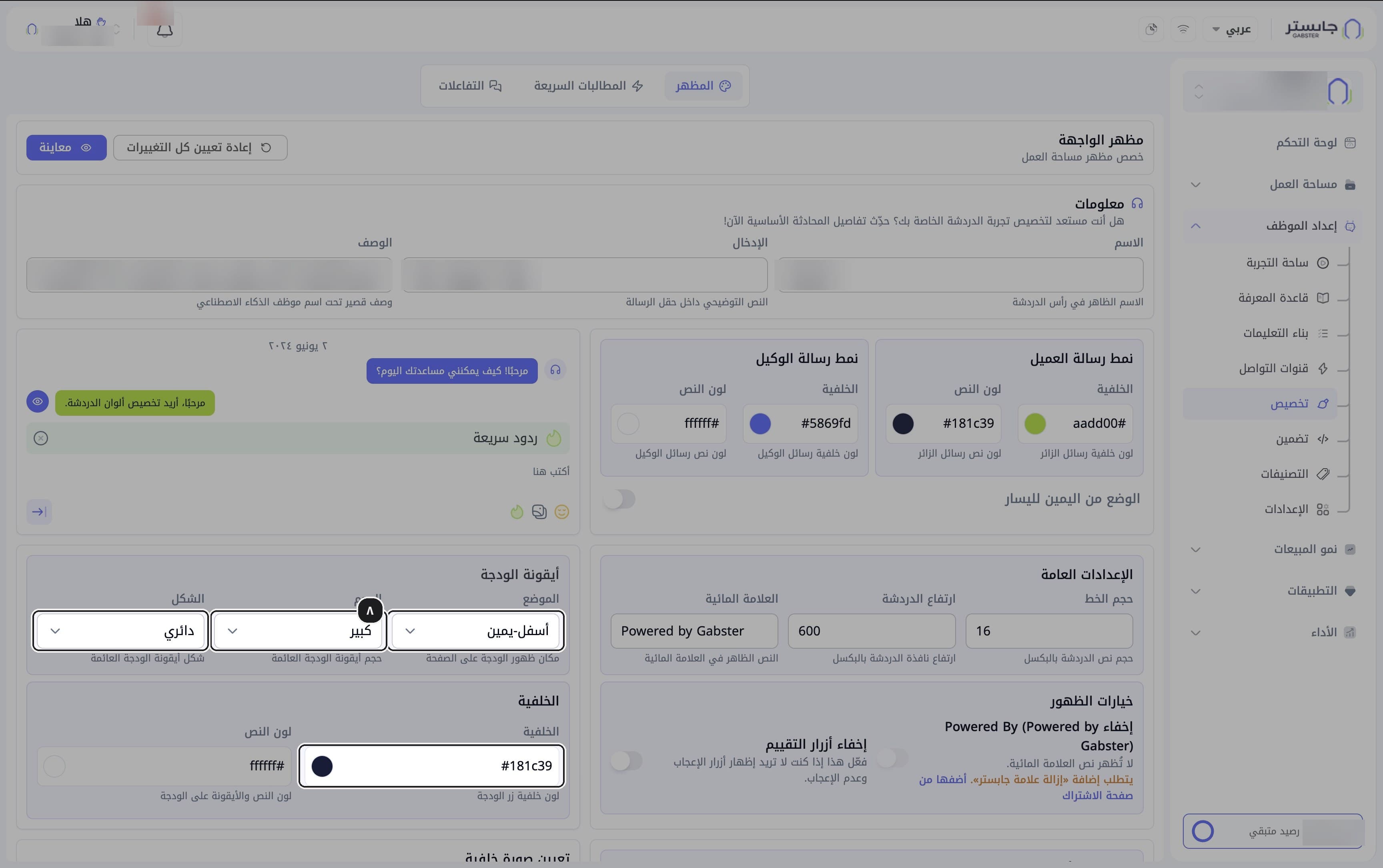
In the Widget icon card, choose the Position (الموضع), Size (الحجم) and Shape (الشكل) (for example bottom-right (أسفل-يمين), large (كبير) and circular (دائري)). Then, in the Background card, choose the widget button's background color and the color of its text and icon.
Save
Click Save (حفظ).
Quick prompts and interactions
Add a quick prompt
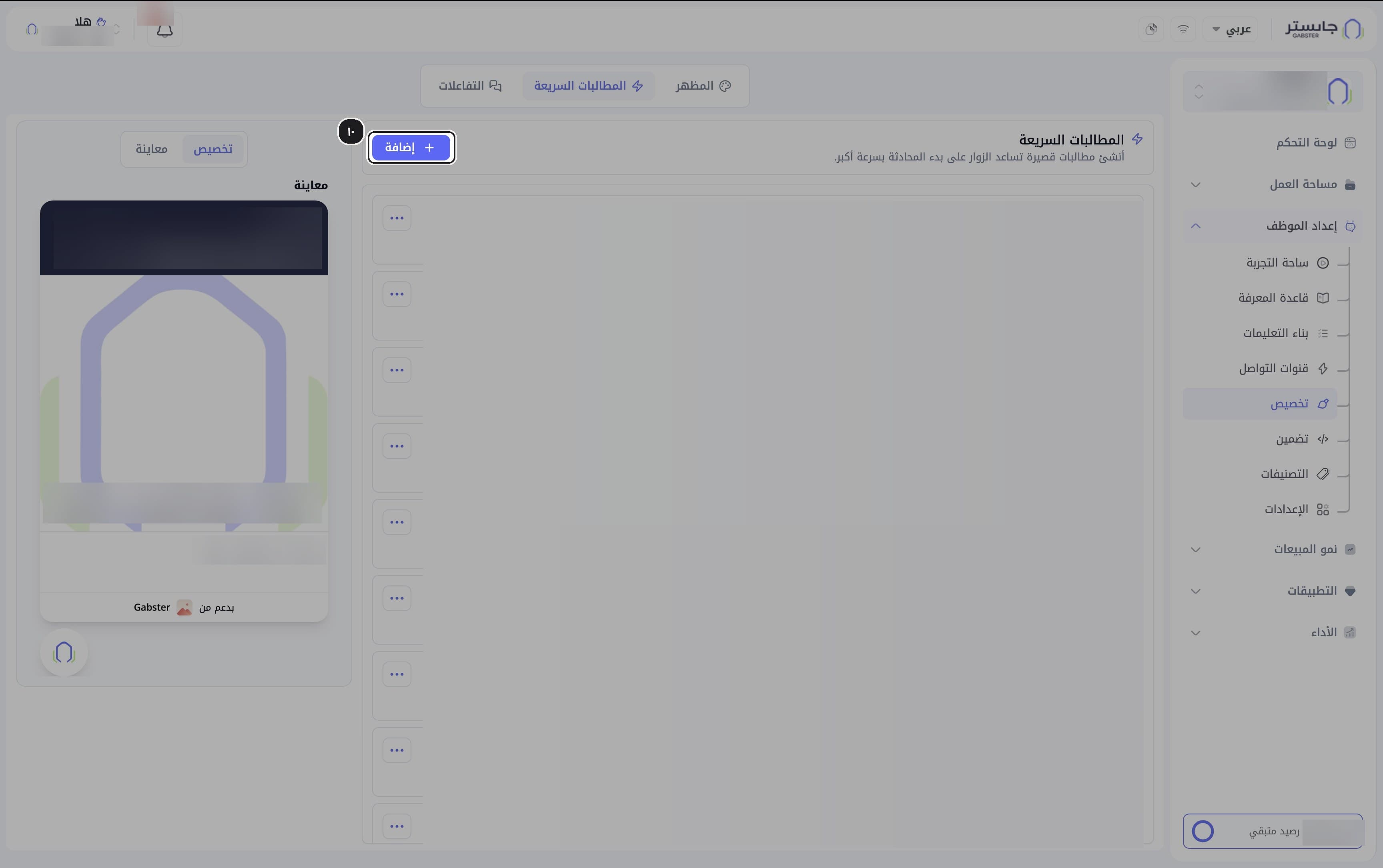
Switch to the Quick Prompts (المطالبات السريعة) tab and click Add (إضافة).
Check the preview
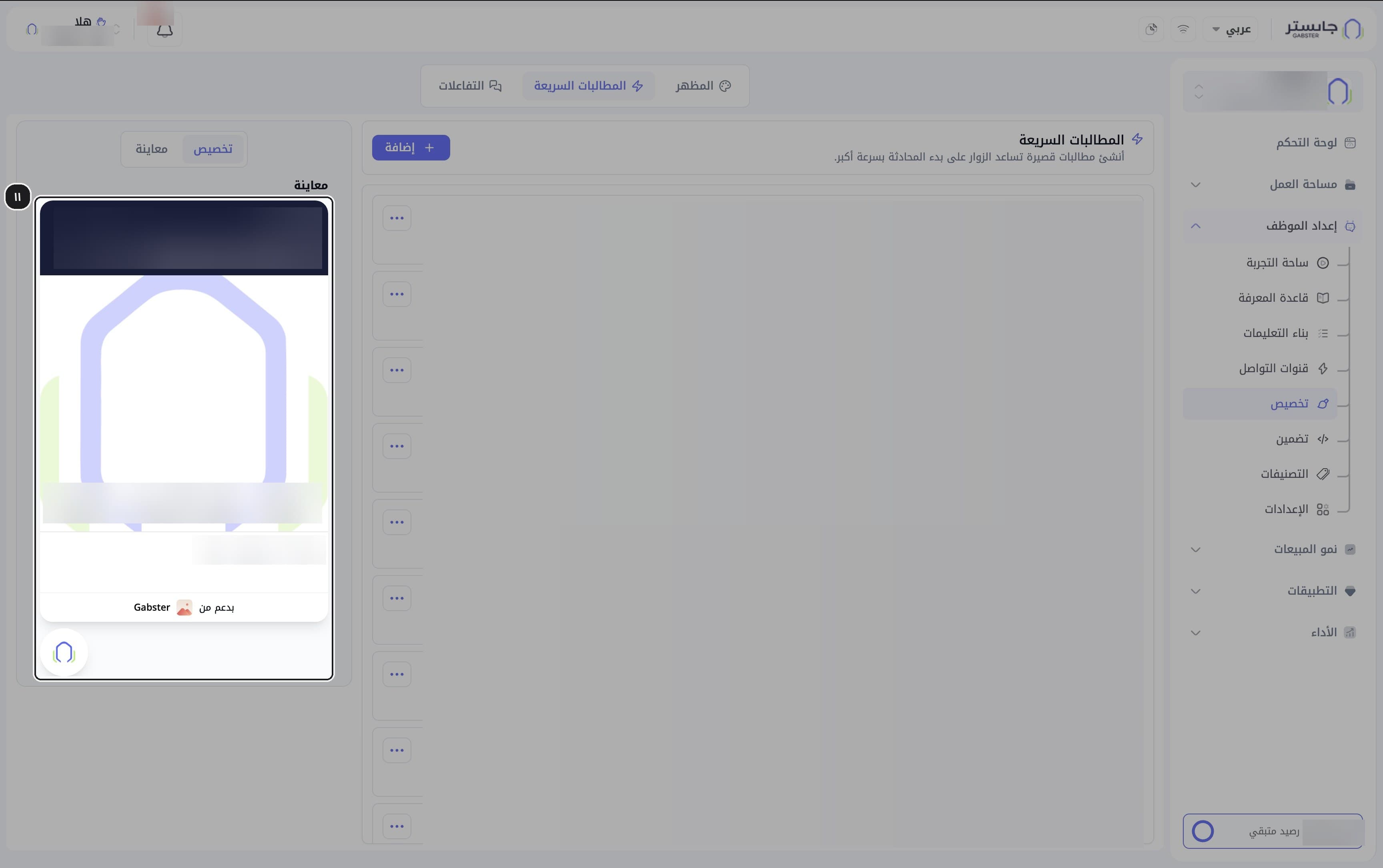
Look at the widget preview.
Result: the prompt titles appear as buttons under the widget header for customers to pick.
Add a greeting or closing message
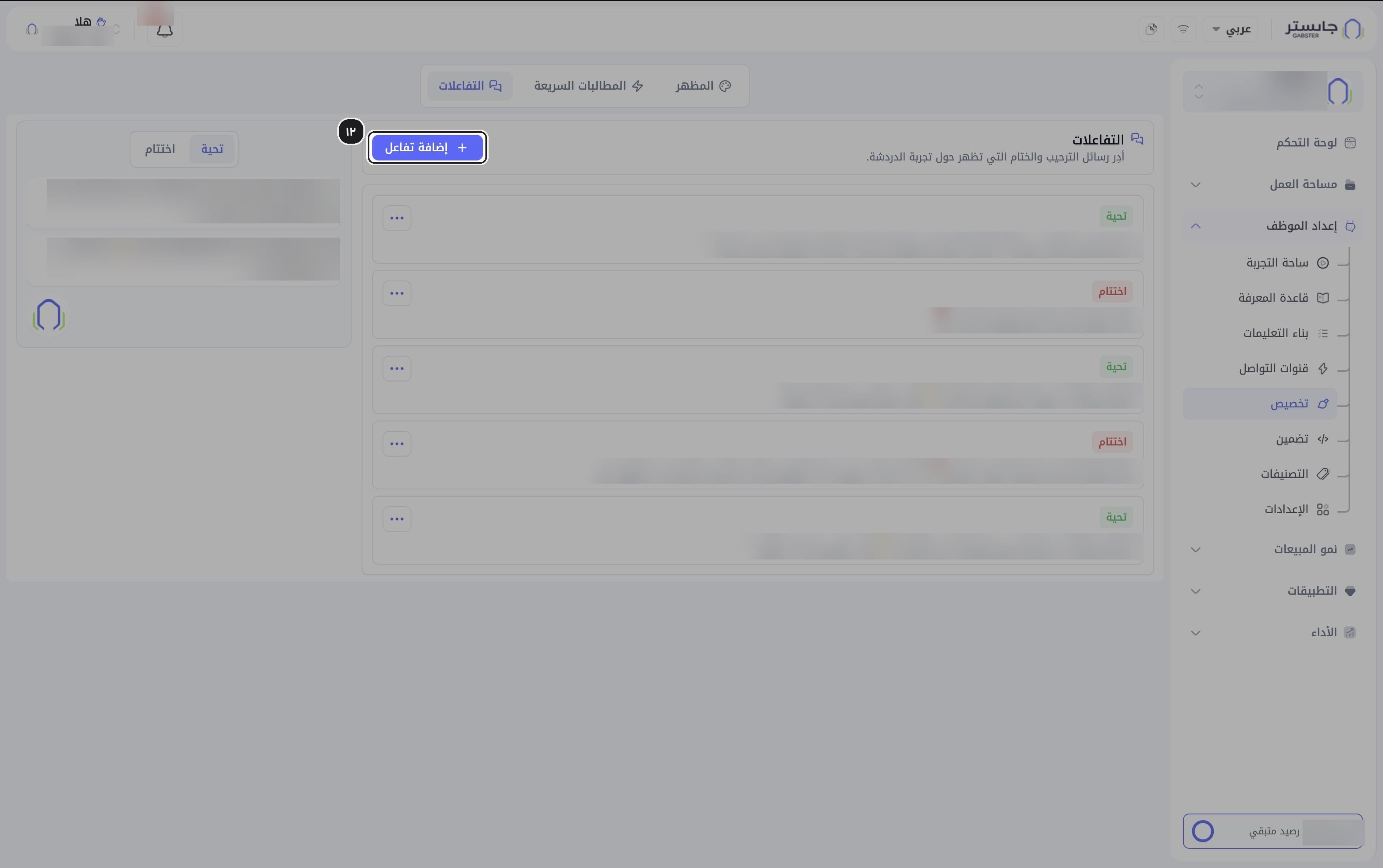
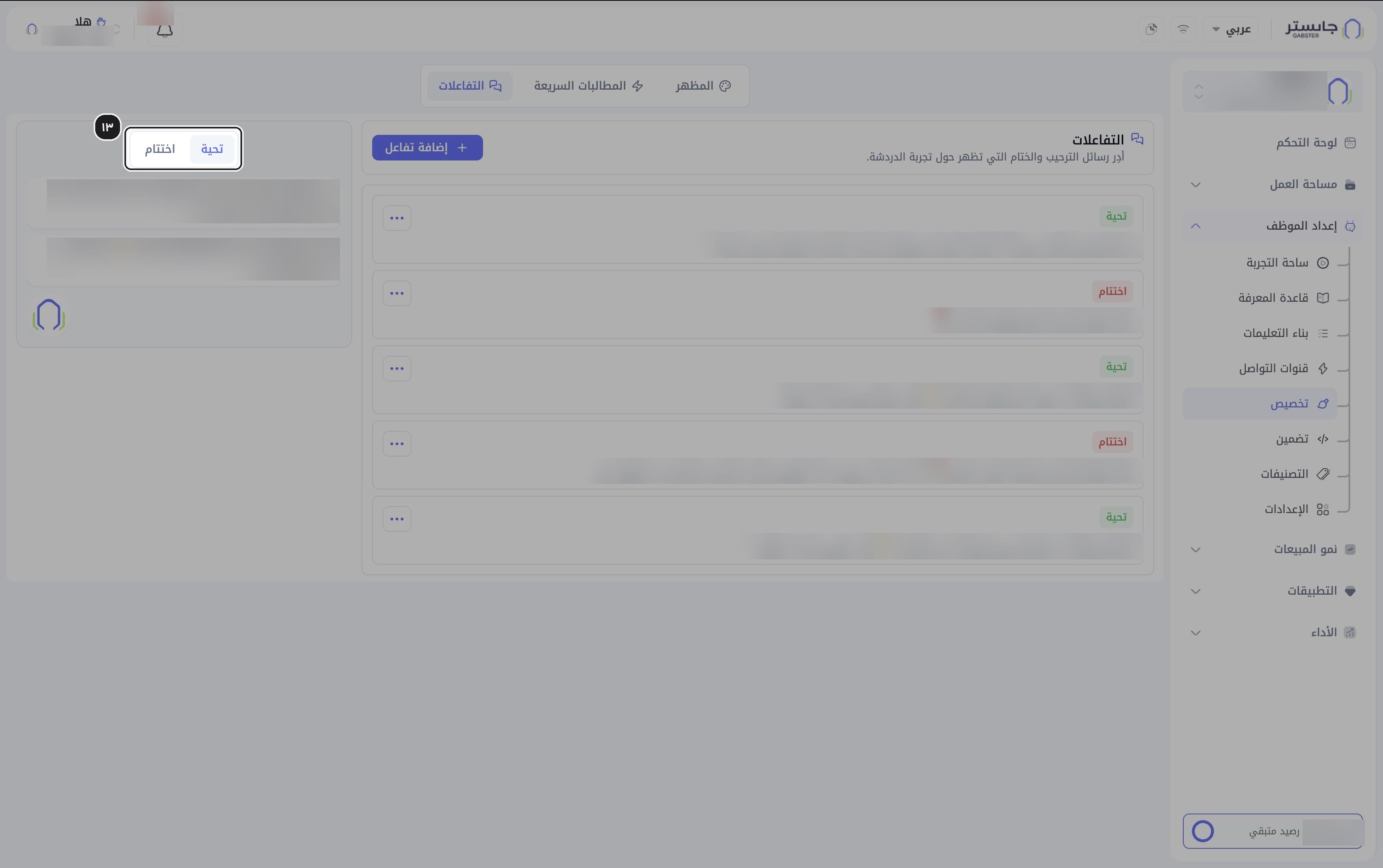
Switch to the Interactions (التفاعلات) tab and click Add interaction (إضافة تفاعل).
The form asks for the message text and its type: greeting or closing.
Preview greetings and closings
Choose Greeting (تحية) or Closing (اختتام) above the preview.
Result: Greeting shows the greeting bubbles above the chat launcher.
Adjust language and widget texts (optional)
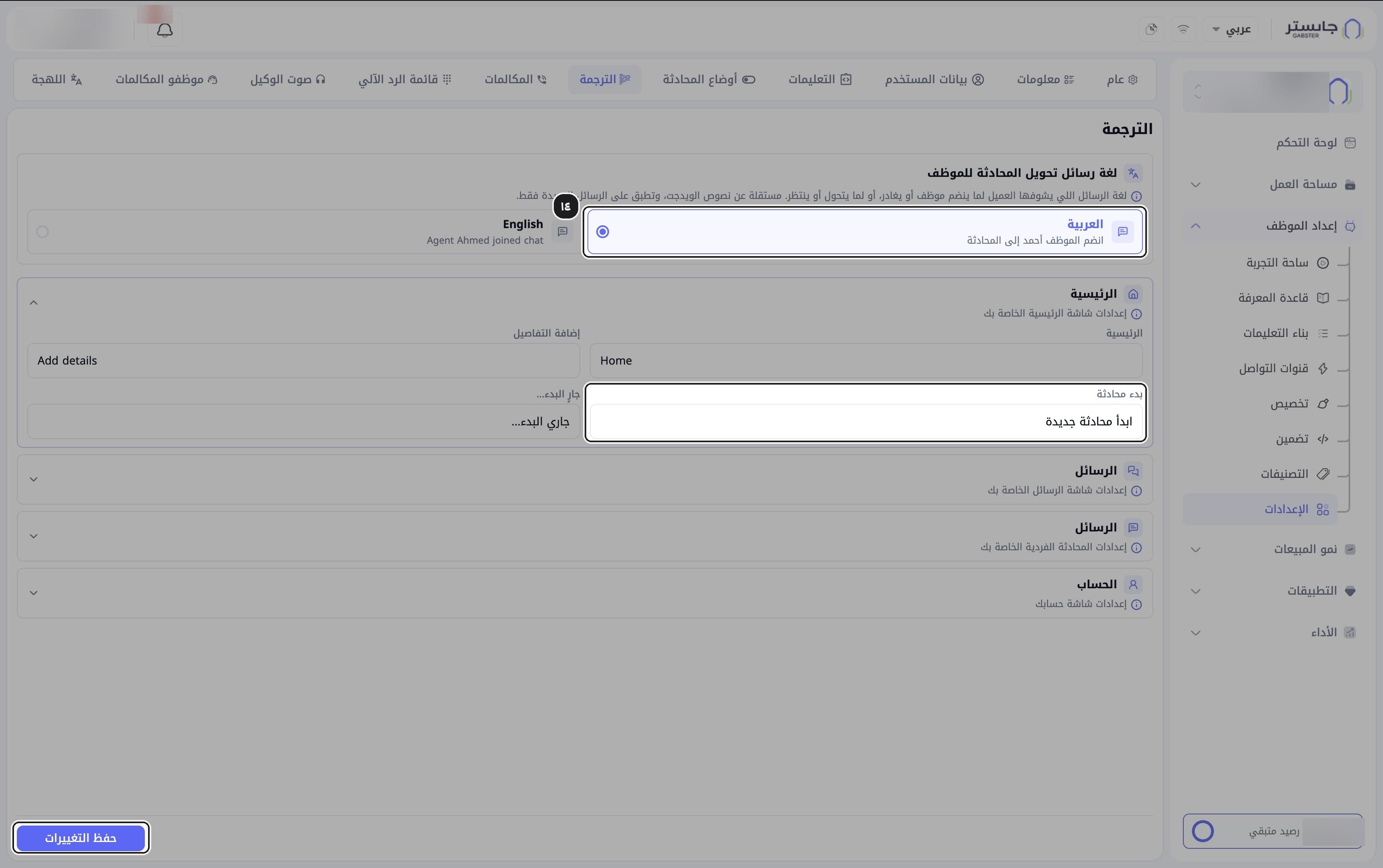
In Settings (الإعدادات), open the Translation (الترجمة) tab. Under Language of conversation-handoff messages (لغة رسائل تحويل المحادثة للموظف), choose Arabic (العربية) or English, change the widget texts if needed (such as Start a conversation (بدء محادثة)), then click Save changes (حفظ التغييرات).
The handoff-message language applies to new messages only.
Embed
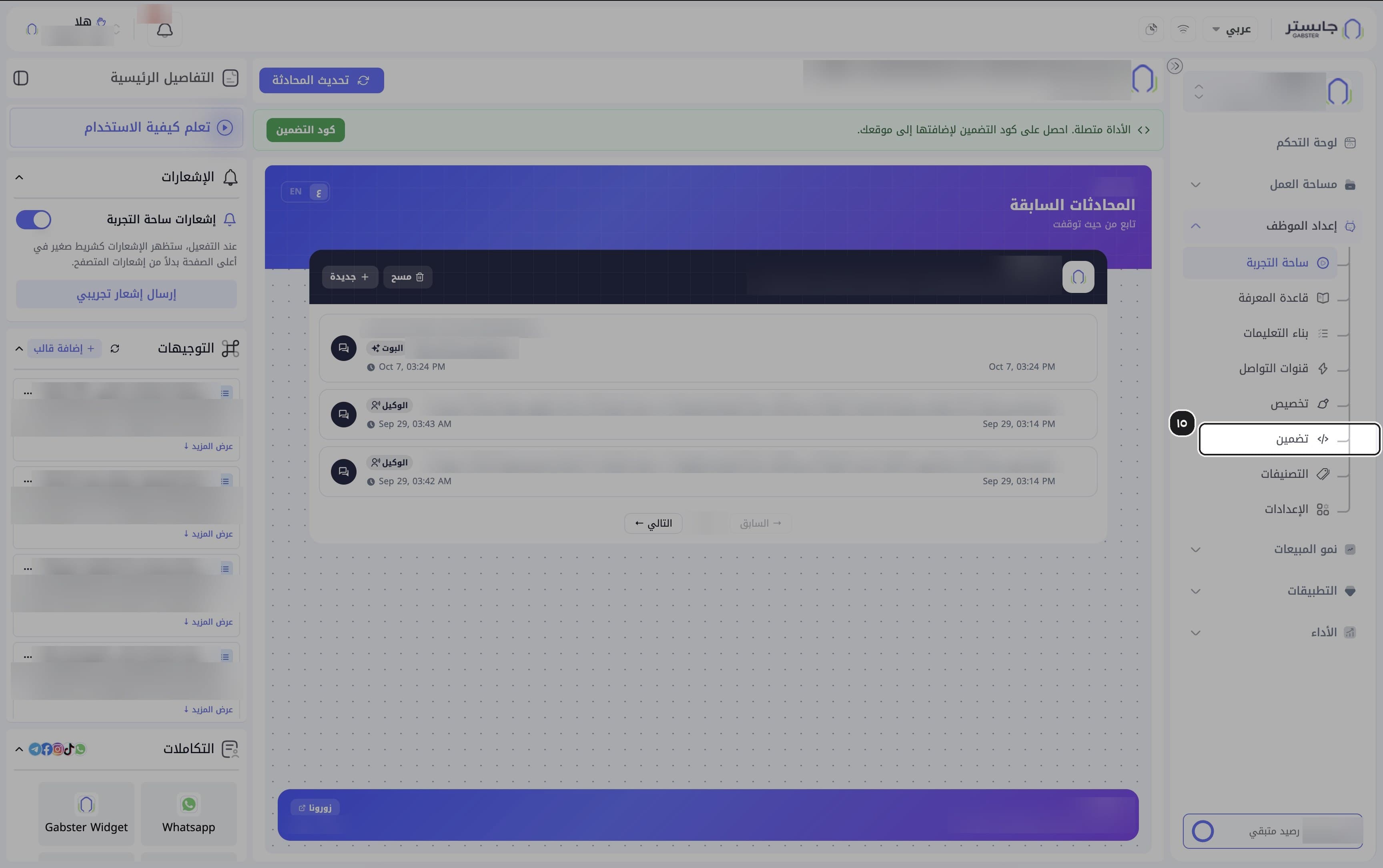
Open Embed
In the AI Agent Setup group, choose Embed (تضمين).
Result: the Embed page opens with three steps (its title reads ضمّن روبوت الدردشة).
Allow your domain
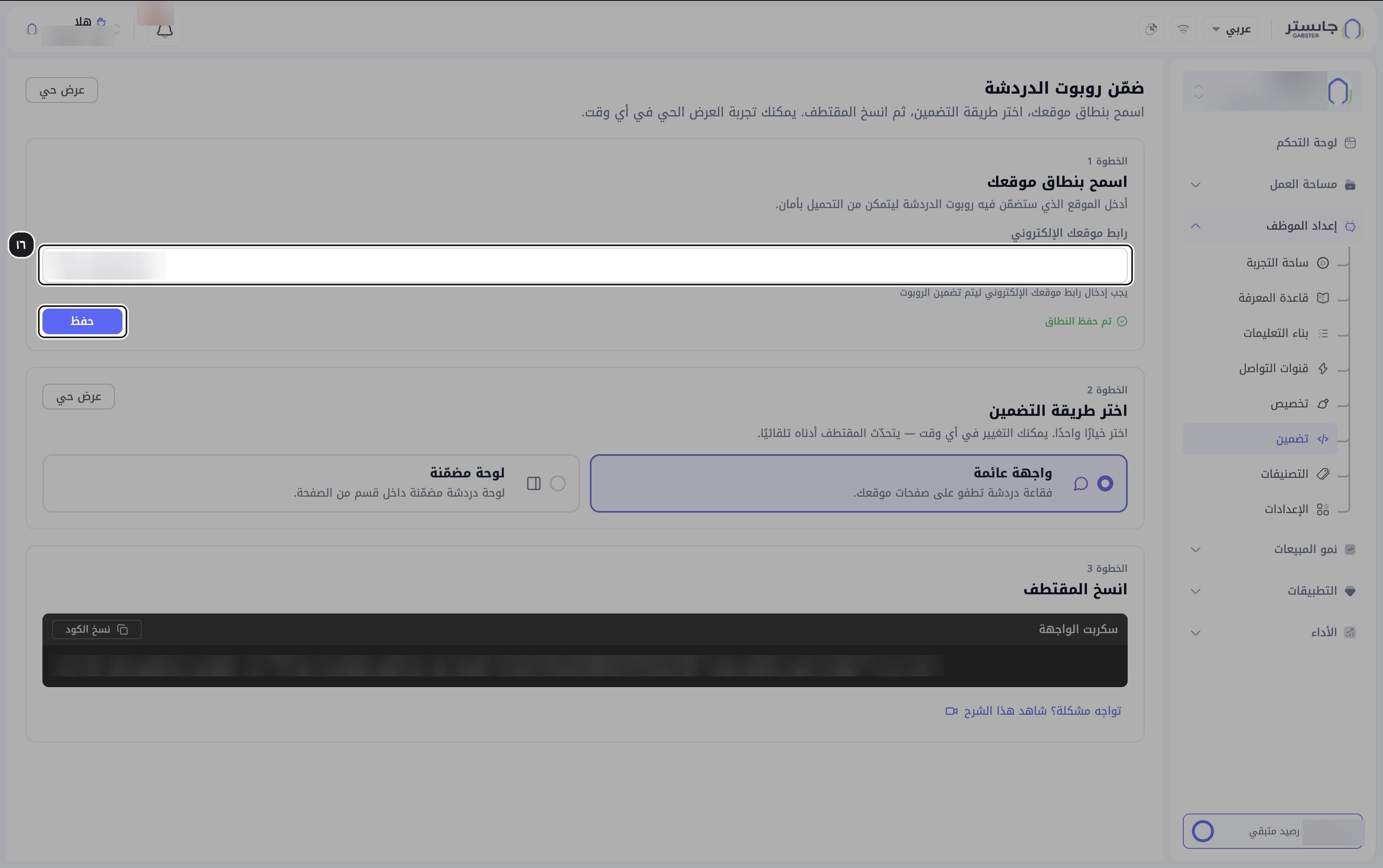
In Step 1 (Allow your domain (اسمح بنطاق موقعك)), enter Your website URL (رابط موقعك الإلكتروني) and click Save (حفظ). Result: once the domain is saved, the green text Domain saved (تم حفظ النطاق) appears under the field.
Each AI Agent has one website address: saving a new one replaces the old one. Enter it exactly as visitors' browsers show it, including https:// and www. if your site uses them.
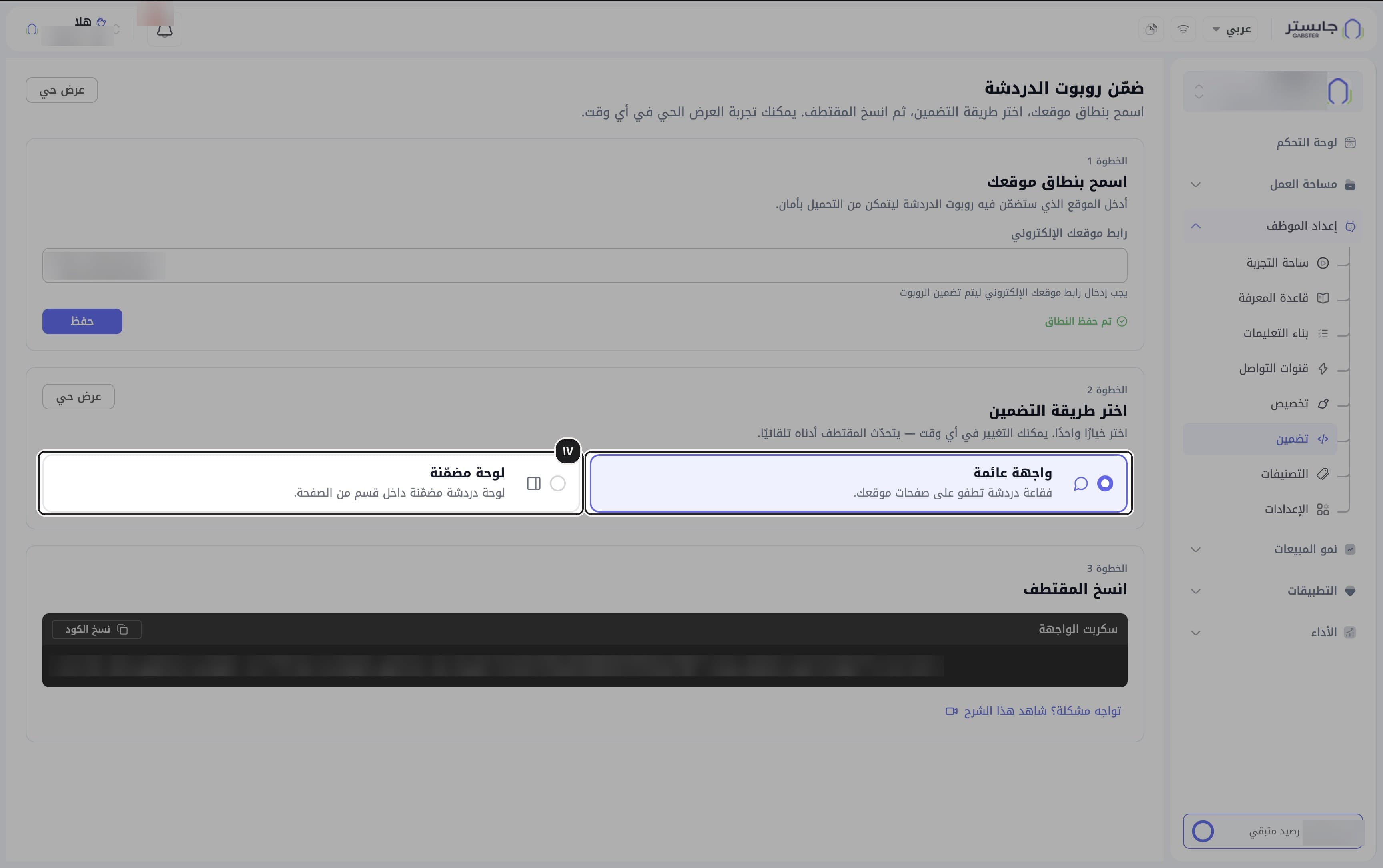
Choose the embed method
In Step 2 (Choose the embed method (اختر طريقة التضمين)), choose:
- Floating widget (واجهة عائمة): a chat bubble that floats over your site's pages.
- Inline panel (لوحة مضمّنة): a chat panel inside a section of the page.
Result: the code below updates automatically to match, and you can change the method any time.
Both methods give a single script line; paste the inline panel's line where the panel should appear.
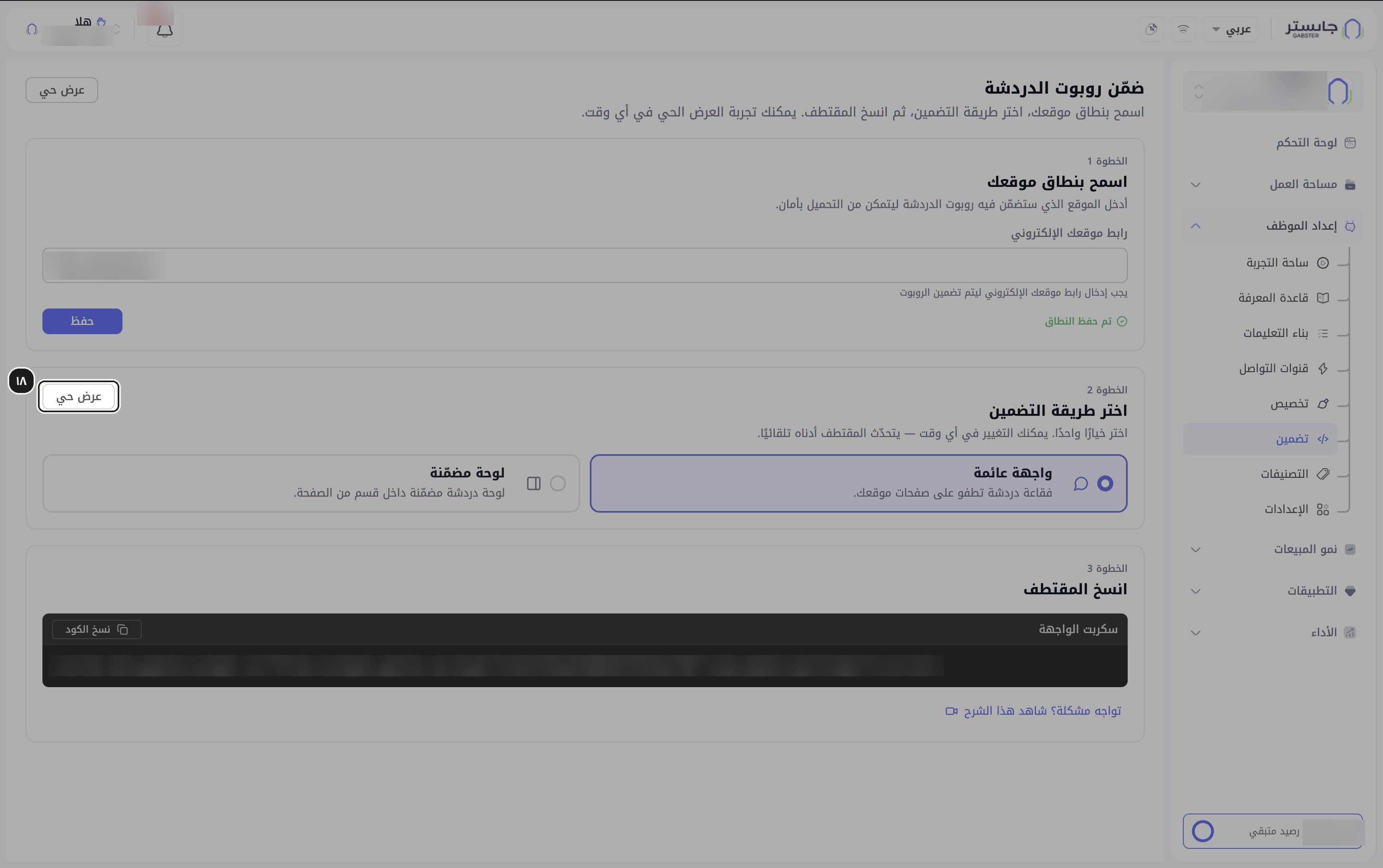
Try the live preview
Click Live preview (عرض حي) inside the step 2 card.
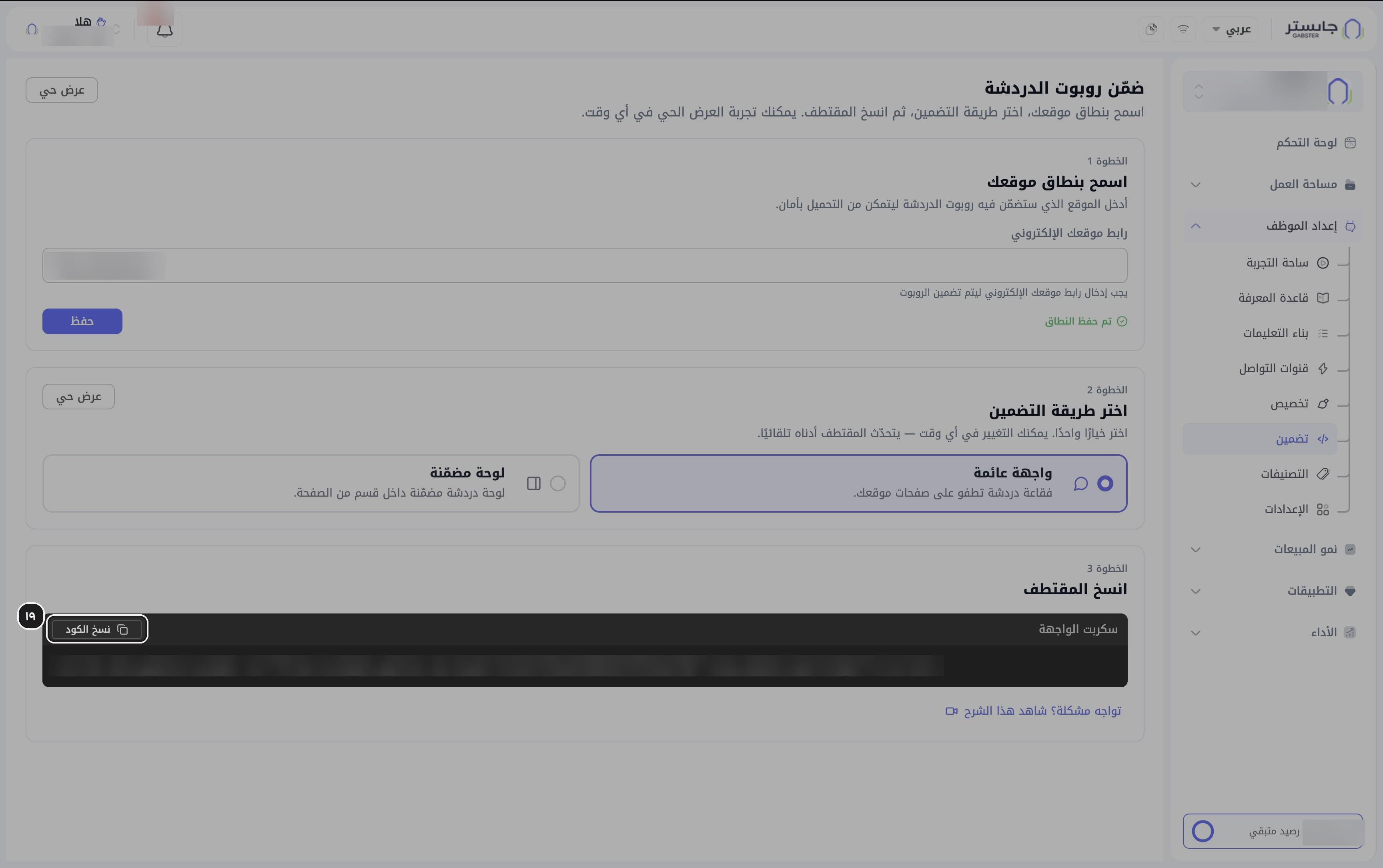
Copy the code
In Step 3 (Copy the snippet (انسخ المقتطف)), the code appears in the Widget script (سكربت الواجهة) box. Click Copy code (نسخ الكود). If you run into trouble, use the Having trouble? Watch this tutorial (تواجه مشكلة؟ شاهد هذا الشرح) link.
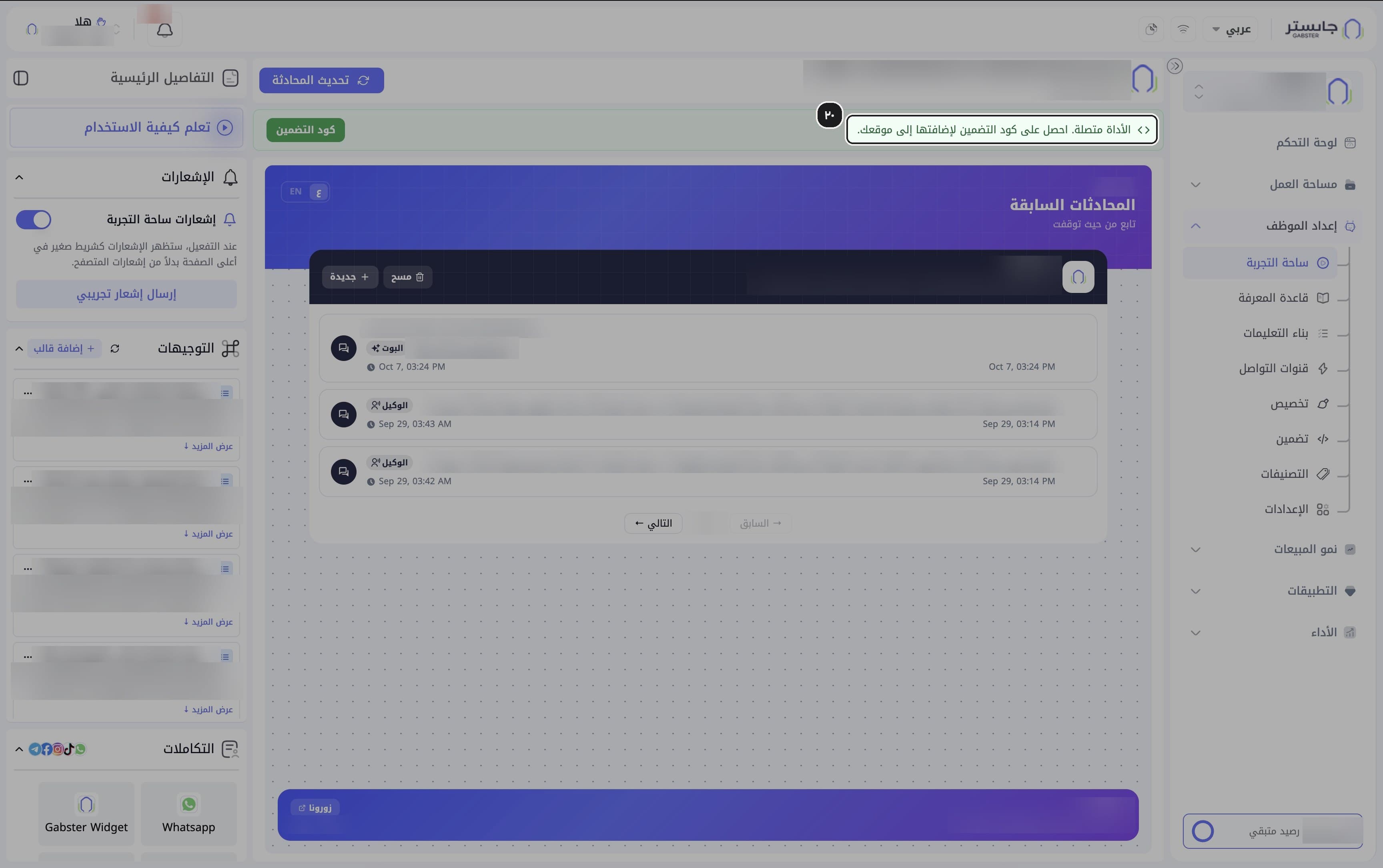
Paste the code and check the connection
Paste the code into your website's pages, then open the Playground (ساحة التجربة) and look for the green banner The widget is connected. Get the embed code to add it to your website. (الأداة متصلة. احصل على كود التضمين لإضافتها إلى موقعك.)
Paste the floating widget's code once, just before </body> in the part shared by every page (or into your site builder's footer or custom-code box), and publish your site. The green banner means the widget is connected to this AI Agent in Gabster; it doesn't check your website. To confirm the install, open your own site and look for the chat.
Related
Build your AI Agent
Teach your AI Agent about your business, write its instructions, test it in the Playground and set its basic settings.
Connect your channels and set up comment replies
Connect WhatsApp, Instagram, Facebook and TikTok to your AI Agent and decide how it replies to comments on your posts.