
AI Agent setup
Playground
Test your AI Agent in a live preview of the chat widget and manage its instructions, integrations and knowledge sources in one place.
The Playground (ساحة التجربة) is where you test your AI Agent before it talks to your customers. The centre of the page shows the chat widget as your customers see it, and the side panel holds what shapes the AI Agent's answers: its instructions, integrations and Knowledge Base, plus notification settings.
How to open it
In the sidebar, open AI Agent Setup (إعداد الموظف) and choose Playground (ساحة التجربة).
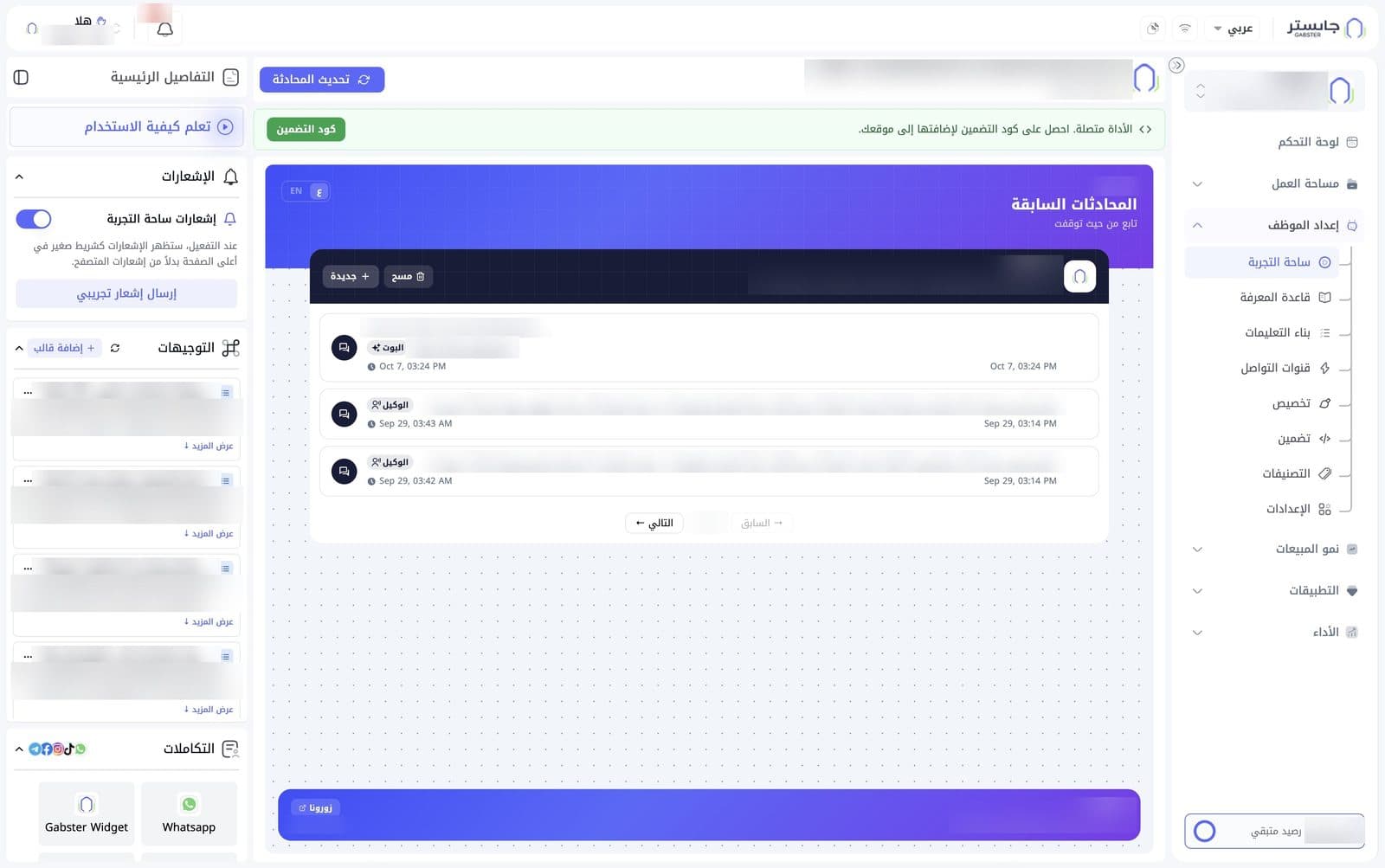
Header and embed code
- The header shows your AI Agent's logo, name and description, so you know which AI Agent you are testing.
- Refresh conversation (تحديث المحادثة): a blue button with a refresh icon at the far left of the header.
- Below the header, a green banner tells you the widget is connected, with an Embed code (كود التضمين) button to get the code that adds the chat widget to your website. See Embed for details.
Chat widget preview
The centre of the page shows the chat widget as your customers see it, including the coloured header, the branded footer and the Visit us (زورونا) button.
- The widget header has a two-option EN / ع switch, shown with «ع» selected.
- Previous conversations (المحادثات السابقة, "Continue where you left off") lists past conversations, each with a preview of the last message and its time. A badge appears before the preview: AI Agent (البوت) or Staff member (الوكيل).
- The AI Agent bar inside the widget has two buttons: New (جديدة +) and Clear (مسح).
- Use Next (التالي) and Previous (السابق) below the list to move between pages; between them is the current page out of the total.
Side panel: Main details
The panel on the left, Main details (التفاصيل الرئيسية), holds collapsible sections — use the chevron next to each section to open or collapse it. Next to the panel title is a side-panel icon.
- Learn how to use (تعلم كيفية الاستخدام): a button with a play icon at the top of the panel.
Notifications
- Playground notifications (إشعارات ساحة التجربة): when on, notifications appear as a small bar at the top of the page instead of browser notifications.
- Send test notification (إرسال إشعار تجريبي): sends a test notification so you can see how it looks.
Instructions
The Instructions (التوجيهات) section holds your AI Agent's instructions as cards — the same instructions you build in the Instruction Builder. Each card shows a title and a two-line preview of its text.
- Show more (عرض المزيد) expands the card to its full text; it then reads Show less (عرض أقل).
- The section header has a refresh icon; it and the add button are hidden when the section is collapsed.
- Add instruction template (إضافة قالب +): add a new instruction template.
Open the ⋯ button on any card for three options:
| Option | Use |
|---|---|
| View instruction template (عرض القالب) | View this instruction template |
| Edit section (تعديل الجزء) | Opens the Edit section drawer for this card |
| Delete instruction template (حذف القالب) | Delete this instruction template (shown in red) |
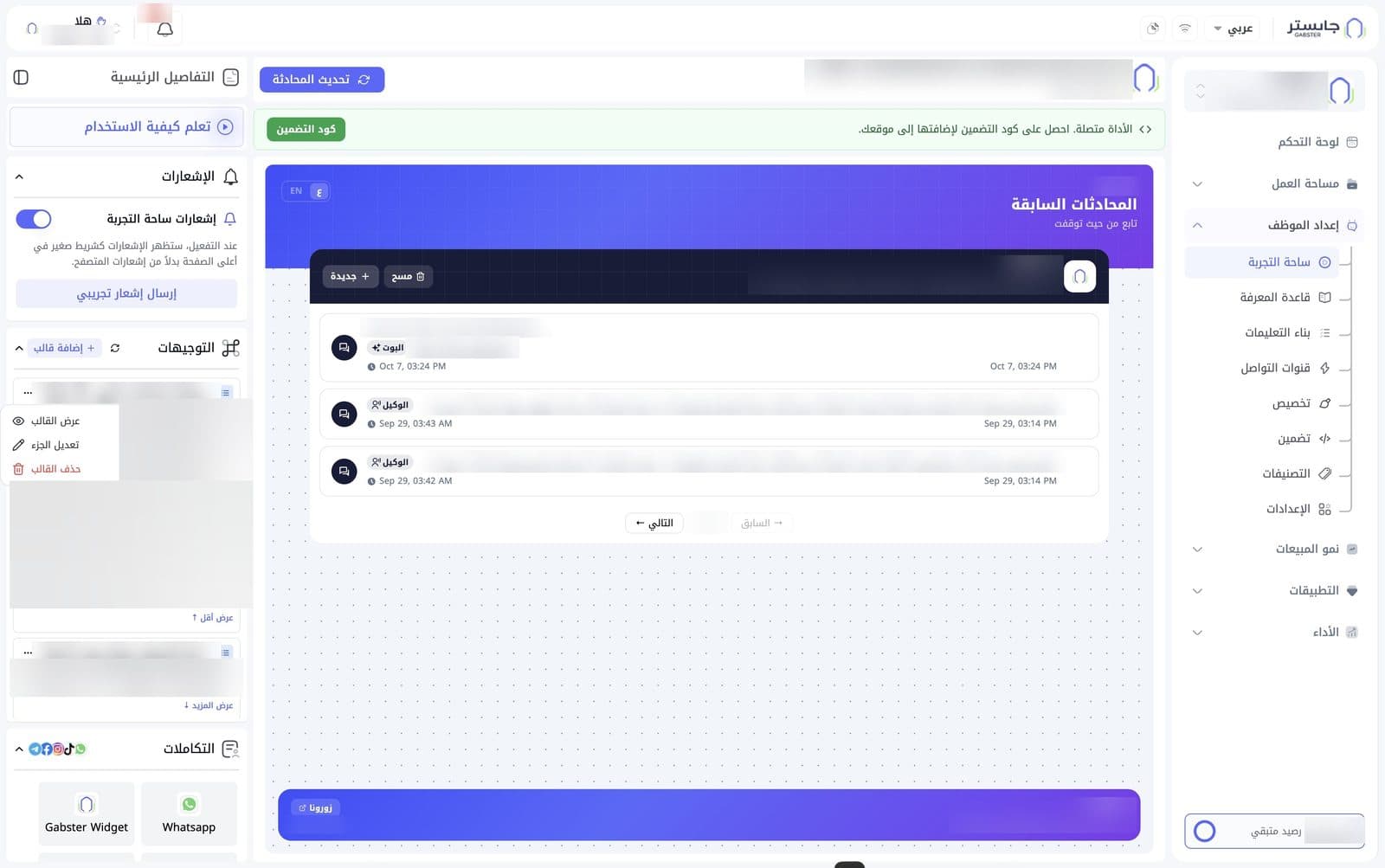
Integrations
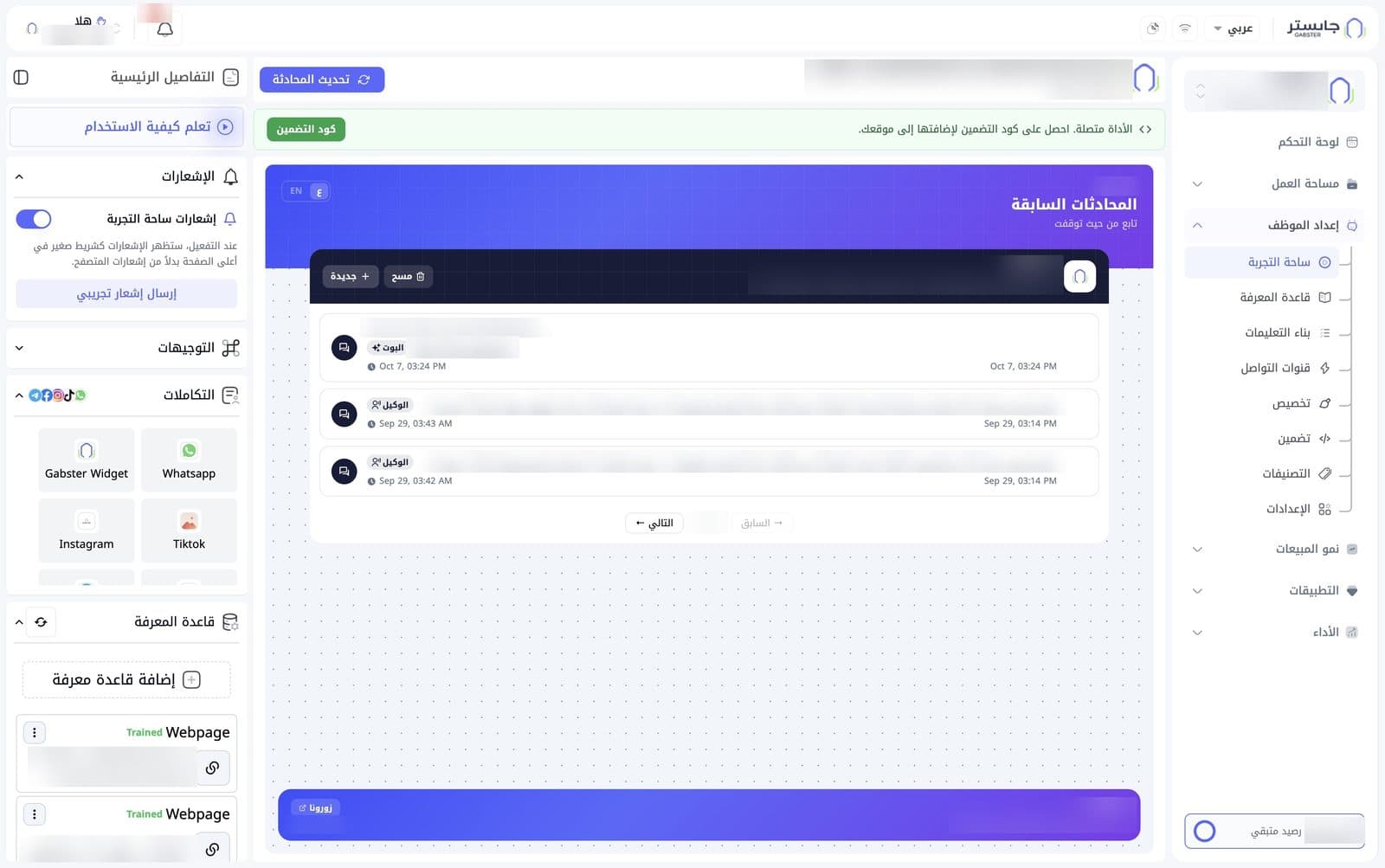
The Integrations (التكاملات) section shows the channels and apps linked to your AI Agent as a grid of tiles, such as Gabster Widget, WhatsApp, Instagram and TikTok. The grid also holds an Add (إضافة) tile and scrolls to show the rest of the tiles.
Knowledge Base
The Knowledge Base (قاعدة المعرفة) section lists your knowledge sources. Each source card shows its type (e.g. Webpage), its status (e.g. Trained) and its title, with a link button and a ⋮ button.
- Add knowledge base (إضافة قاعدة معرفة): add a new source. To manage all sources in detail, use the Knowledge Base page.
- A sync button sits in the section header.
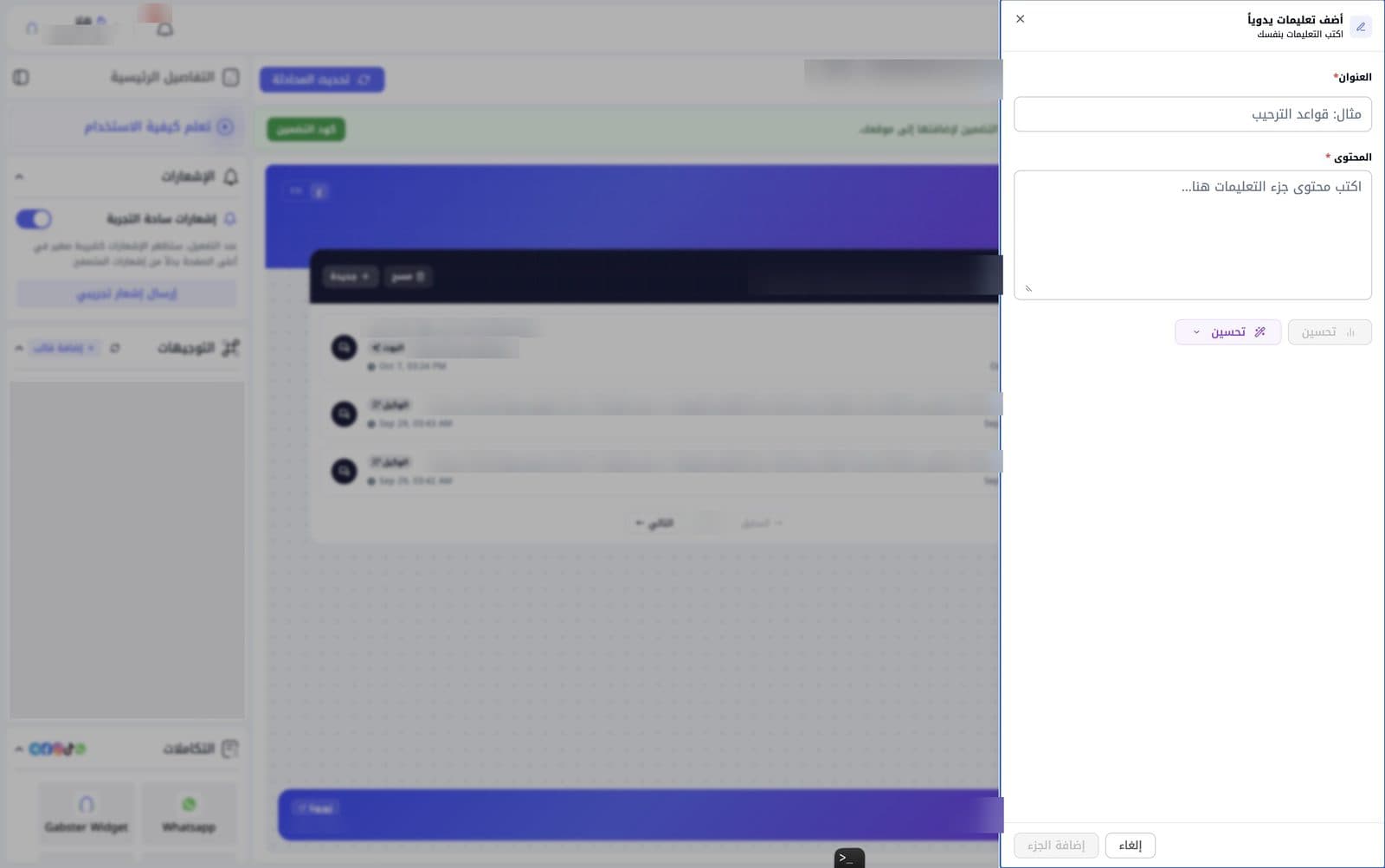
Add instructions manually
The Add instructions manually (أضف تعليمات يدوياً) drawer opens at the side of the screen so you can write a new instruction section yourself:
- Enter a Title (العنوان, required), e.g. "Greeting rules".
- Enter the Content (المحتوى, required) — the instruction text itself.
- After the Content field are two Improve (تحسين) buttons: one with a bar-chart icon, disabled while the content is empty, and a purple one with a magic-wand icon and a chevron (see "Edit section and the Improve panel" below).
- Click Add section (إضافة الجزء). The button stays disabled while the form is empty. Click Cancel (إلغاء) to leave.
Edit section and the Improve panel
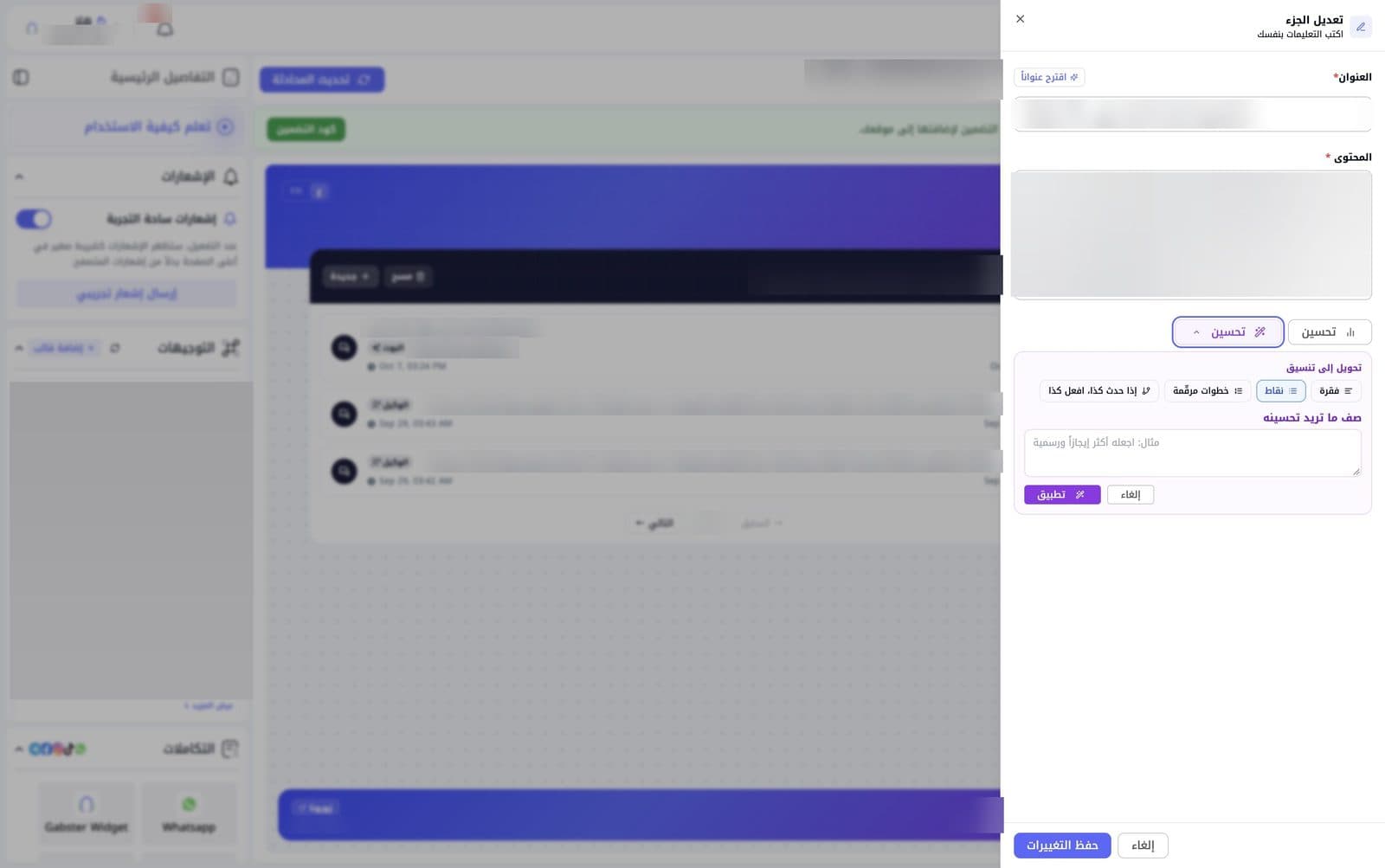
The Edit section (تعديل الجزء) drawer opens from a card's ⋯ menu, filled with the section's current title and content. Besides the same fields, it offers:
- Suggest a title (اقترح عنواناً): a button next to the Title field that asks AI to suggest a title.
- The Improve panel, shown open below the purple Improve (تحسين) button with the chevron:
- Convert to format (تحويل إلى تنسيق): pick a shape for the text — Paragraph (فقرة), Bullets (نقاط), Numbered steps (خطوات مرقّمة) or If this happens, do that (إذا حدث كذا، افعل كذا).
- Describe what to improve (صف ما تريد تحسينه): say what you want in your own words, e.g. "make it more concise and formal".
- Apply (تطبيق) runs the improvement; Cancel (إلغاء) closes the panel.
- Click Save changes (حفظ التغييرات) to save, or Cancel (إلغاء) to leave without saving.
Integrations window
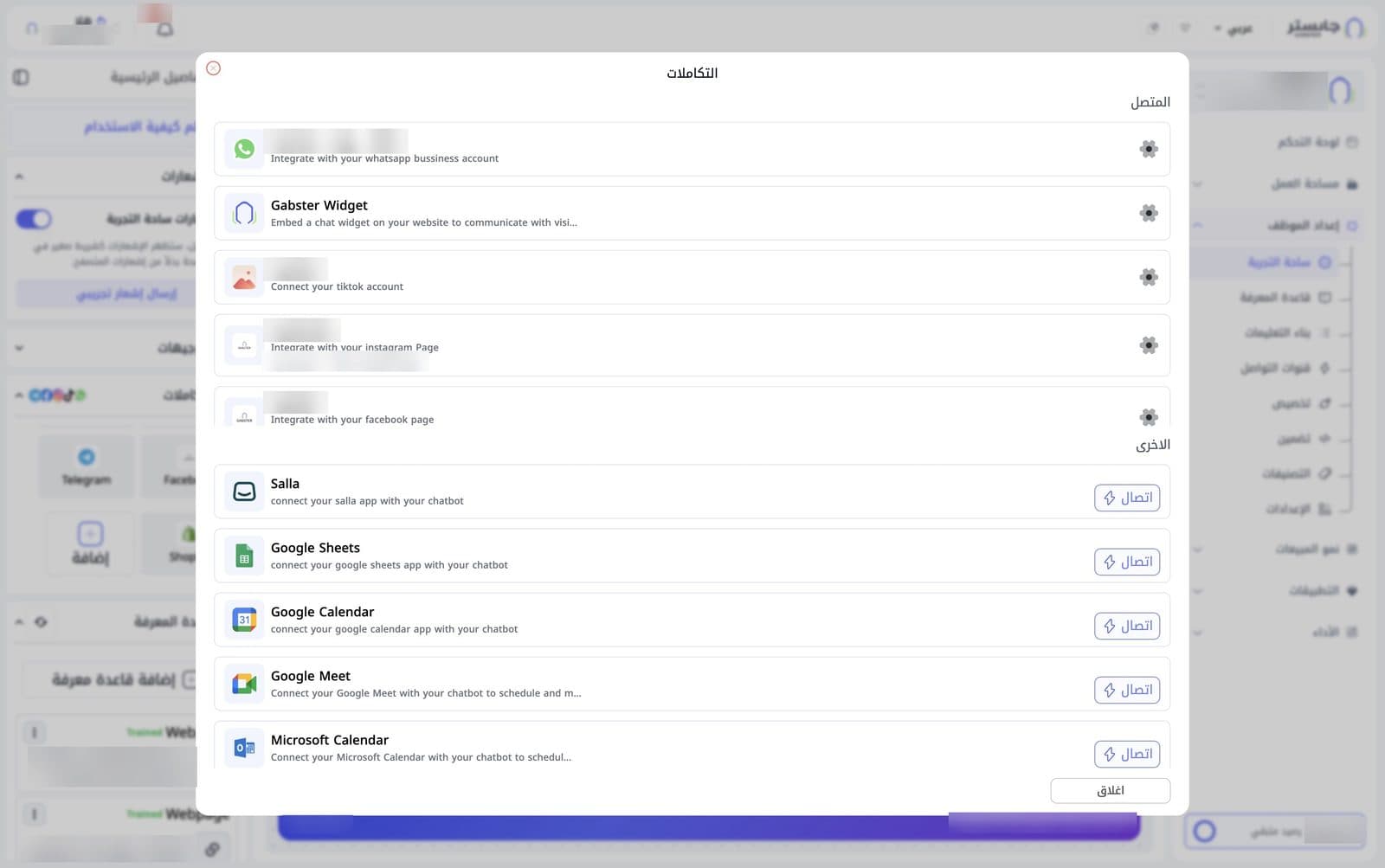
The Integrations (التكاملات) window shows two lists:
- Connected (المتصل): integrations already linked, each named after the connected account or page, with a gear button for its settings.
- Others (الاخرى): apps you can connect, such as Salla, Google Sheets, Google Calendar, Google Meet and Microsoft Calendar, each with a Connect (اتصال) button.
Close the window with Close (اغلاق) or the × at the top.
After any change to the instructions or the Knowledge Base, ask a real question in the preview to check that the answer is now what you want.