
Tutorials
Top up the WhatsApp Wallet and track your balance
Read your WhatsApp Wallet balance, free replies and transactions, and start a top-up before the balance runs out.
In this tutorial you read your WhatsApp Wallet — available, reserved and total balance, last top-up, free replies per number, and transactions — and start a top-up before the balance runs out.
Before you start
- WhatsApp is connected to your project. See Connect channels.
- Permission to pay for the account.
Steps
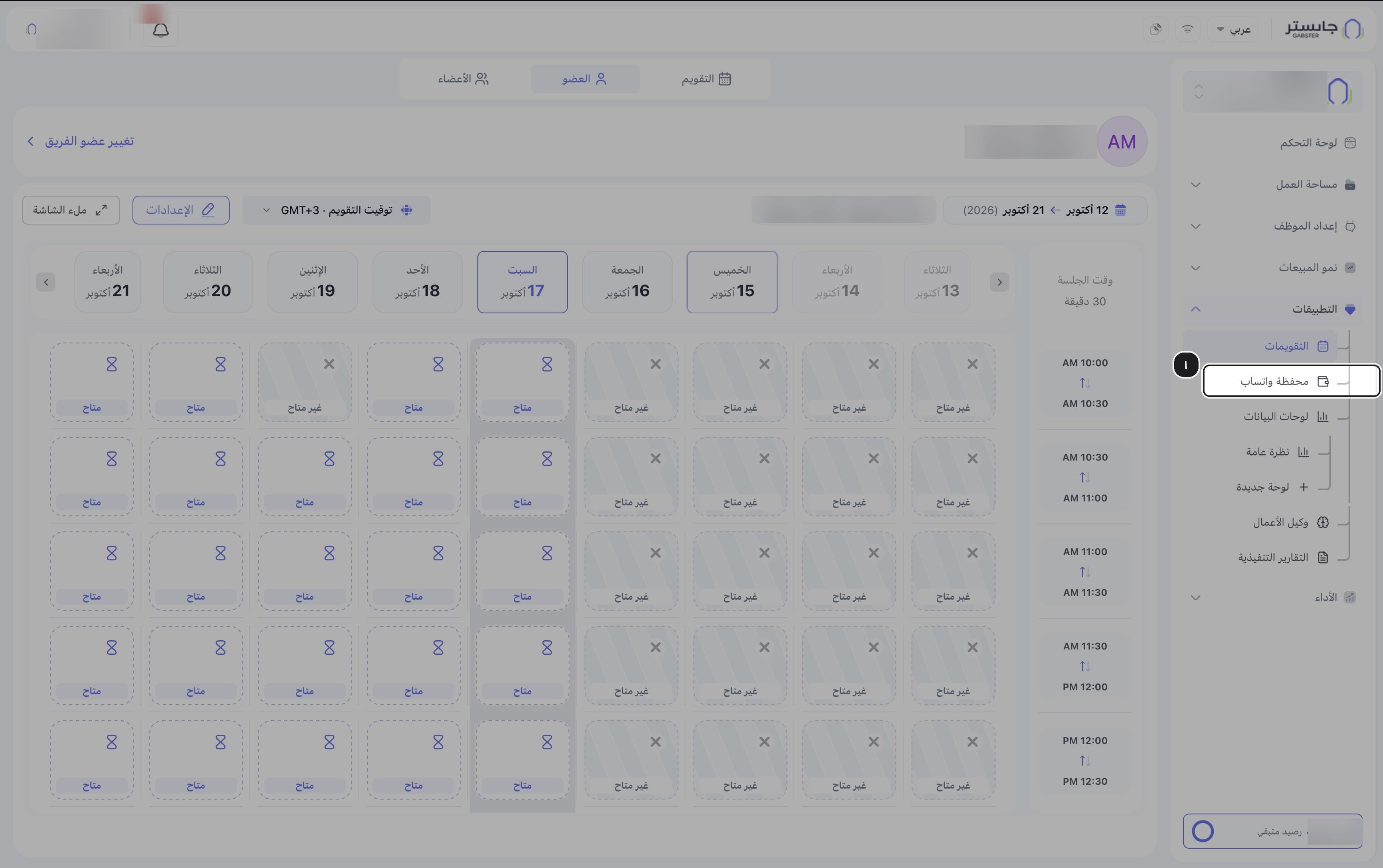
In the sidebar, open Apps (التطبيقات) and choose WhatsApp Wallet (محفظة واتساب).
The WhatsApp Wallet page opens.
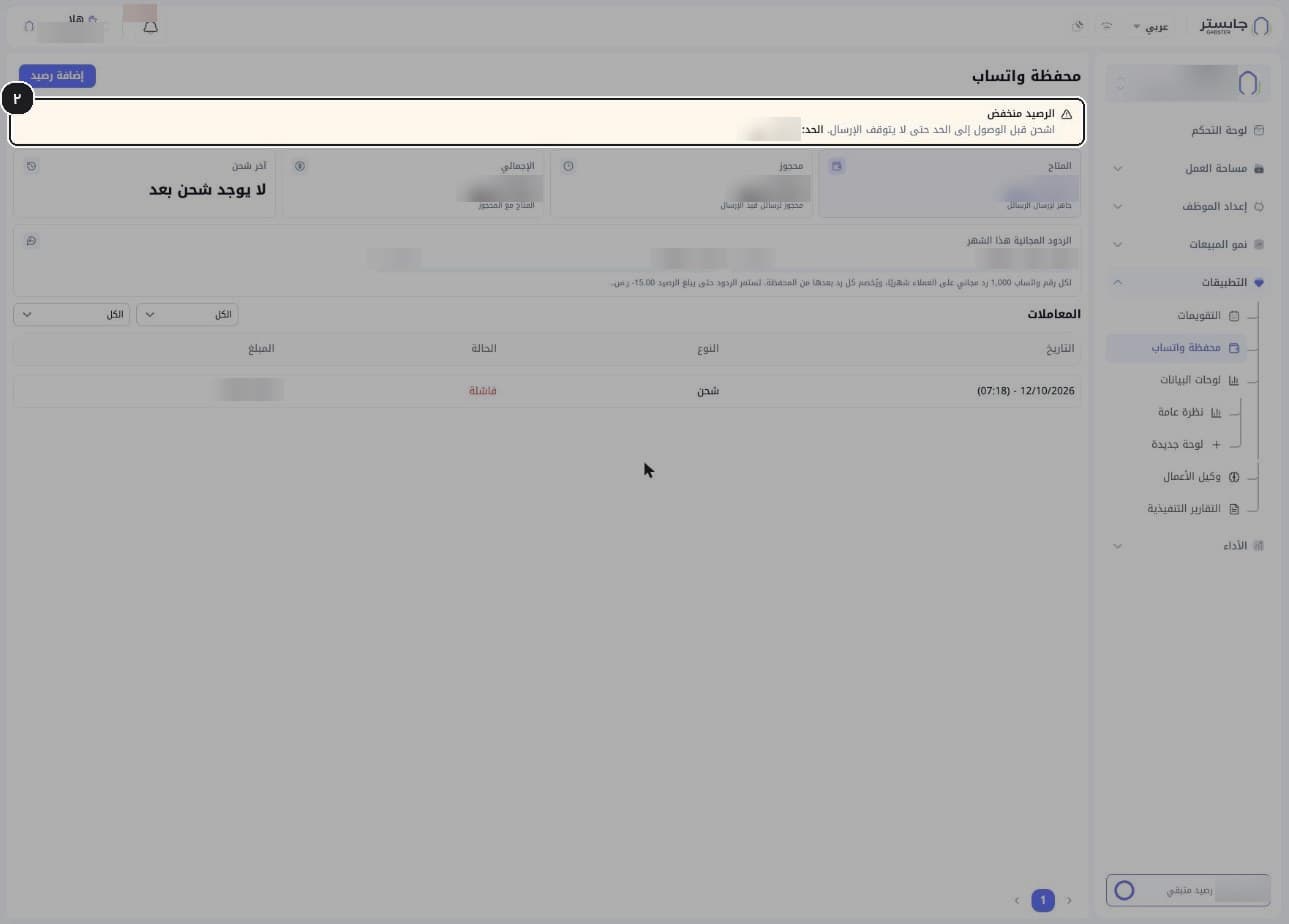
Watch for the Low balance (الرصيد منخفض) banner at the top. It asks you to top up before reaching the limit so sending does not stop, and shows the limit.
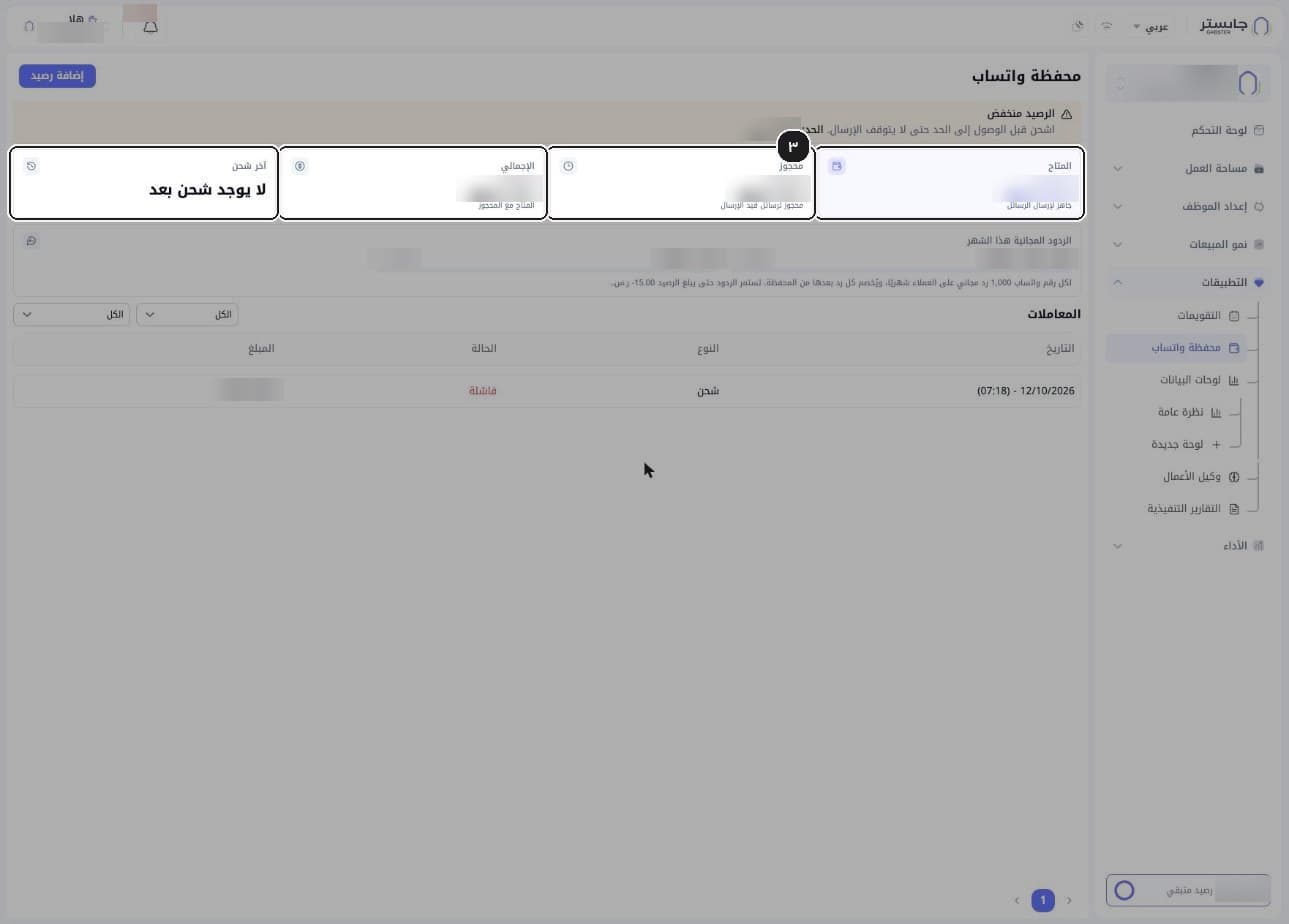
Read the balance cards:
| Card | What it shows |
|---|---|
| Available (المتاح) | Balance ready for sending messages |
| Reserved (محجوز) | Balance held for messages being sent |
| Total (الإجمالي) | Available plus reserved |
| Last top-up (آخر شحن) | Your latest top-up, or "No top-up yet" (لا يوجد شحن بعد) |
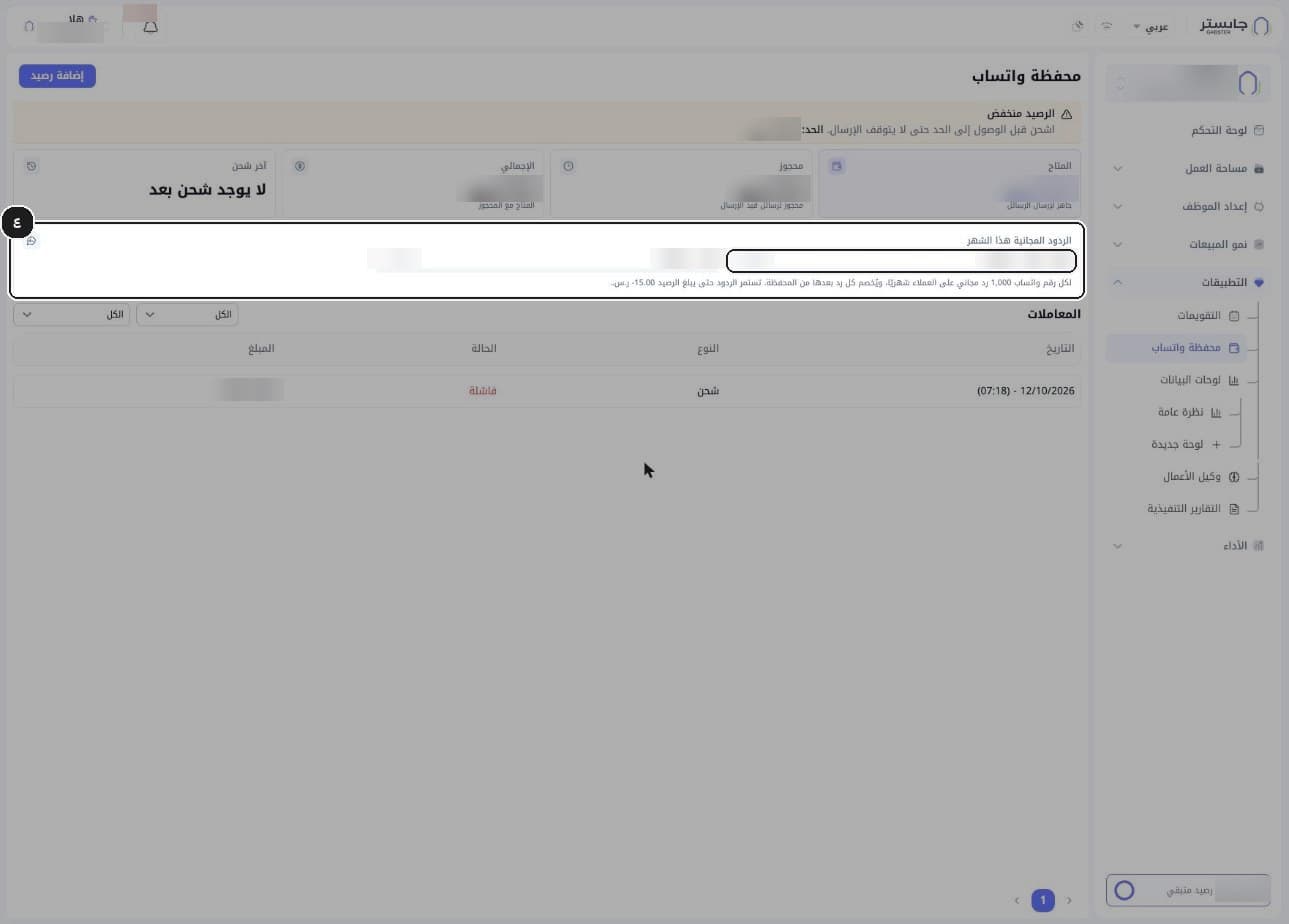
Check Free replies this month (الردود المجانية هذا الشهر) for each WhatsApp number. Each number gets 1,000 free customer replies per month; after that, each reply is charged to the wallet. Replies continue until the balance reaches −15.00 SAR.
Each number shows the replies used out of 1,000, with a progress bar.
Review the Transactions (المعاملات): Date (التاريخ), Type (النوع, e.g. Top-up (شحن)), Status (الحالة, e.g. Failed (فاشلة)) and Amount (المبلغ). Two filter dropdowns above the table start at All (الكل).
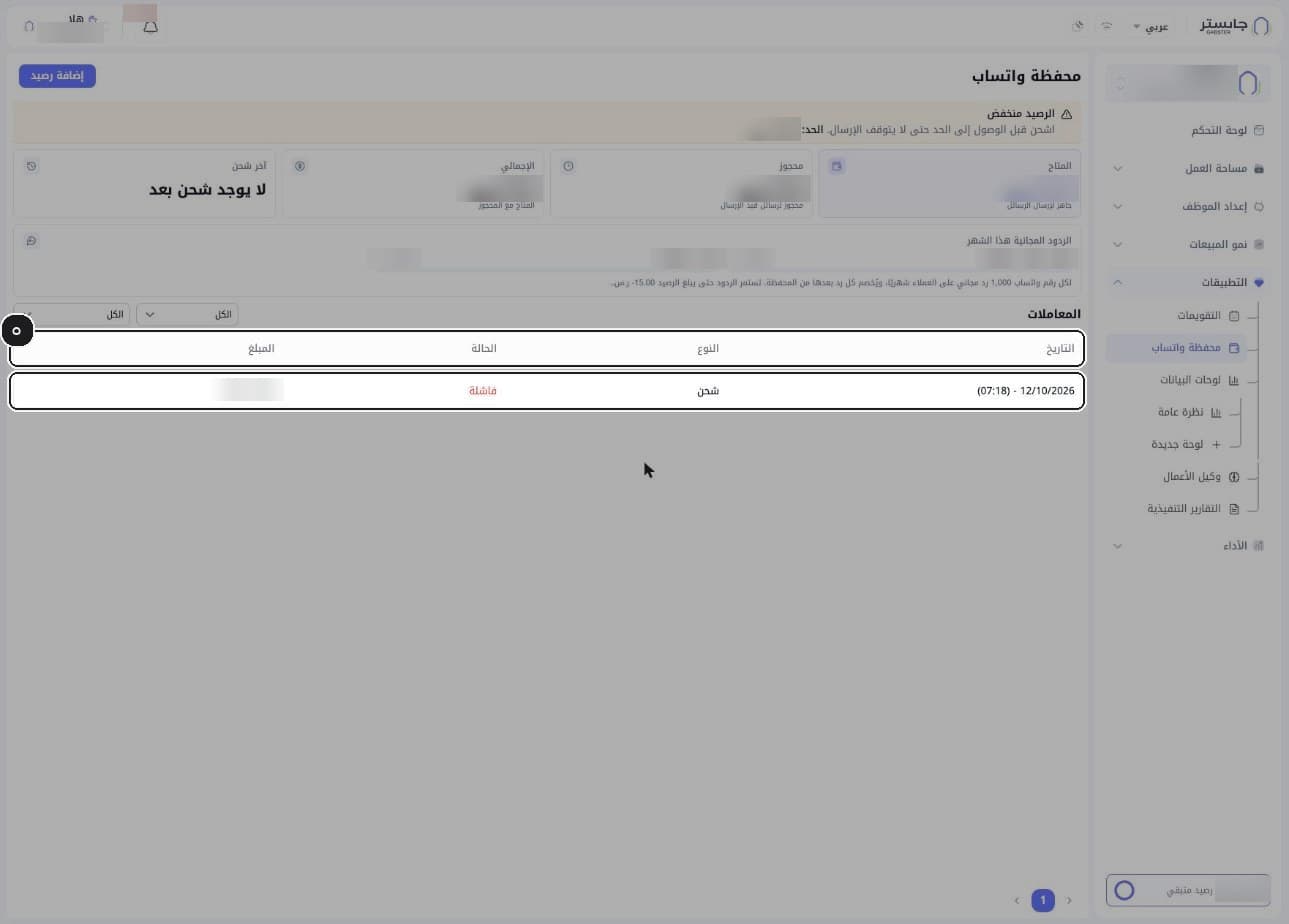
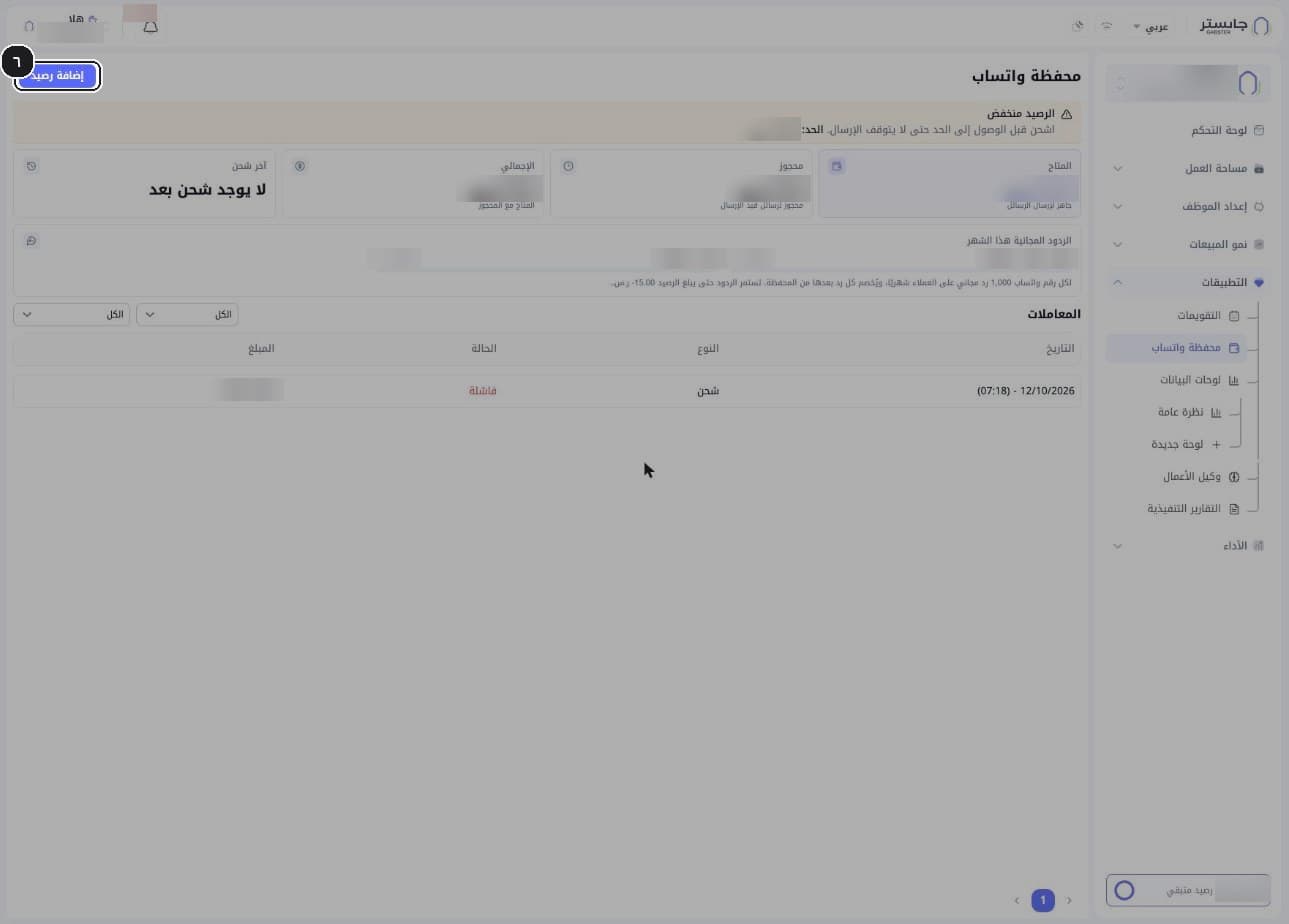
Click Add balance (إضافة رصيد).
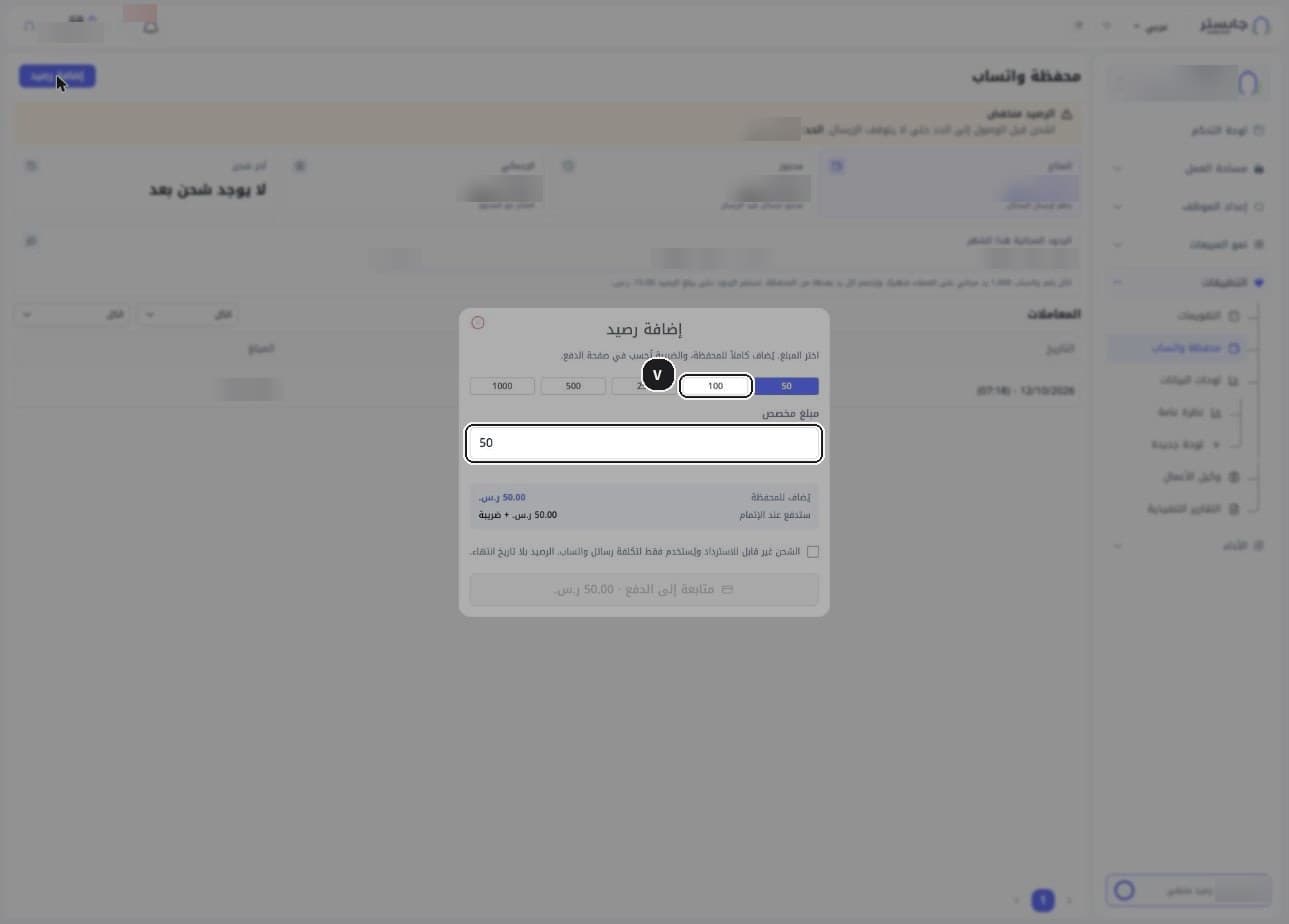
The Add balance window opens.
Pick a preset amount (50, 100, 250, 500 or 1000) or type one in Custom amount (مبلغ مخصص). 50 is selected by default.
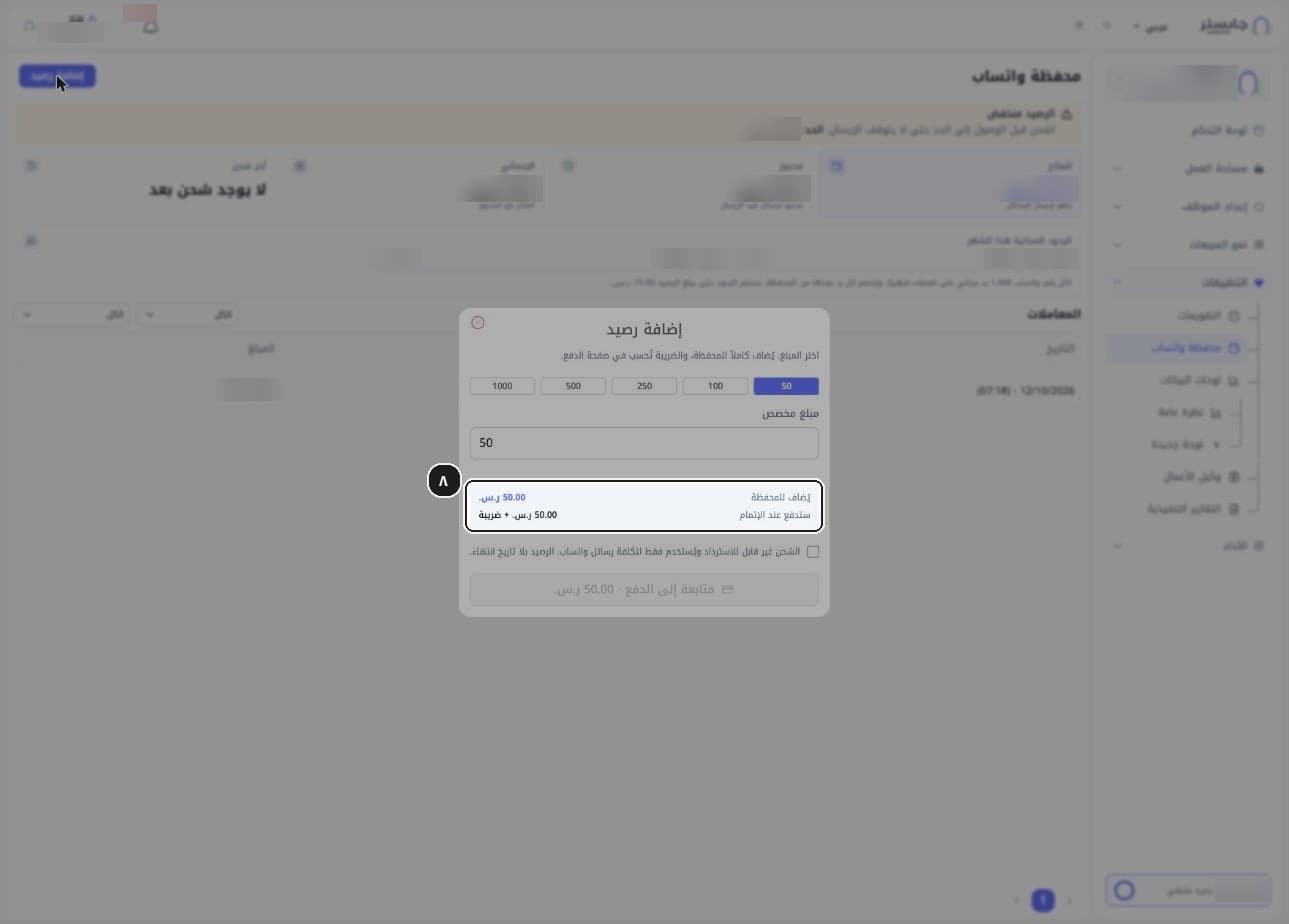
The amount is added to the wallet in full; tax is calculated on the payment page.
Check the summary: Added to wallet (يُضاف للمحفظة) is what goes into your wallet, and You pay at checkout (ستدفع عند الإتمام) is that amount plus tax.
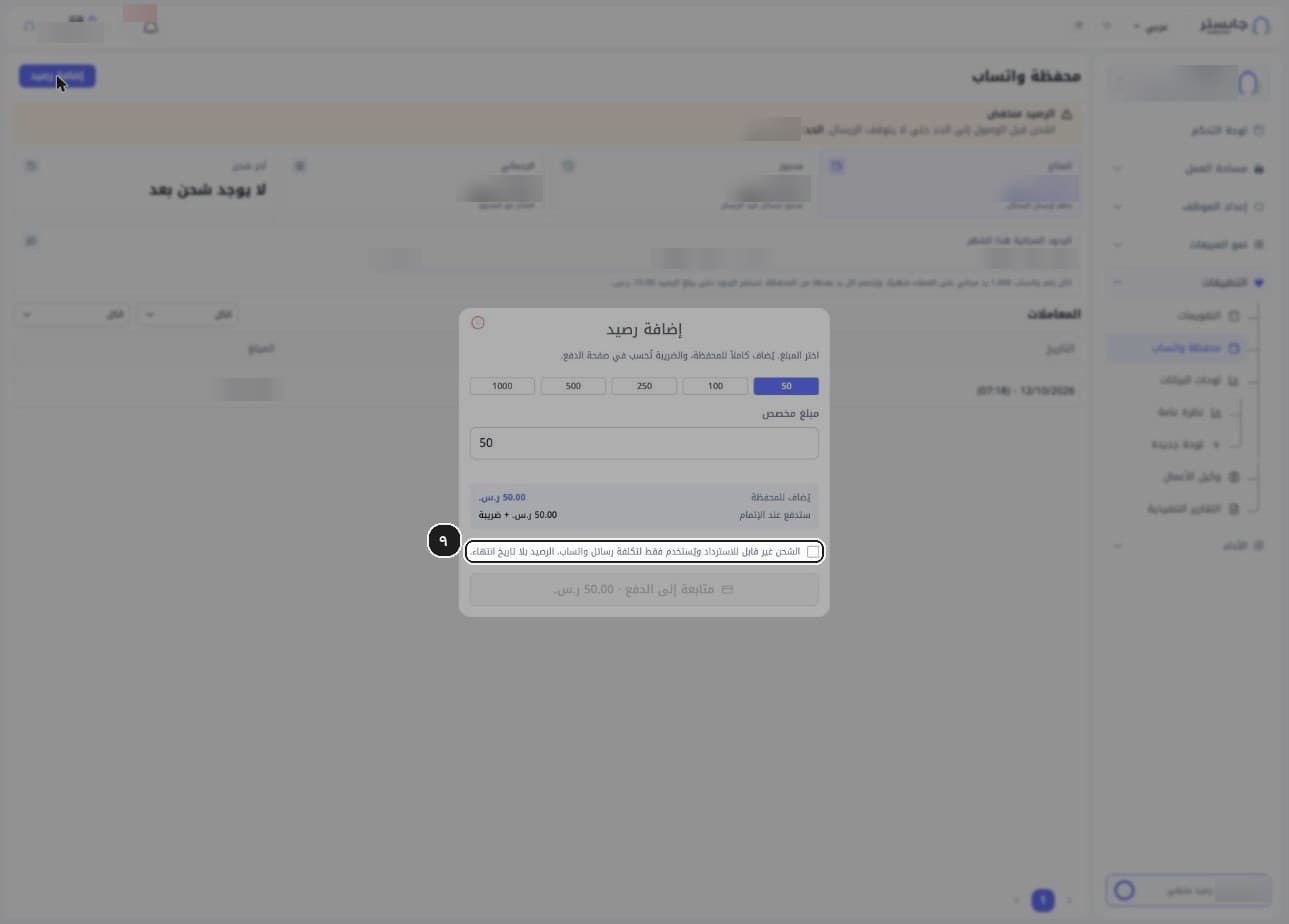
Tick the terms box: top-ups are non-refundable, used only for WhatsApp message costs, and the balance does not expire. The box is unticked by default, and the continue button is disabled while it is unticked.
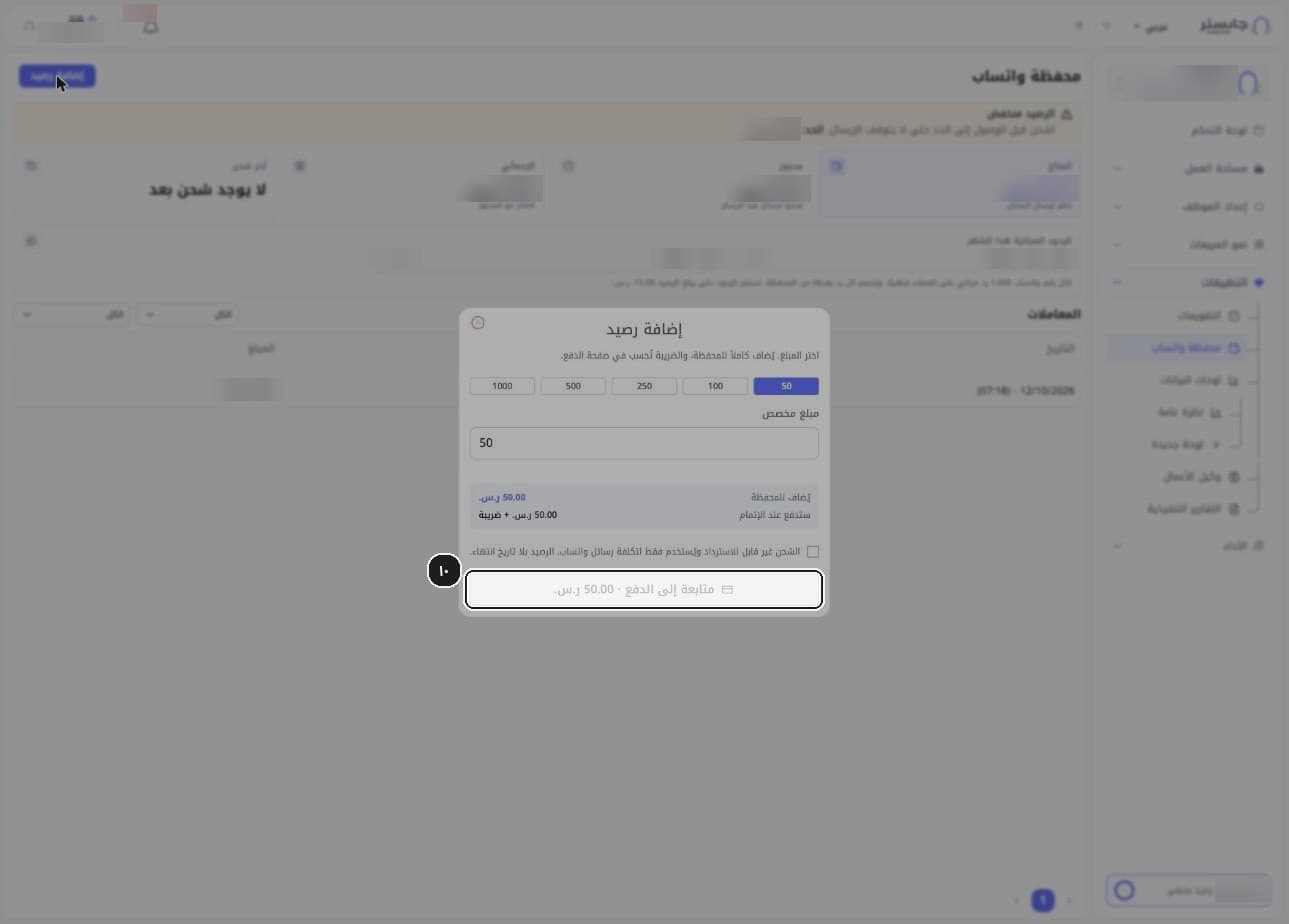
Click Continue to payment (متابعة إلى الدفع). The button shows the amount you chose, in SAR.
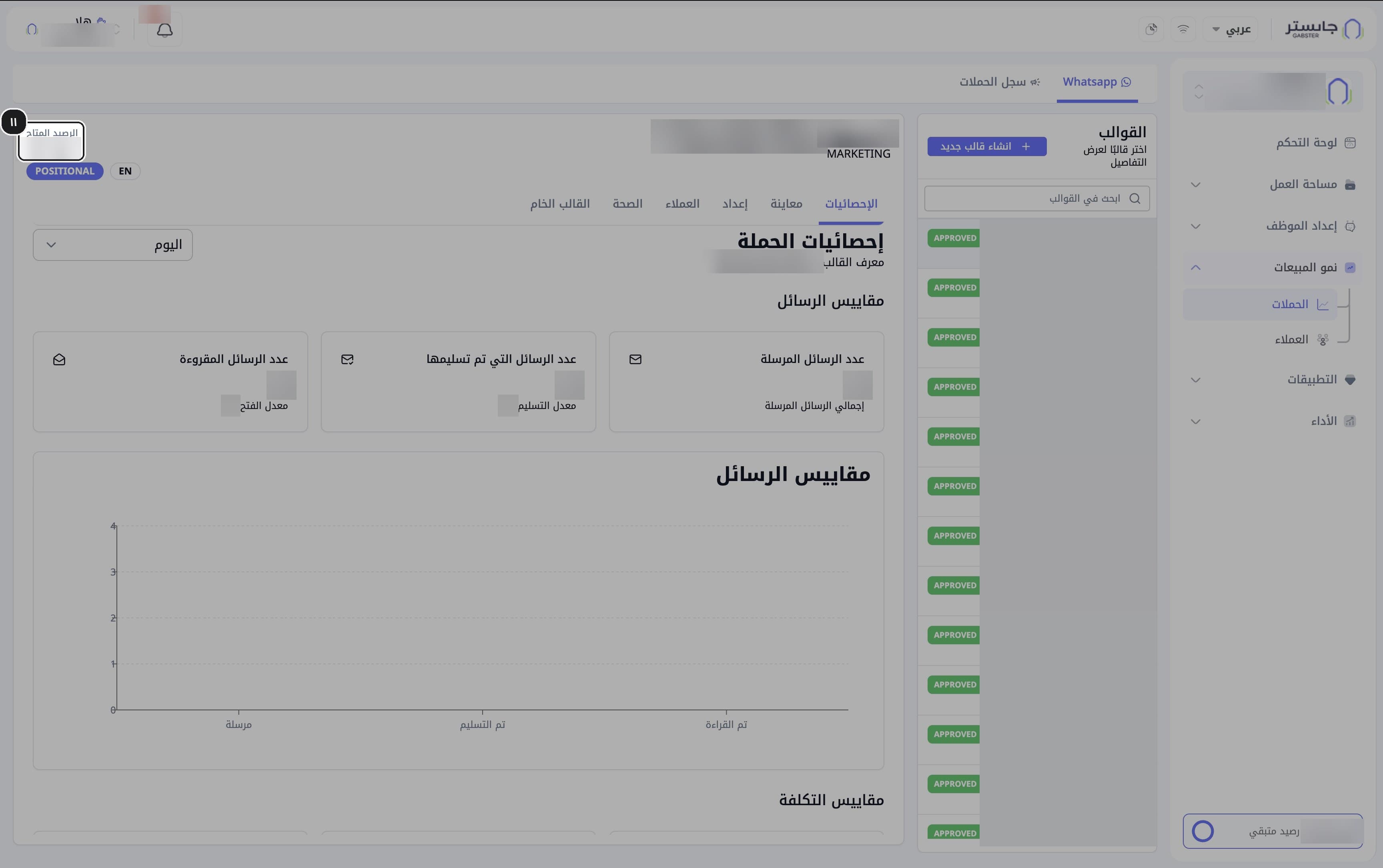
Before sending a campaign, check the Available balance (الرصيد المتاح) in the template header on the Campaigns (الحملات) page.
Related
Set up voice and calls
Let your AI Agent answer phone calls — from connecting the SIP line and choosing a voice to the IVR Menu and Call Staff.
Read your analytics and reports
Read your AI Agent and project analytics, customise a data dashboard, read the executive report, and ask the Business Agent about your data.