
Tutorials
Connect your channels and set up comment replies
Connect WhatsApp, Instagram, Facebook and TikTok to your AI Agent and decide how it replies to comments on your posts.
In this tutorial you connect WhatsApp, Instagram, Facebook and TikTok (and other apps) to your AI Agent, then decide how it replies to comments on your posts. It is meant for account owners and social-media managers.
Before you start:
- An AI Agent that is set up (see Build your AI Agent).
- Admin access to the WhatsApp Business, Instagram, Facebook or TikTok account you want to connect.
Connect channels
Open Channels
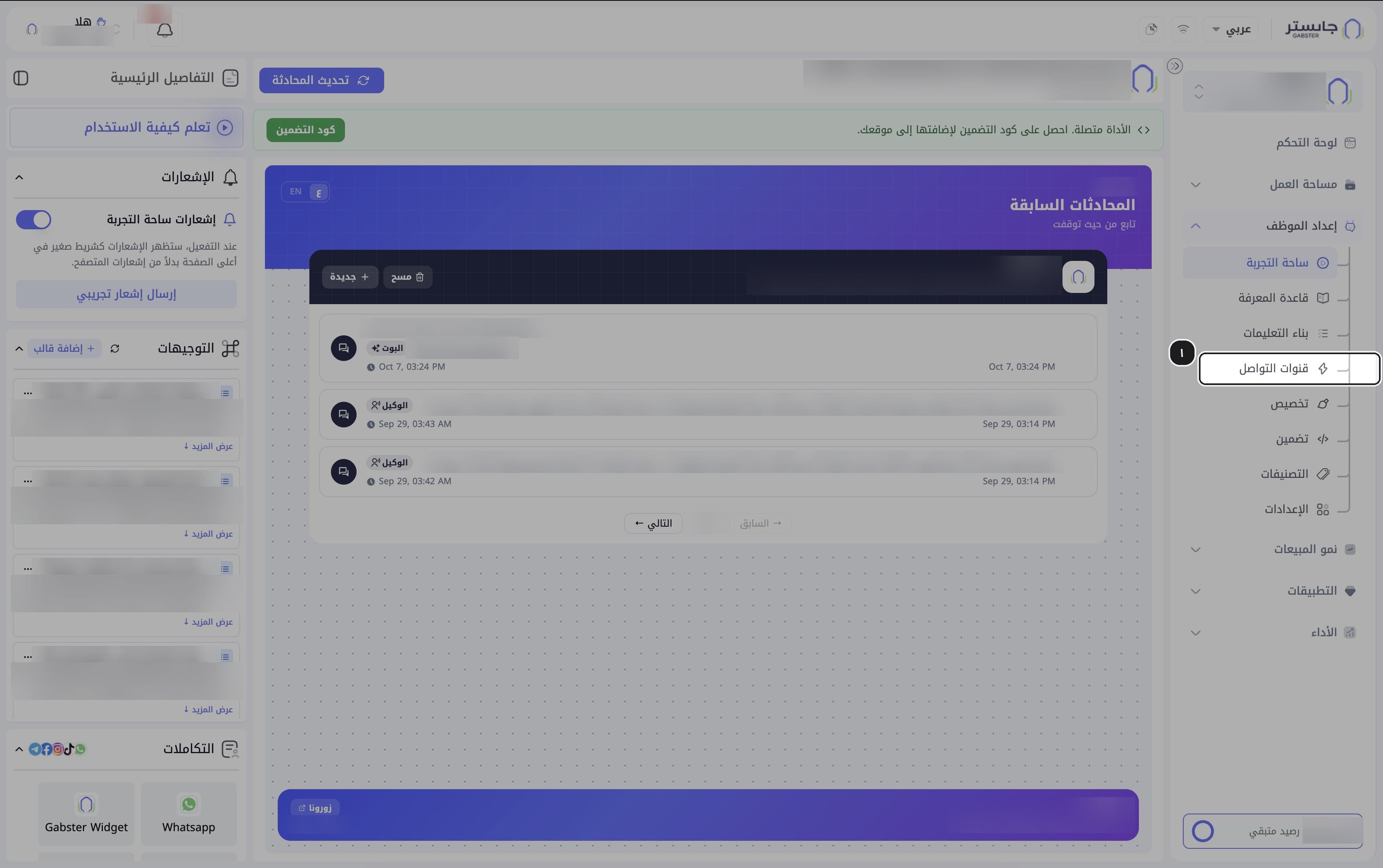
In the sidebar, open the AI Agent Setup (إعداد الموظف) group and choose Channels (قنوات التواصل).
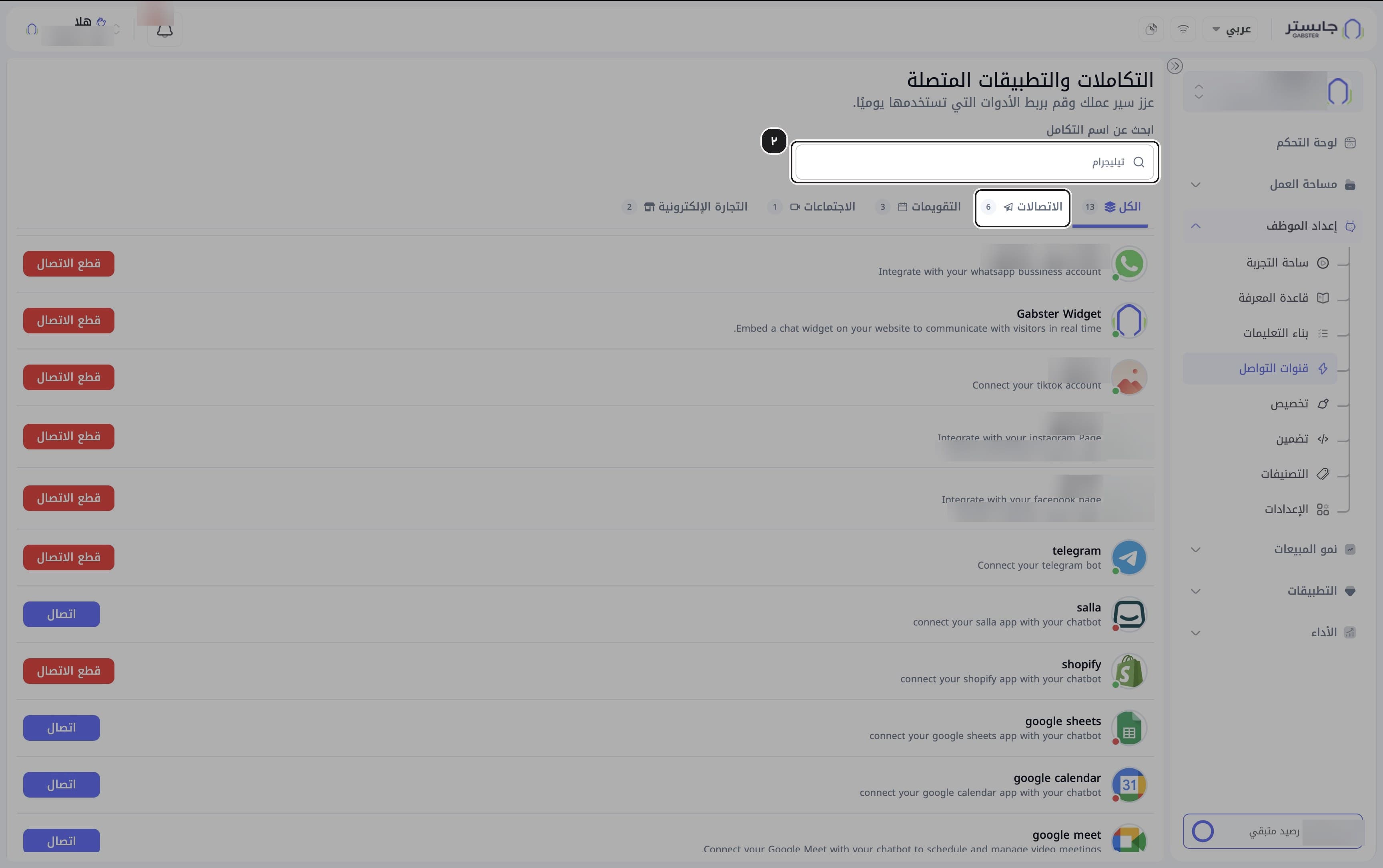
Result: the page opens on the All (الكل) tab (its title reads التكاملات والتطبيقات المتصلة, Integrations & connected apps).
Find the channel
Type the channel's name in Search by integration name (ابحث عن اسم التكامل), or pick a category tab: All (الكل), Communications (الاتصالات), Calendars (التقويمات), Meetings (الاجتماعات) or E-commerce (التجارة الإلكترونية). Each tab shows how many integrations it holds.
Read each channel's status
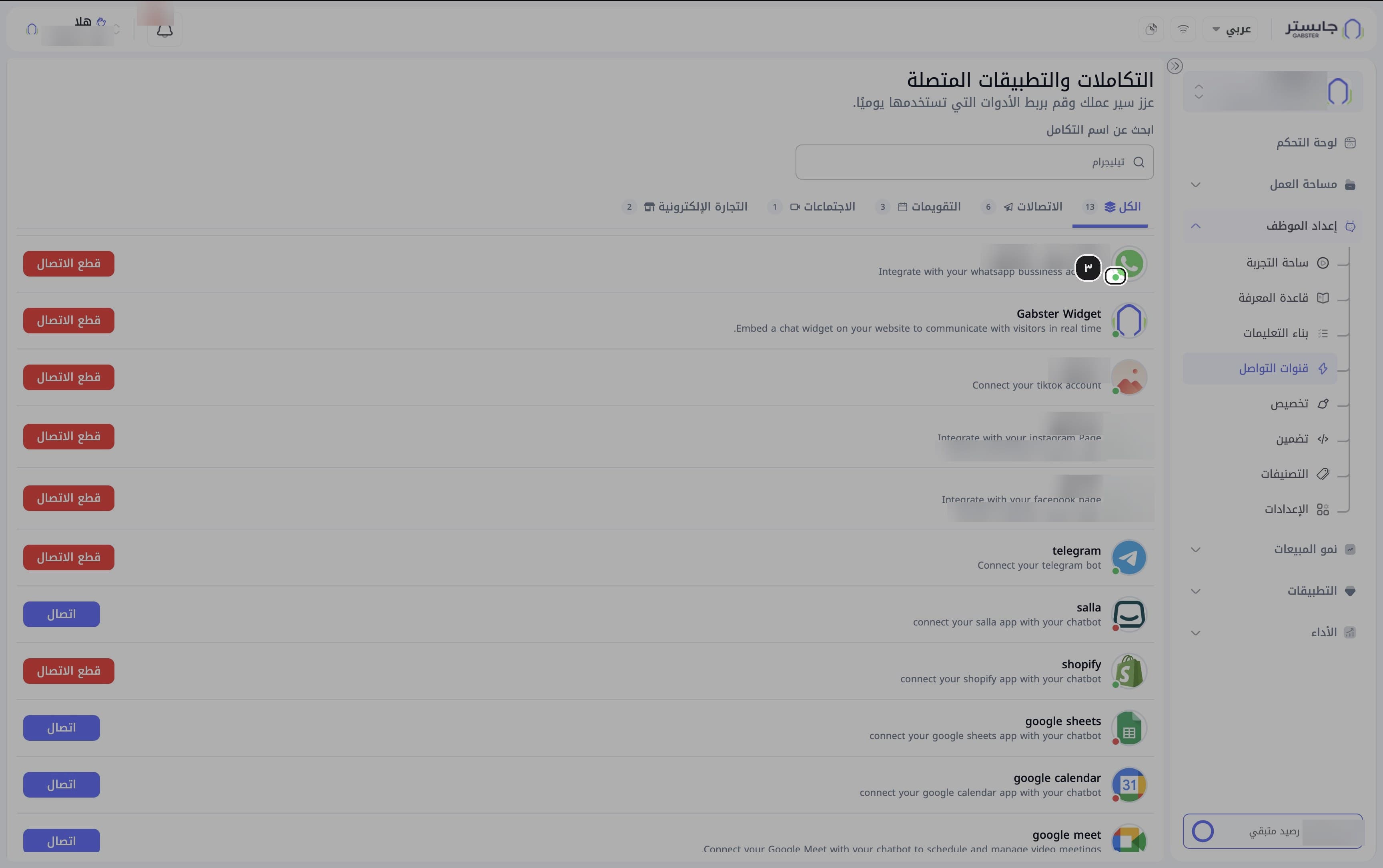
Look at the dot on each channel's logo: green means connected, red means not connected.
Result: the dot matches the row's button; connected channels show Disconnect (قطع الاتصال), the others show Connect (اتصال).
Connect a channel
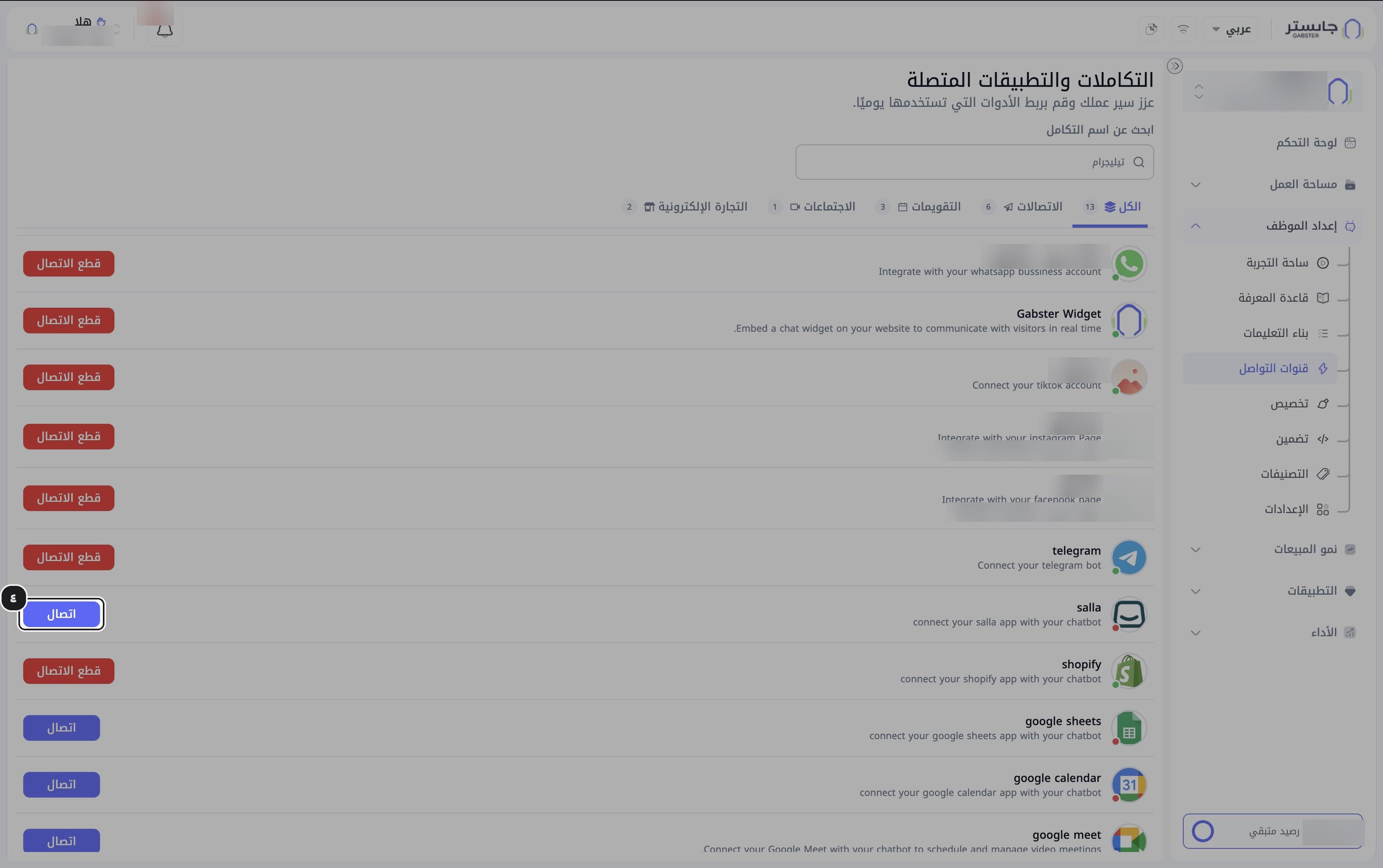
Click Connect (اتصال) on the WhatsApp, Instagram, Facebook or TikTok row and complete the connection steps.
Open a connected channel
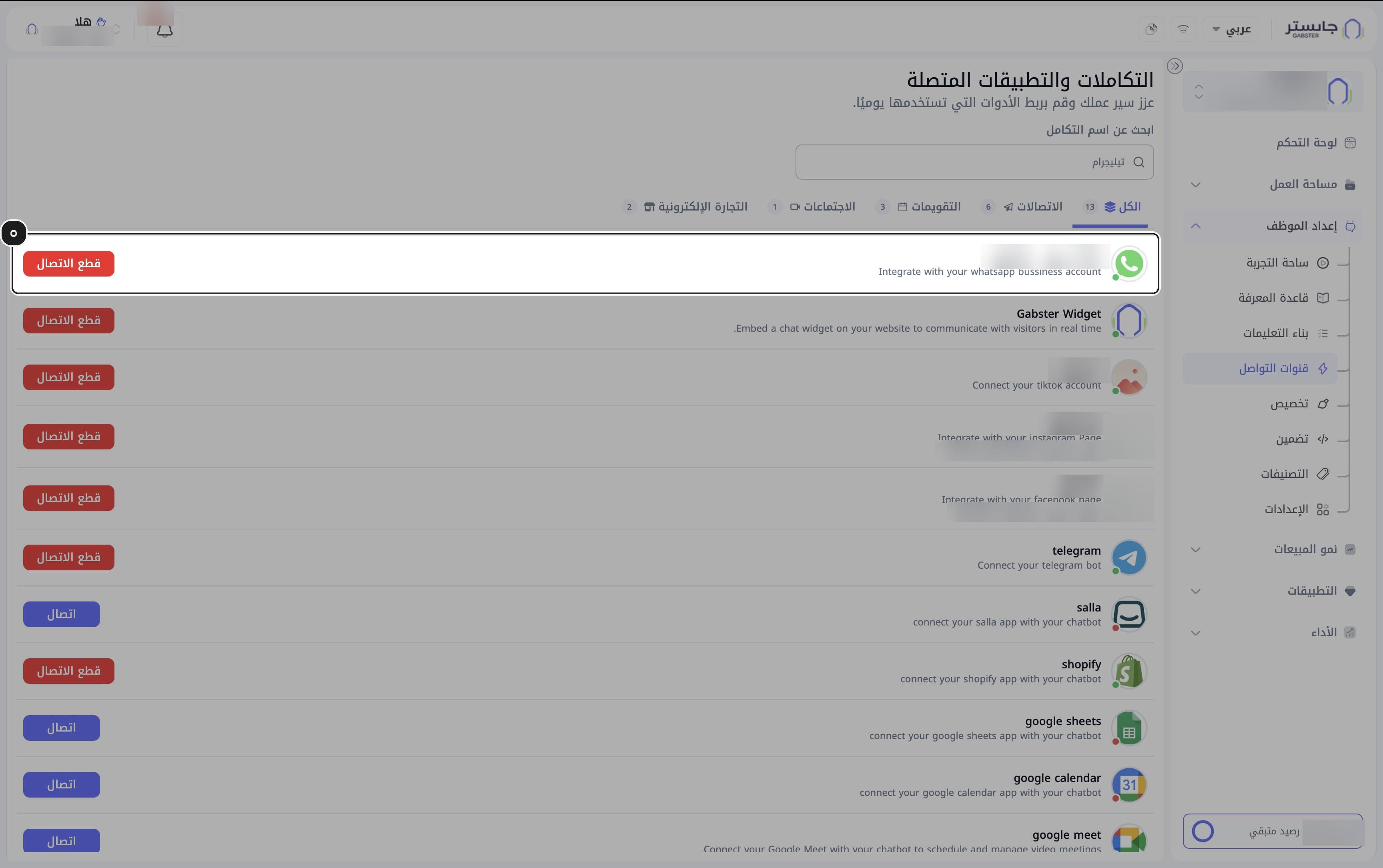
Click a connected Instagram, Facebook or TikTok row.
Result: the channel details panel opens on the left and the row is highlighted.
Check the connected account
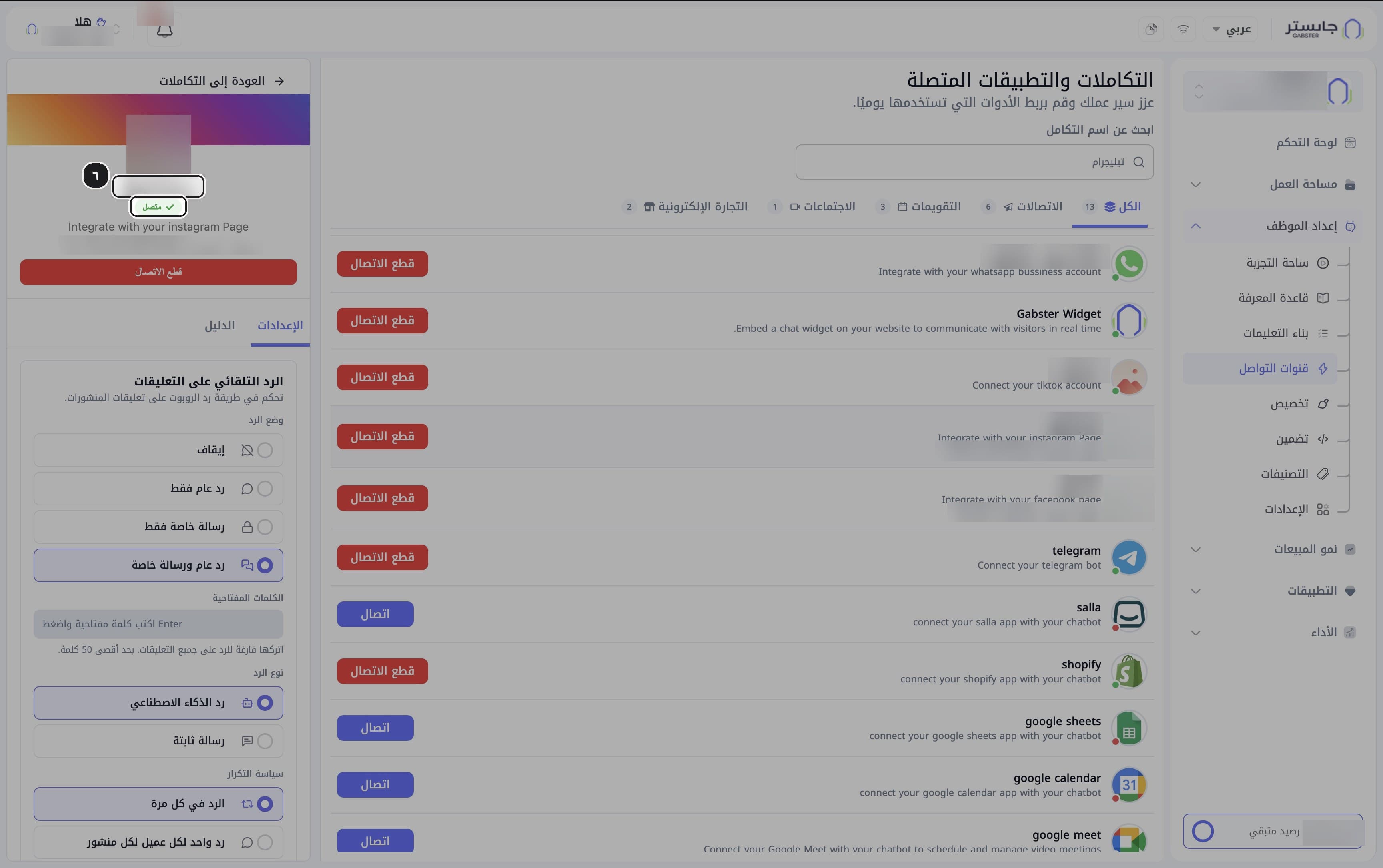
Check the account or page name at the top of the panel.
Result: Instagram and Facebook show a green Connected (متصل) badge and the account or page ID; TikTok shows the account name only.
Open the WhatsApp channel
Click the connected WhatsApp row.
Result: the WhatsApp panel shows the account details, a red Disconnect button and the Guide (الدليل) tab only. It has no Settings (الإعدادات) tab and no comment auto-reply.
Comment auto-reply
The Comment auto-reply (الرد التلقائي على التعليقات) settings are the same for Instagram, Facebook and TikTok. You find them on the Settings tab of the channel panel.
Choose the reply mode
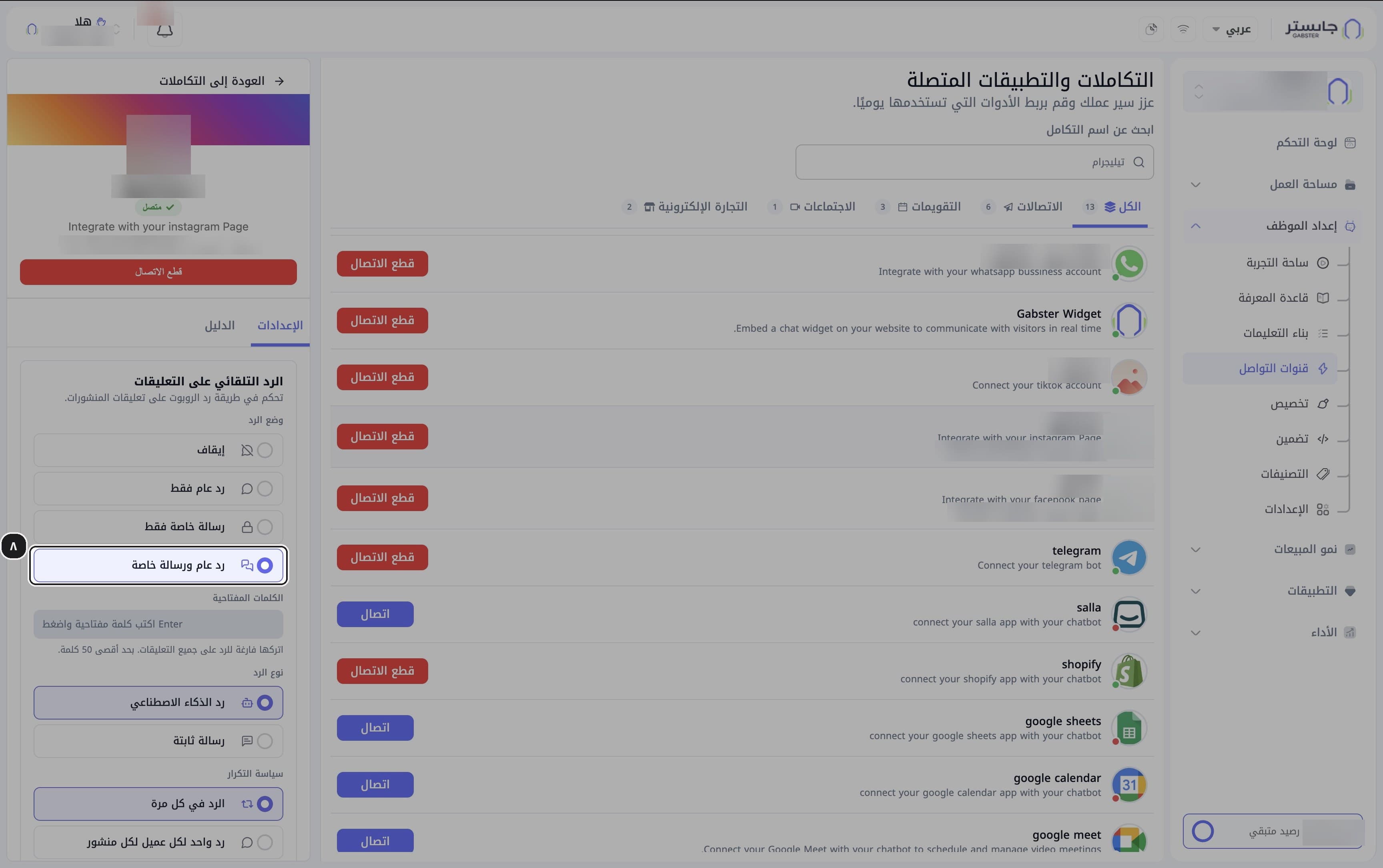
Under Reply mode (وضع الرد), choose one option:
| Option | Meaning |
|---|---|
| Off (إيقاف) | No automatic reply to comments |
| Public reply only (رد عام فقط) | A reply under the comment itself |
| Private message only (رسالة خاصة فقط) | A private message to the commenter |
| Public reply and private message (رد عام ورسالة خاصة) | Both |
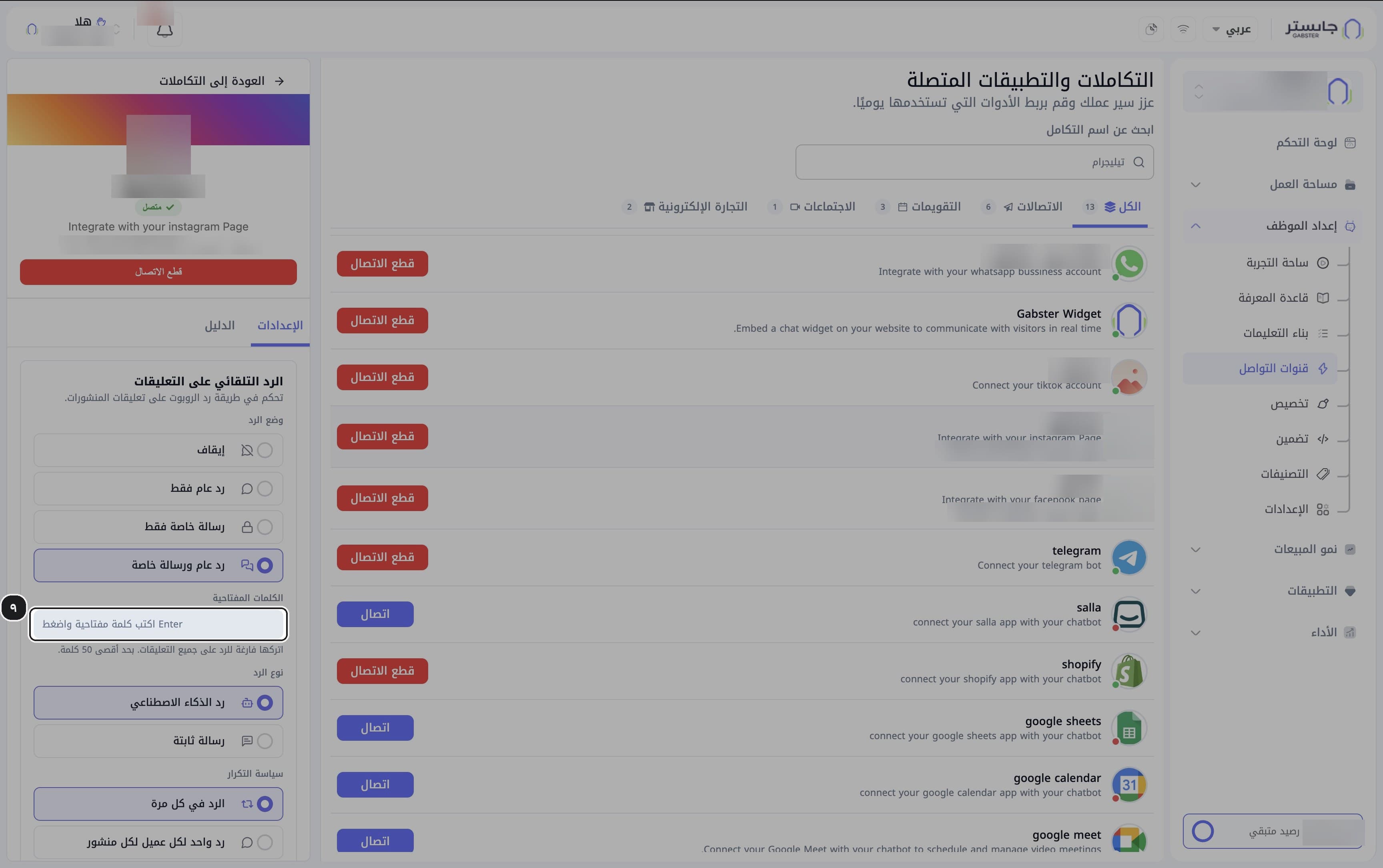
Add keywords (optional)
Under Keywords (الكلمات المفتاحية), type a keyword and press Enter; repeat for each keyword. Your AI Agent then replies only to comments that contain them. Leave the field empty to reply to all comments (maximum 50).
Choose the reply type
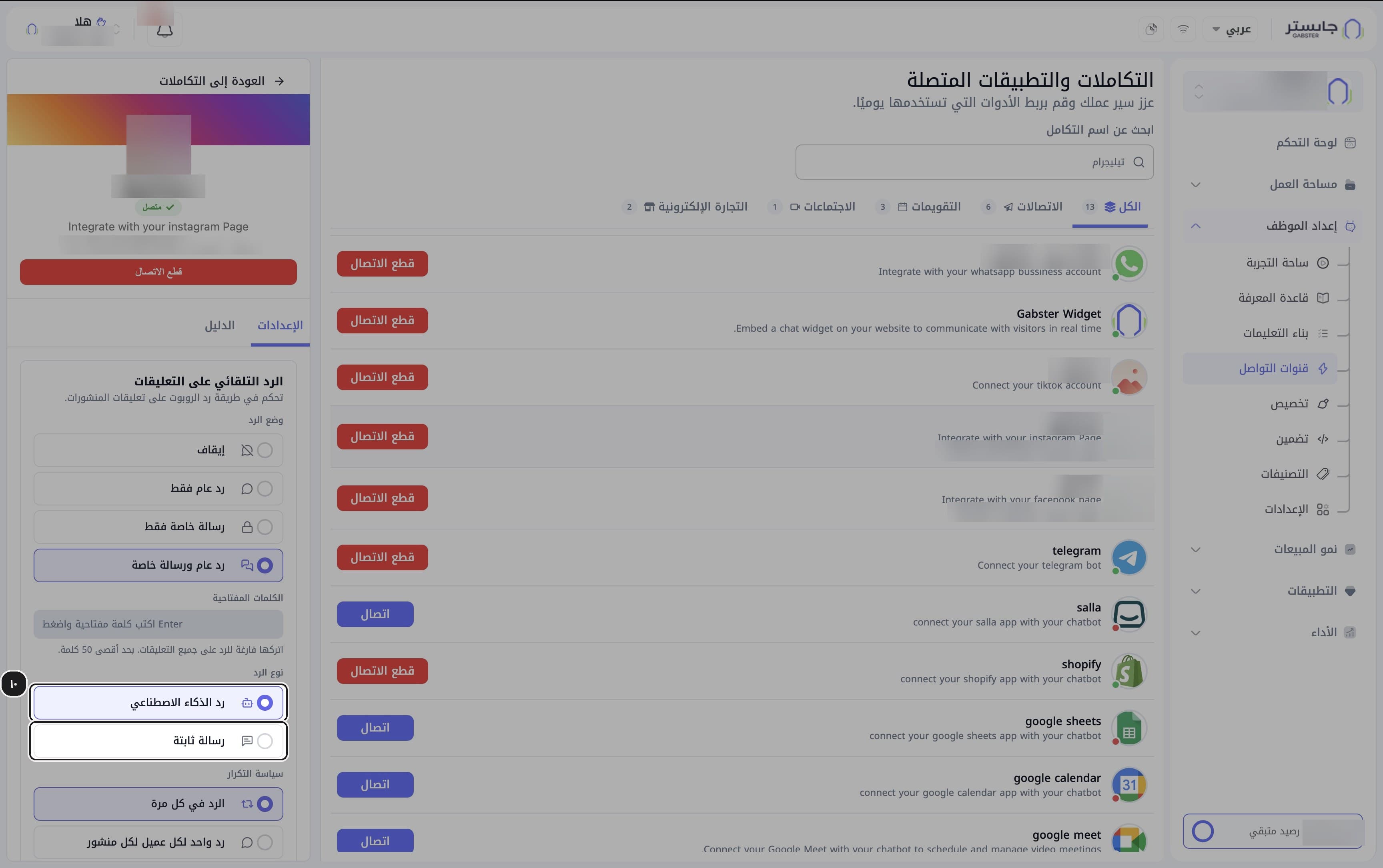
Under Reply type (نوع الرد), choose AI reply (رد الذكاء الاصطناعي) to let your AI Agent write the reply, or Fixed message (رسالة ثابتة) to send a fixed text.
Choose the repeat policy
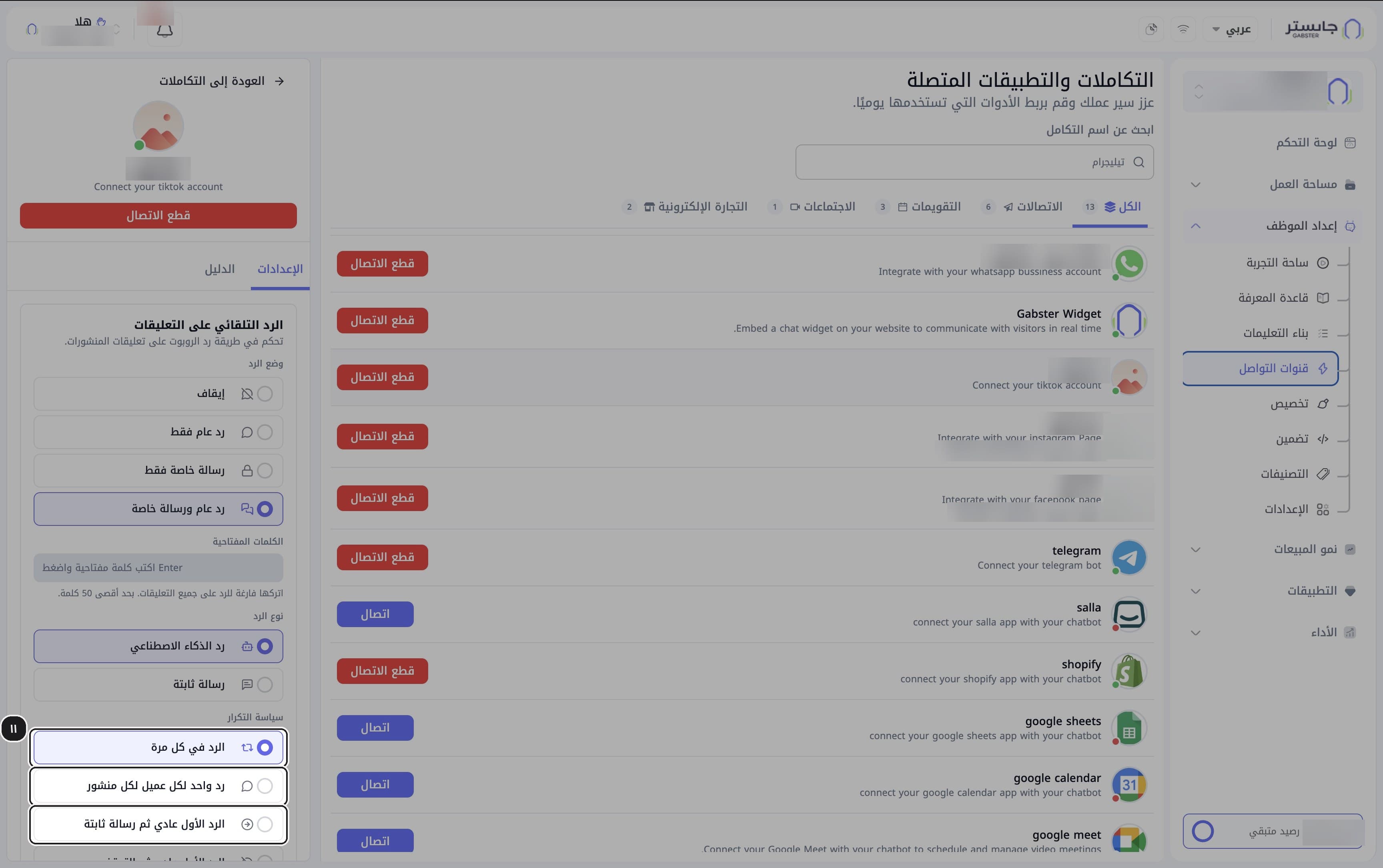
Under Repeat policy (سياسة التكرار), choose when your AI Agent replies, for example:
- Reply every time (الرد في كل مرة), the default.
- One reply per customer per post (رد واحد لكل عميل لكل منشور).
- First reply normal, then fixed message (الرد الأول عادي ثم رسالة ثابتة).
Save the settings
Save your changes.
Go back to the integrations list
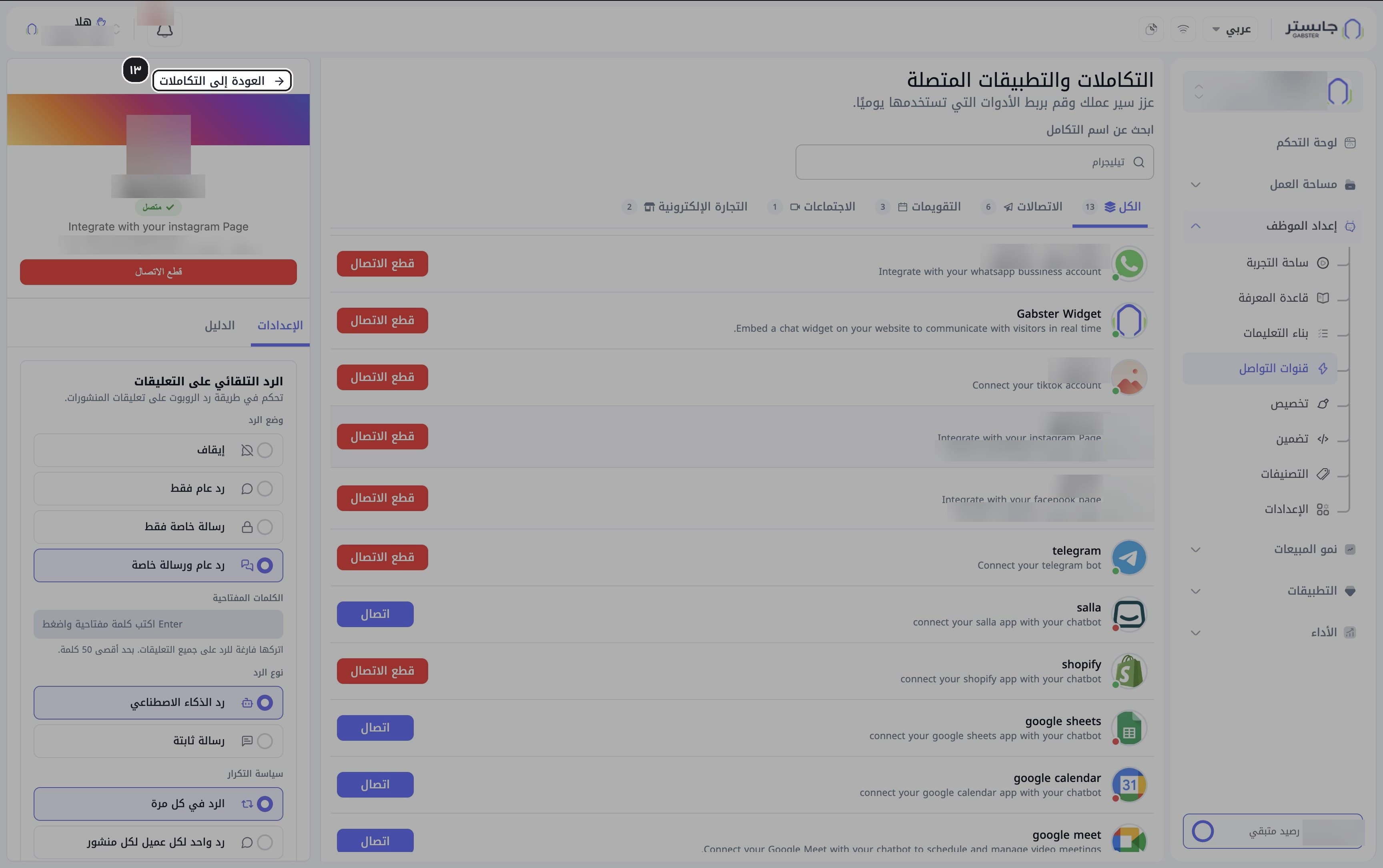
Click Back to integrations (العودة إلى التكاملات) at the top of the panel.
Other ways to connect, and disconnecting
Connect apps from the Playground (alternative)
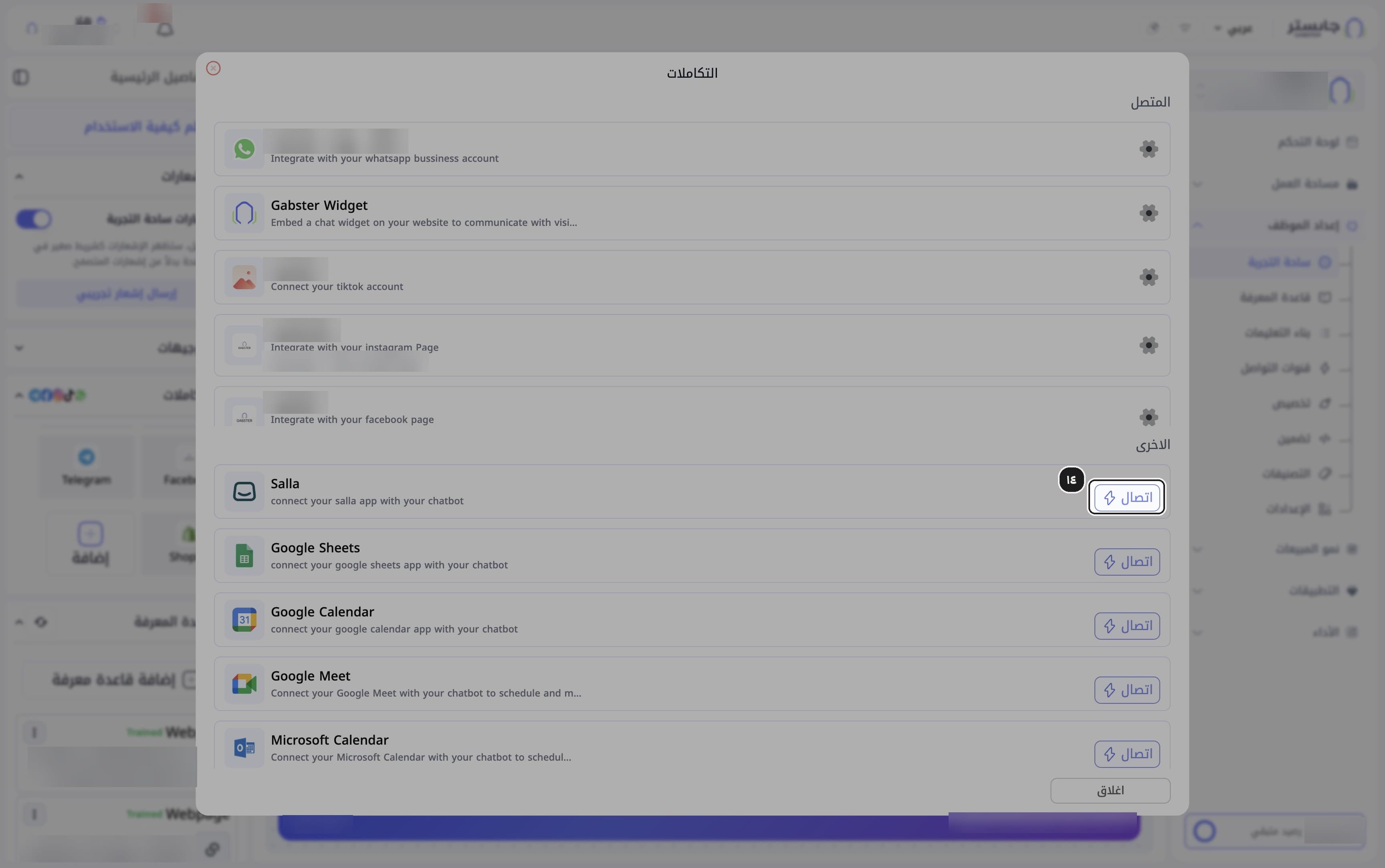
You can also connect apps from the integrations window in the Playground (ساحة التجربة) by clicking Connect (اتصال) next to the app.
Read the disconnect steps
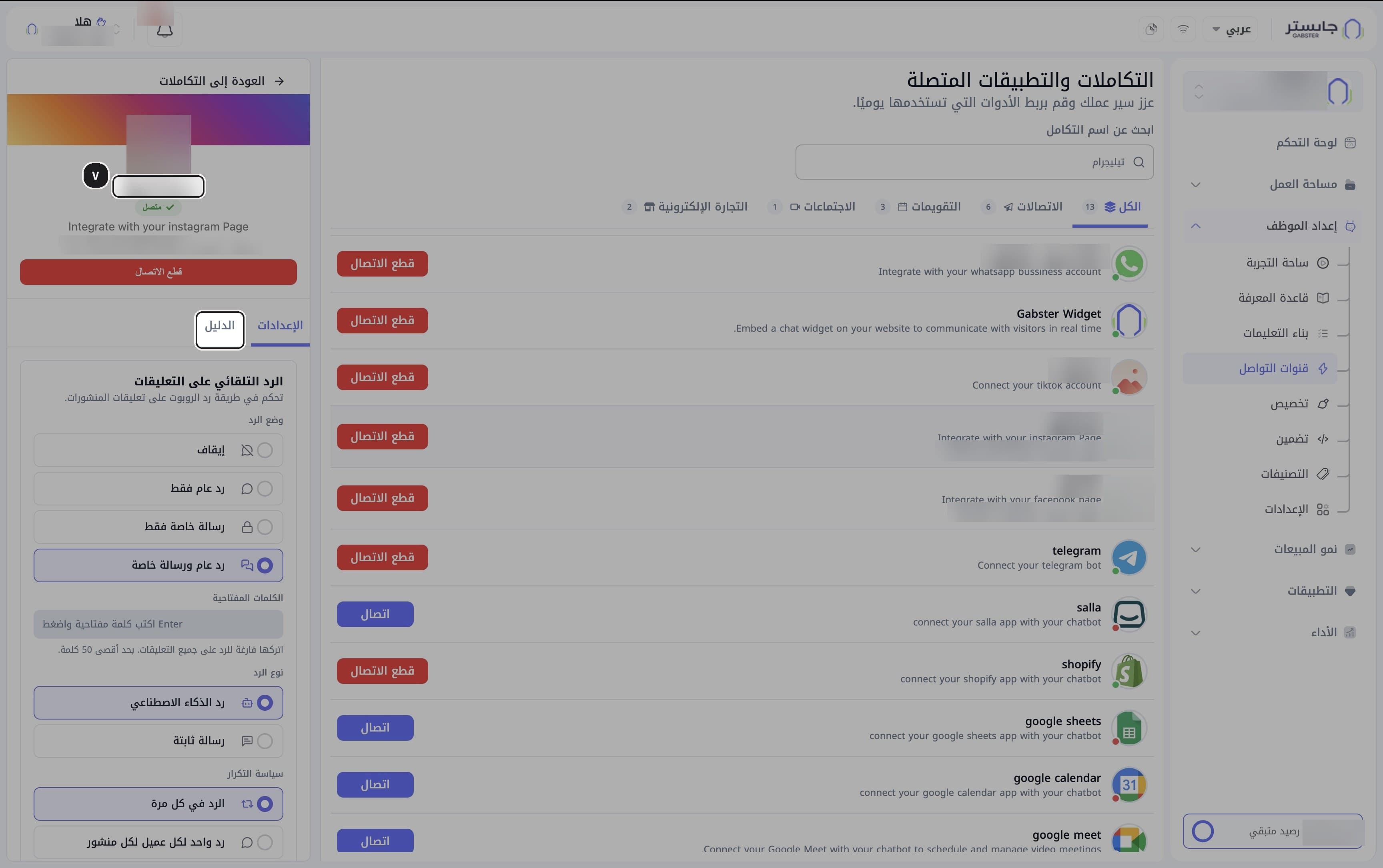
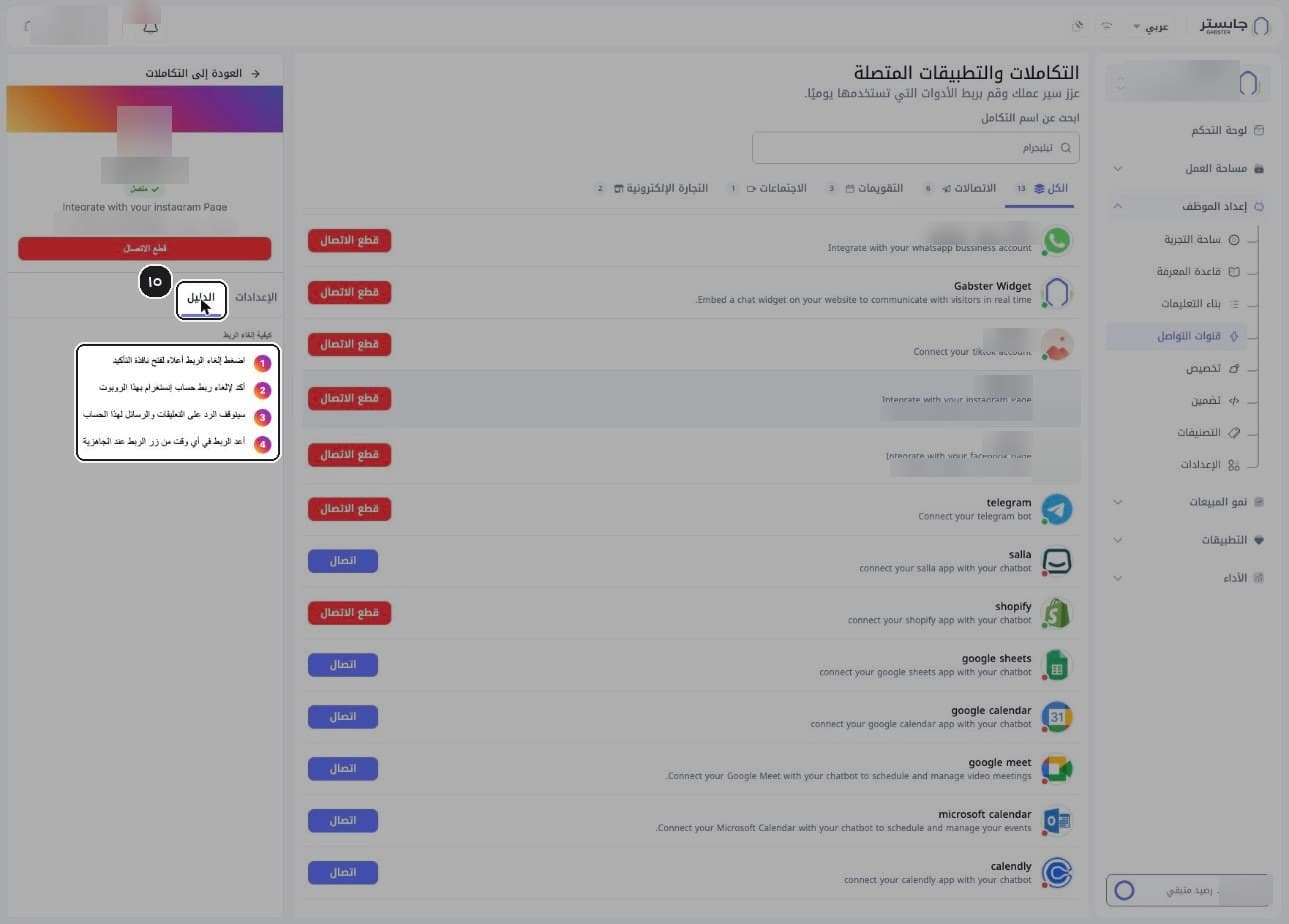
Before disconnecting, open the Guide (الدليل) tab in the channel panel and read How to disconnect (كيفية إلغاء الربط).
Result: numbered steps for unlinking appear (4 for Instagram, 3 for WhatsApp). The Guide explains disconnecting only, not setup.
Disconnect
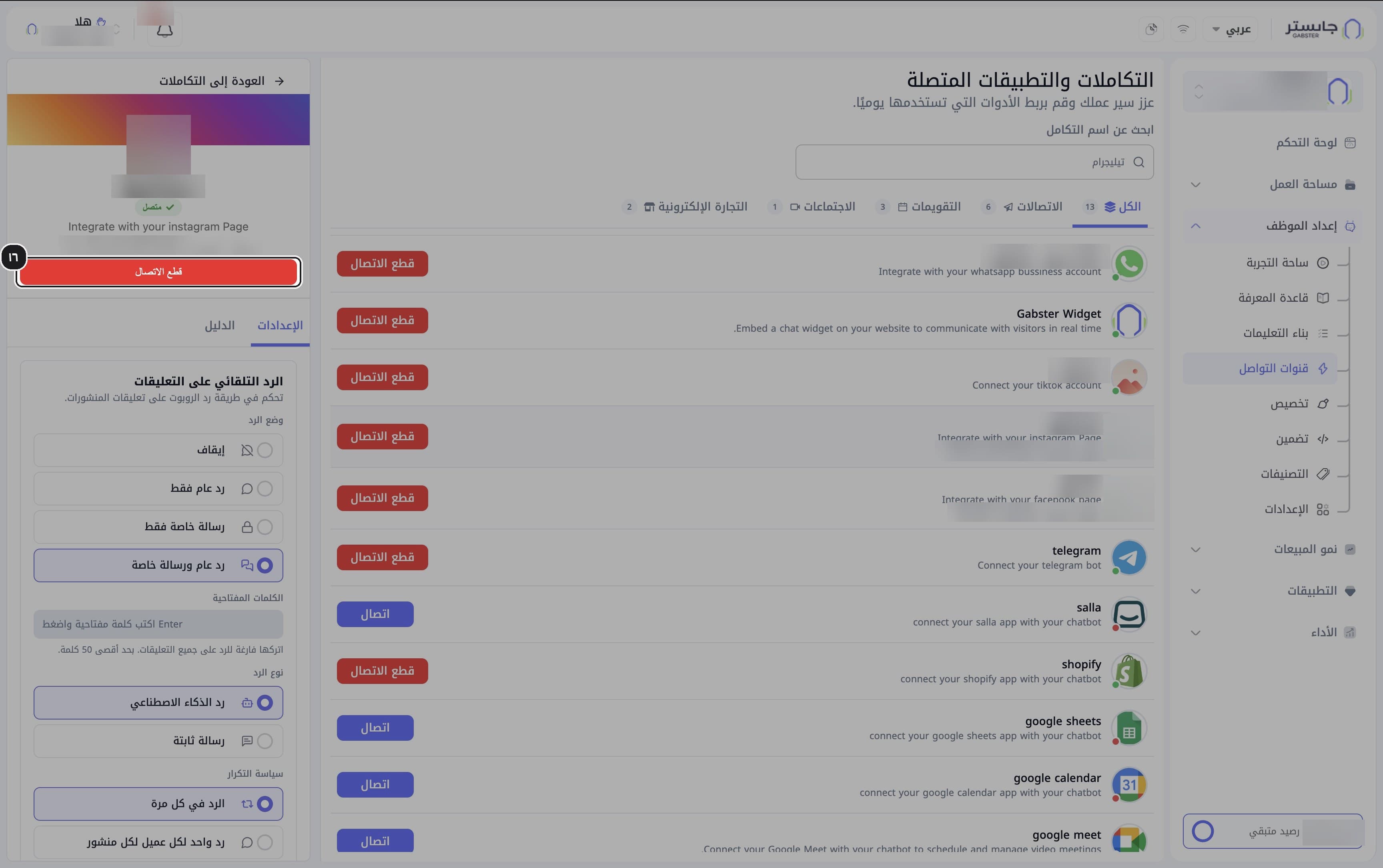
To stop a channel, click Disconnect (قطع الاتصال).
Related
Customize the widget and add it to your site
Make the chat widget match your brand, then add it to your website with the embed code.
Follow customer conversations and step in
Find a conversation, take over from your AI Agent, leave internal notes, check the customer's details and set the dialect for improved replies.