Tutorials
Find your way around the dashboard
Find your way around the top bar, sidebar, Dashboard numbers, notifications and organization profile in one walkthrough.
This tutorial walks you around the dashboard: the frame around every page, the Dashboard (لوحة التحكم) numbers, switching projects, notifications, updating your organization's profile, and where analytics, reports and the WhatsApp Wallet live. It is meant for new account owners and team members signing in for the first time.
Before you start: you need a Gabster account you can sign in to.
The dashboard has three levels: Organization → Projects → the AI Agents inside each project. The card at the top of the sidebar shows the current project and the selected AI Agent.
The frame and the Dashboard
Get to know the frame
Sign in and look at the frame around every page: the top bar and the sidebar on the right.
Result: this frame appears on every page of the dashboard.
Open the Dashboard
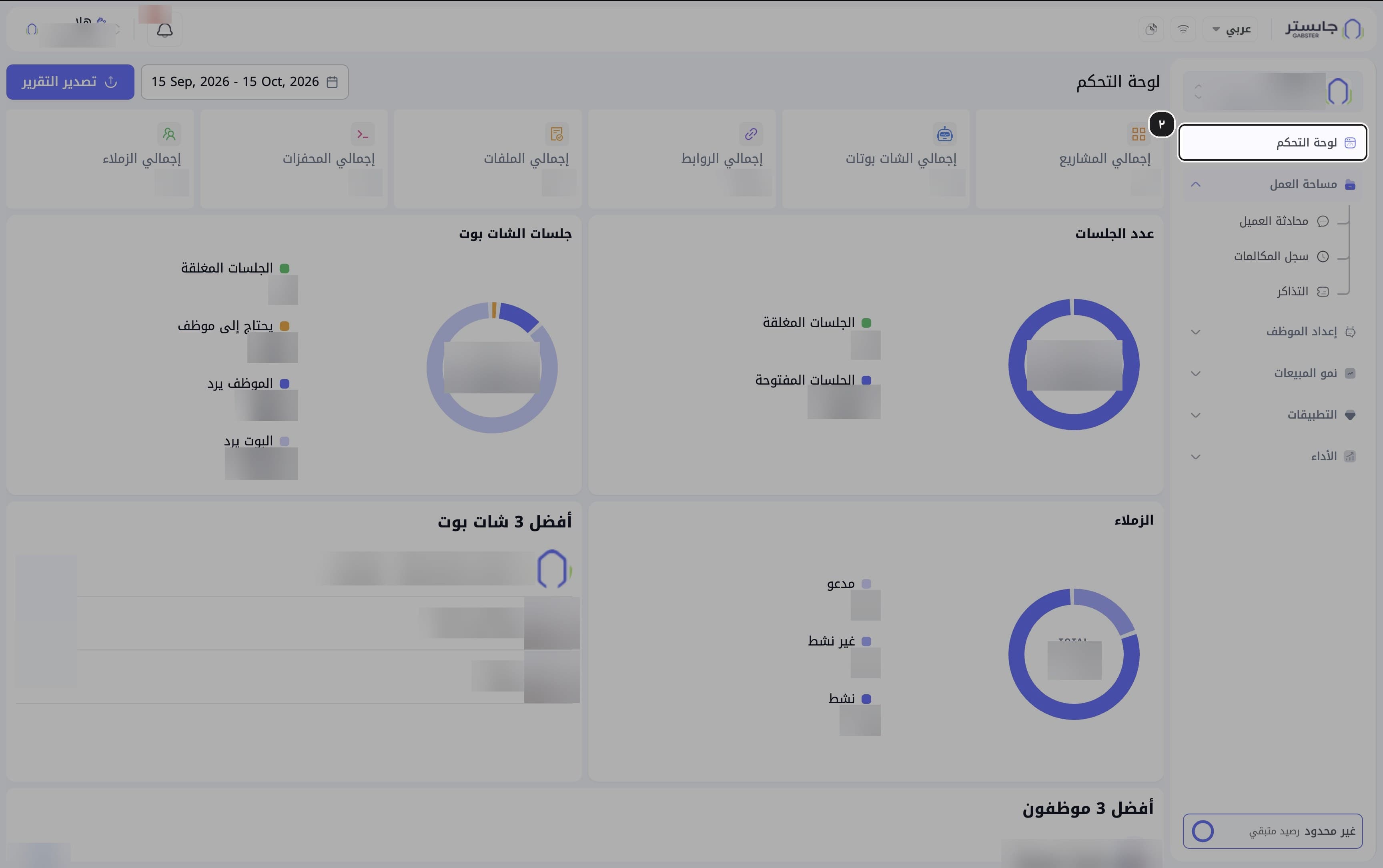
In the sidebar, choose Dashboard (لوحة التحكم).
Result: the Dashboard opens and its link sits on a light gray background.
Dashboard is the only direct link at the top of the sidebar; every other entry is a group you open and close with the arrow next to it.
Read the stat cards
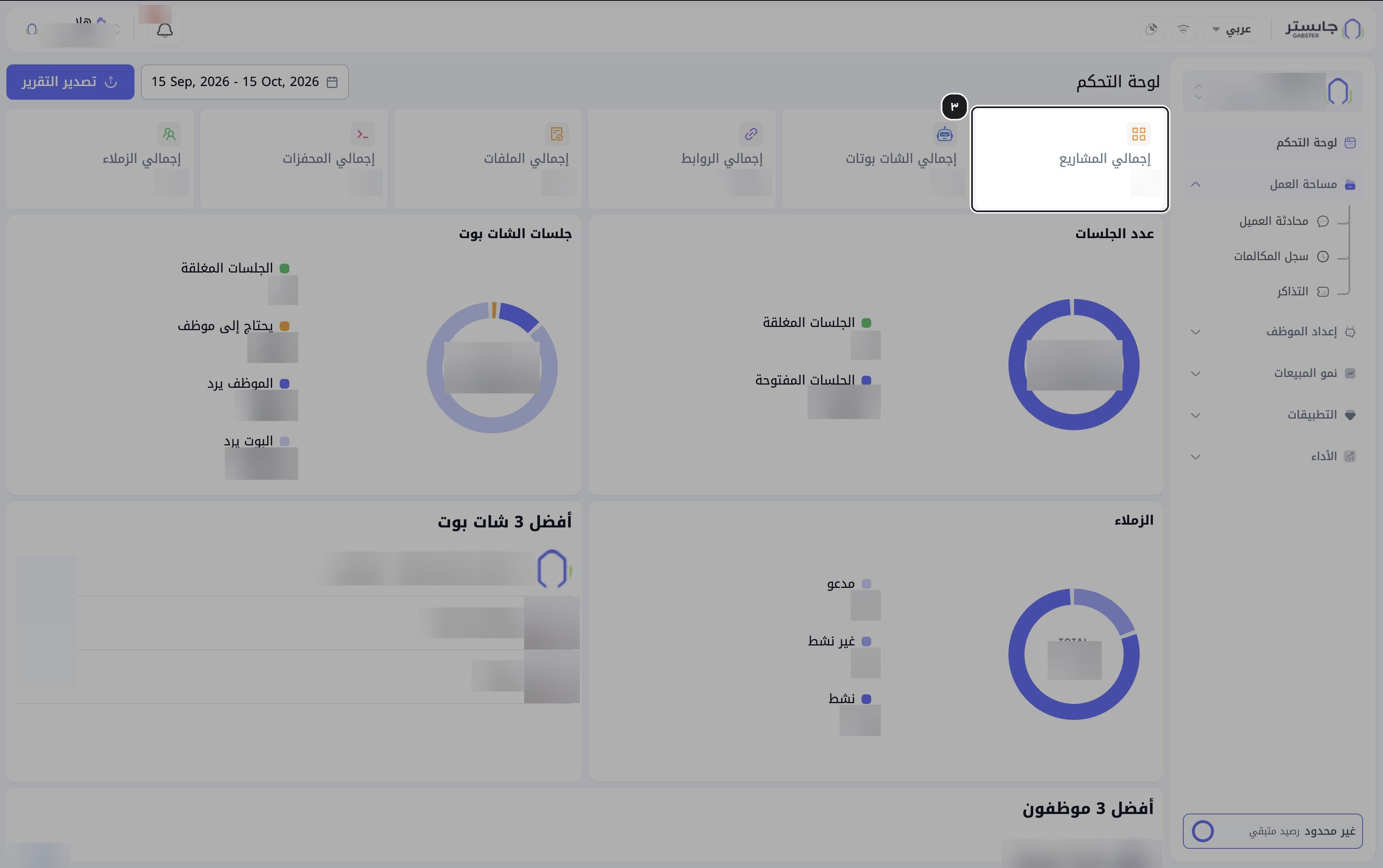
Read the six cards at the top: Total projects (إجمالي المشاريع), Total AI Agents (إجمالي الشات بوتات), Total links (إجمالي الروابط), Total files (إجمالي الملفات), Total triggers (إجمالي المحفزات) and Total teammates (إجمالي الزملاء).
Result: each card shows one total.
The totals cover your whole organization and count what was created in the selected date range. Total triggers counts your AI Agents' quick prompts.
Check the date range
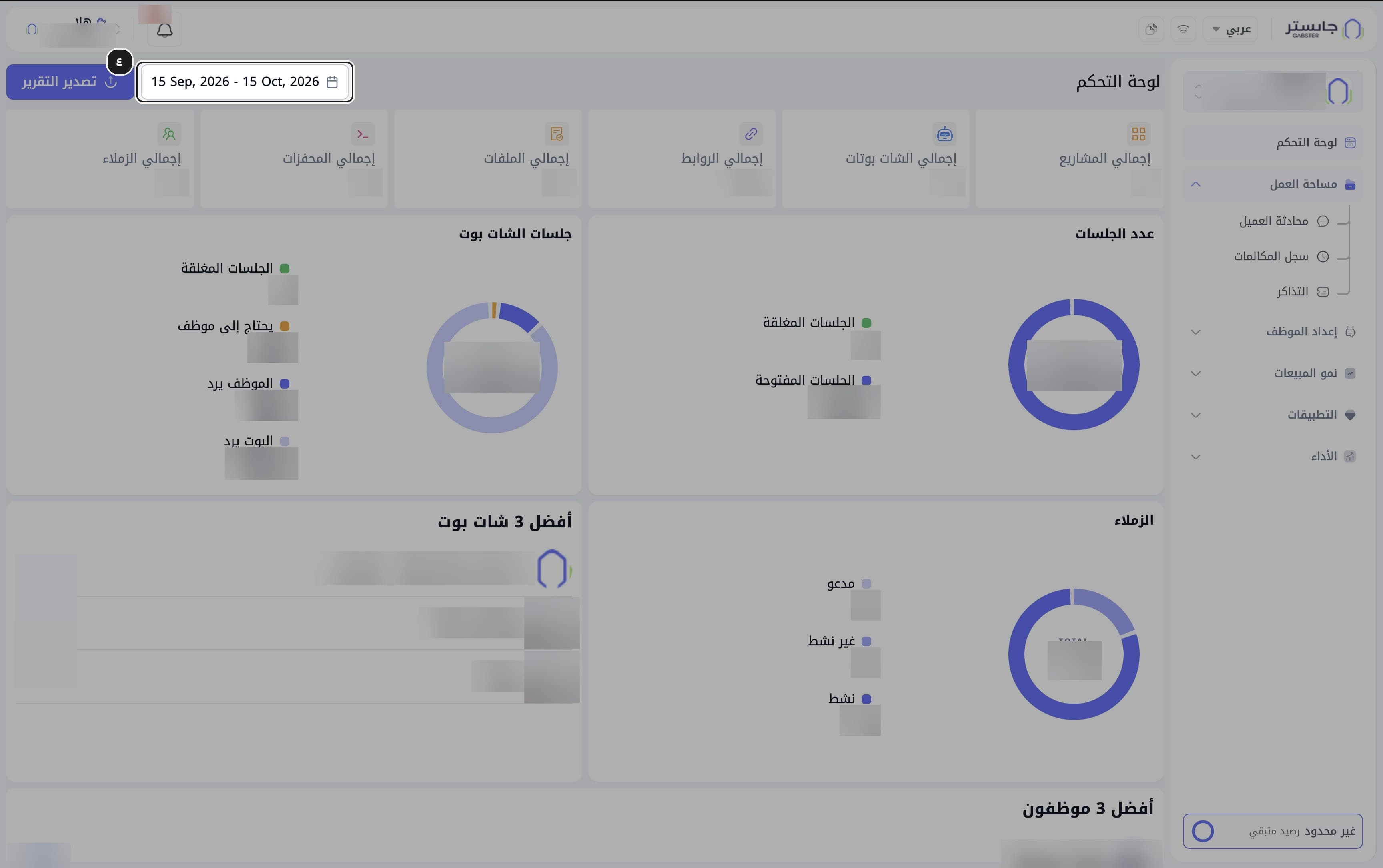
Look at the date range next to Export report (تصدير التقرير); it is the period the charts use.
Result: it shows the current reporting period.
Read the session charts
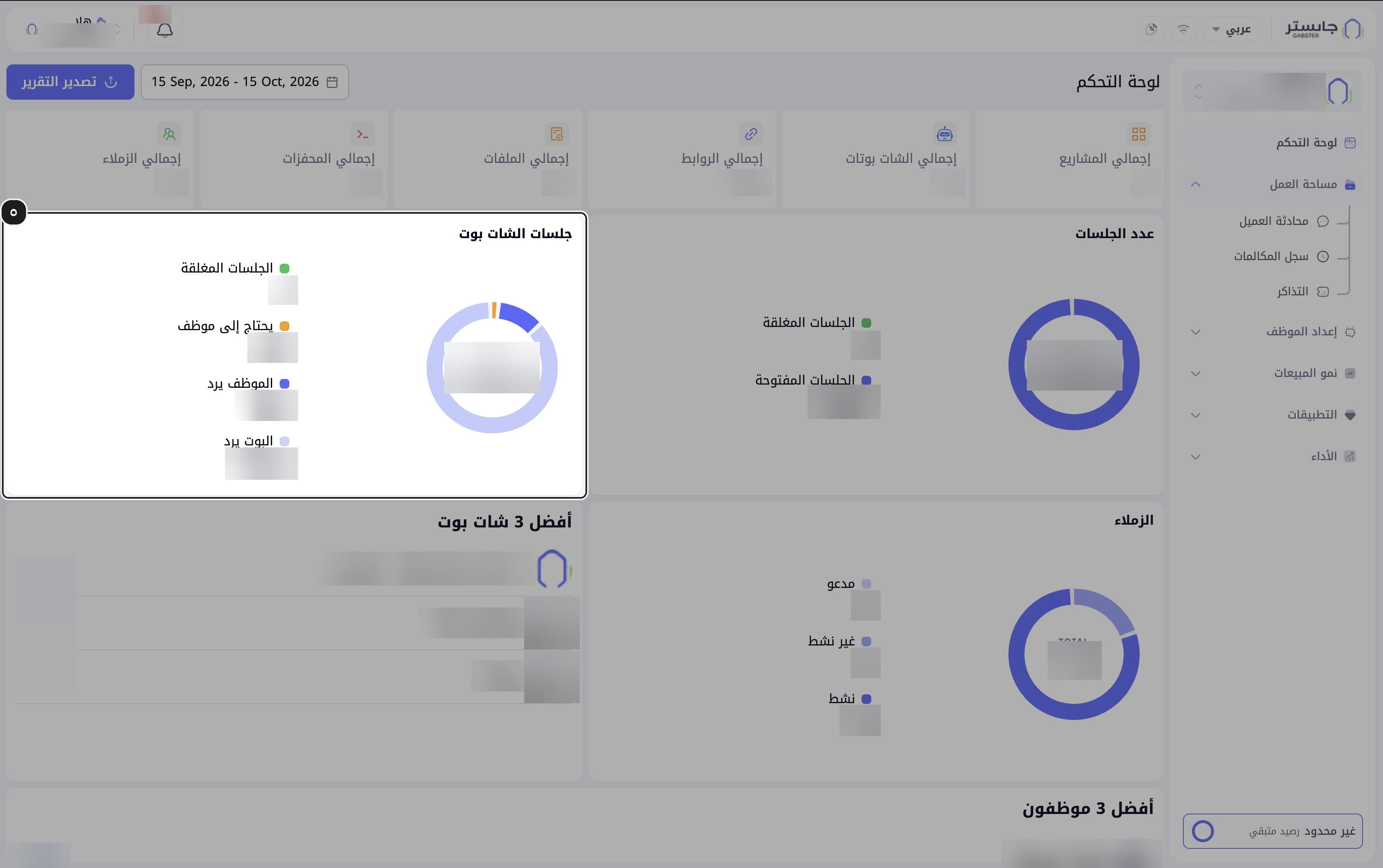
Read the Number of sessions (عدد الجلسات) and AI Agent sessions (جلسات الشات بوت) charts.
Result: the Number of sessions chart splits sessions into Closed sessions (الجلسات المغلقة) and Open sessions (الجلسات المفتوحة), and the AI Agent sessions chart splits them by who is handling them: Closed sessions, Needs staff (يحتاج إلى موظف), Staff replying (الموظف يرد) and AI Agent replying (البوت يرد).
On the Dashboard, the Arabic word «موظف» means a staff member of your team (as in Staff replying and Top 3 staff), while AI Agent replying means your AI Agent is the one answering.
Review teammates and rankings
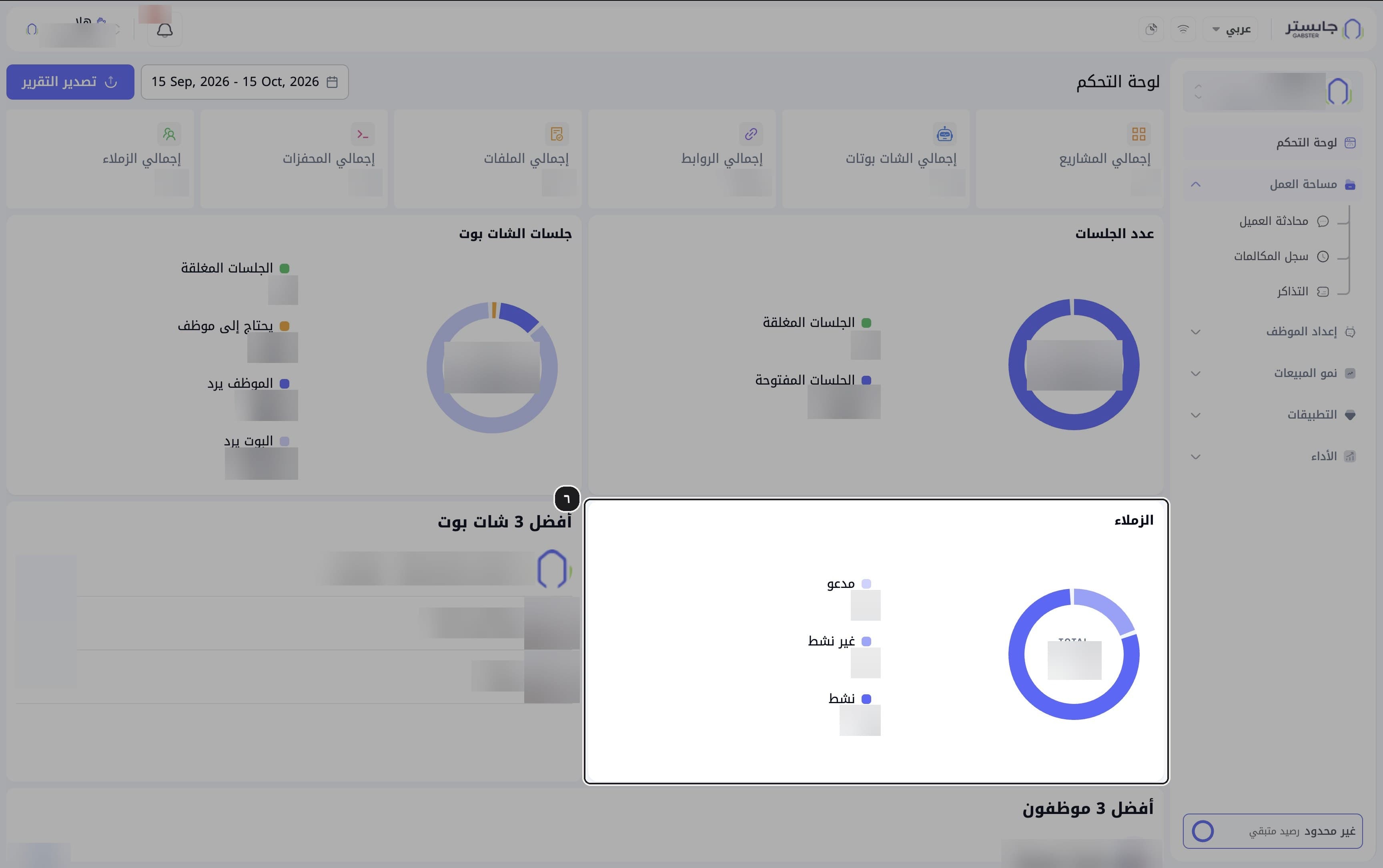
Review the Teammates (الزملاء) chart and the Top 3 AI Agents (أفضل 3 شات بوت) and Top 3 staff (أفضل 3 موظفون) lists.
Result: the Teammates chart splits your team into Invited (مدعو), Inactive (غير نشط) and Active (نشط), and both lists appear ranked.
Export the report
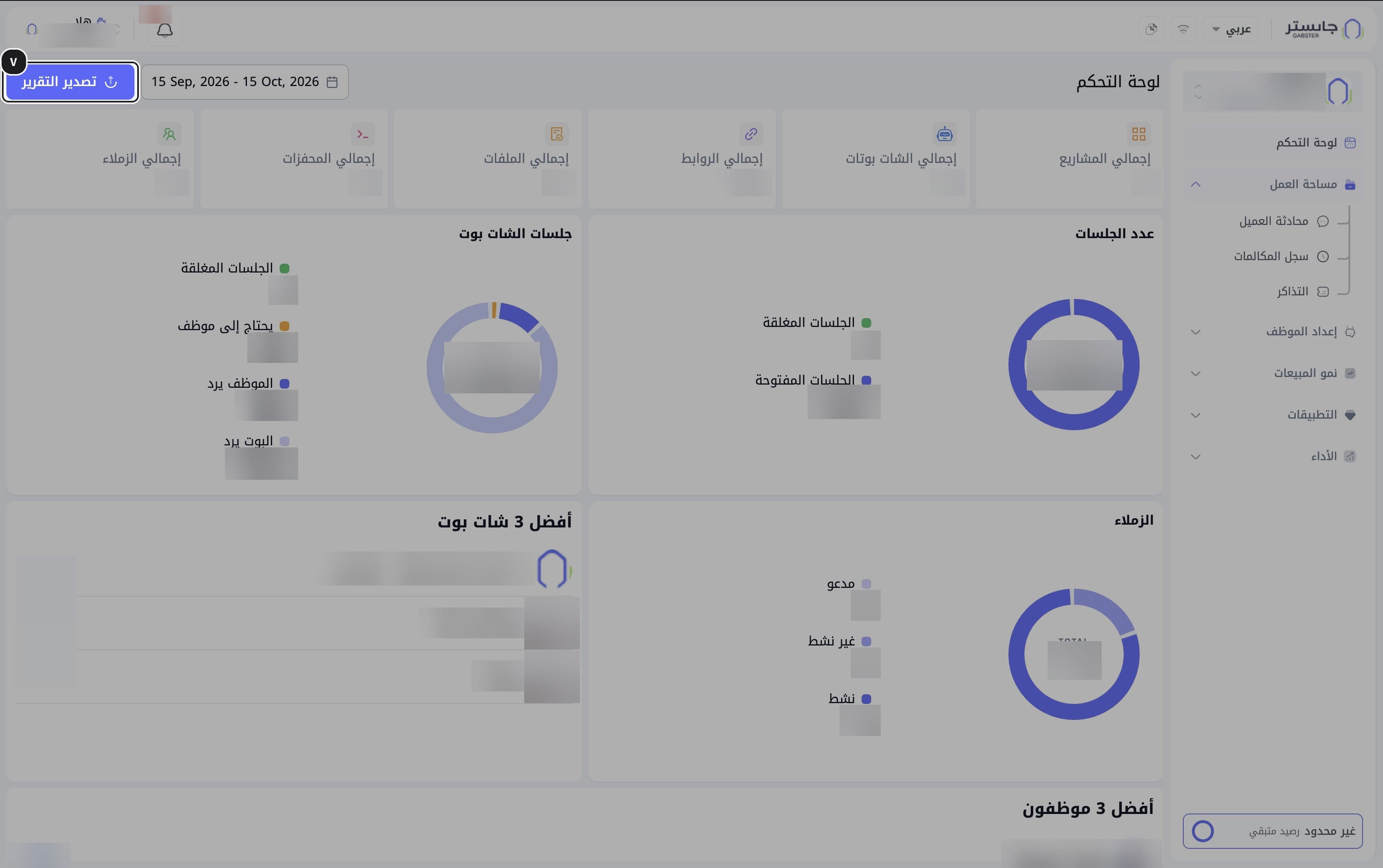
Click Export report (تصدير التقرير).
Projects and AI Agents
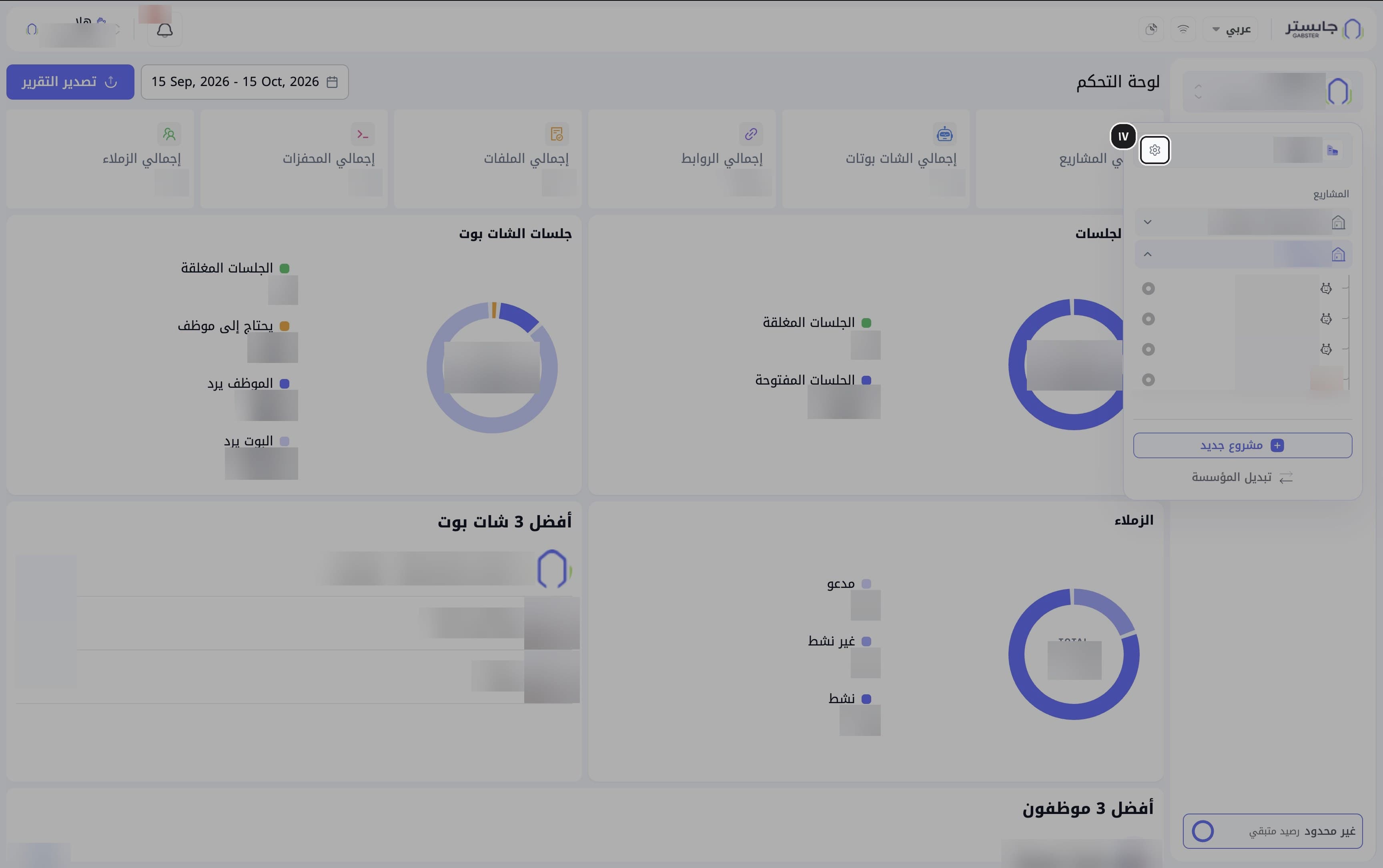
Open the project switcher
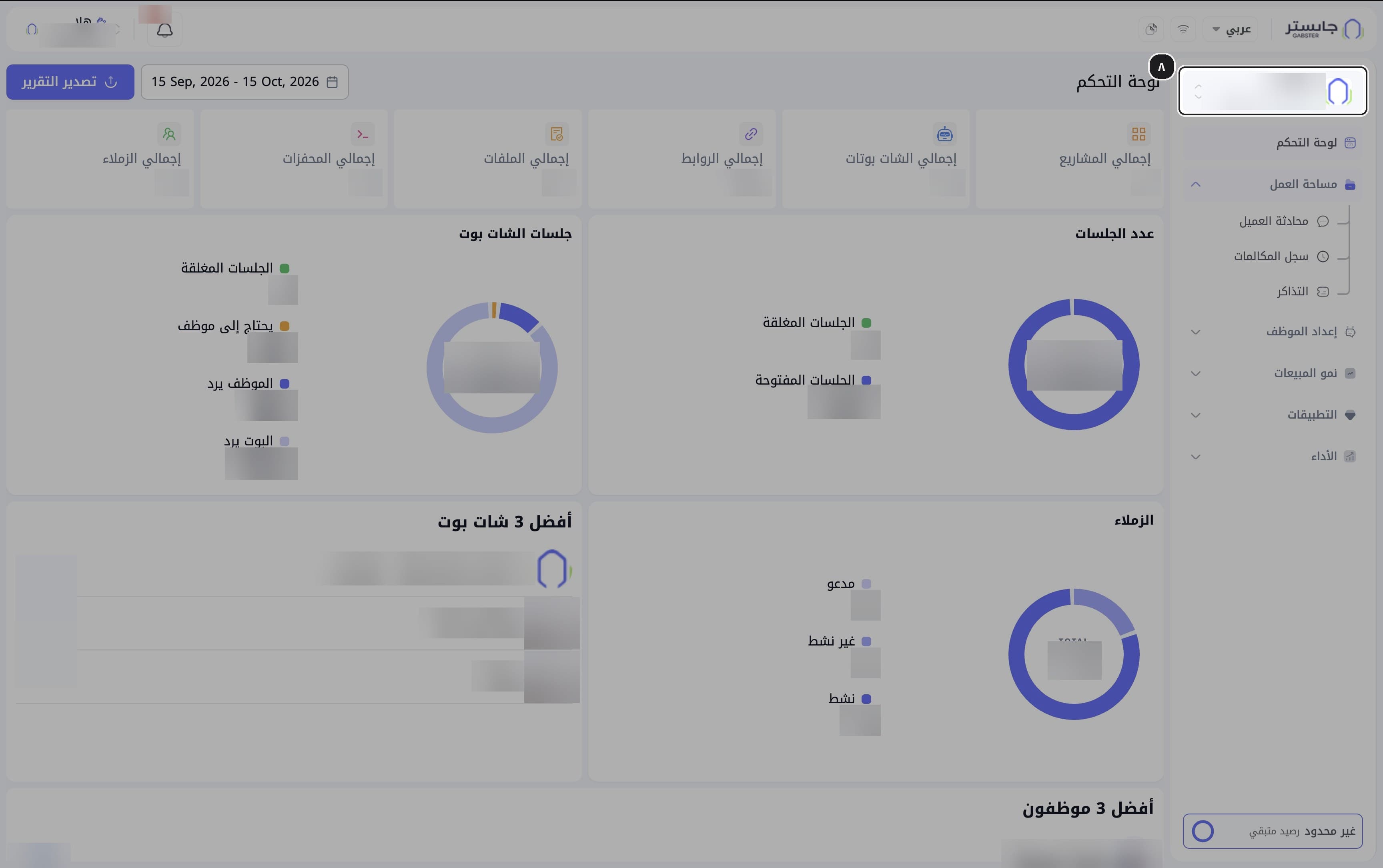
Click the card at the top of the sidebar.
Result: the project switcher opens, listing your organization, projects and AI Agents. At the bottom are the New project (مشروع جديد) button and the Switch organization (تبديل المؤسسة) link.
Expand a project
Click a project's name to see its AI Agents.
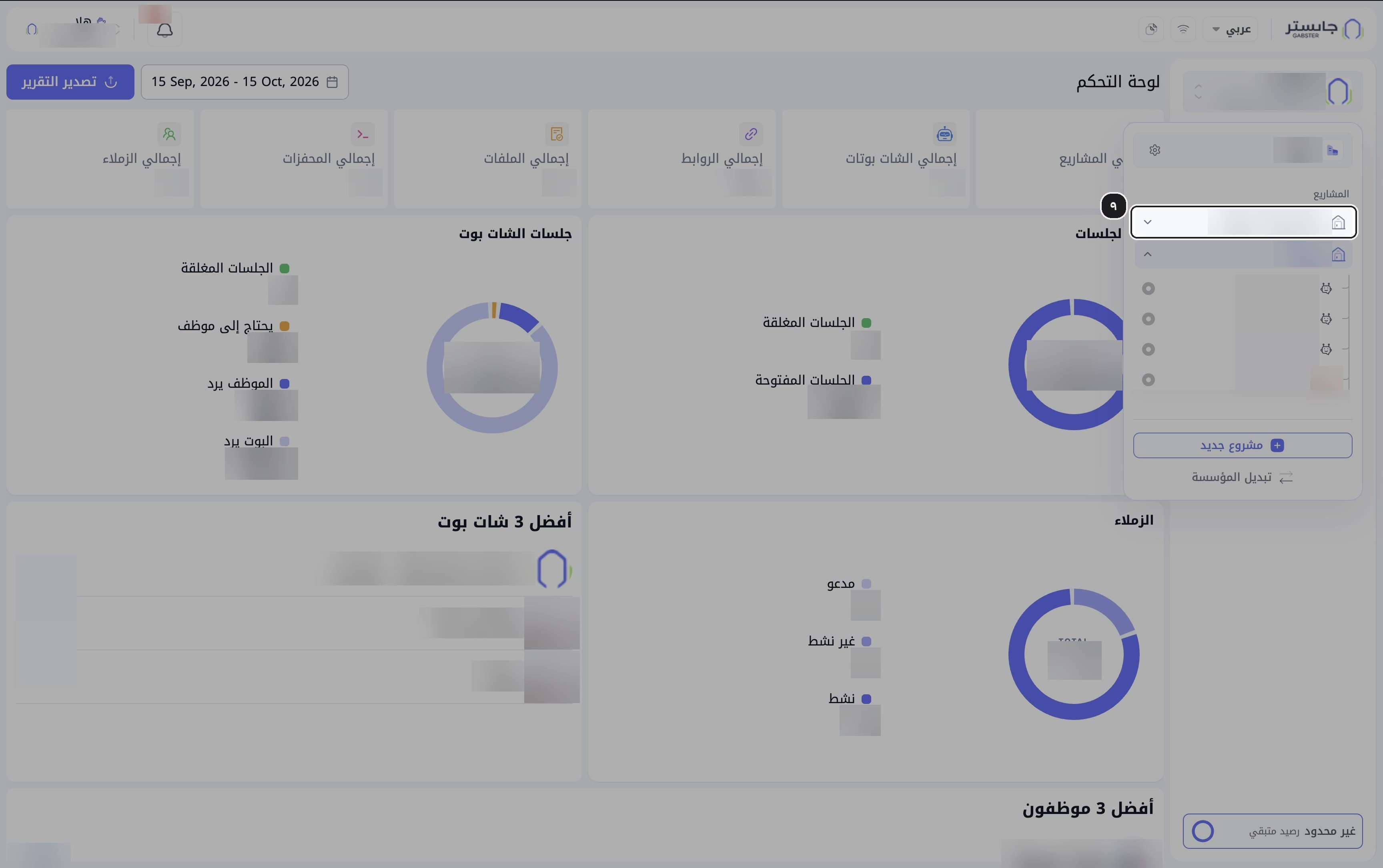
Pick an AI Agent
Choose the AI Agent you want to work on.
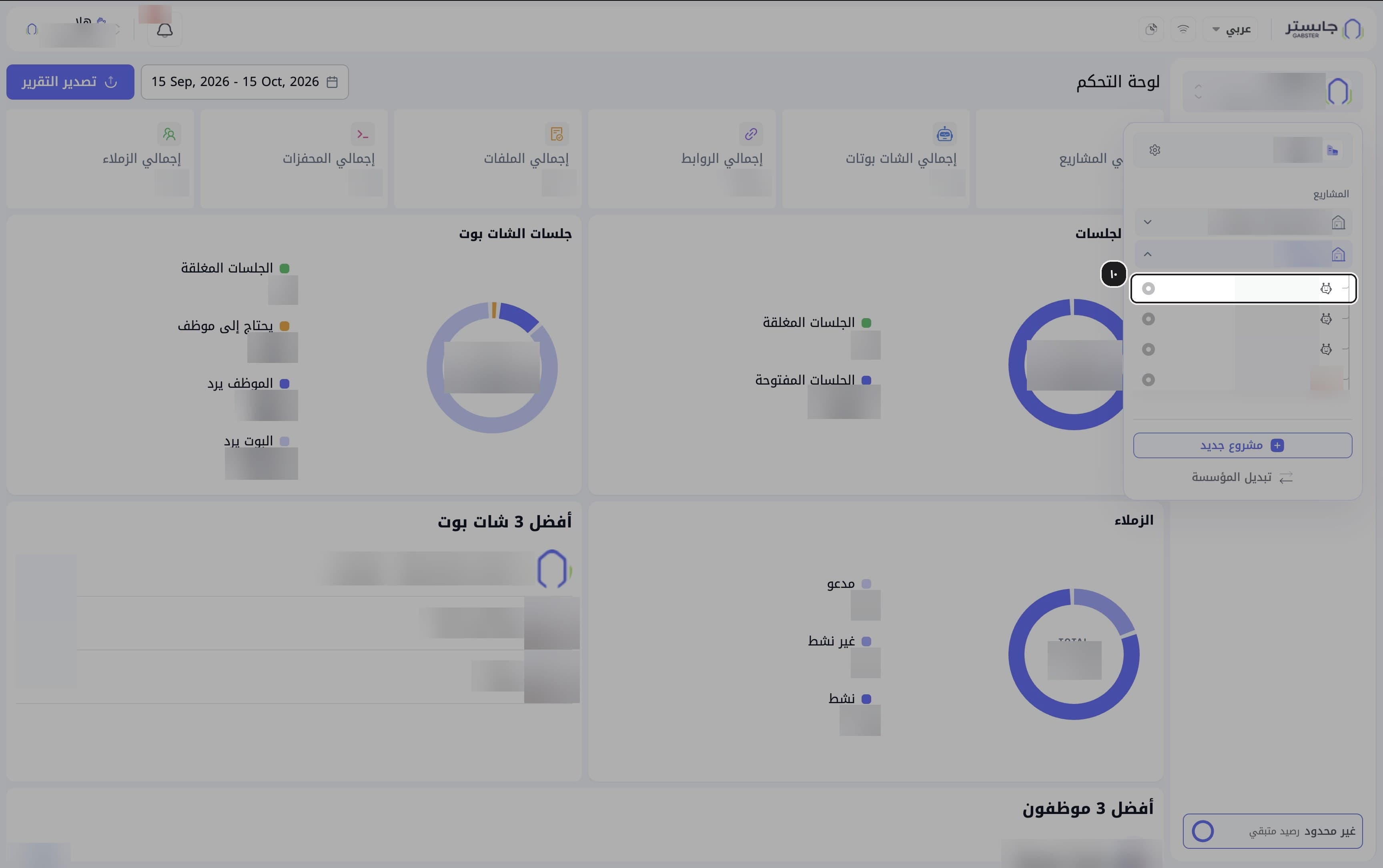
Notifications
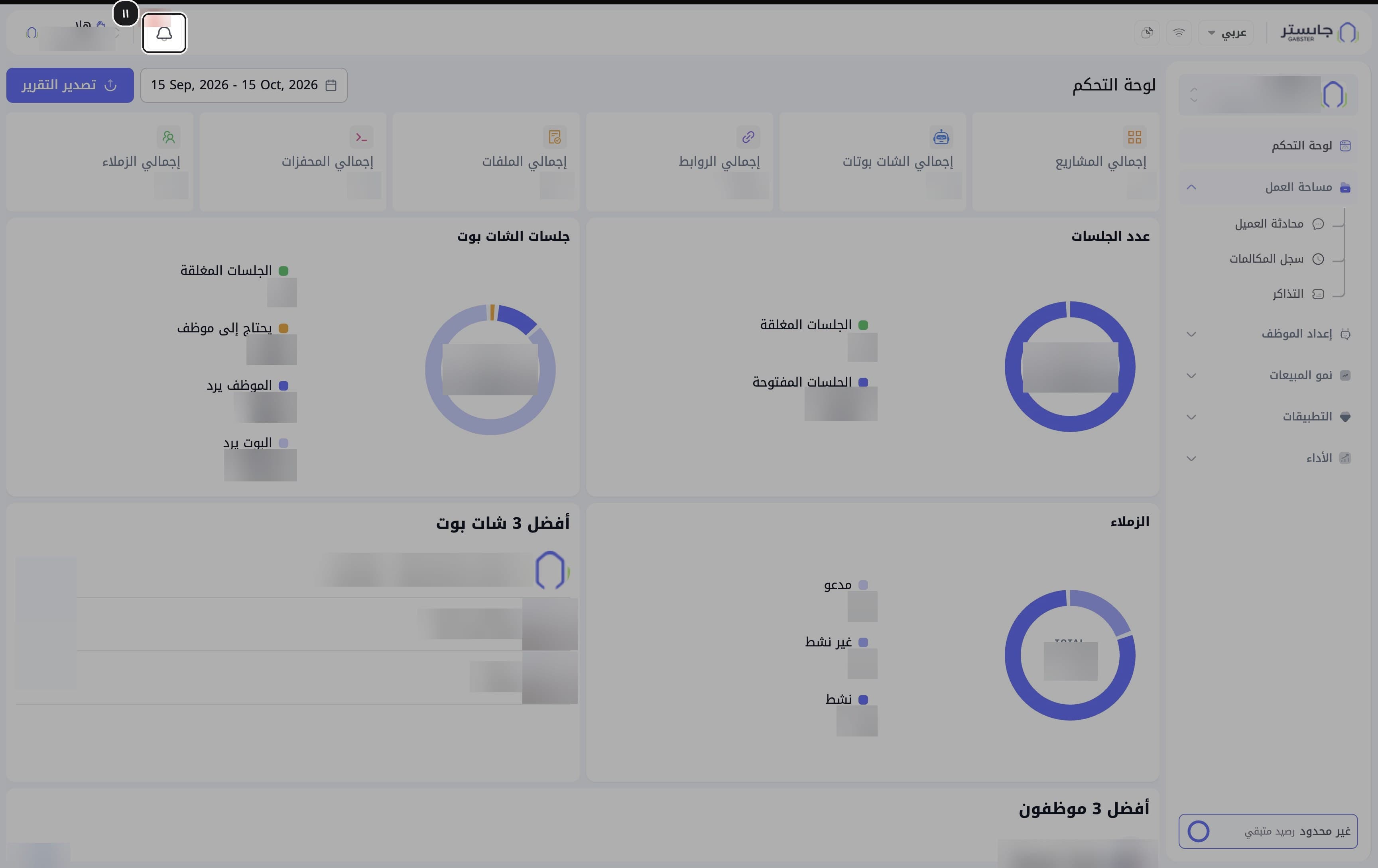
Open notifications
Click the bell in the top bar.
Result: the notifications dropdown opens under the bell, and the red badge shows the number of unread notifications (up to +99).
Read the latest notifications
Read the latest notifications, such as a new conversation or a new message from a customer.
Result: each card shows the customer, the event, the channel and the time.
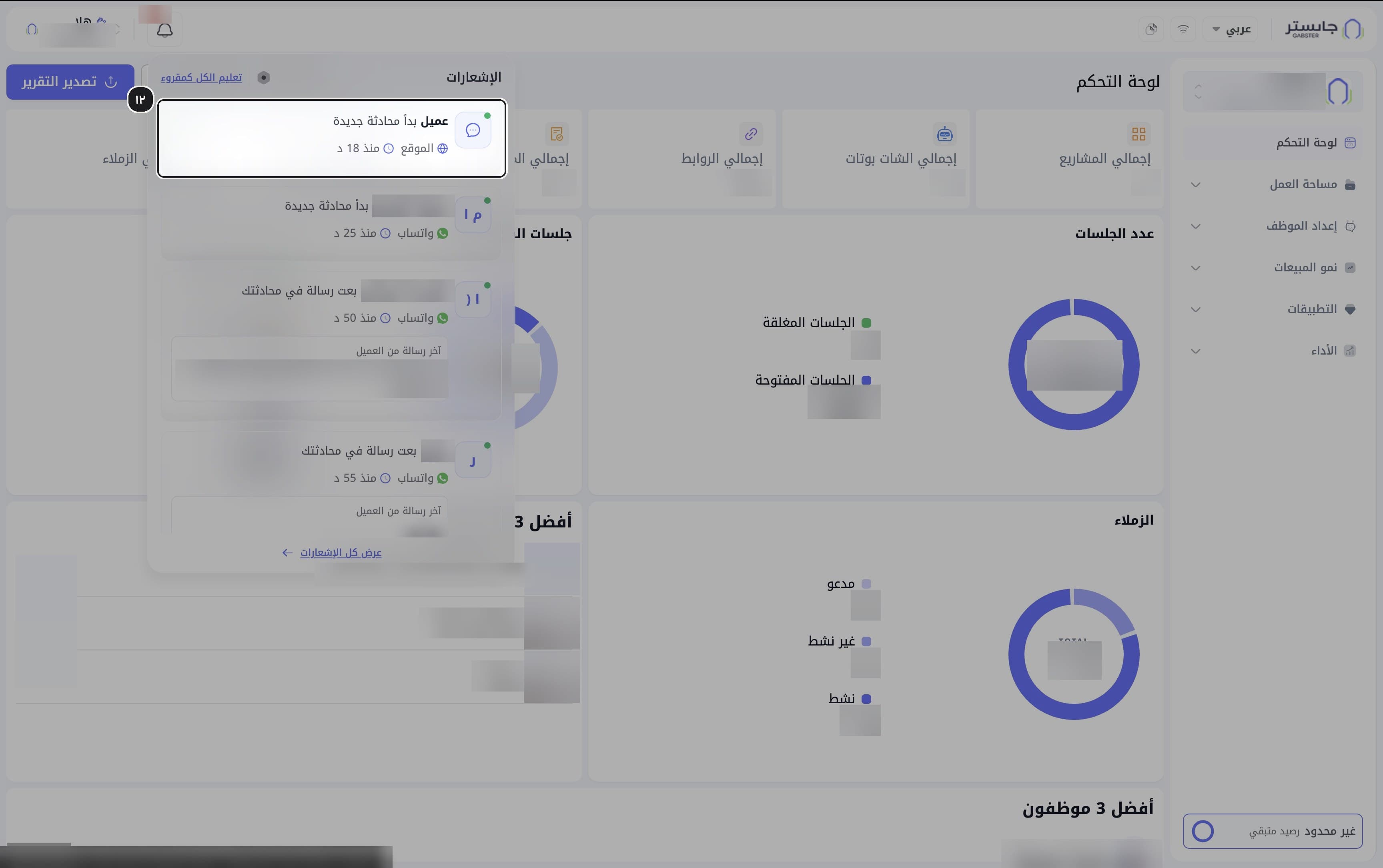
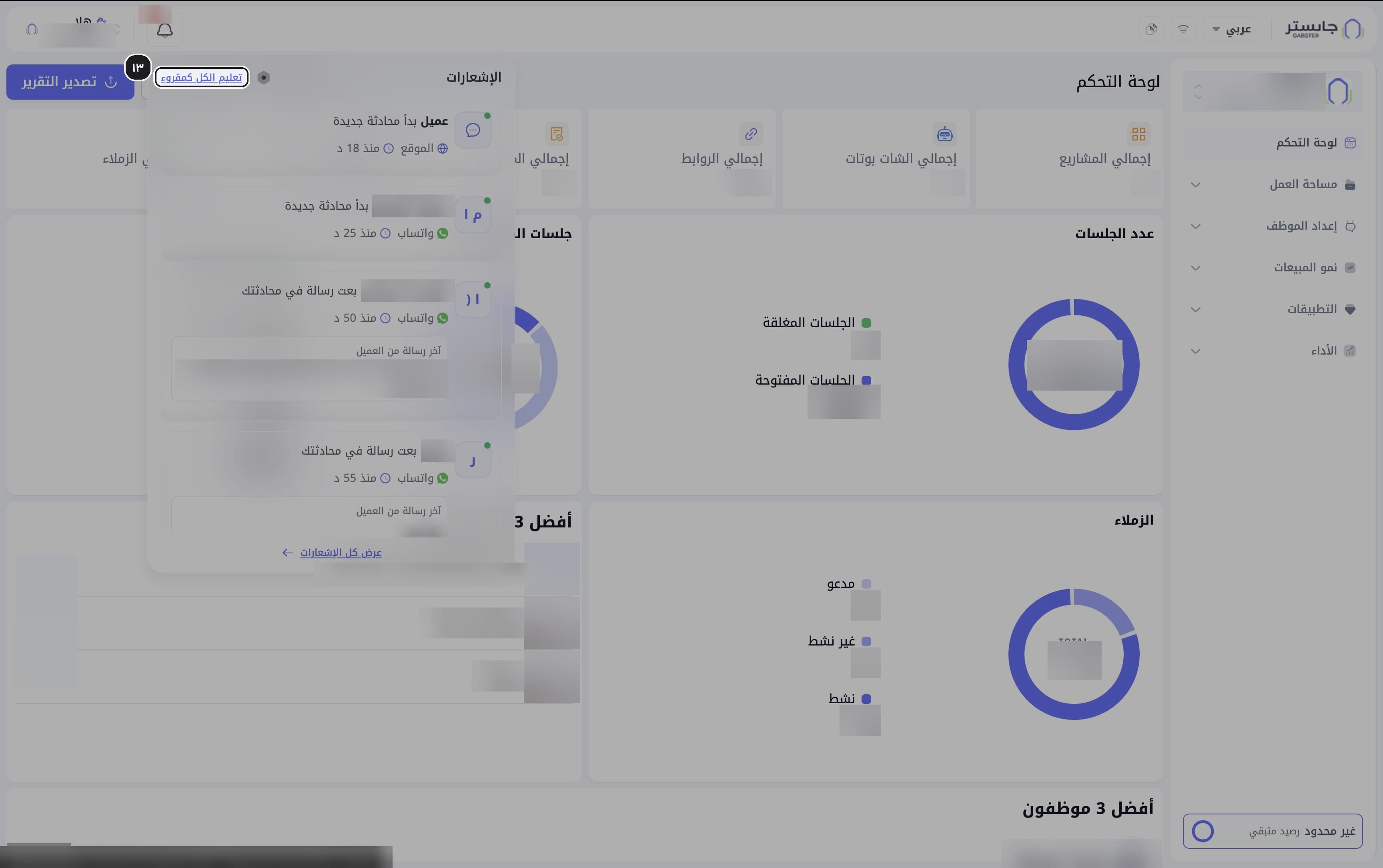
Mark all as read
Click Mark all as read (تعليم الكل كمقروء).
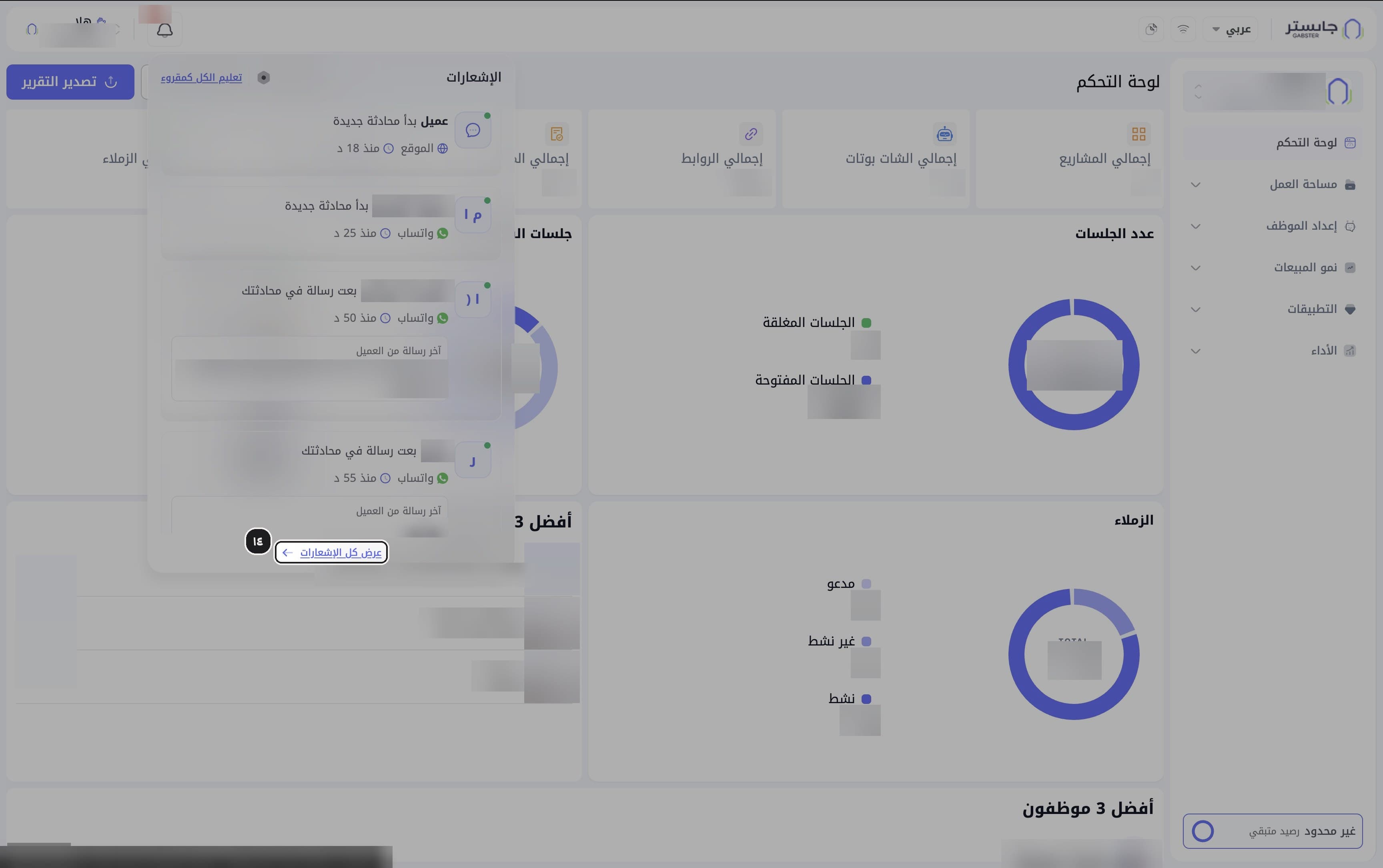
Open all notifications
Click View all notifications (عرض كل الإشعارات) to open the full list.
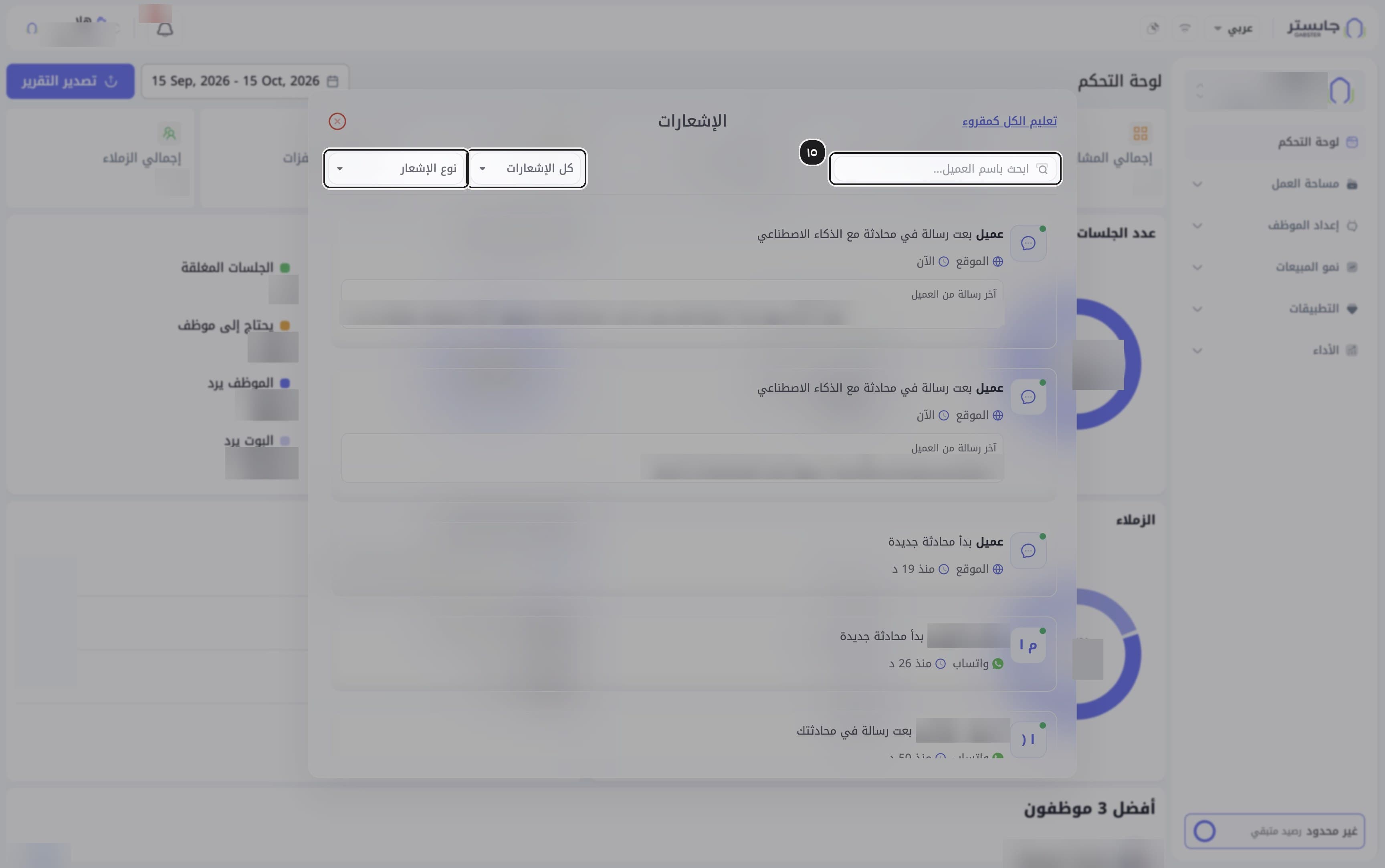
Search and filter notifications
Search by customer name in the search box (ابحث باسم العميل...), choose a status in All notifications (كل الإشعارات), or a type in Notification type (نوع الإشعار).
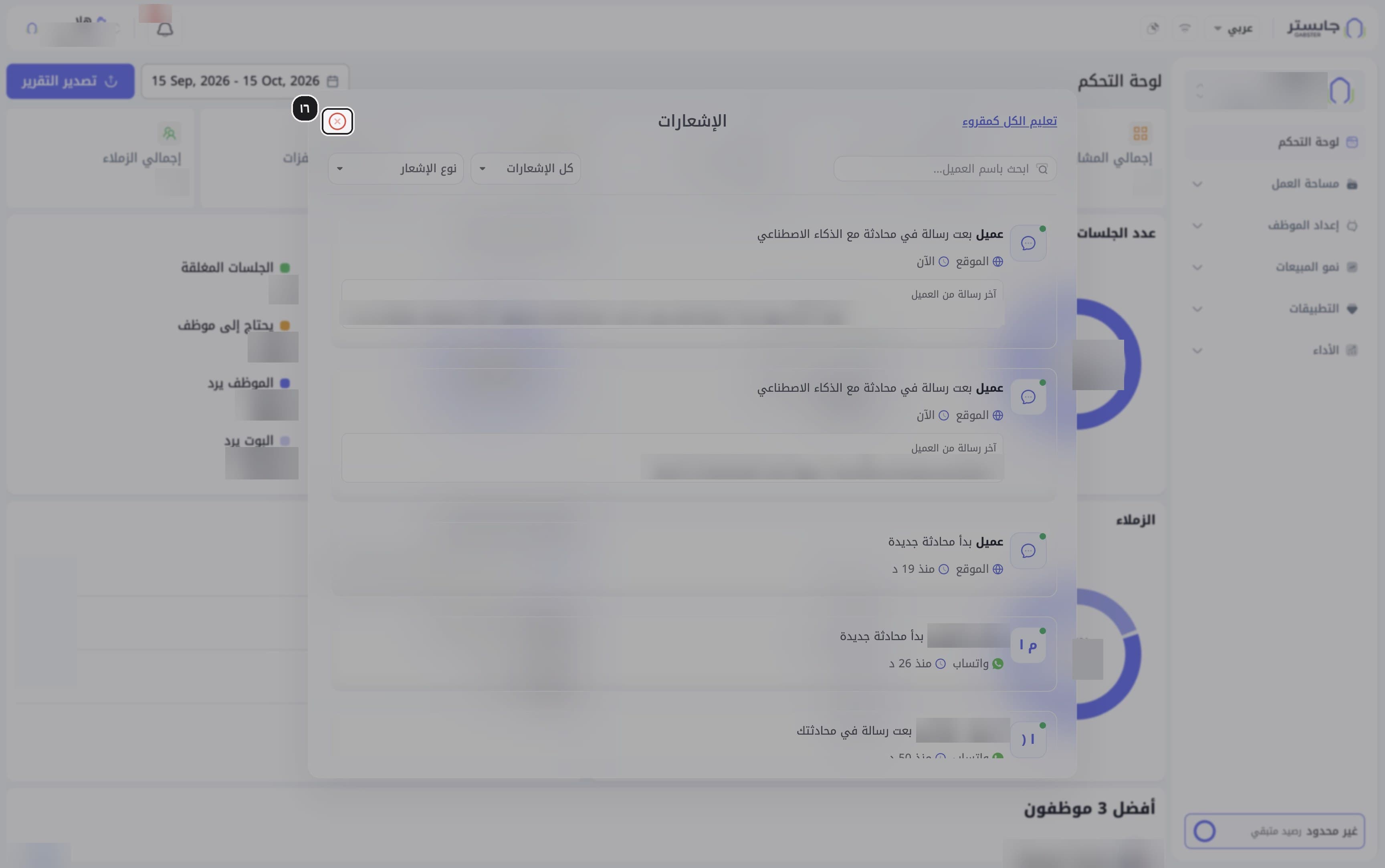
Close the notifications center
Click the red close icon to close the notifications center.
Organization profile
Open Organization Details
Open the project switcher again and click the gear next to your organization's name (its tooltip reads Organization (المؤسسة)).
Start editing
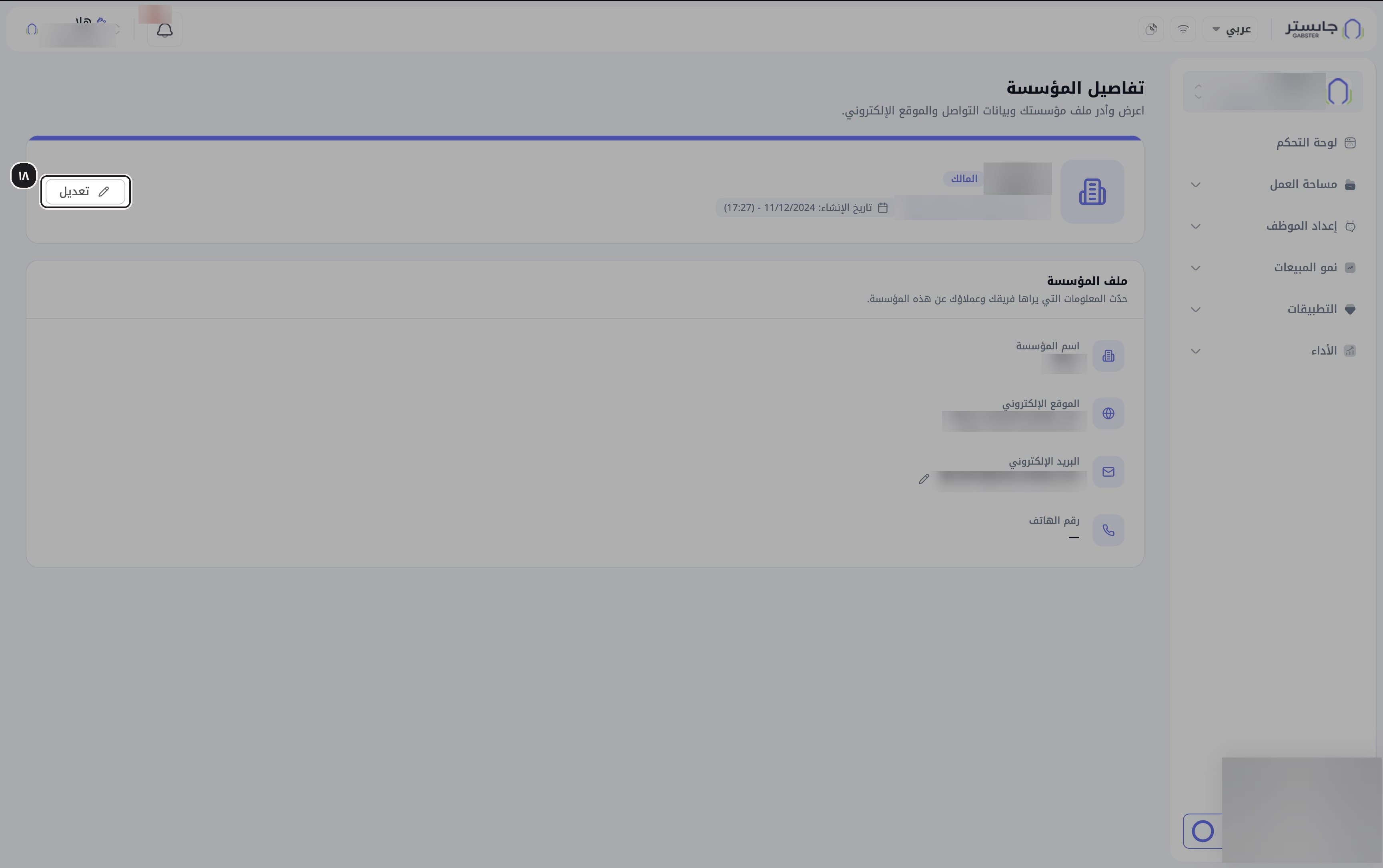
Click Edit (تعديل).
Result: the organization profile card switches to edit mode.
Update your organization's details
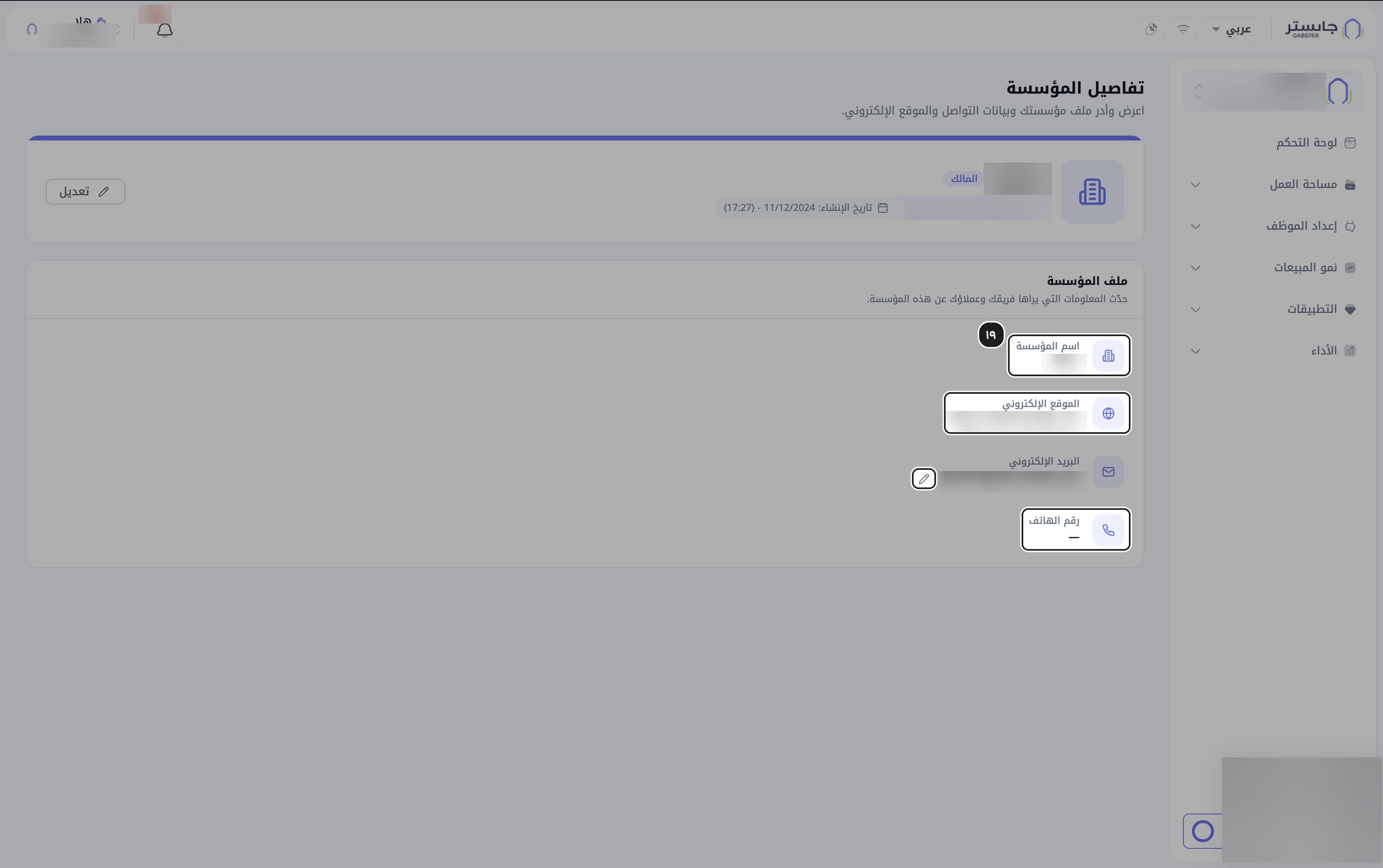
Update Organization name (اسم المؤسسة), Website (الموقع الإلكتروني) and Phone number (رقم الهاتف).
Result: these fields are editable; the email is not changed here and has its own pencil icon next to it.
Save changes
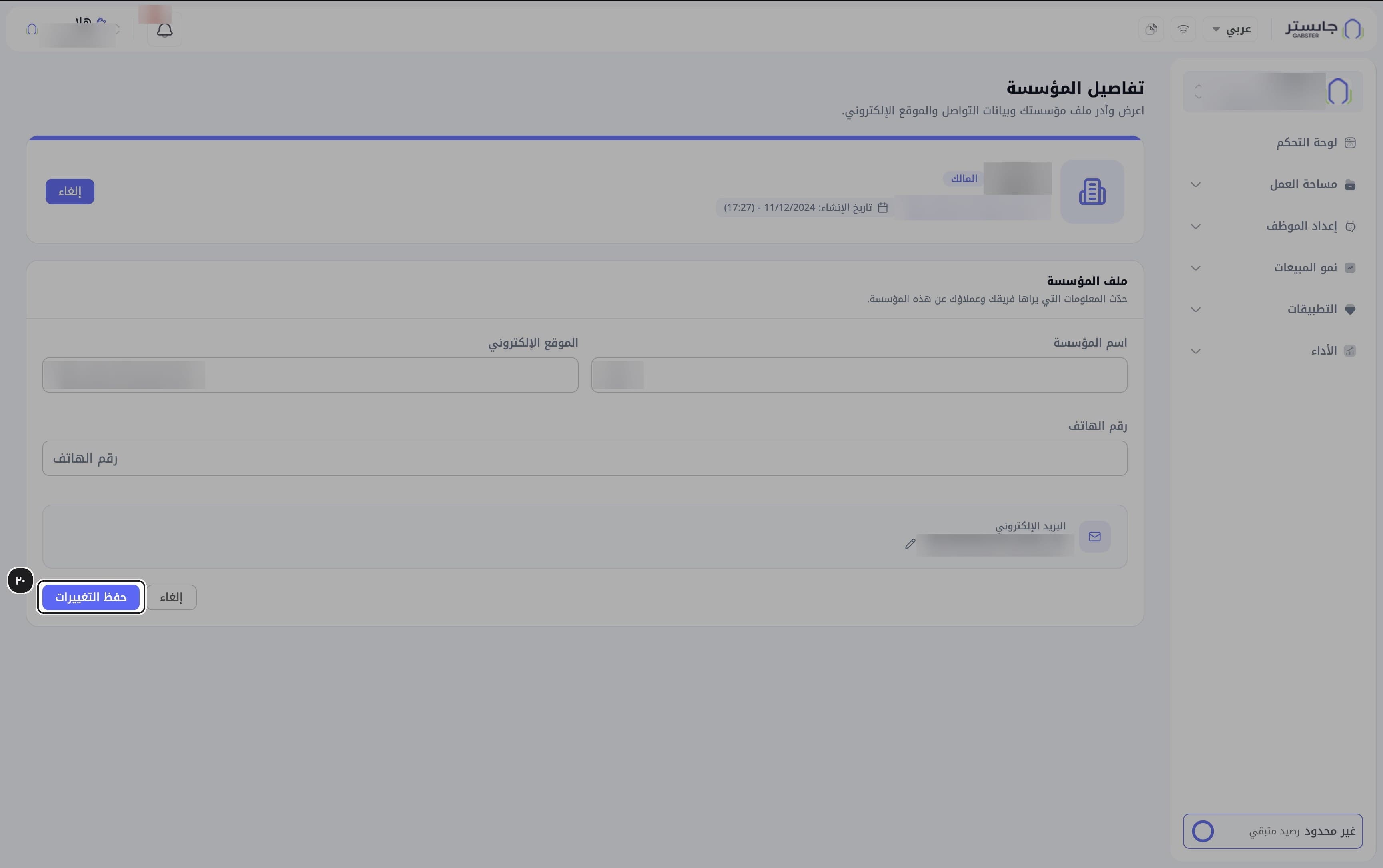
Click Save changes (حفظ التغييرات).
Where everything else lives
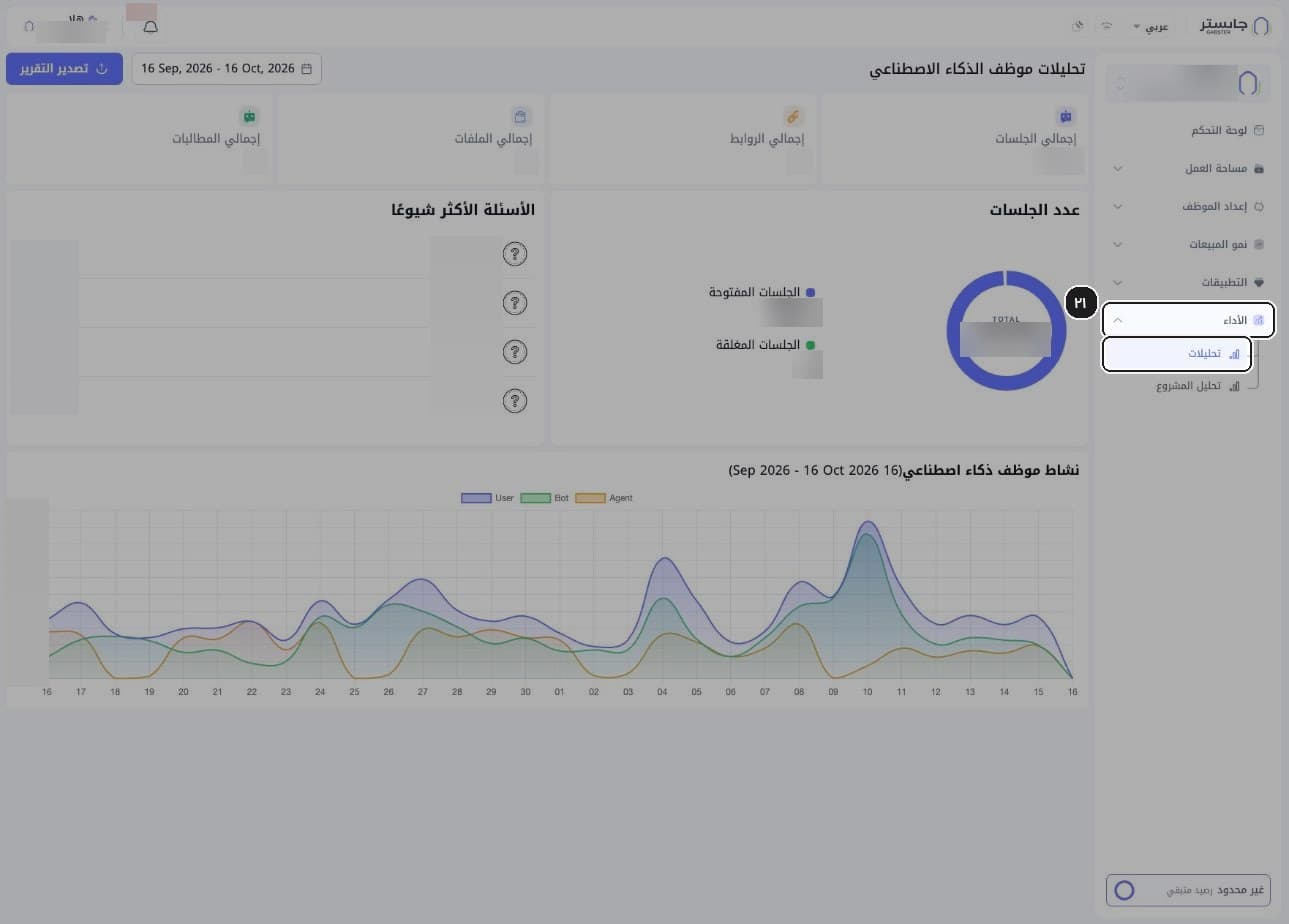
Open Analytics
Expand the Performance (الأداء) group in the sidebar and choose Analytics (تحليلات).
Result: analytics open for the AI Agent selected in the project switcher.
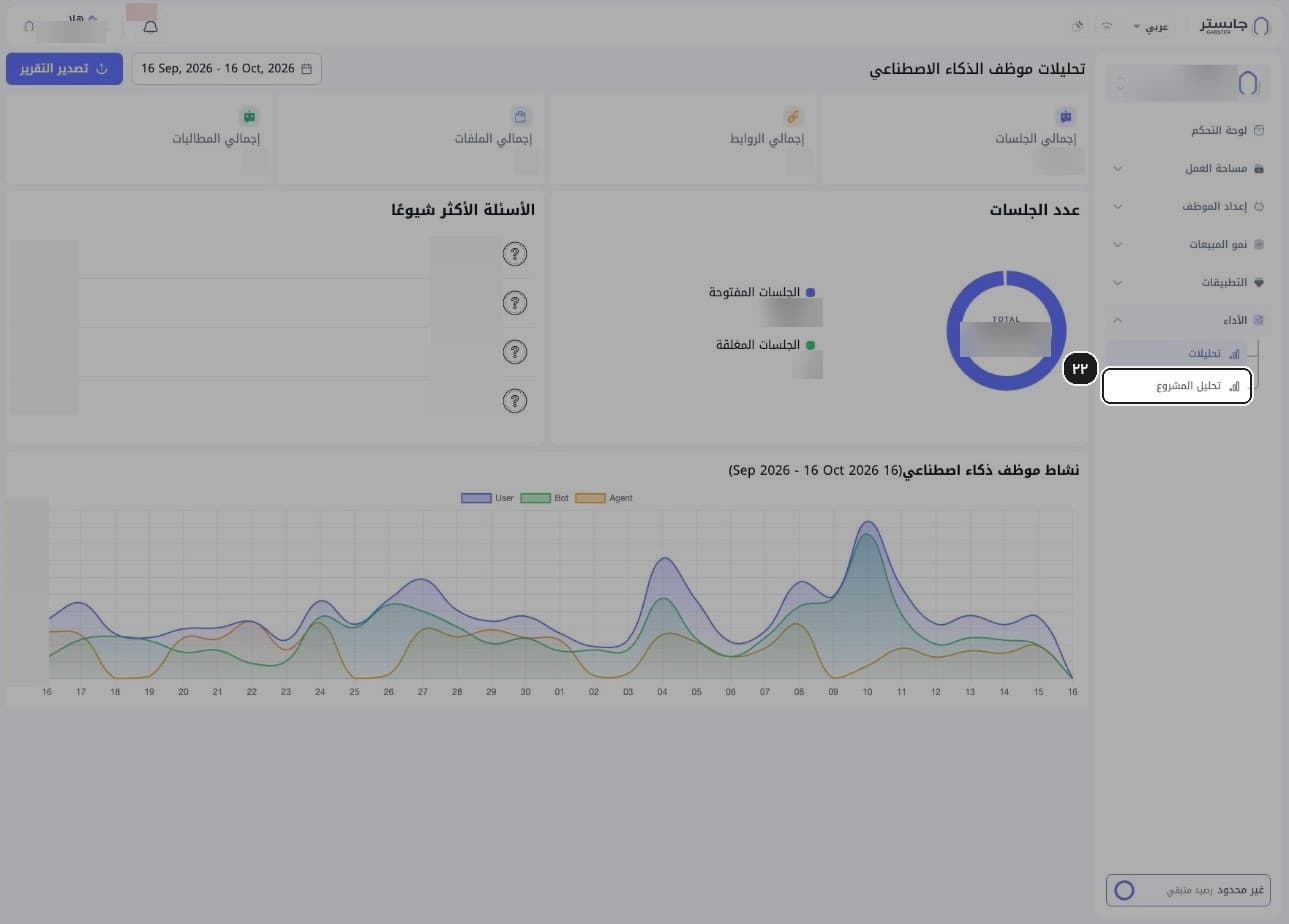
Open Project analytics
Choose Project analytics (تحليل المشروع) to see numbers for the whole project.
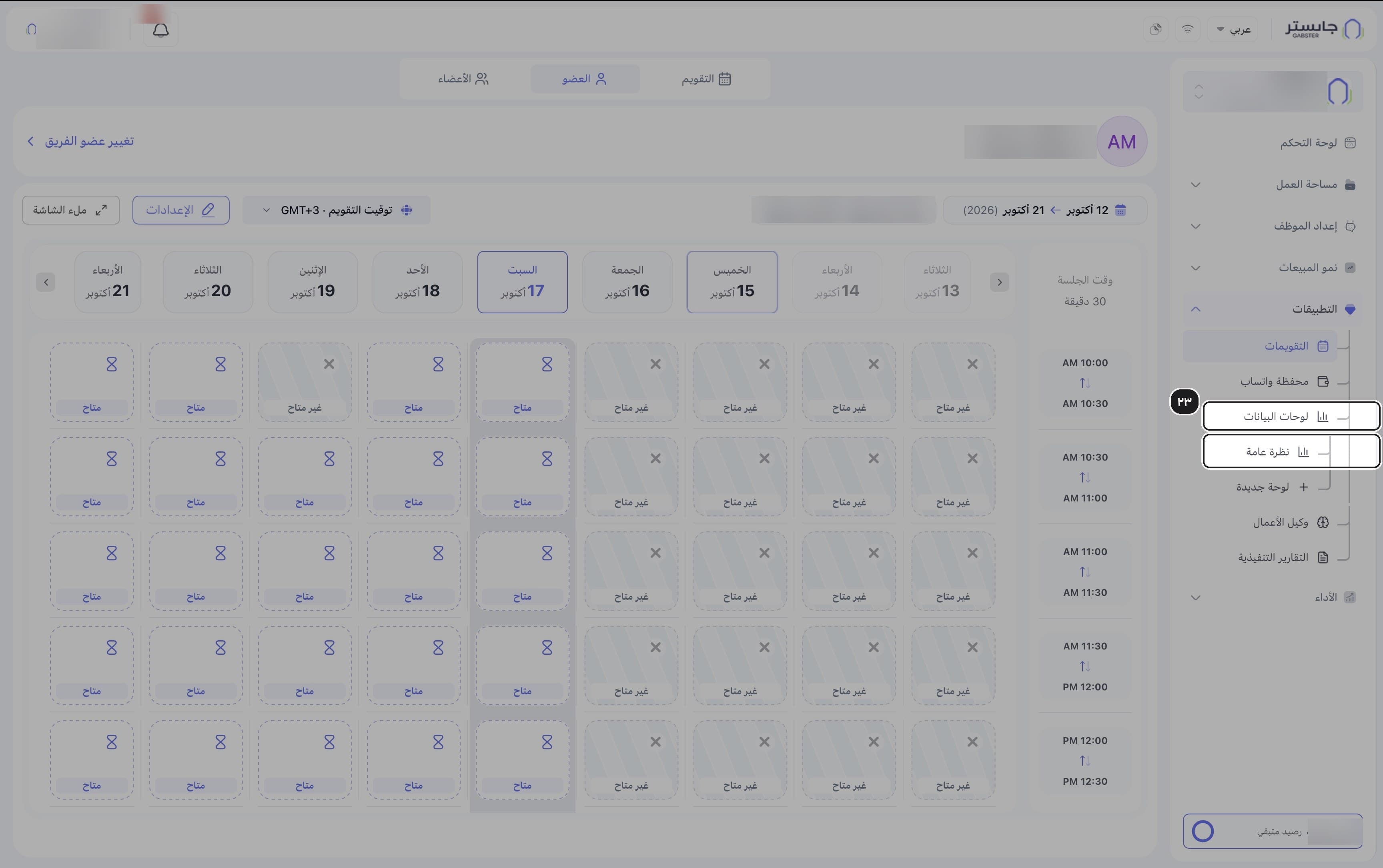
Open Data Dashboards
In the Apps (التطبيقات) group, open Data Dashboards (لوحات البيانات), then Overview (نظرة عامة).
Result: you reach the default and custom data dashboards.
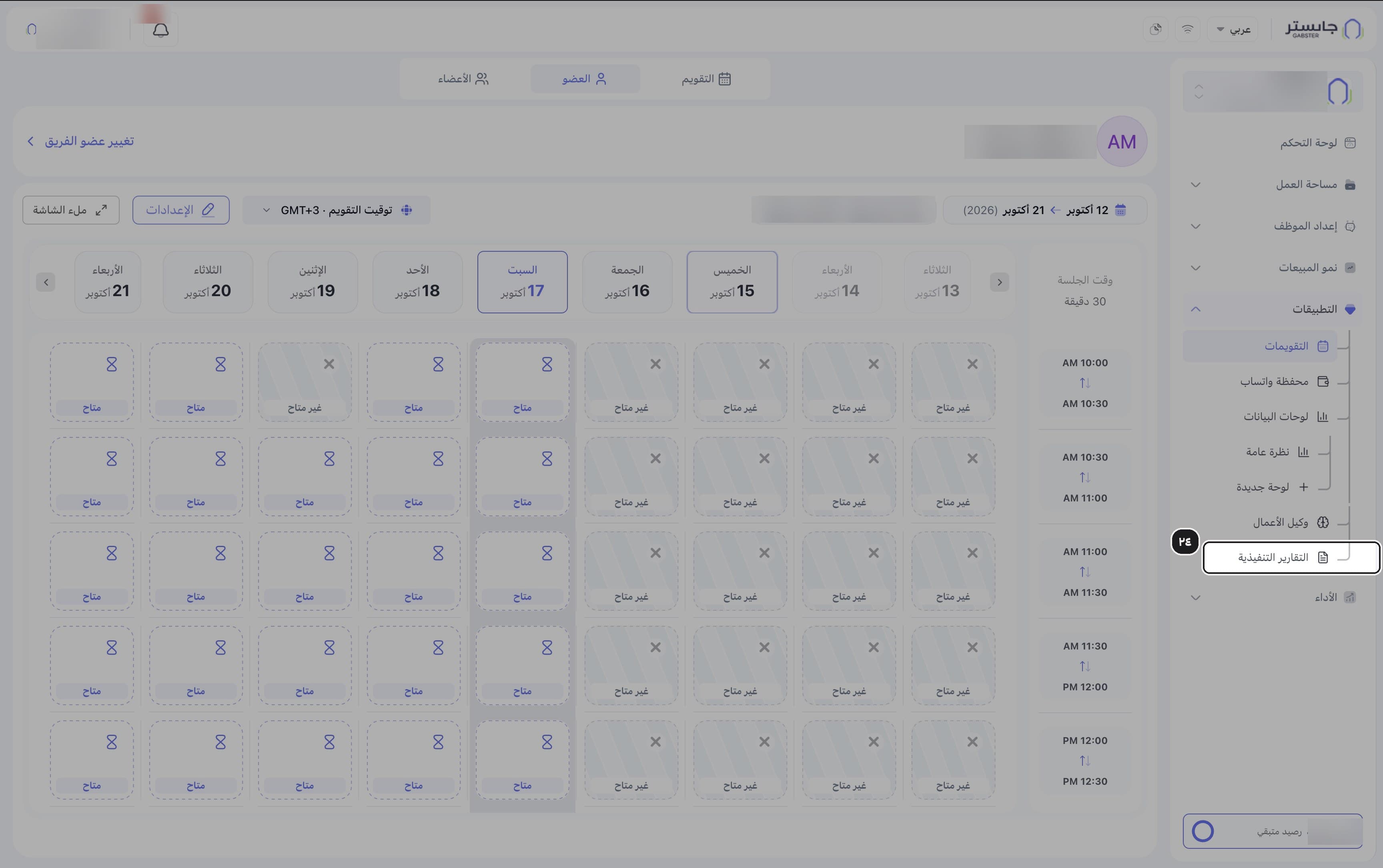
Open Executive Reports
Choose Executive Reports (التقارير التنفيذية) to read an AI-generated performance summary.
Open Business Agent
Choose Business Agent (وكيل الأعمال), a chat assistant that answers questions about your own data.
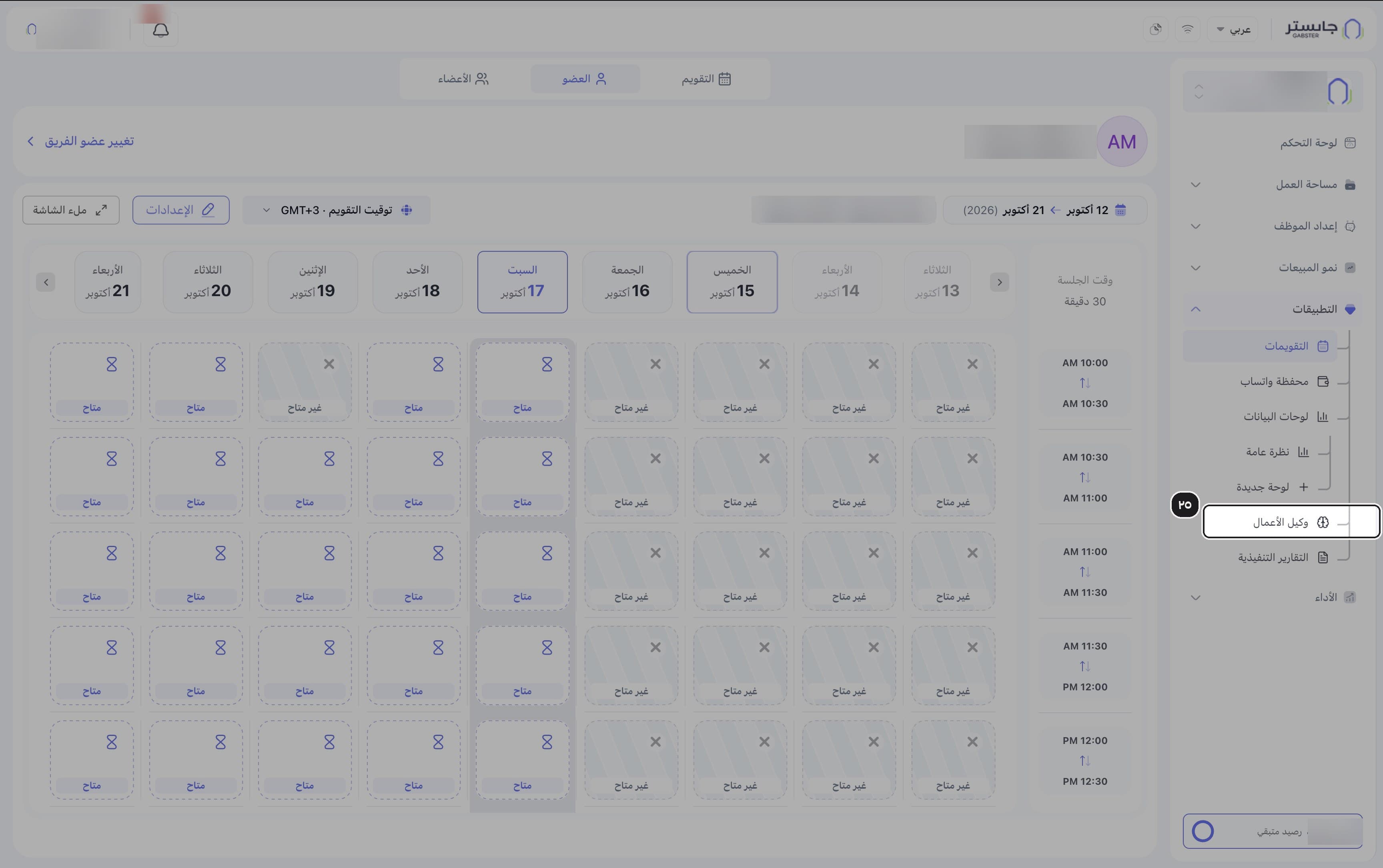
Open WhatsApp Wallet
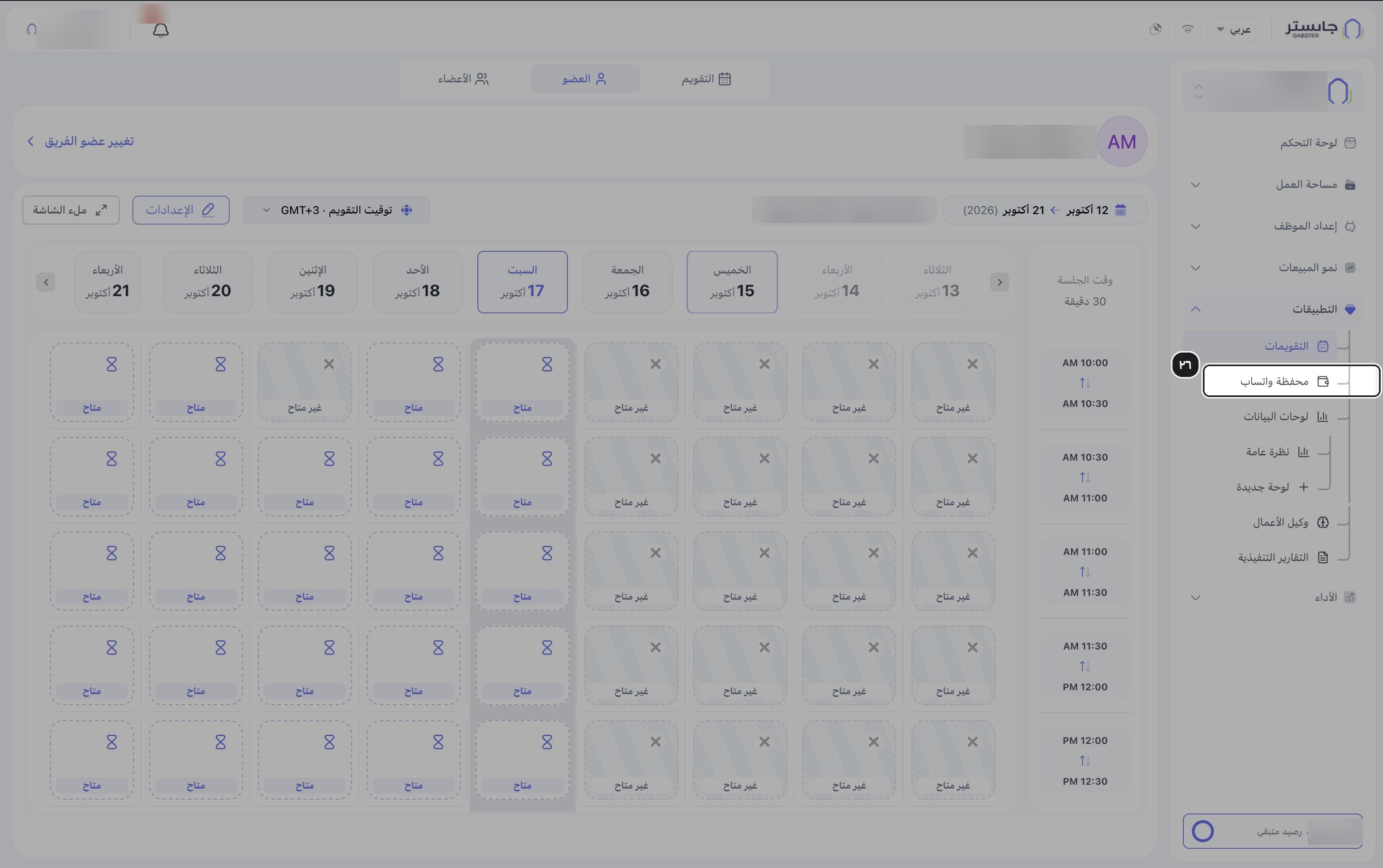
Choose WhatsApp Wallet (محفظة واتساب) to follow your prepaid balance for WhatsApp messages.