Tutorials
Hand conversations to your team and create functions
Decide when your AI Agent hands a conversation to your team, and create functions that collect customer data and open a ticket.
In this tutorial you configure the built-in handoff function: when your AI Agent hands a conversation to your team, whether the team is alerted to take over live, and whether a ticket is opened. Then you write your own handoff rules and create functions that collect named fields from the customer and open a ticket.
Before you start
- An AI Agent that is set up. See Build your AI Agent.
- Staff members who answer conversations and handle tickets. See Handle customer conversations and Tickets and call log.
A. Built-in handoff
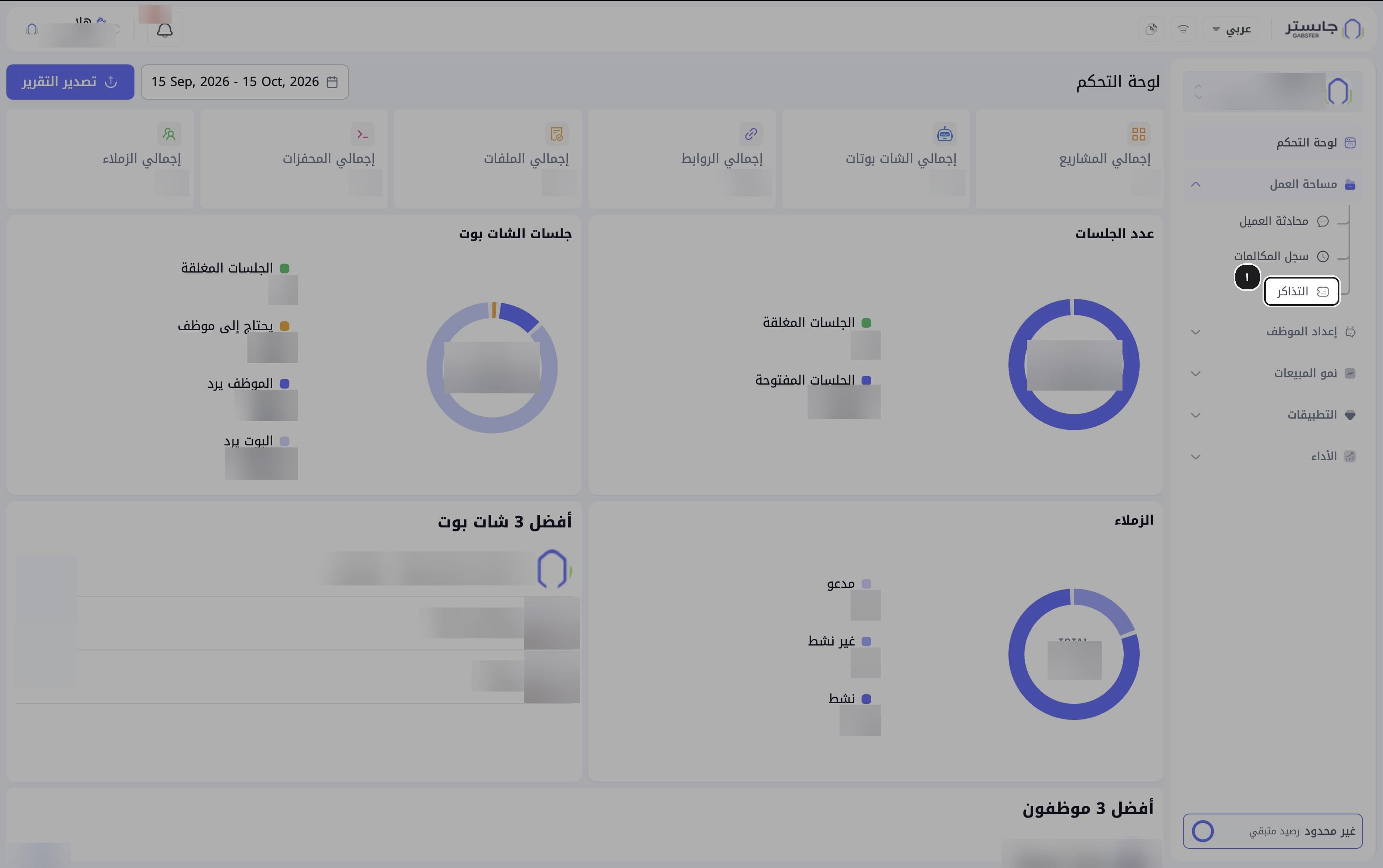
In the sidebar, open Workspace (مساحة العمل) and choose Tickets (التذاكر).
The Tickets page opens.
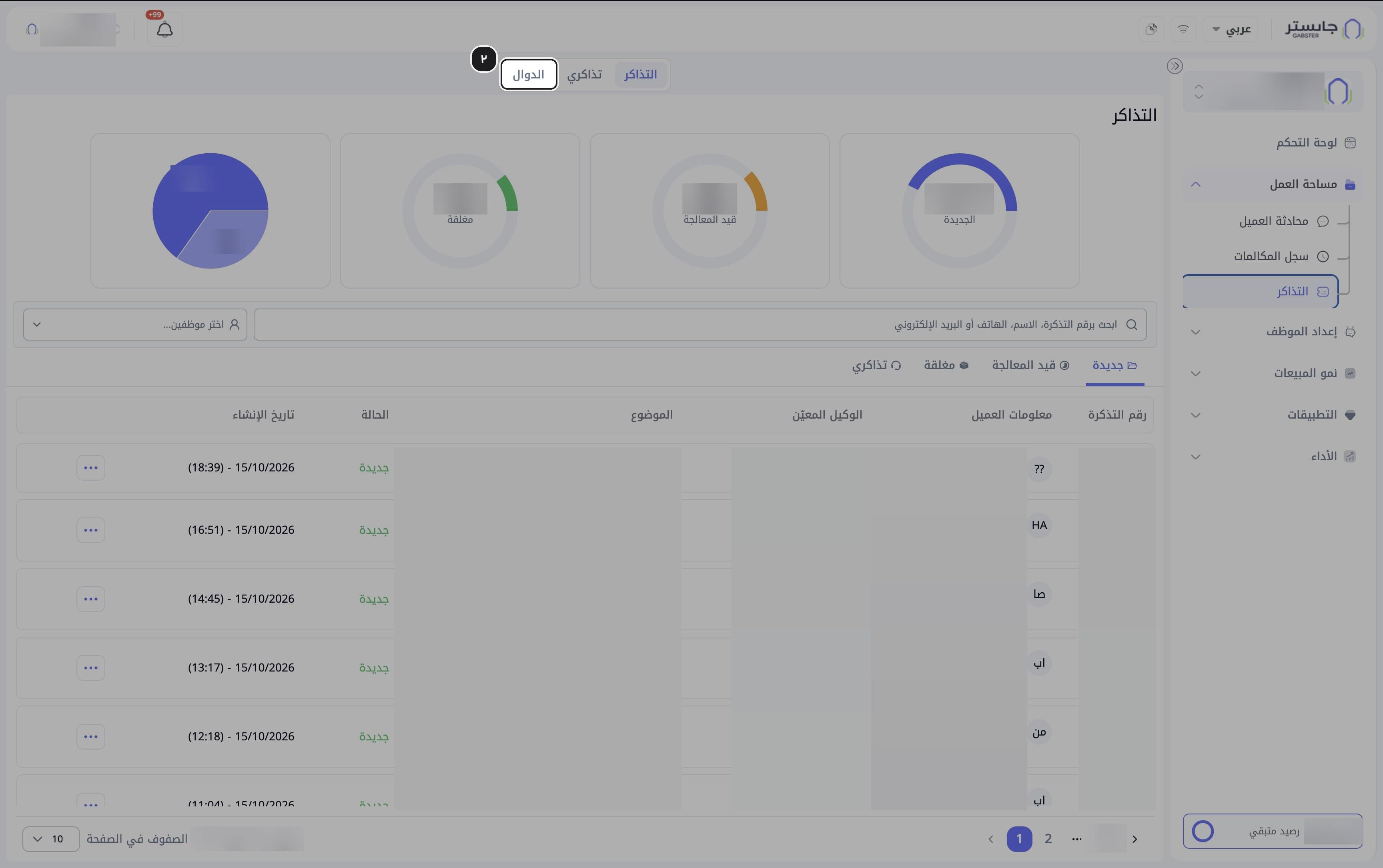
Switch to the Functions (الدوال) tab at the top of the page.
The Functions page appears: the built-in handoff card on top, and your functions in a table below.
Find the built-in function Hand off to customer service staff (التحويل إلى موظف خدمة العملاء). It carries the Built-in (مدمجة) and Enabled (مفعلة) badges.
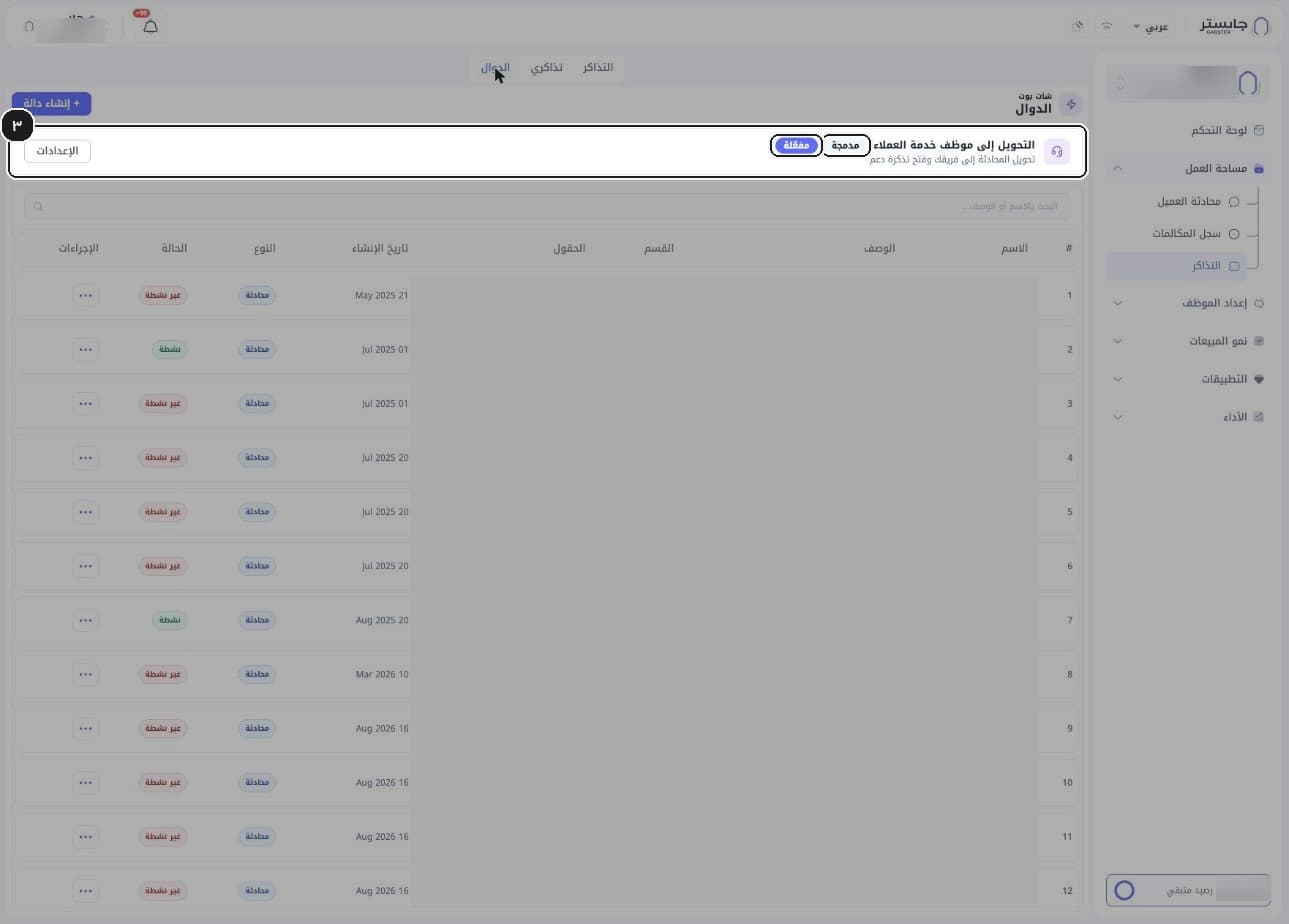
Click Settings (الإعدادات) on its card.
The handoff settings drawer opens on the left.
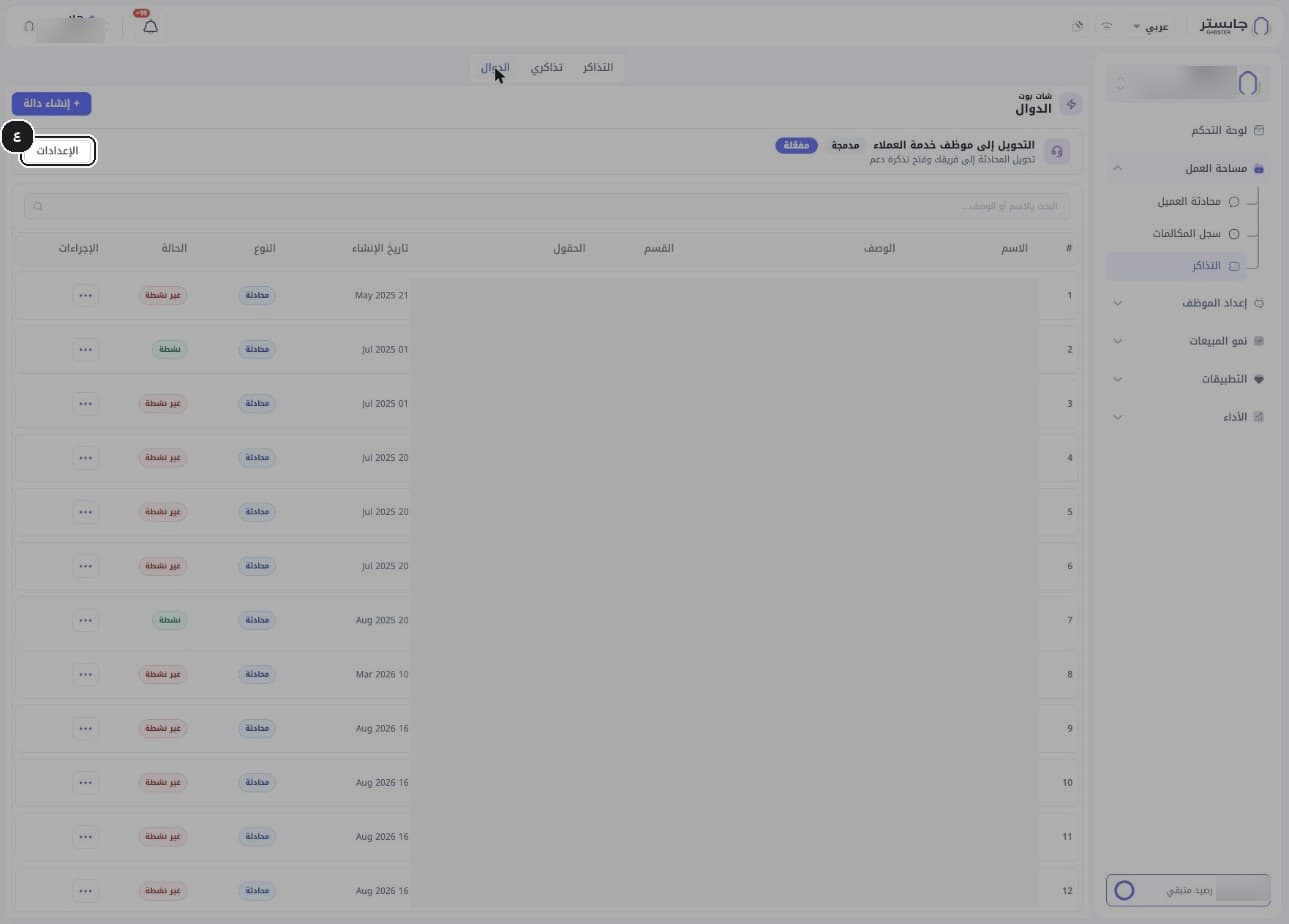
Keep Enable this tool (تفعيل هذه الأداة) on. When it is off, your AI Agent hands no conversation to your team.
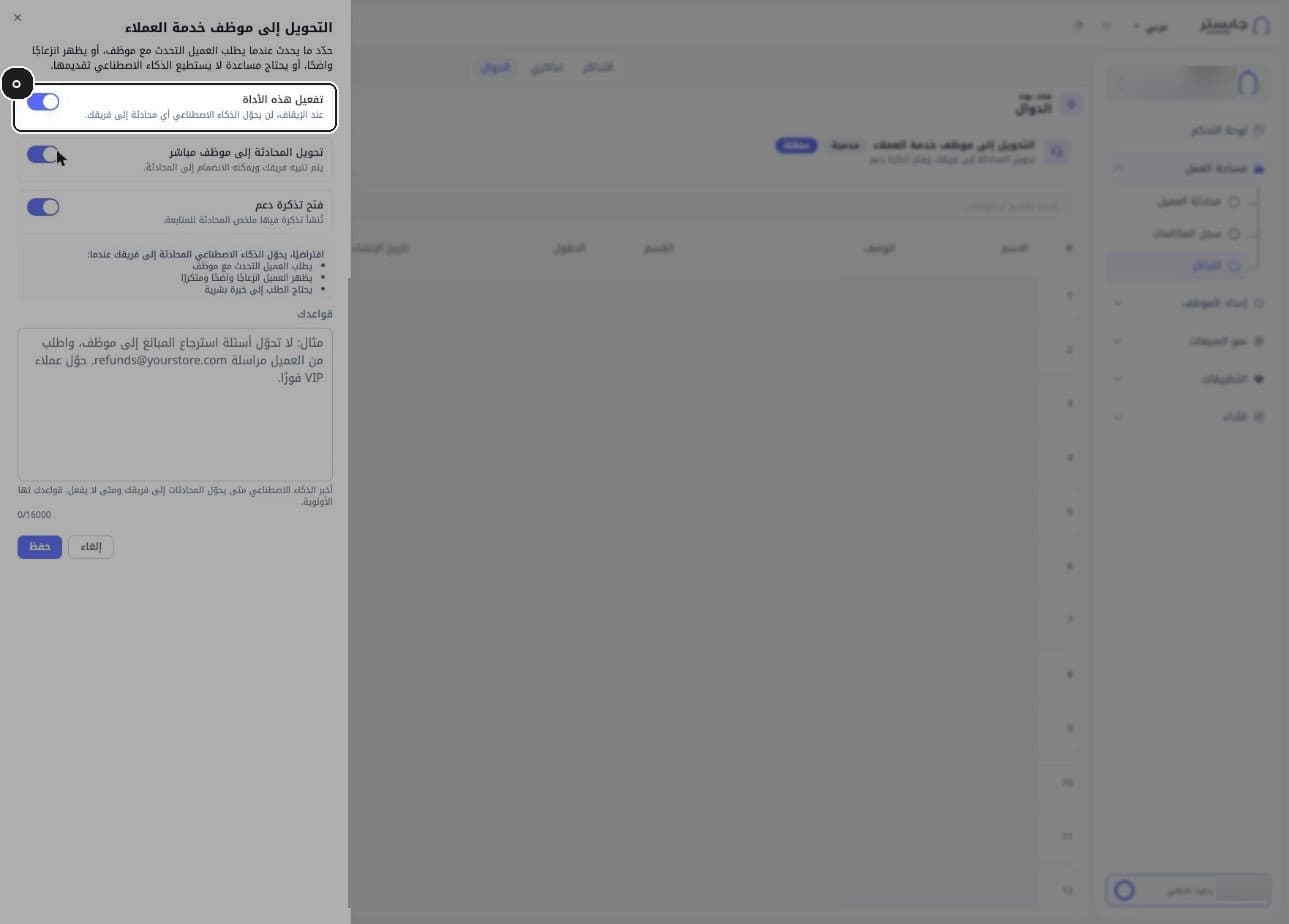
Choose whether to turn on Hand the conversation to a live staff member (تحويل المحادثة إلى موظف مباشر). When it is on, your team is alerted and can join the conversation.
The conversation moves to the Needs staff (يتطلب موظفًا) filter in Customer Conversations, and the staff chosen for your AI Agent's conversations (or your admins, if none are chosen) get an in-app notification.
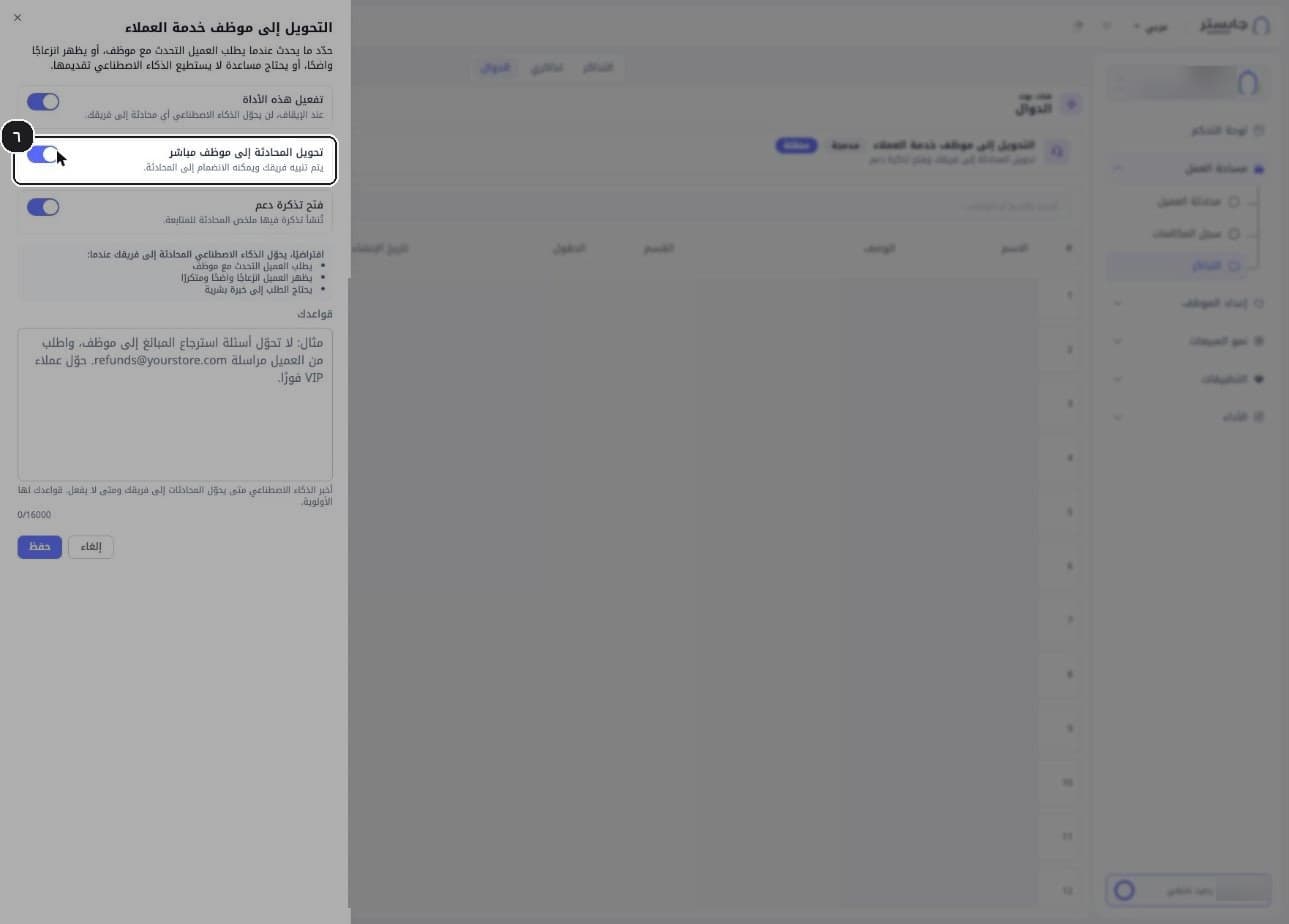
Choose whether to turn on Open a support ticket (فتح تذكرة دعم). When it is on, a ticket with a summary of the conversation is created for follow-up.
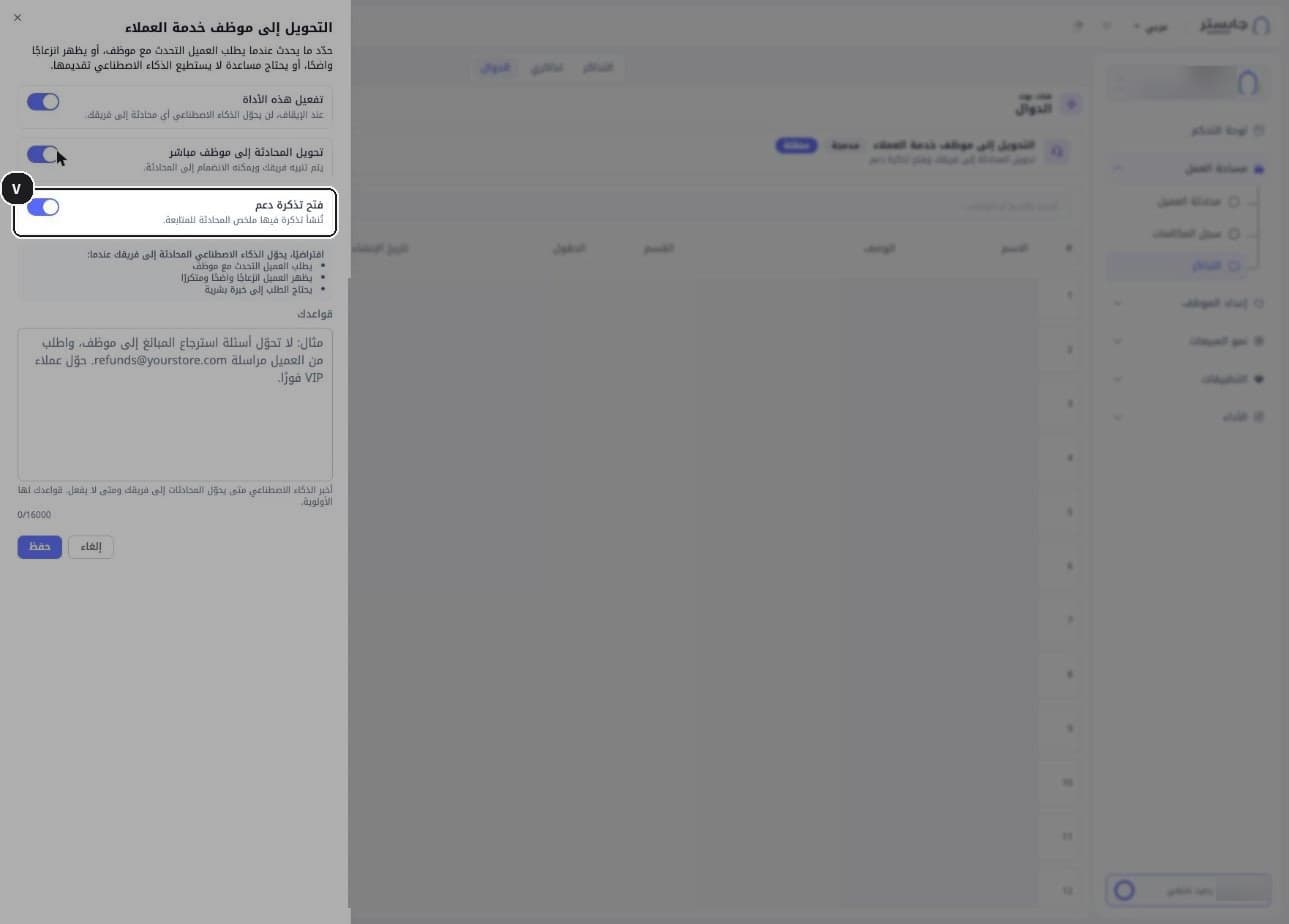
Read the default triggers under By default, the AI hands the conversation to your team when: (افتراضيًا، يحوّل الذكاء الاصطناعي المحادثة إلى فريقك عندما:). Your AI Agent hands the conversation to your team when the customer asks to talk to a staff member, shows clear, repeated frustration, or the request needs human expertise. There is no control to edit this list — use Your rules to adjust the behaviour.
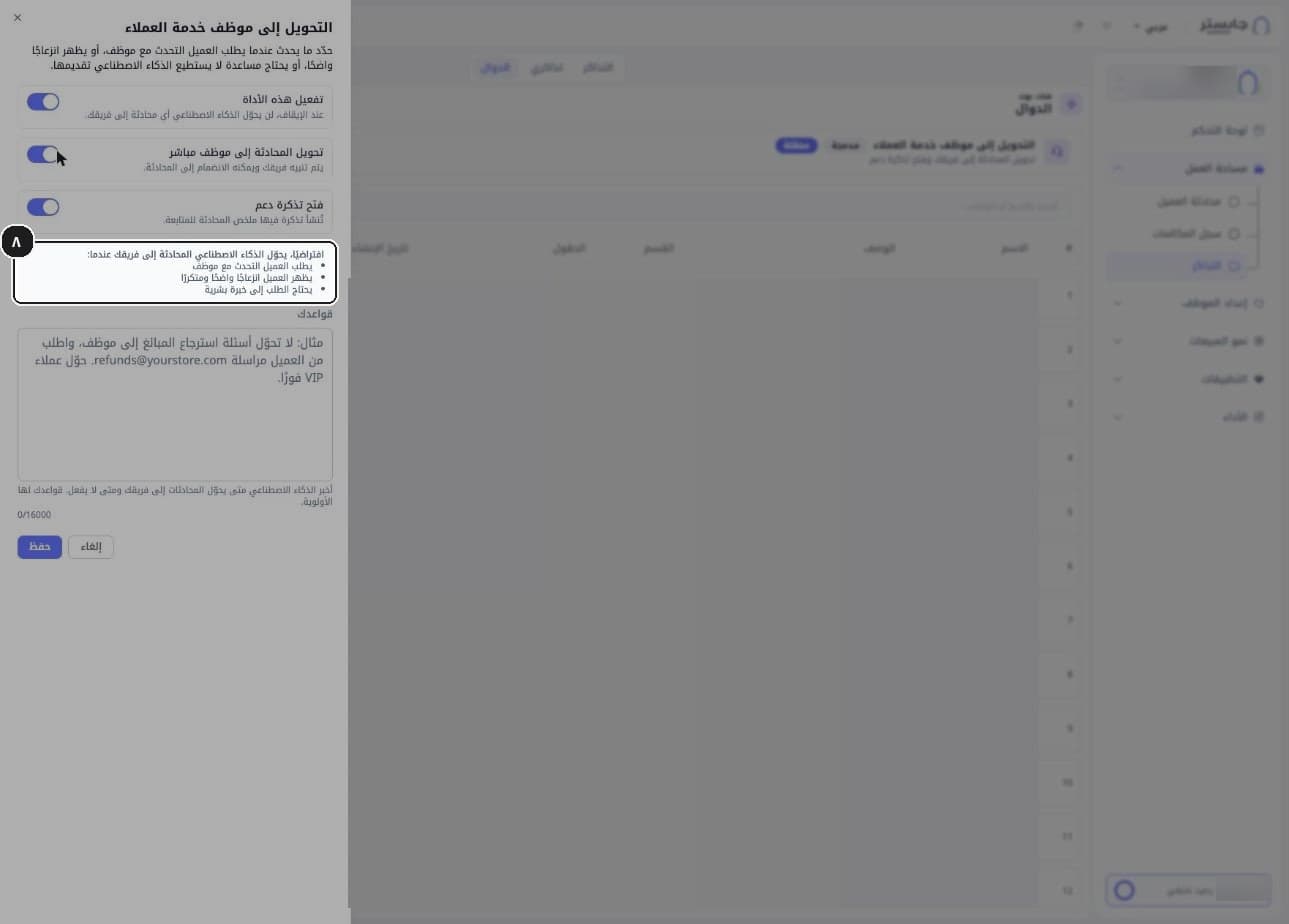
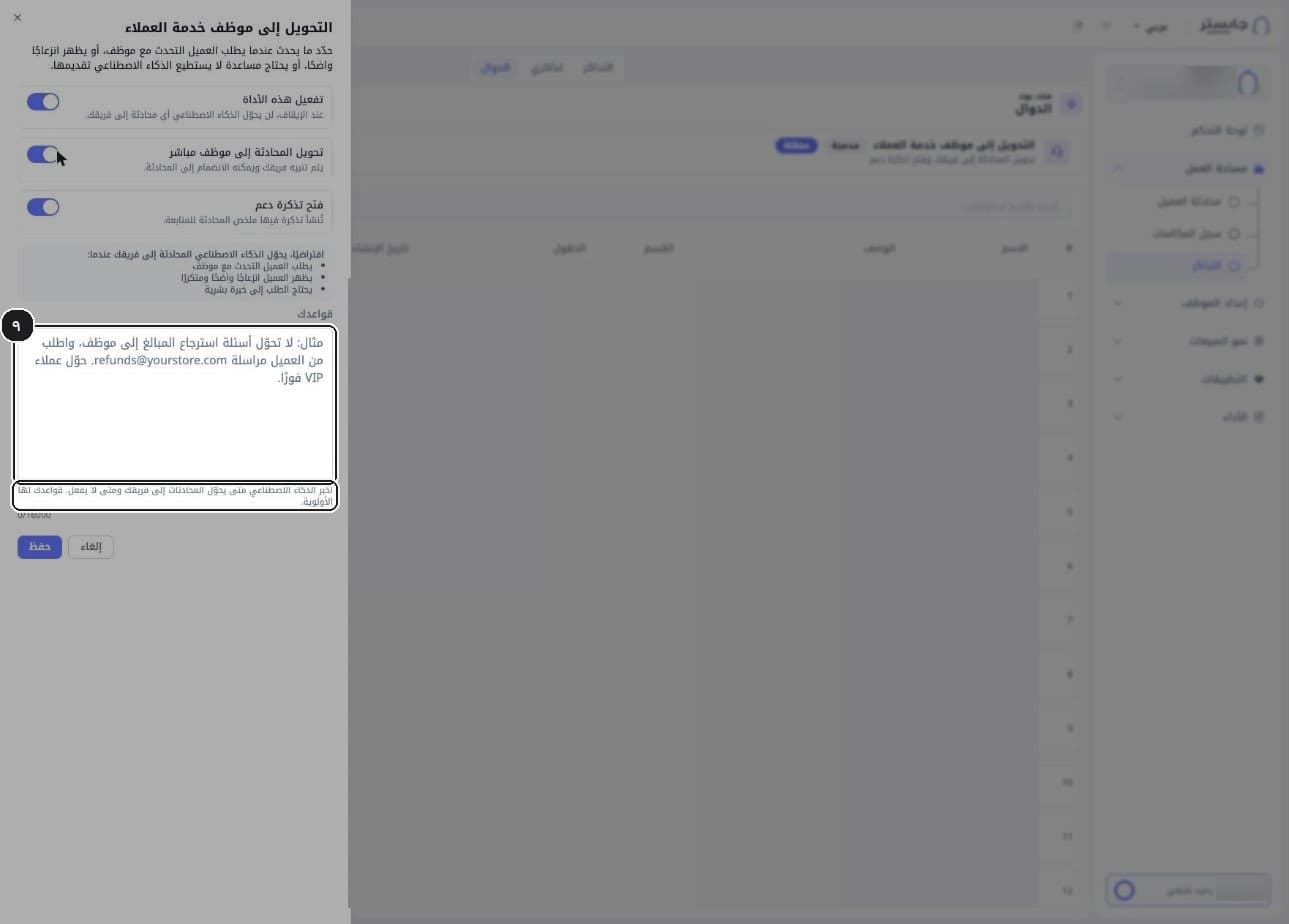
In Your rules (قواعدك), tell your AI Agent when to hand conversations to your team and when not to — up to 16,000 characters. Your rules take priority over the defaults.
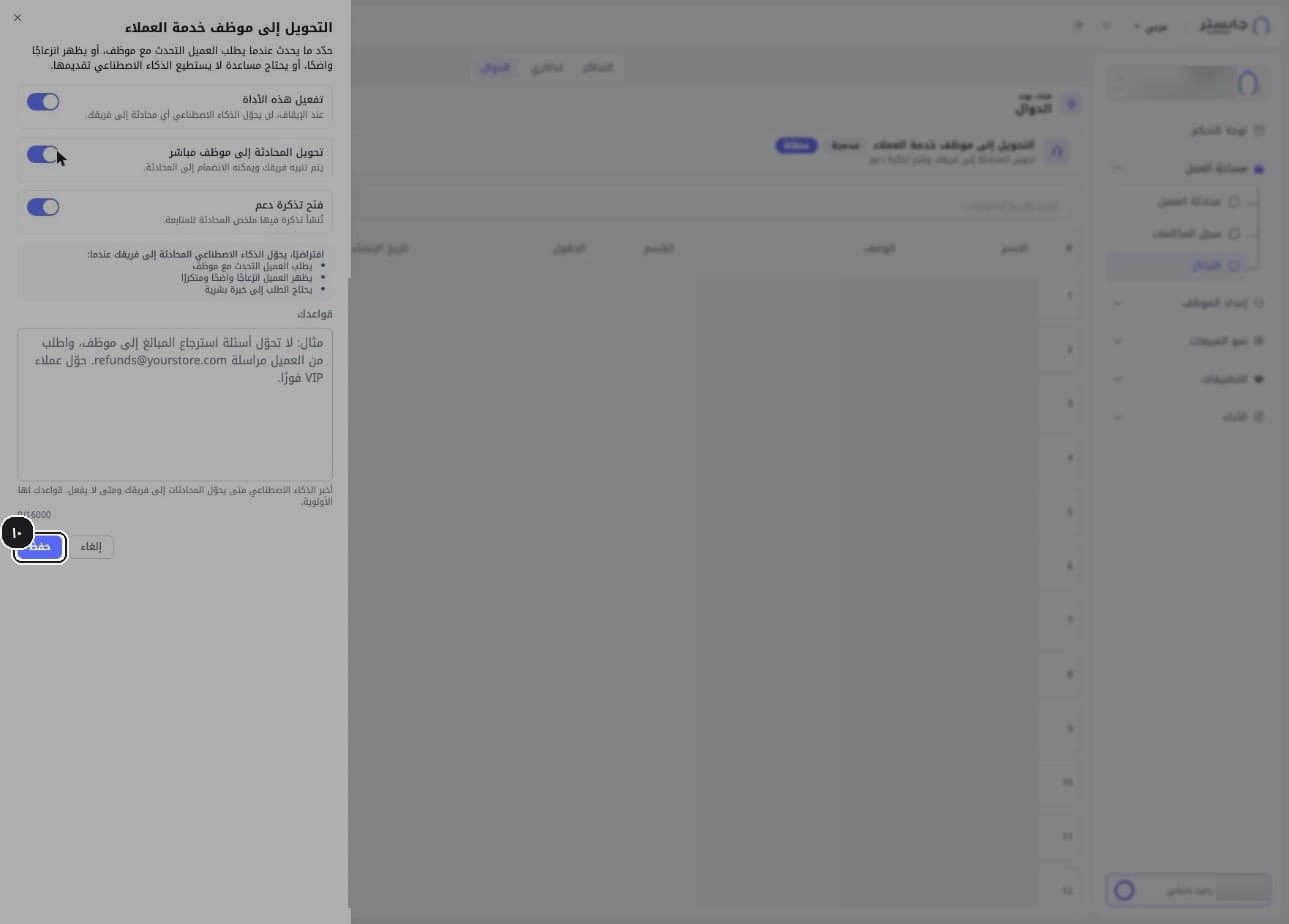
Click Save (حفظ).
Write rules as clear, specific sentences — for example, "Don't hand refund questions to staff; ask the customer to email us" or "Hand VIP customers over immediately."
B. Create a function
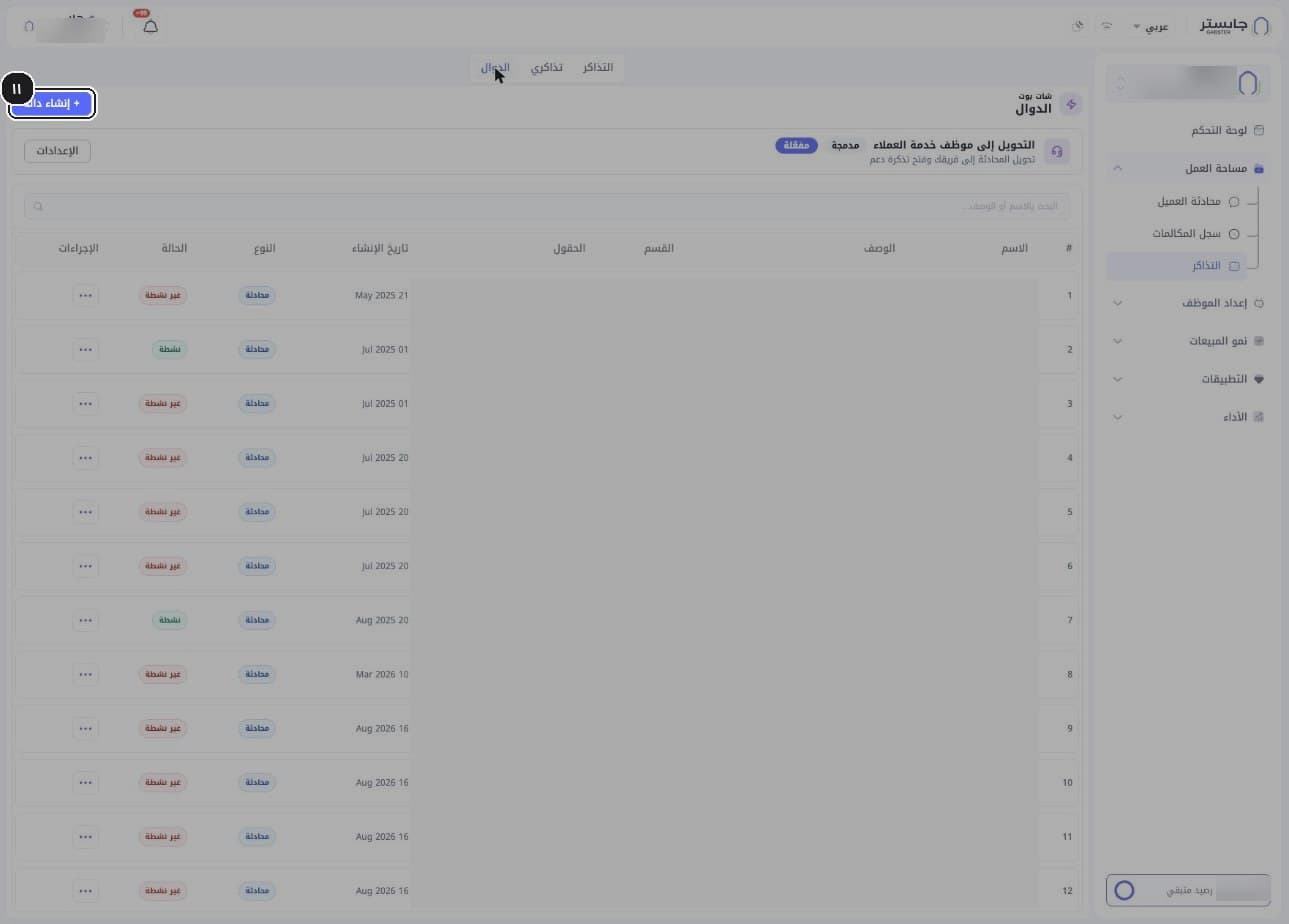
On the Functions tab, click Create function (إنشاء دالة).
The Create function page opens in Creator (المنشئ) mode.
In Creator mode, describe the function in plain language, up to 2,000 characters. For example: a function that collects the customer's name, email and a description of the problem to open a support ticket.
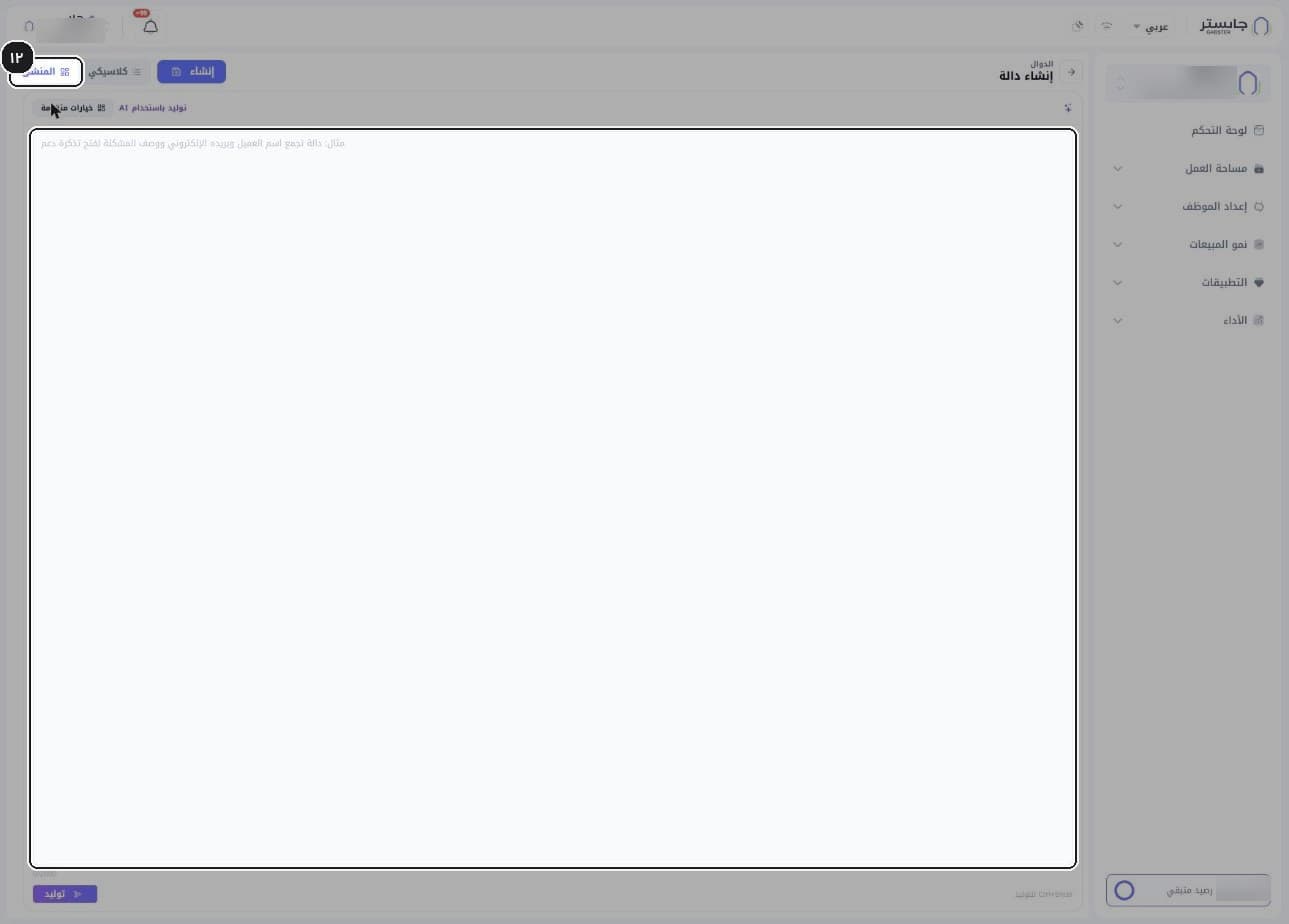
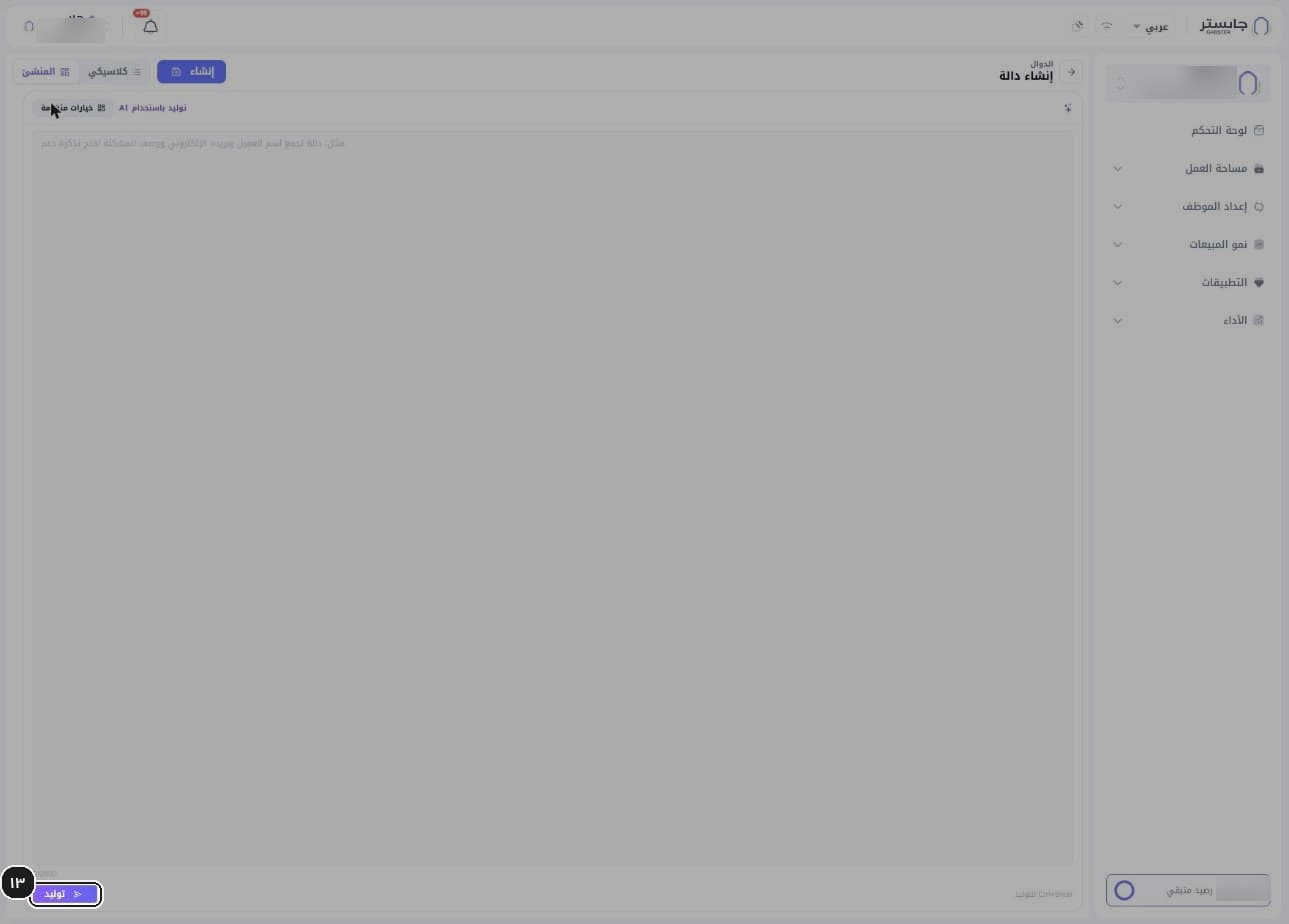
Click Generate (توليد), or press Ctrl+Enter.
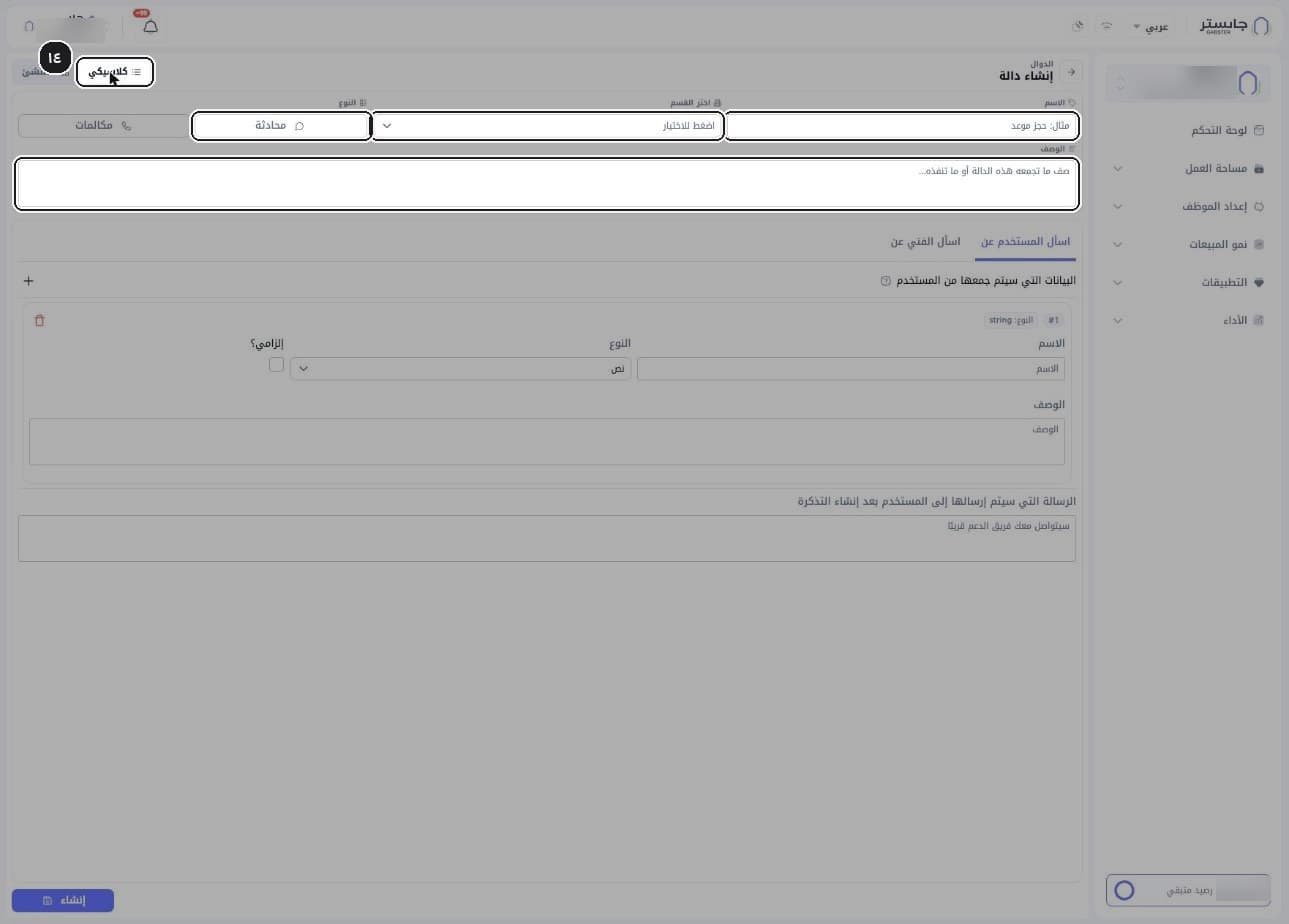
Or switch to Classic (كلاسيكي) mode and fill in the form: Name (الاسم), Choose section (اختر القسم) — the ticket's section — Type (النوع: Conversation (محادثة) or Calls (مكالمات)) and Description (الوصف).
The section is the department the ticket goes to: the least-busy member of that department gets it.
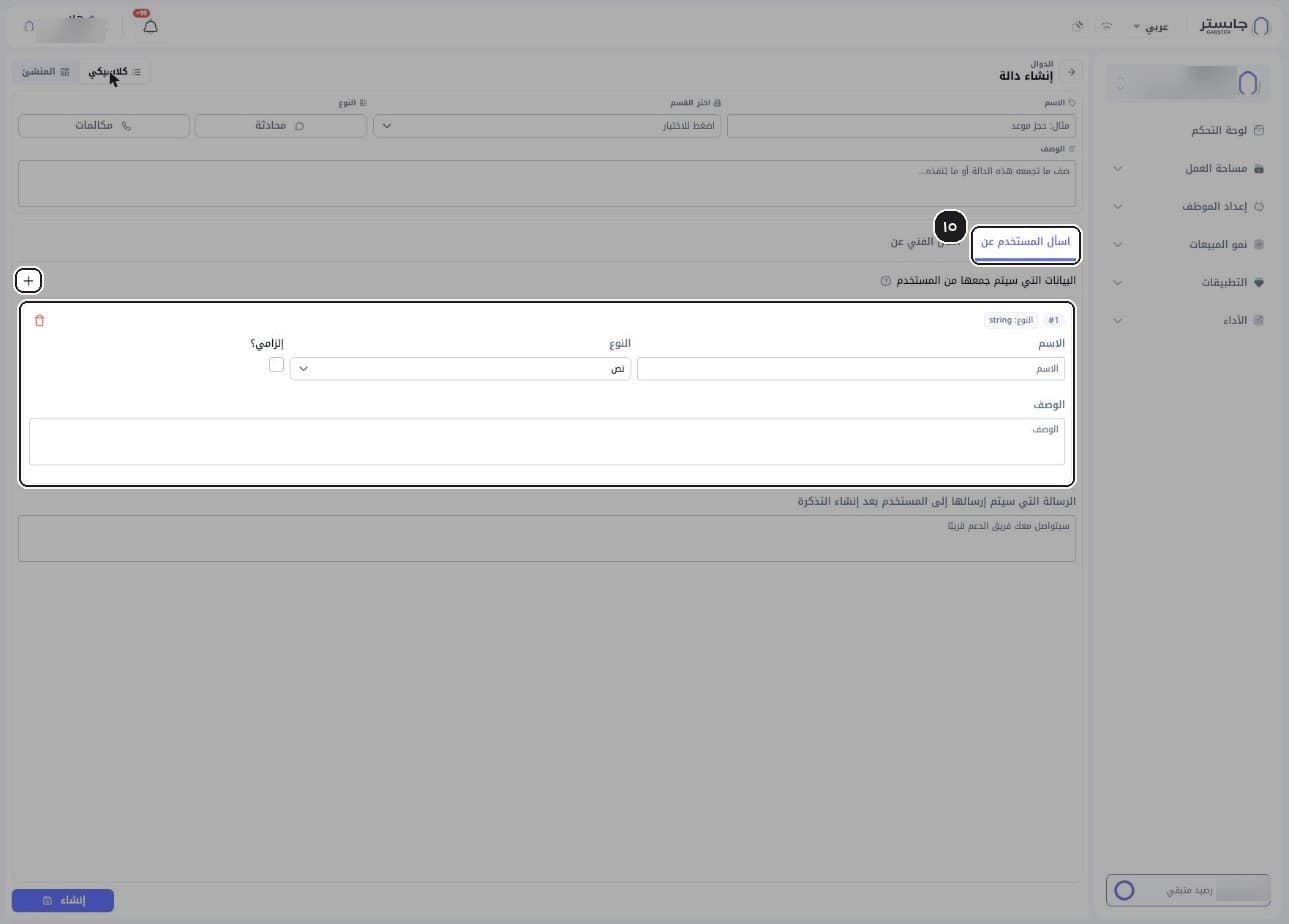
On the Ask the customer for (اسأل المستخدم عن) tab, define each field your AI Agent should collect from the customer: name, type (default Text (نص)), Required? (إلزامي؟) and description. A + button sits next to the fields heading.
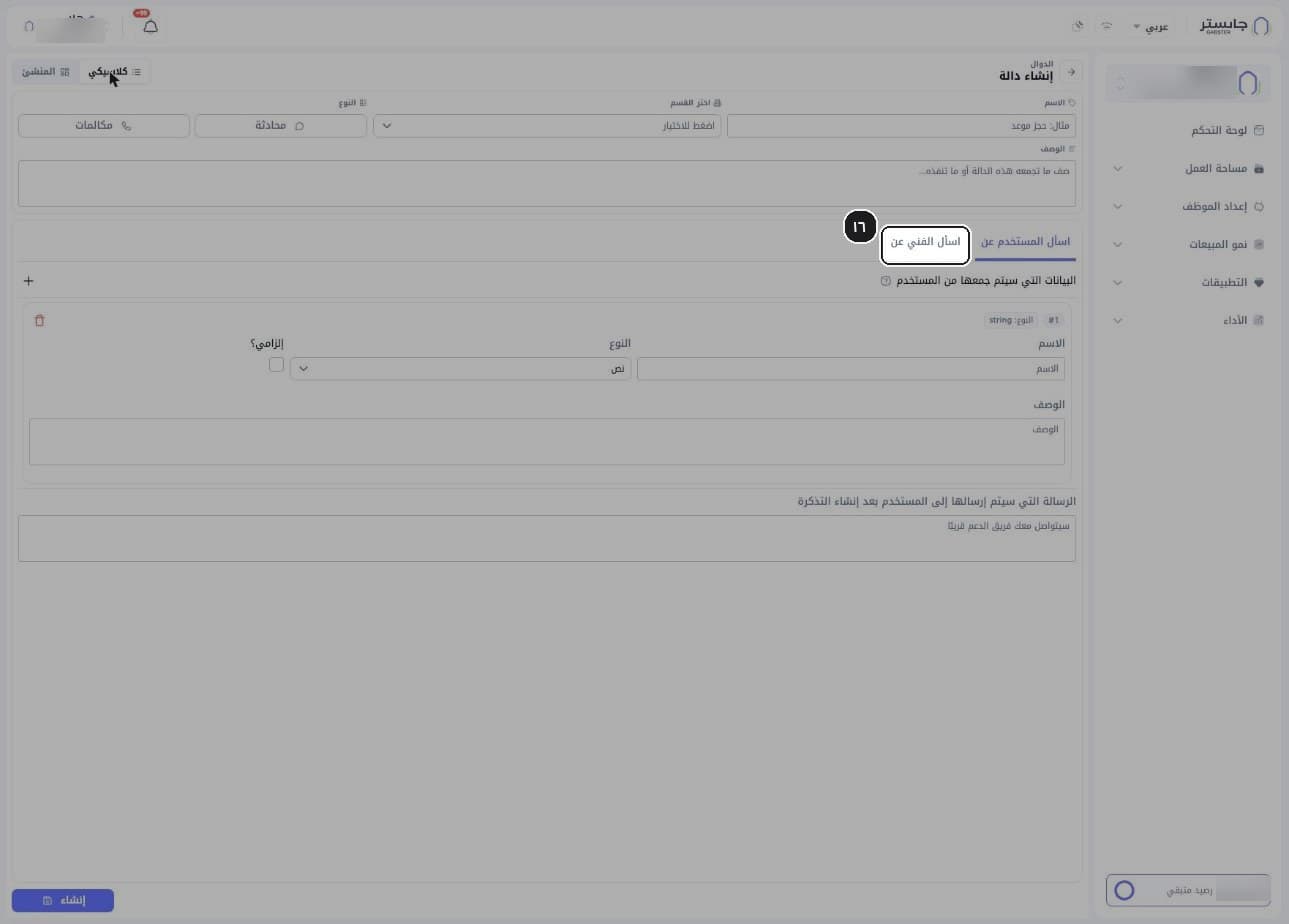
(Optional) On the Ask the technician for (اسأل الفني عن) tab, define the fields a technician fills in.
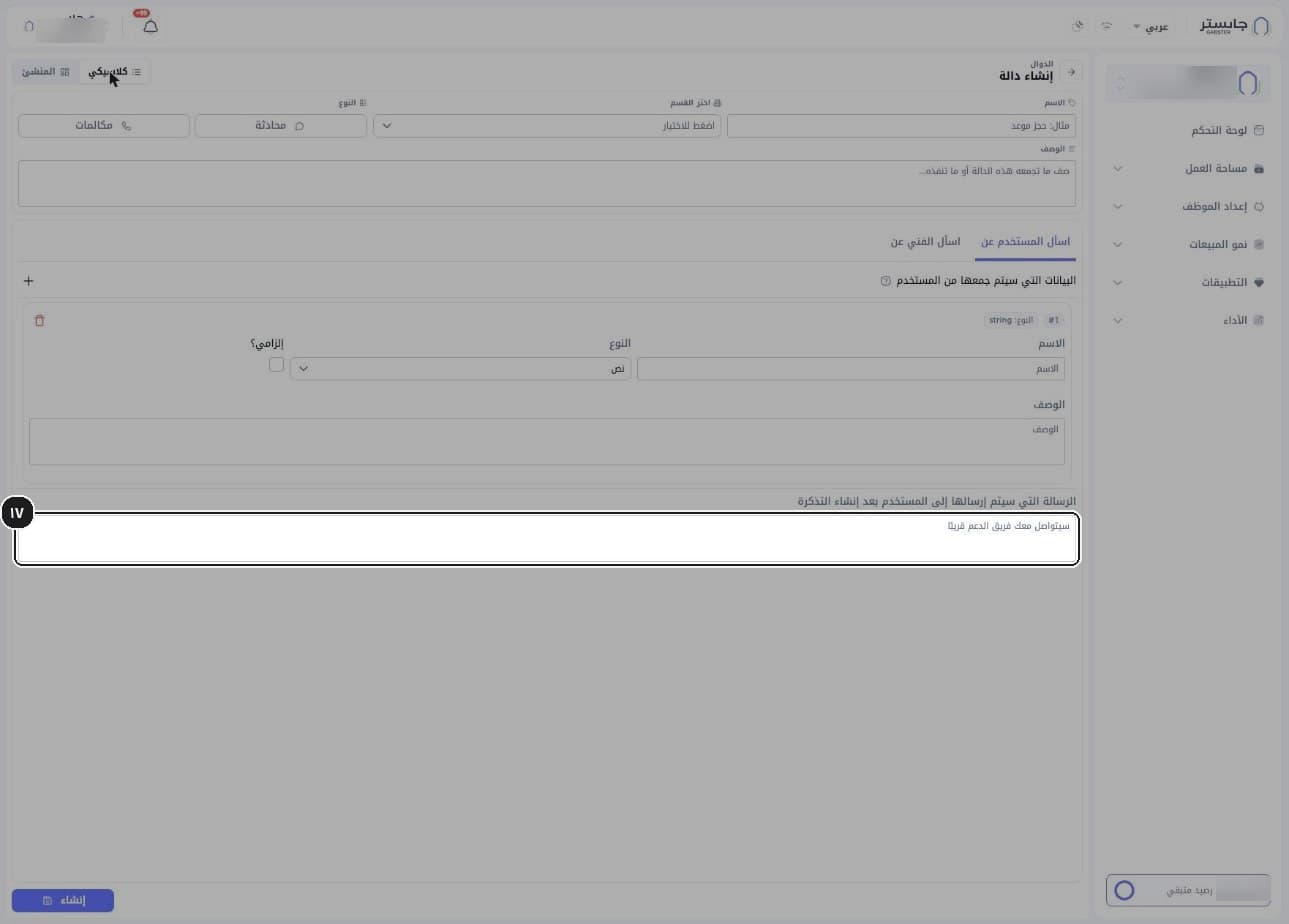
Write the message the customer receives after the ticket is created — for example, "Our support team will contact you soon."
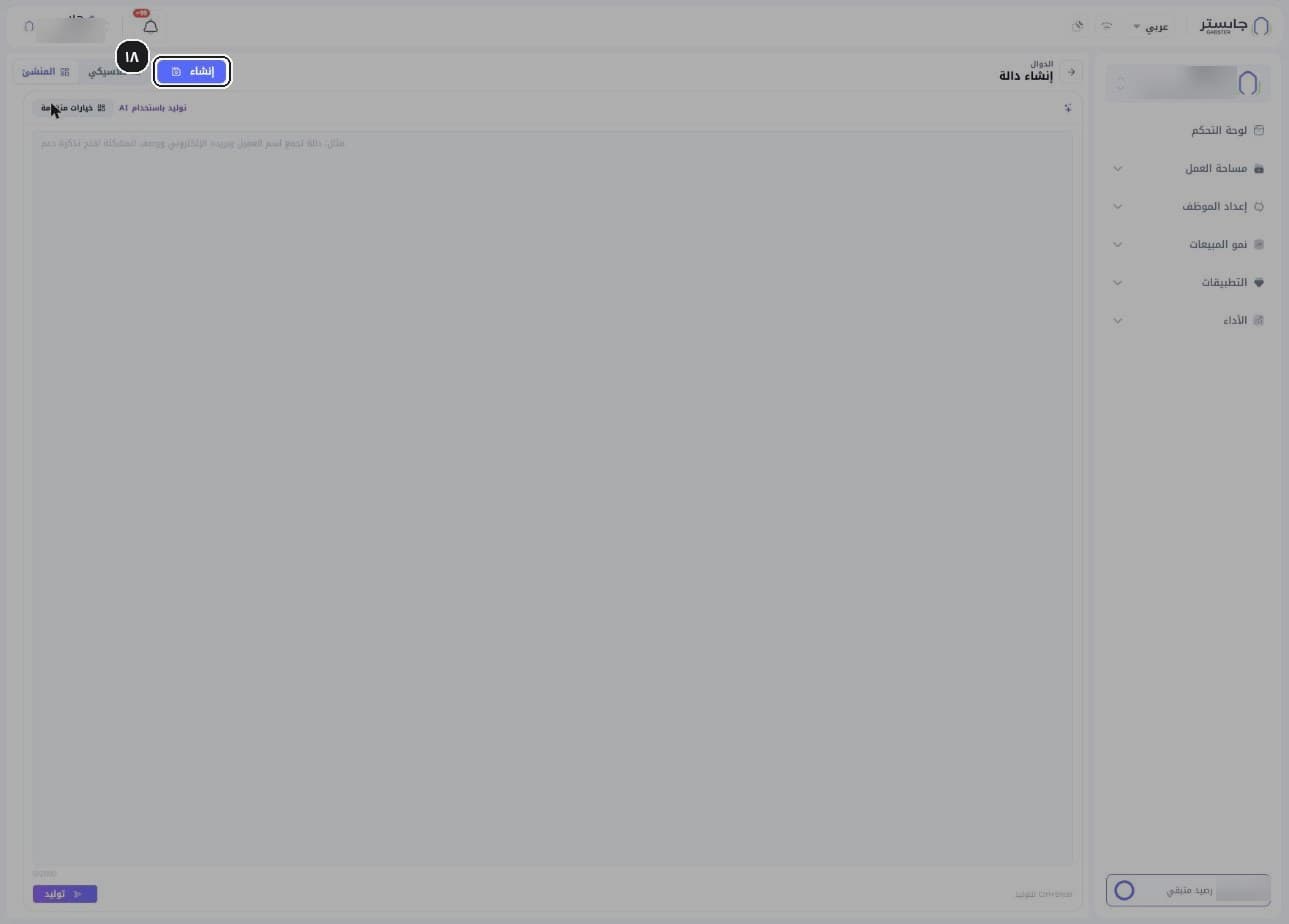
Click Create (إنشاء).
C. Manage functions and follow the result
Read the functions table: Name (الاسم), Description (الوصف), Section (القسم), Fields (الحقول), Created (تاريخ الإنشاء), Type (النوع) and Status (الحالة). Status shows Active (نشطة) in green or Inactive (غير نشطة) in red.
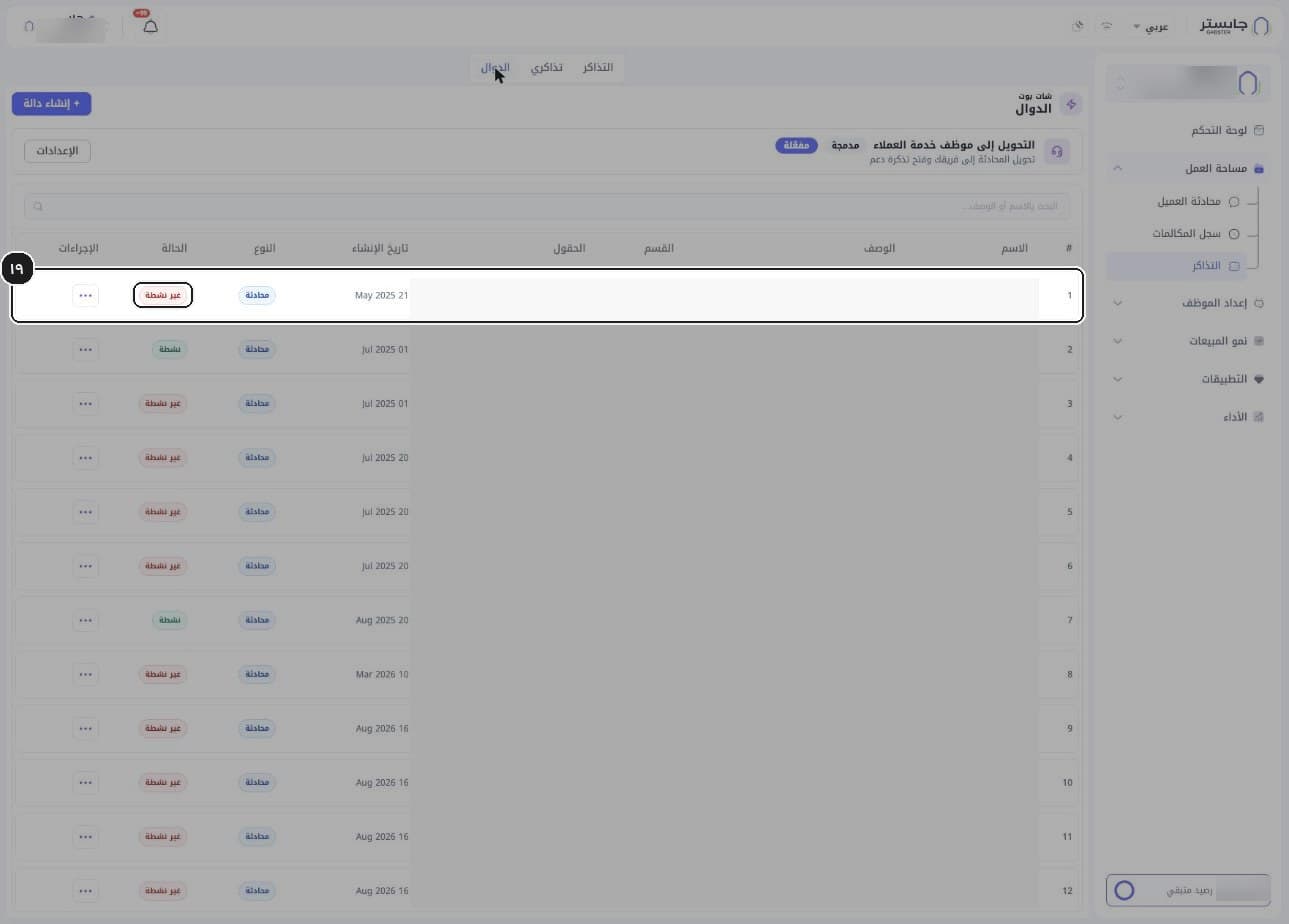
Search for a function in Search by name or description... (البحث بالاسم أو الوصف...).
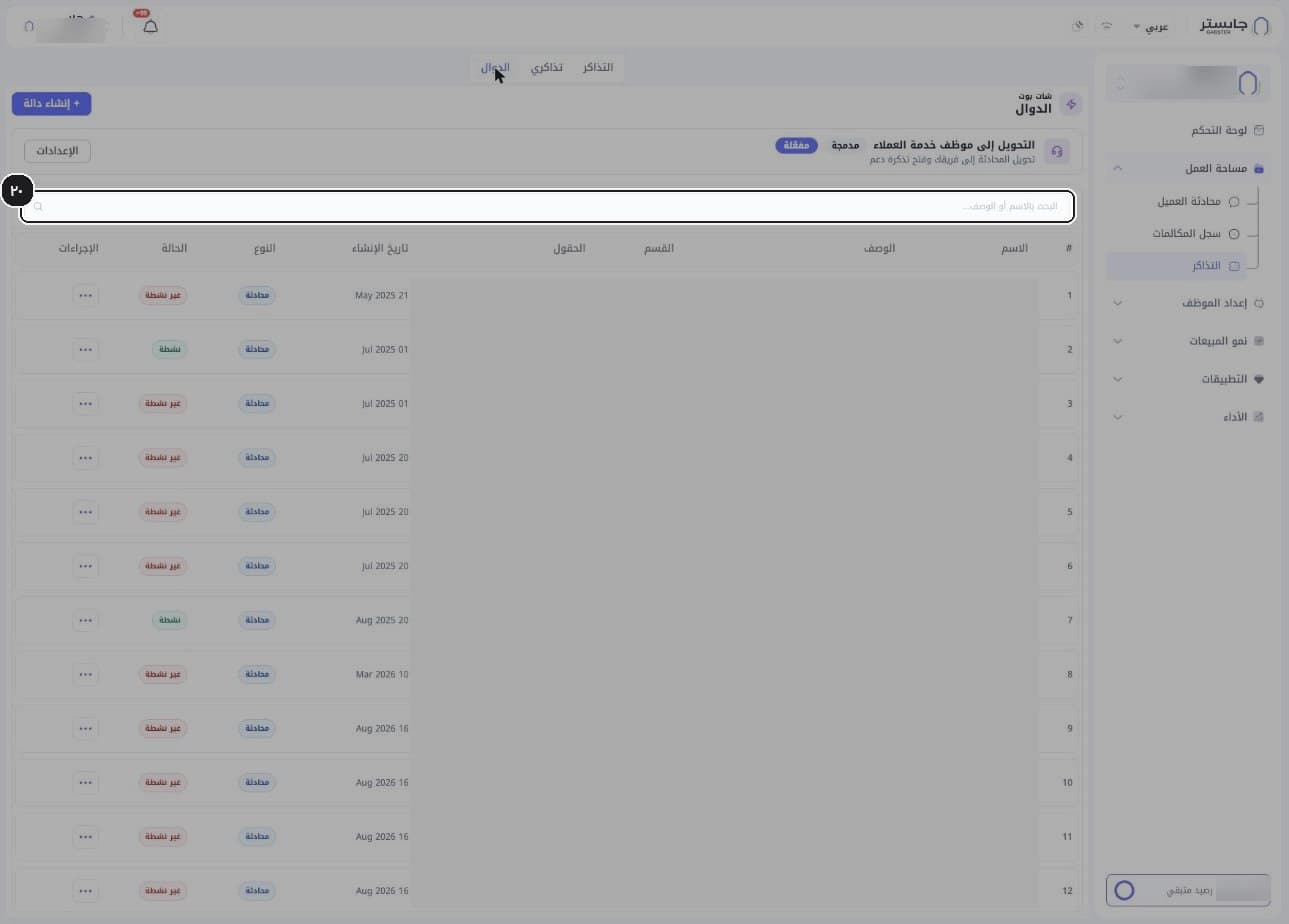
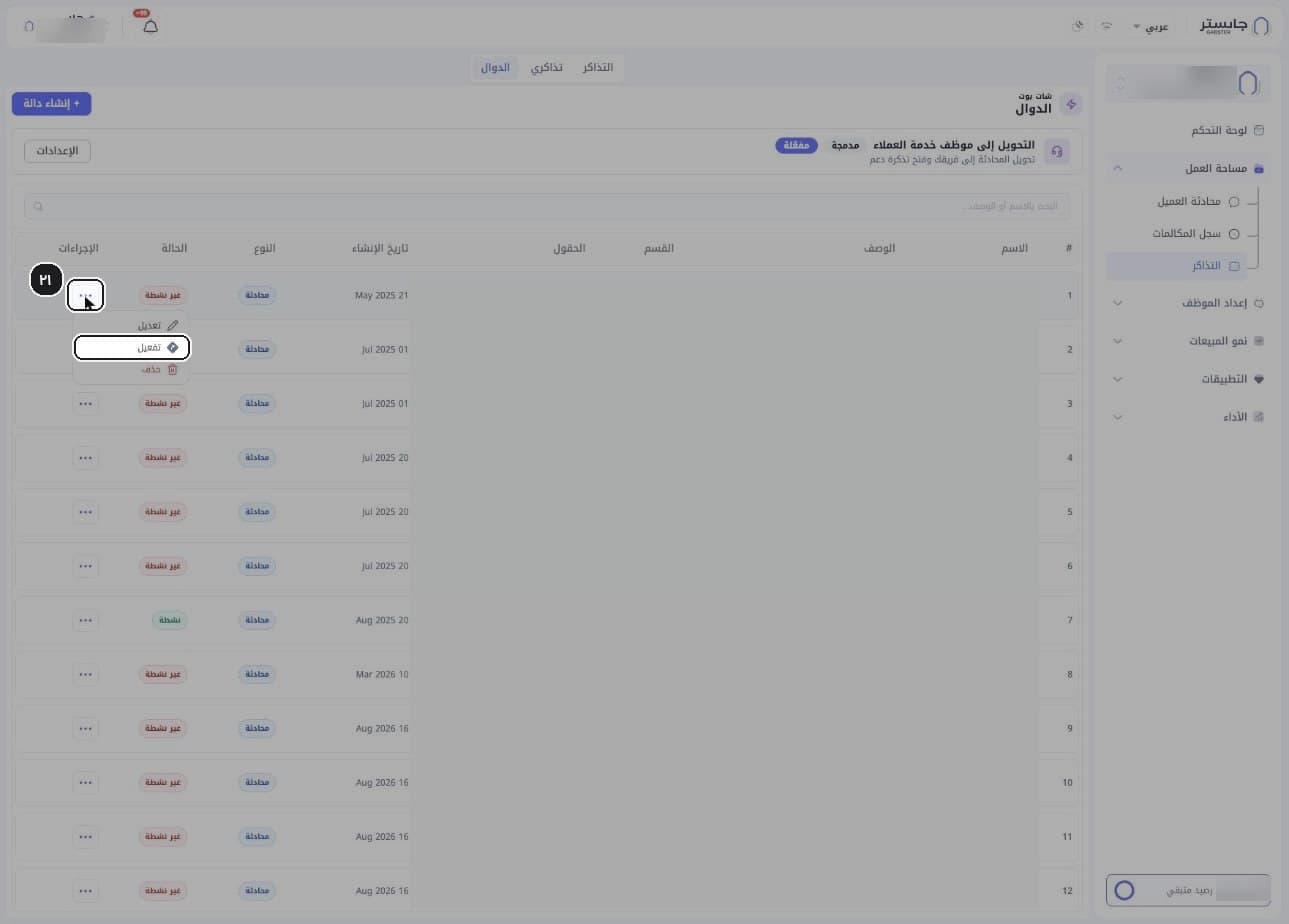
To edit, activate or delete a function, open the row menu (…) and choose Edit (تعديل), Activate (تفعيل) or Delete (حذف).
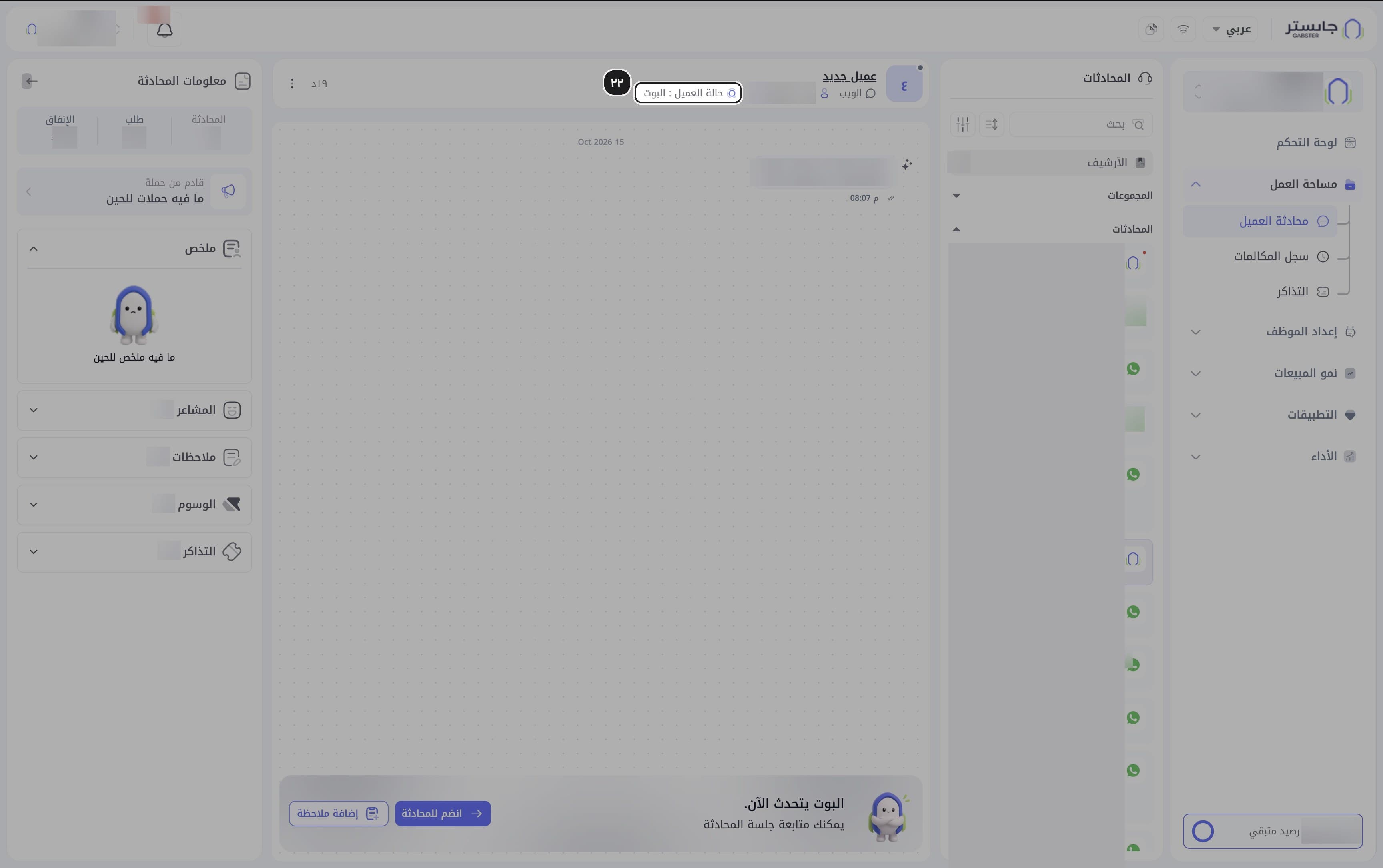
After a handoff, find the conversations in Customer Conversations whose header shows Customer status: Waiting for staff (حالة العميل : بانتظار موظف), and take over with Join conversation (انضم للمحادثة). Conversations your AI Agent is handling show Customer status: AI Agent (حالة العميل : البوت) in the same place.
Your AI Agent keeps replying until a staff member joins.
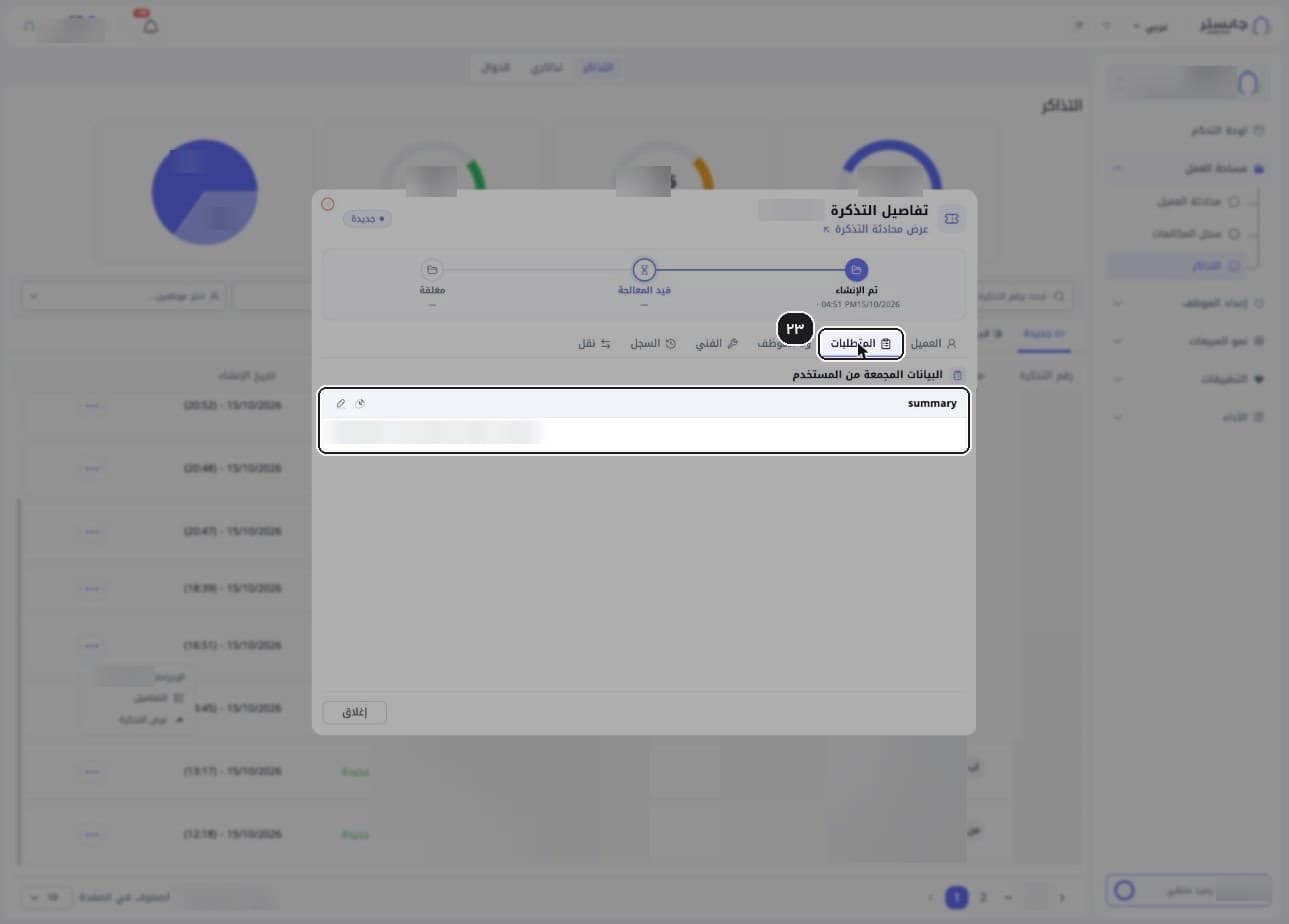
Open the ticket the function created and check the collected fields on the Requirements (المتطلبات) tab: one card per field, with its value.