
AI Agent setup
Embed
Put the chat widget on your website in three steps - allow your domain, choose the embed method and copy the snippet.
Embed (تضمين) is where you put the chat widget on your website so your AI Agent can talk to your customers. It takes three steps: allow your website's domain, choose the embed method, then copy the snippet and paste it into your site.
How to open it
In the sidebar, open AI Agent Setup (إعداد الموظف) and choose Embed (تضمين). The page title reads Embed the AI Agent (ضمّن روبوت الدردشة).
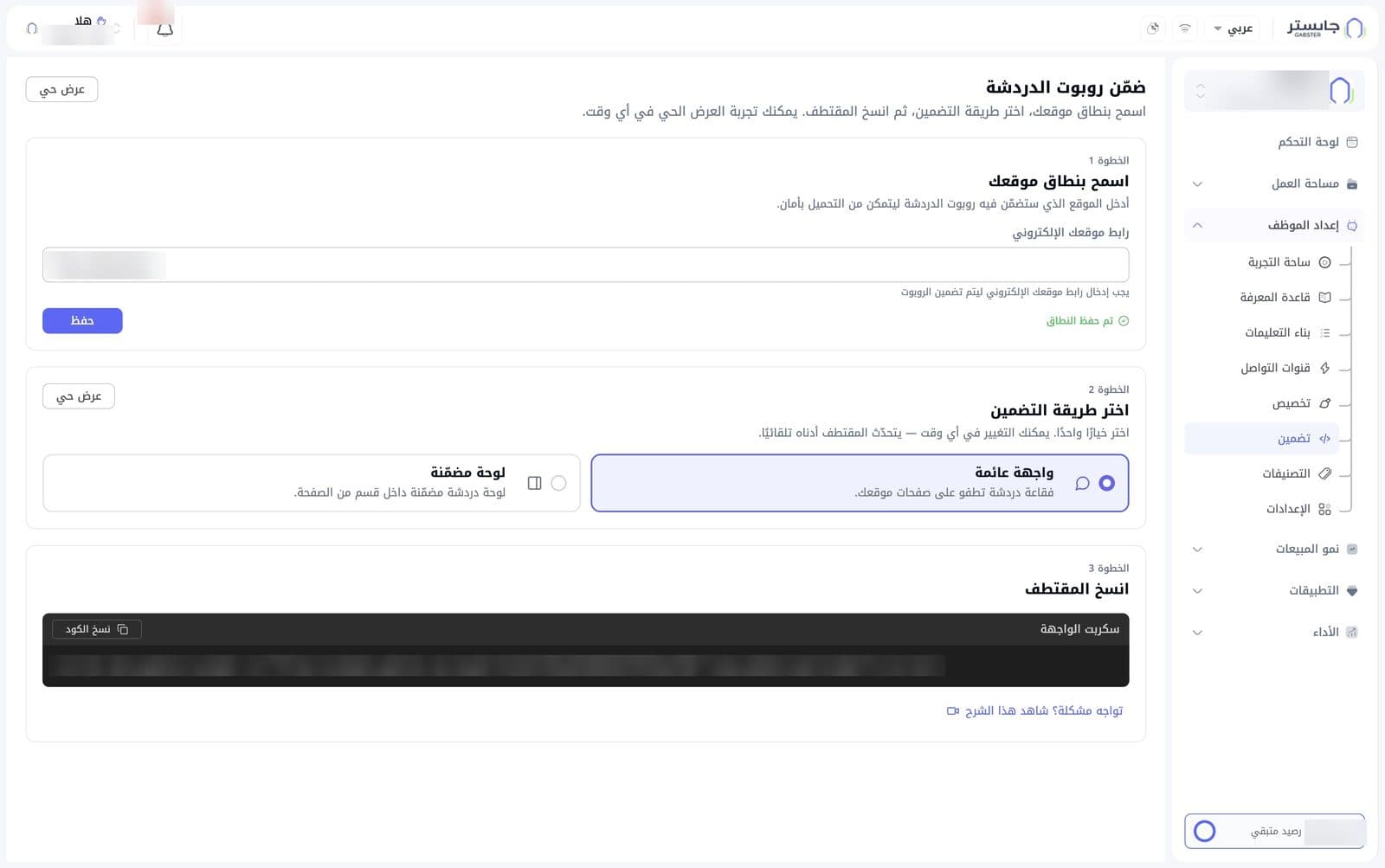
The page header has a Live preview (عرض حي) button to try the widget at any time.
Step 1: Allow your domain
Enter the site where you'll place the widget so it can load securely.
- Type your site's address in Your website URL (رابط موقعك الإلكتروني). This field is required to embed the widget.
- Click Save (حفظ).
- Domain saved (تم حفظ النطاق) appears under the field when the domain is saved.
Each AI Agent has one website address. Saving a new one replaces the old one, and the chat stops loading on the old site. Enter the address exactly as visitors' browsers show it, including https:// and www. if your site uses them: gabster.ai and www.gabster.ai count as different addresses. A change can take up to 5 minutes to apply. An invalid address shows «يرجى إدخال رابط موقع صالح (مثال: https://example.com)».
Step 2: Choose the embed method
Pick one method. You can change it at any time — the snippet in step 3 updates automatically.
| Method | How it looks on your site |
|---|---|
| Floating widget (واجهة عائمة) | A chat bubble that floats over your site's pages (selected by default) |
| Inline panel (لوحة مضمّنة) | A chat panel embedded inside a section of the page |
This card has a second Live preview (عرض حي) button.
Both methods give a single script line. Paste the inline panel's line at the spot on the page where the panel should appear.
Step 3: Copy the snippet
The Widget script (سكربت الواجهة) box shows a ready-made <script> tag for your AI Agent.
- Click Copy code (نسخ الكود) to copy the snippet.
- Paste it once into the part shared by every page of your site, just before
</body>(or into your site builder's footer or custom-code box), then publish your site. For the inline panel, paste it where the panel should appear.
If you run into trouble, use the Having trouble? Watch this tutorial (تواجه مشكلة؟ شاهد هذا الشرح) link below the box.
The widget's look, colors and name are set on the Customize page, not here.