
Tutorials
Set up voice and calls
Let your AI Agent answer phone calls — from connecting the SIP line and choosing a voice to the IVR Menu and Call Staff.
In this tutorial you set up your AI Agent to answer phone calls. You connect the SIP line, pick the voice and speech models, write the voice instructions and set up the IVR Menu. Then you connect the SIP provider line on Agent Voice, and give staff members widget-call extensions.
The default dialect and banned words only affect messages your staff improve, so they are set up in Follow customer conversations and step in.
The AI Agent's voice is chosen on the Calls tab, and how it behaves on calls is written in Voice instructions. The Agent Voice tab connects the SIP provider and PBX settings the AI Agent calls through.
Before you start
- SIP details from your phone provider: SIP number, SIP domain and allowed IP.
- For the AI Agent's call line: a SIP provider line and PBX (WebRTC) details.
- Staff members already invited — they appear on Call Staff.
A. Calls: SIP setup
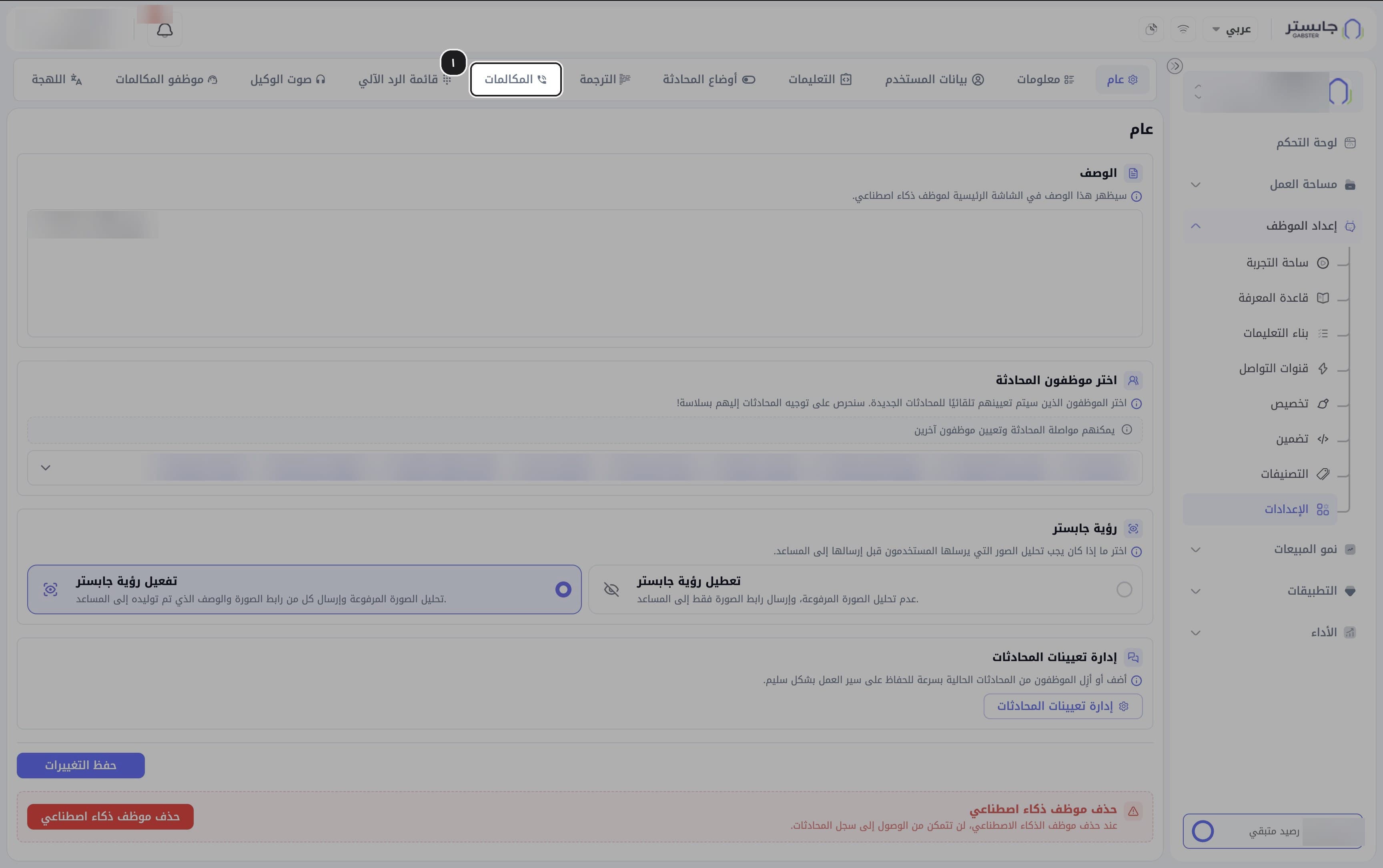
In the sidebar, open AI Agent Setup (إعداد الموظف) → Settings (الإعدادات), then the Calls (المكالمات) tab.
The tab opens on the SIP setup (تهيئة SIP) sub-tab.
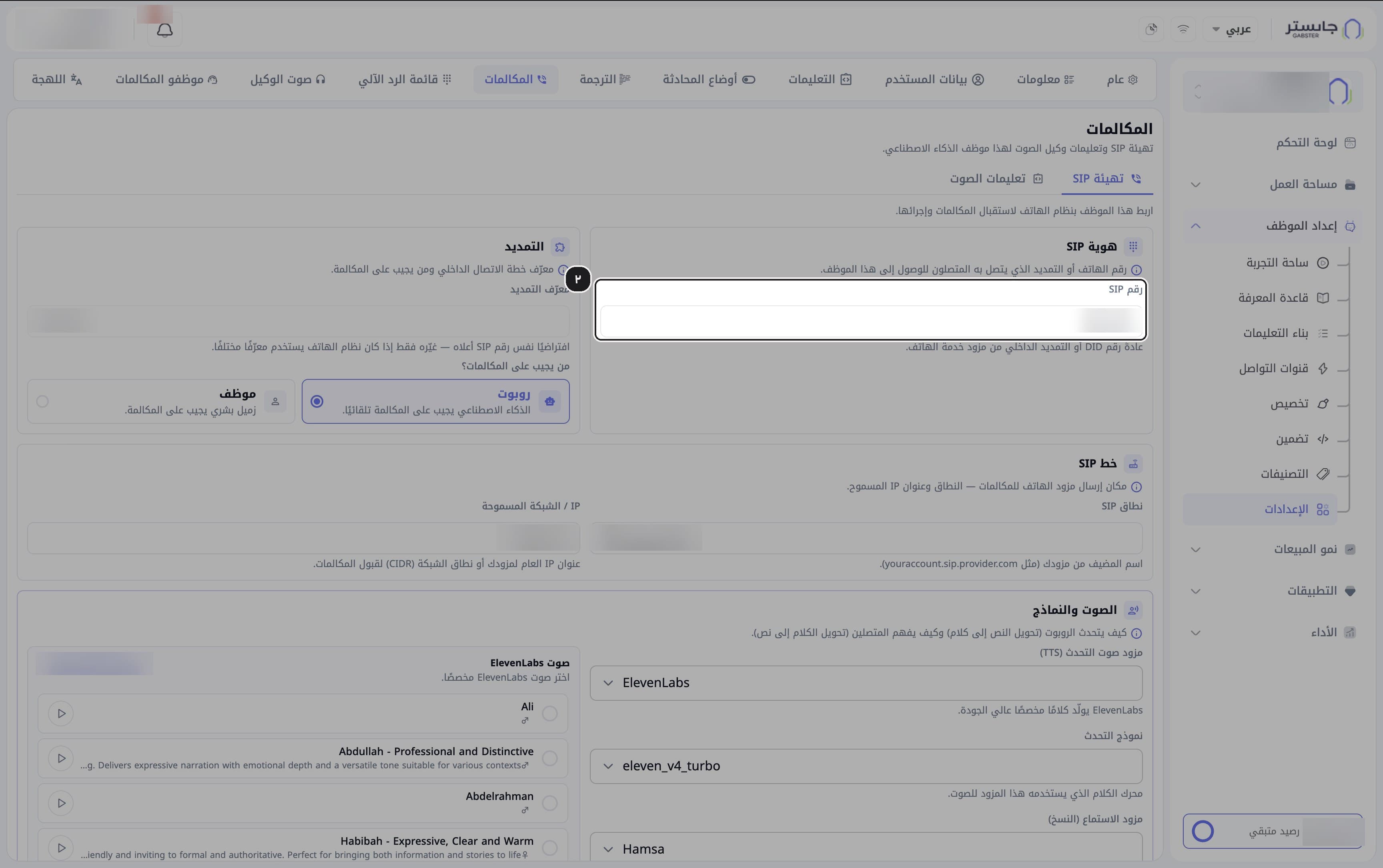
Enter the SIP number (رقم SIP) callers dial. It is usually a DID number or an internal extension from your phone provider.
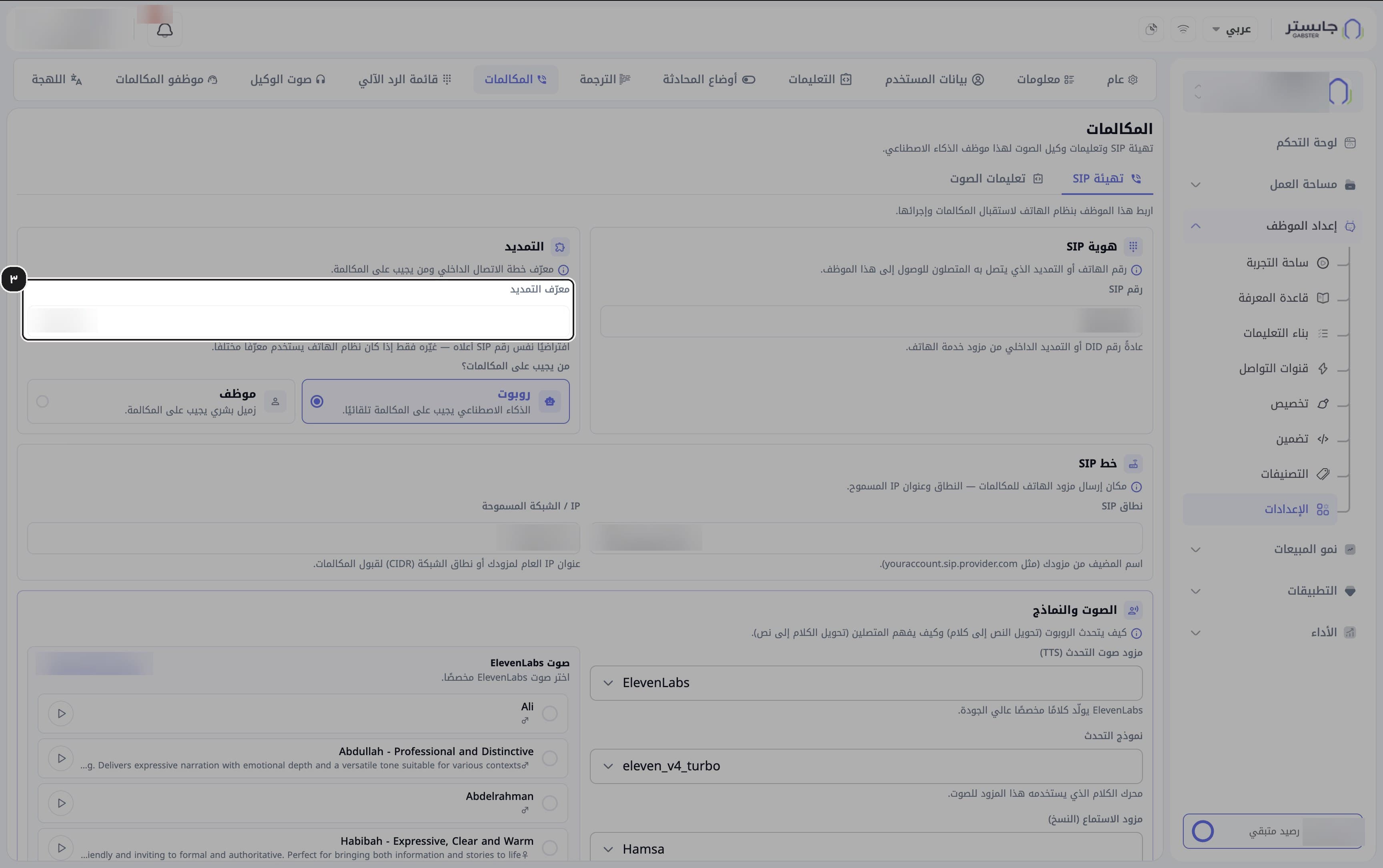
Leave the Extension ID (معرّف التمديد) as it is, unless your phone system uses a different ID. It defaults to the SIP number.
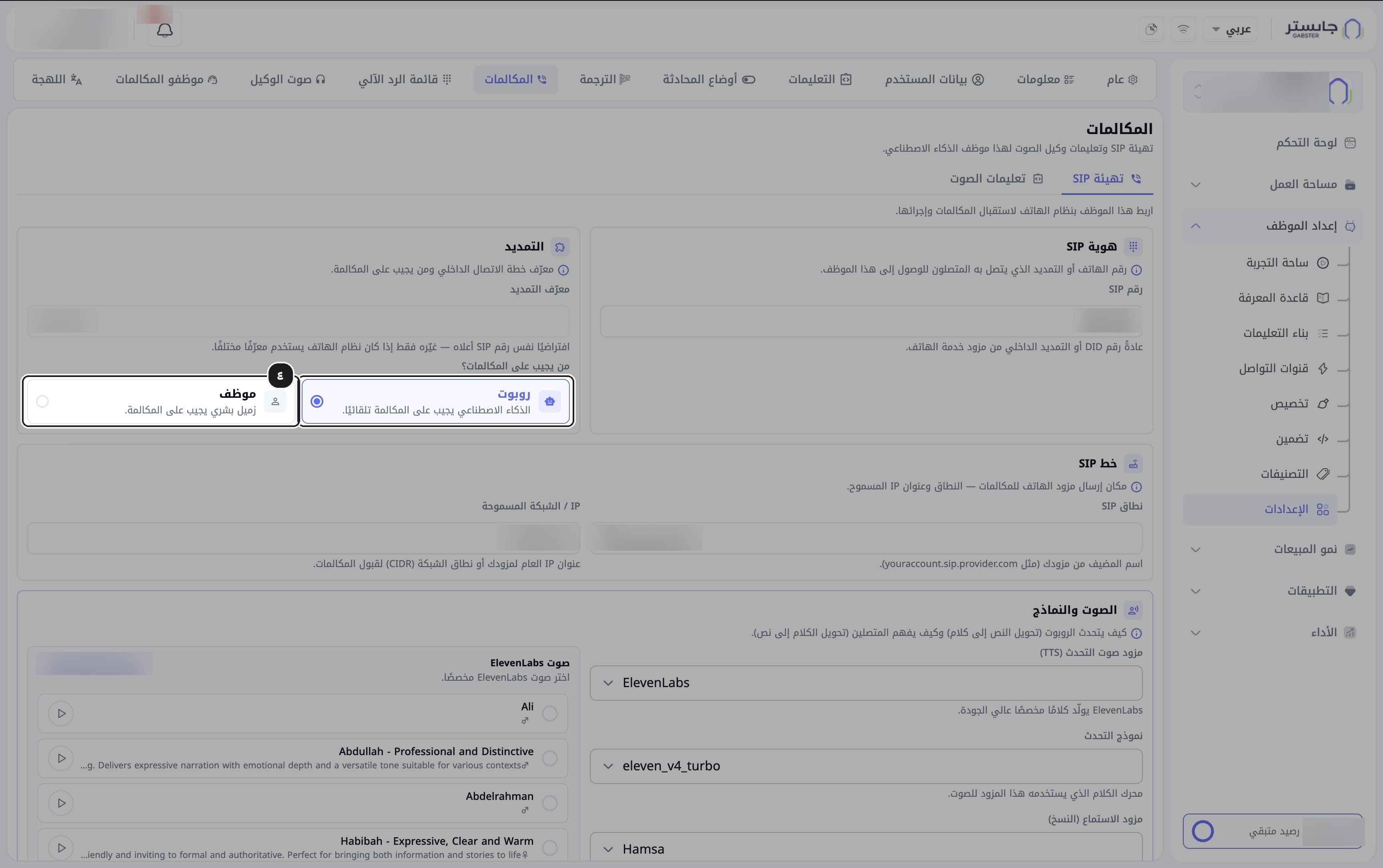
Choose who answers calls: AI Agent (روبوت) — the AI Agent answers automatically — or Staff member (موظف) — a colleague answers.
With Staff member, incoming calls ring all the team members who have their own phone extension for this AI Agent at once; the first to pick up takes the call.
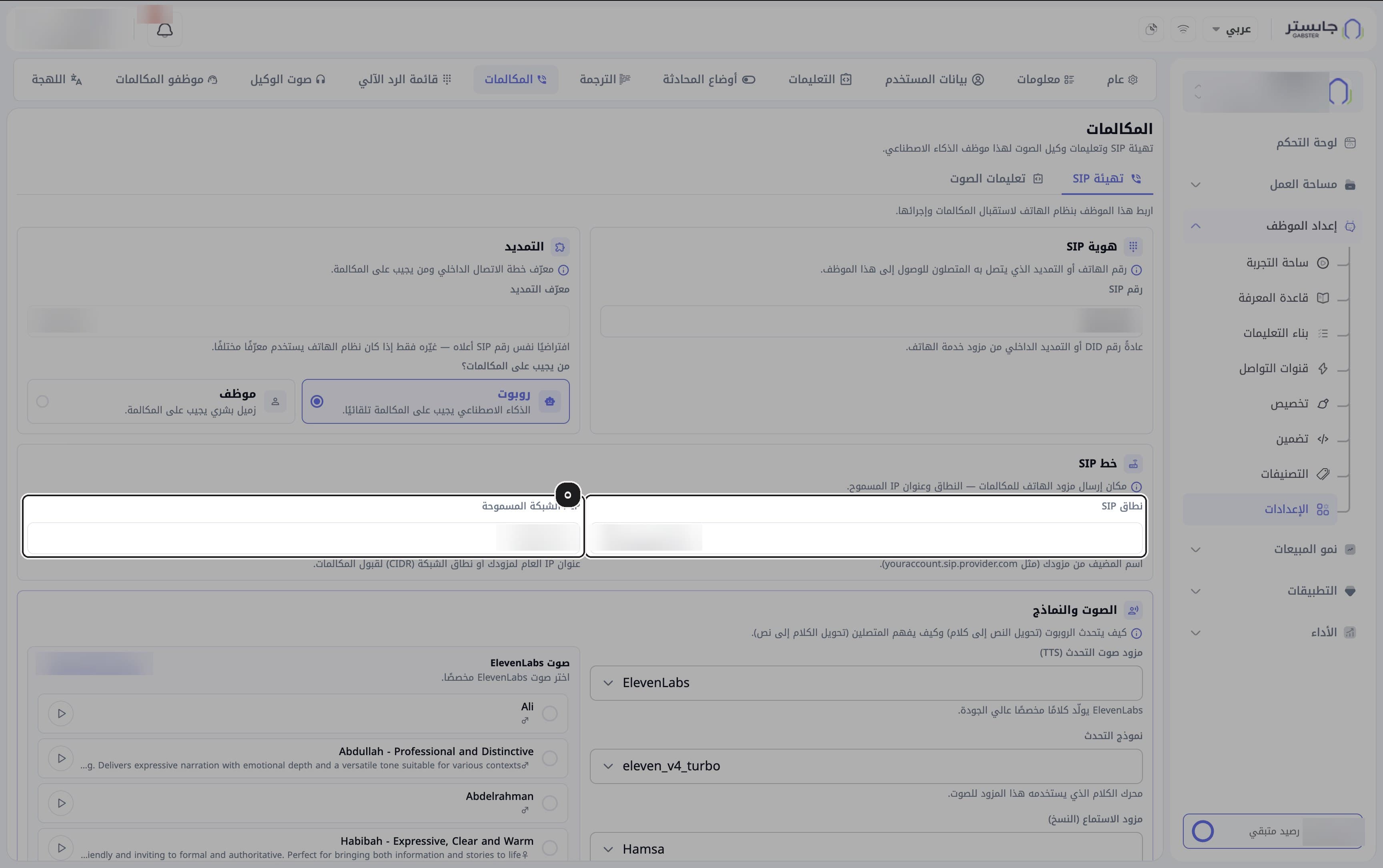
Enter the SIP domain (نطاق SIP) — your provider's hostname, such as youraccount.sip.provider.com — and the Allowed IP / network (IP / الشبكة المسموحة) — your provider's public IP or a CIDR network range.
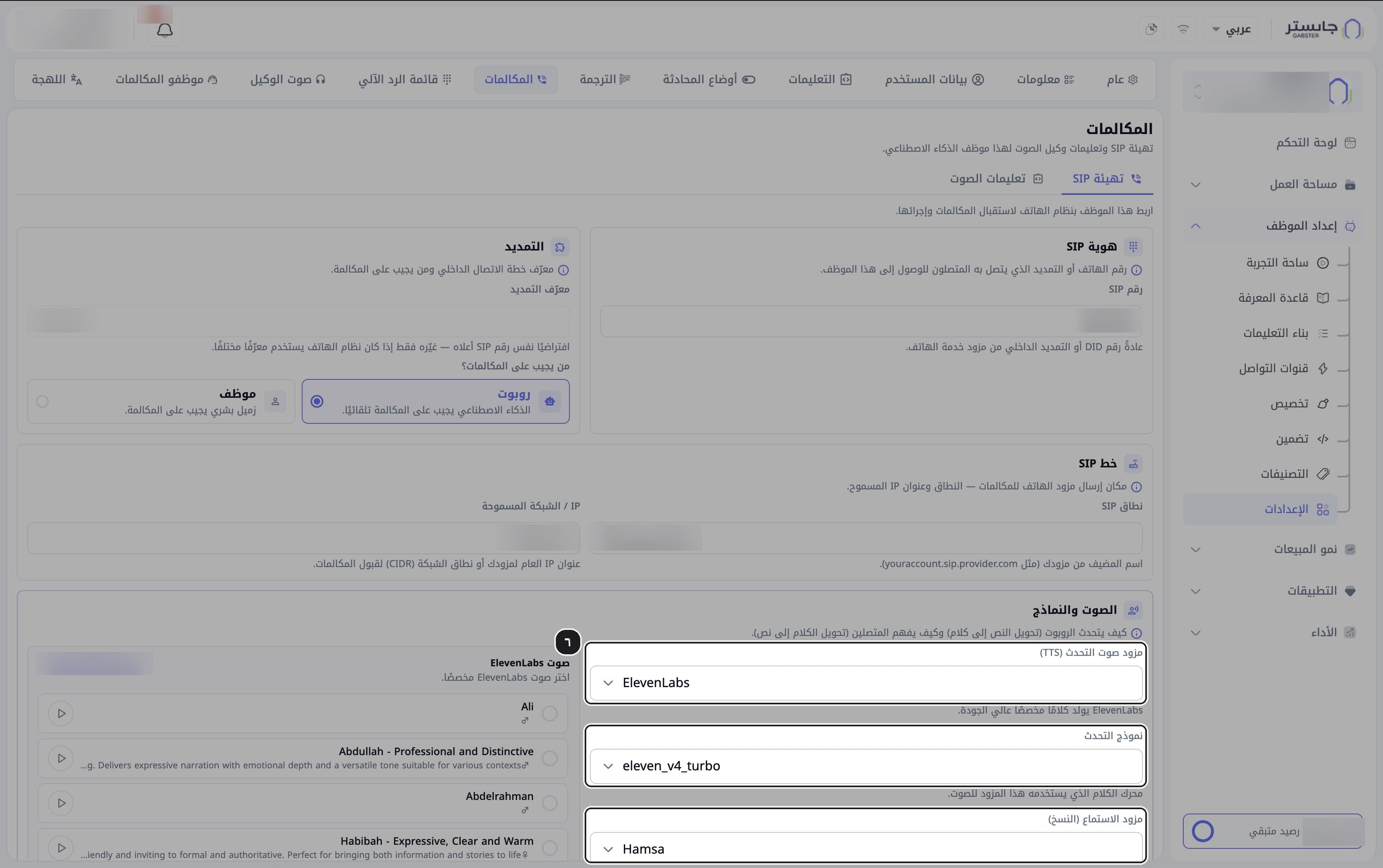
Choose the Speaking voice provider (TTS) (مزود صوت التحدث), the Speech model (نموذج التحدث) and the Listening provider (transcription) (مزود الاستماع).
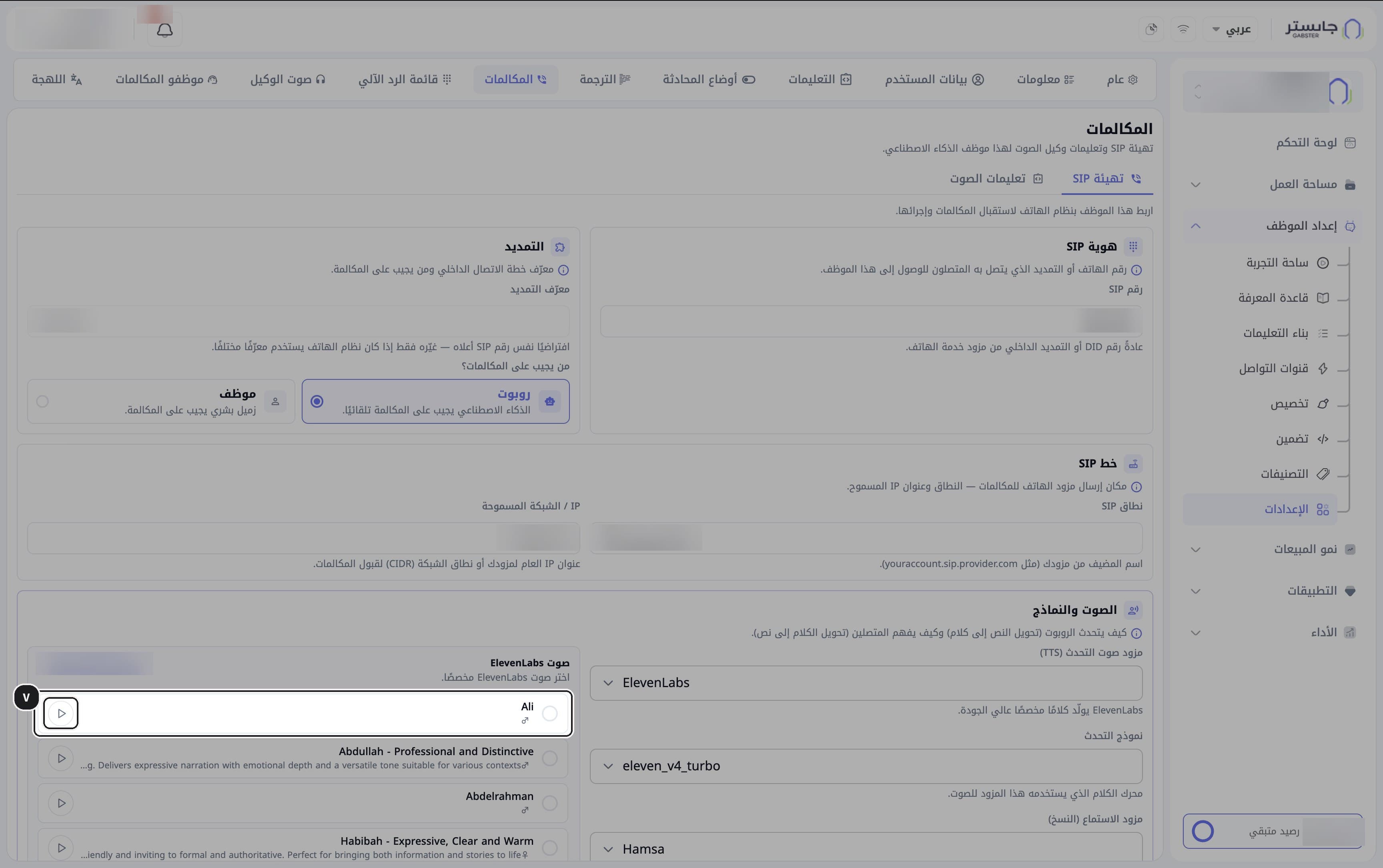
Choose a voice from the ElevenLabs voice (صوت ElevenLabs) list. Each row shows the voice name, a short description and its gender, with a play button at its end. The ID of the selected voice appears in a chip above the list.
Save the Calls settings.
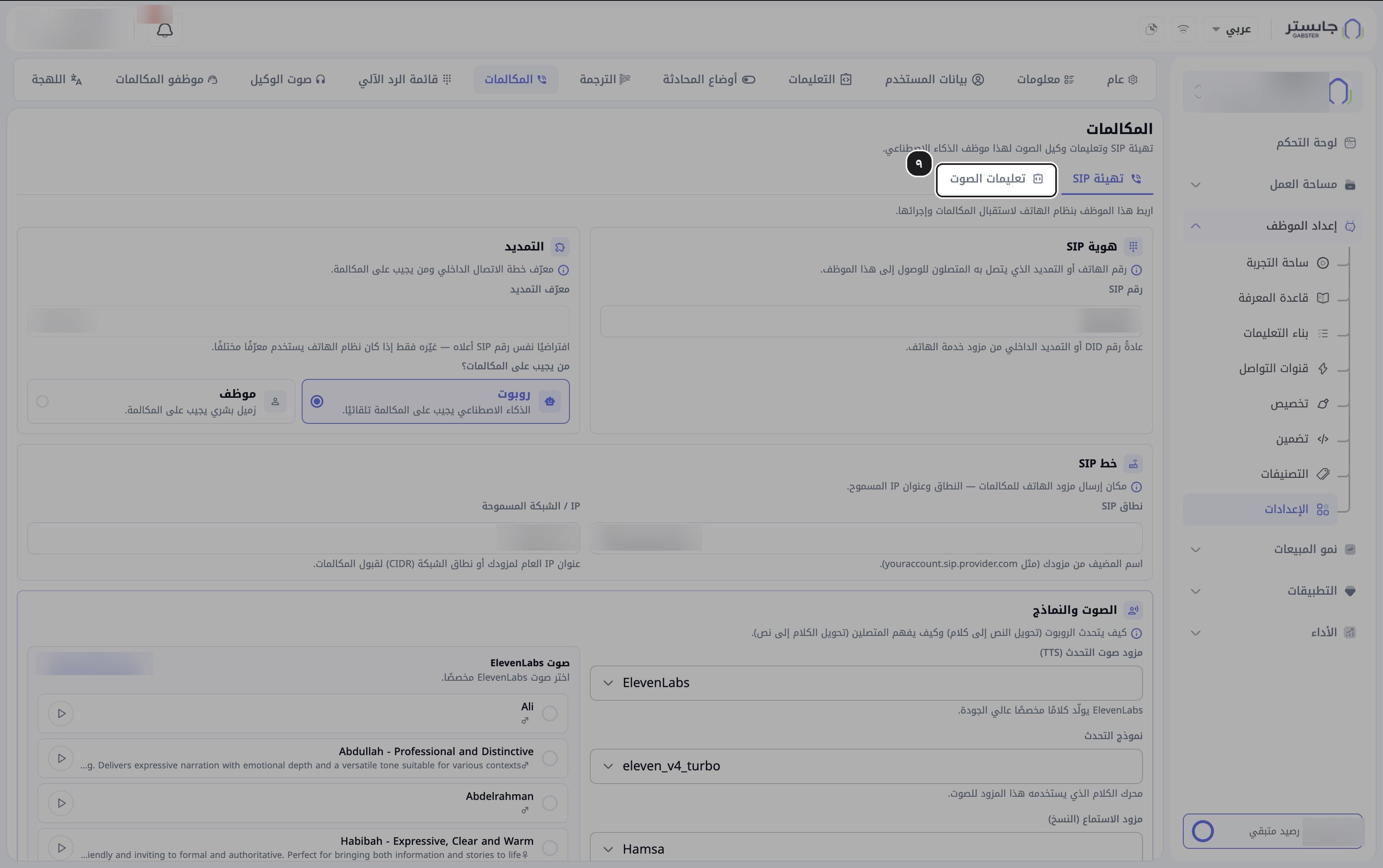
Open the Voice instructions (تعليمات الصوت) sub-tab.
A text editor appears for the instructions your AI Agent follows on phone calls.
Write the call instructions. Use the toolbar for headings, lists, bold and links. The hint above the editor says these instructions are saved in the general settings.
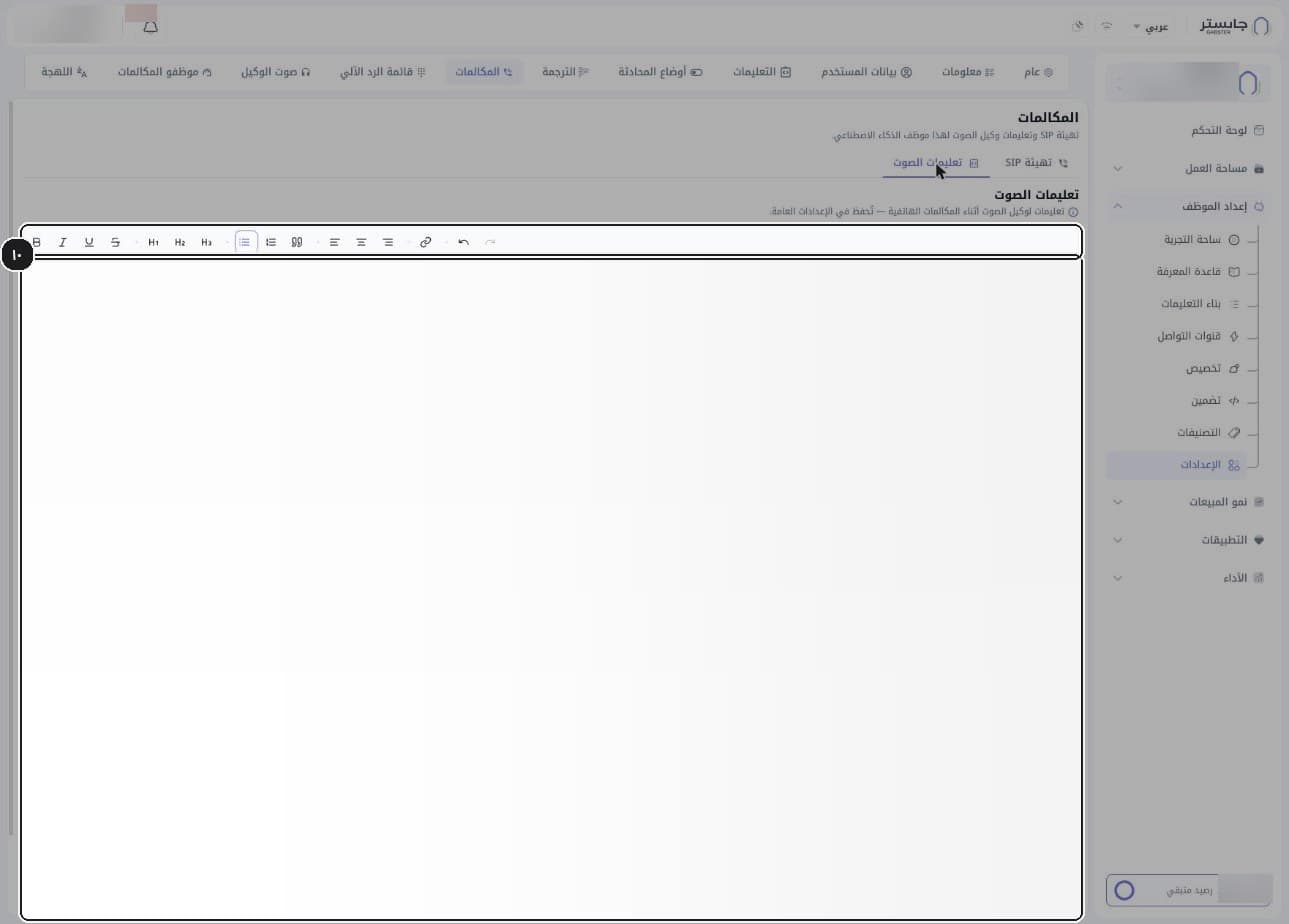
Save the voice instructions.
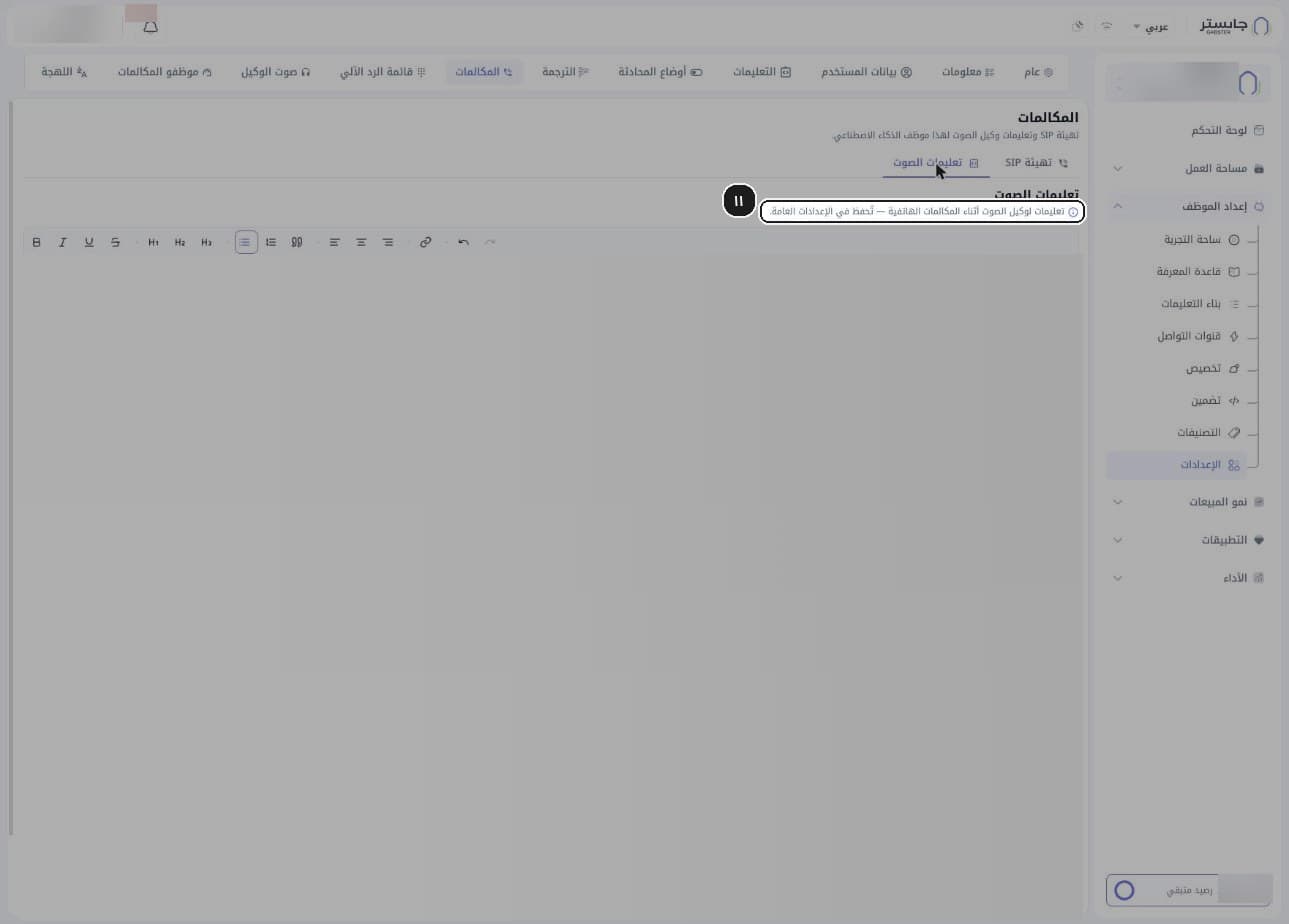
B. IVR Menu
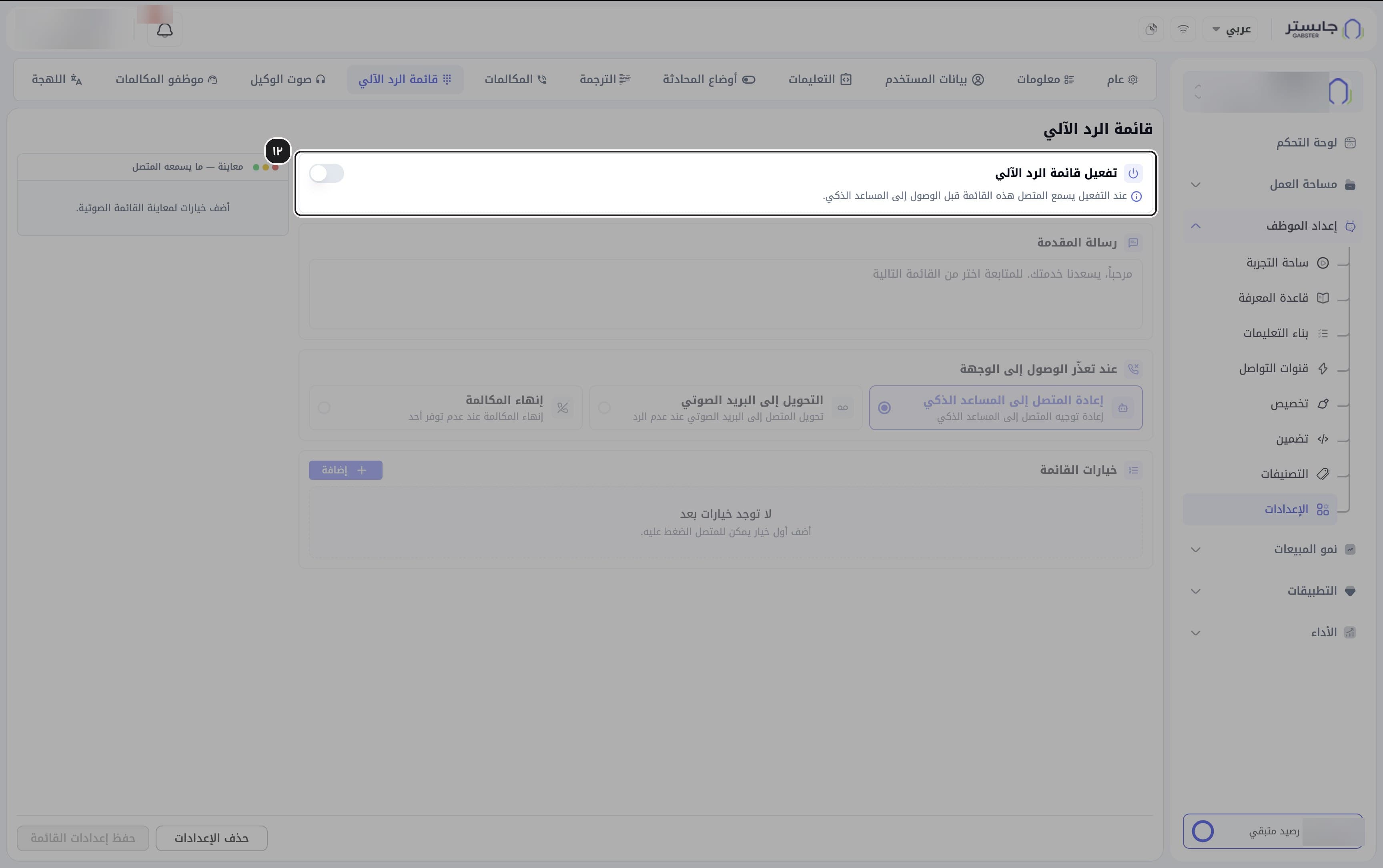
Open the IVR Menu (قائمة الرد الآلي) tab and turn on Enable IVR Menu (تفعيل قائمة الرد الآلي).
When it is on, callers hear this menu before they reach your AI Agent.
Write the Intro message (رسالة المقدمة) — for example, a short welcome that asks the caller to choose from the menu.
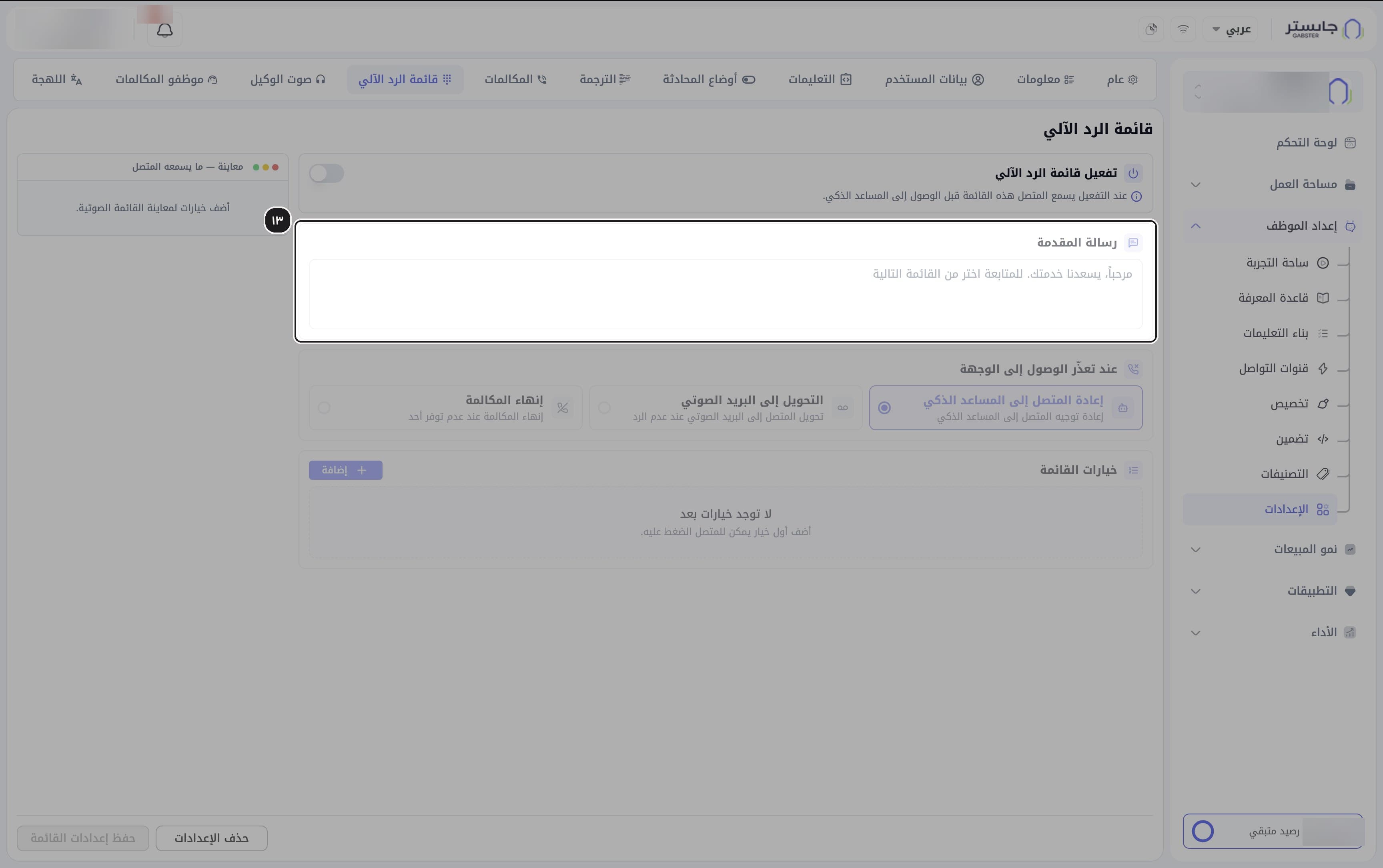
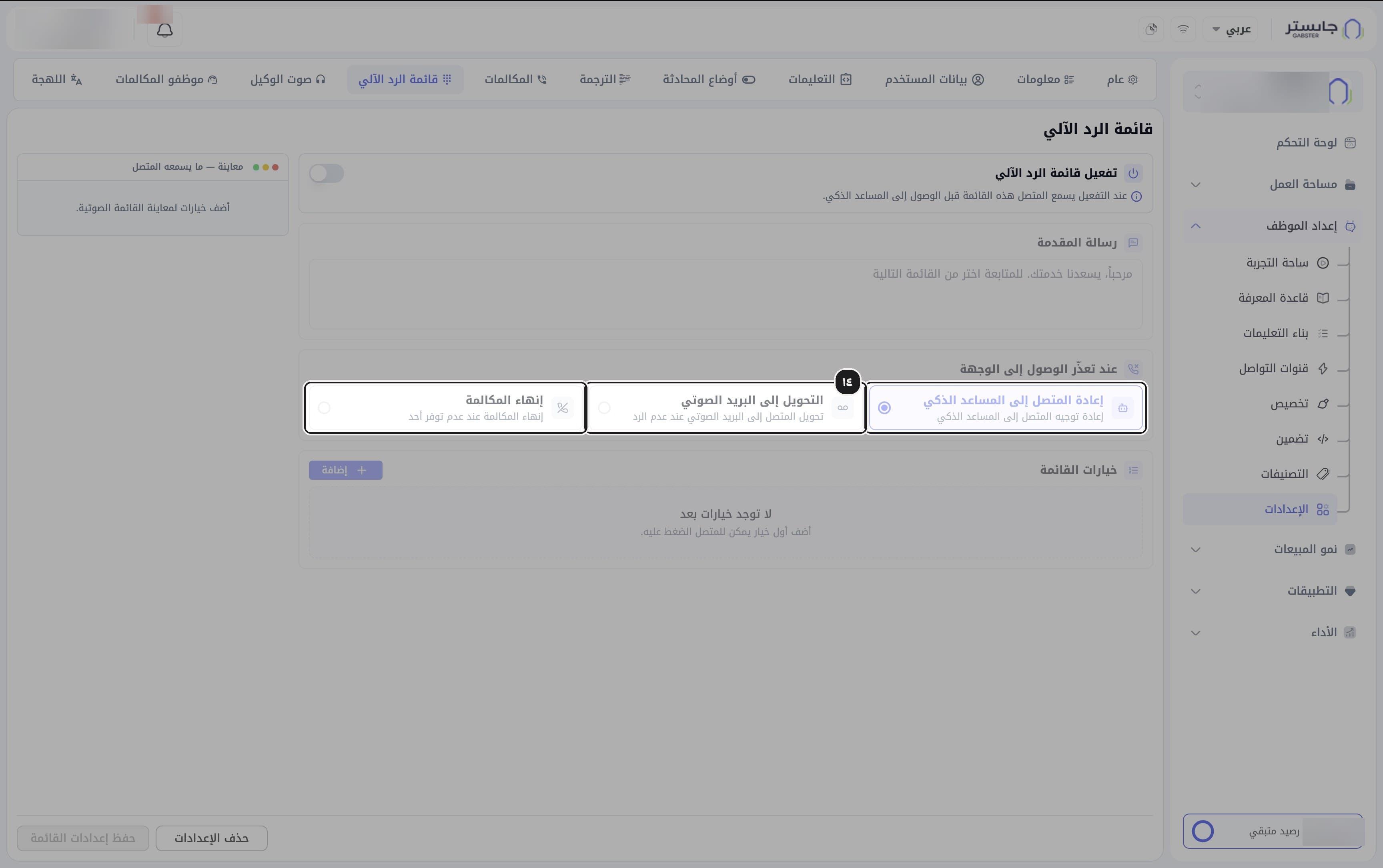
Under When the destination is unreachable (عند تعذّر الوصول إلى الوجهة), choose what happens: Return caller to the AI Agent (إعادة المتصل إلى المساعد الذكي, the default), Transfer to voicemail (التحويل إلى البريد الصوتي) or End the call (إنهاء المكالمة).
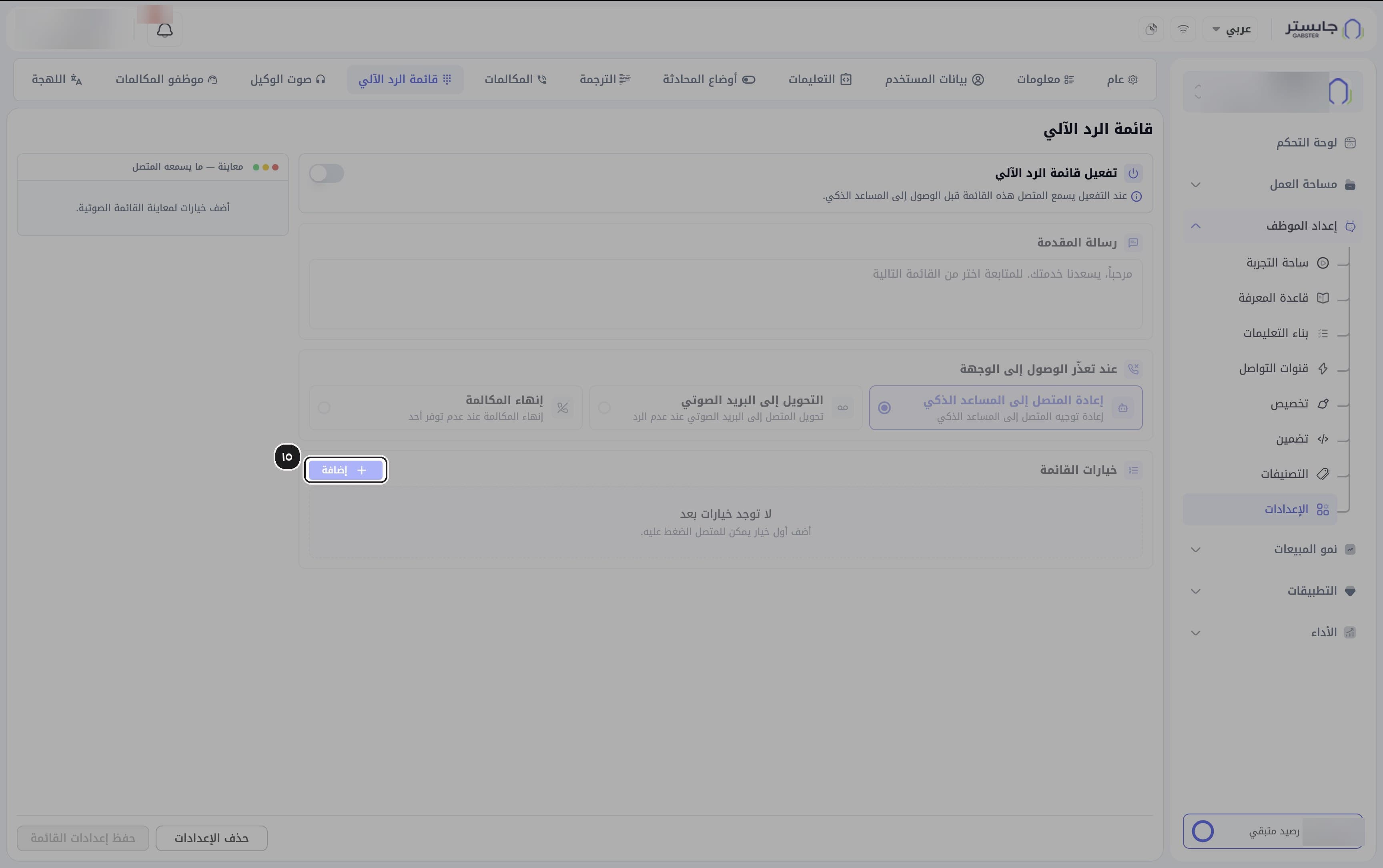
Click Add (إضافة) to add menu options.
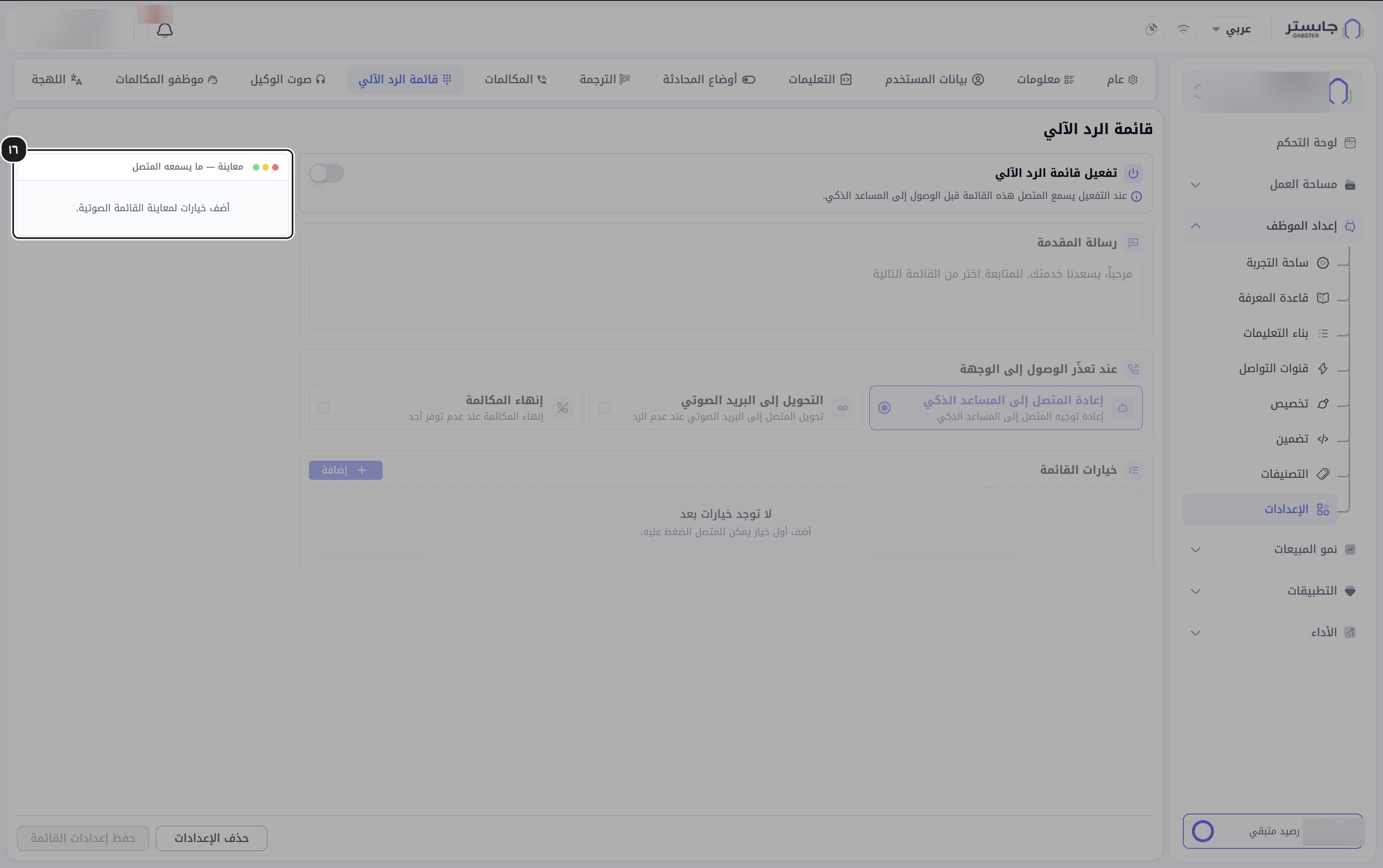
Check the Preview — what the caller hears (معاينة — ما يسمعه المتصل) panel. It stays empty and asks you to add options until you do.
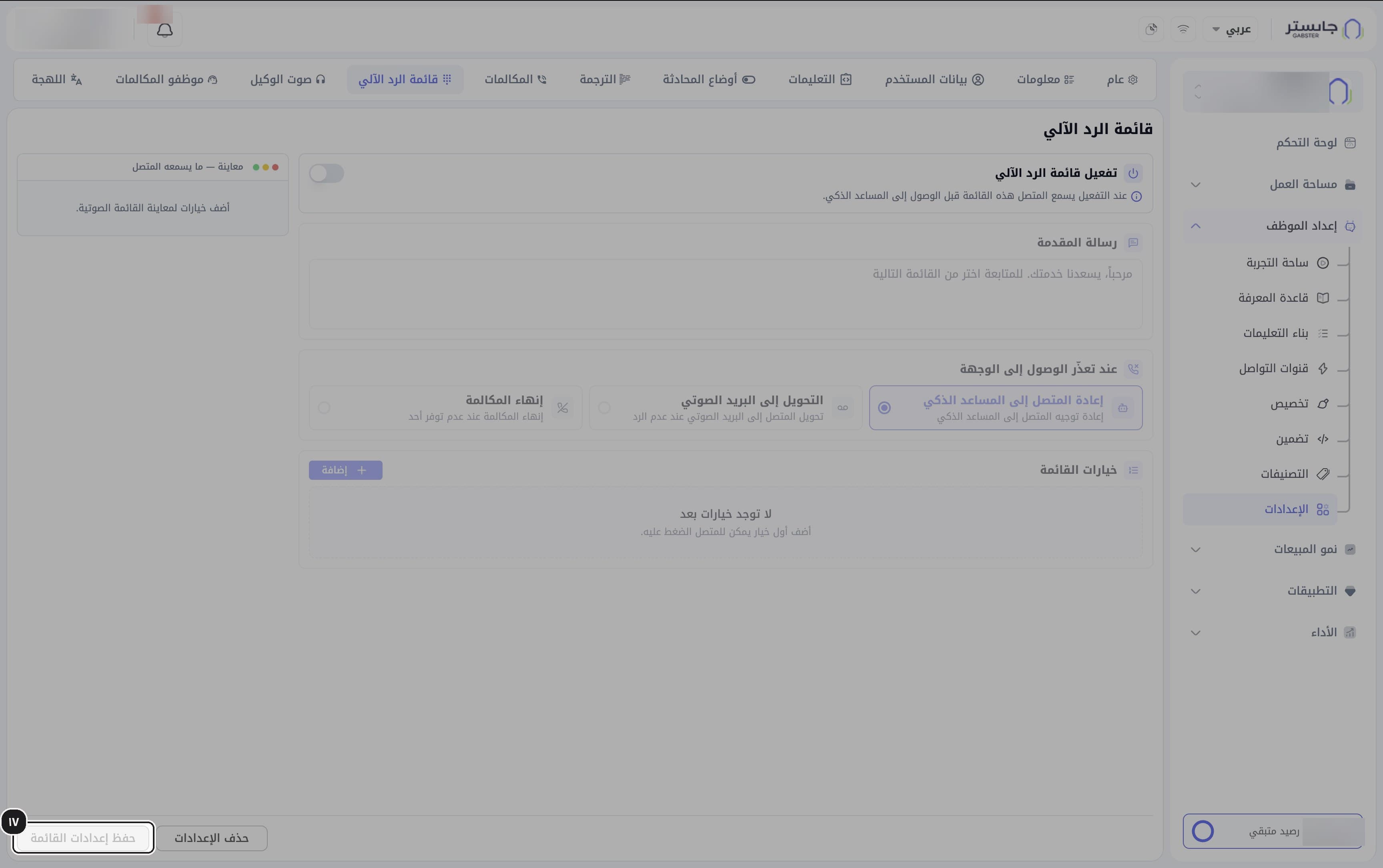
Click Save menu settings (حفظ إعدادات القائمة).
C. Agent Voice and Call Staff
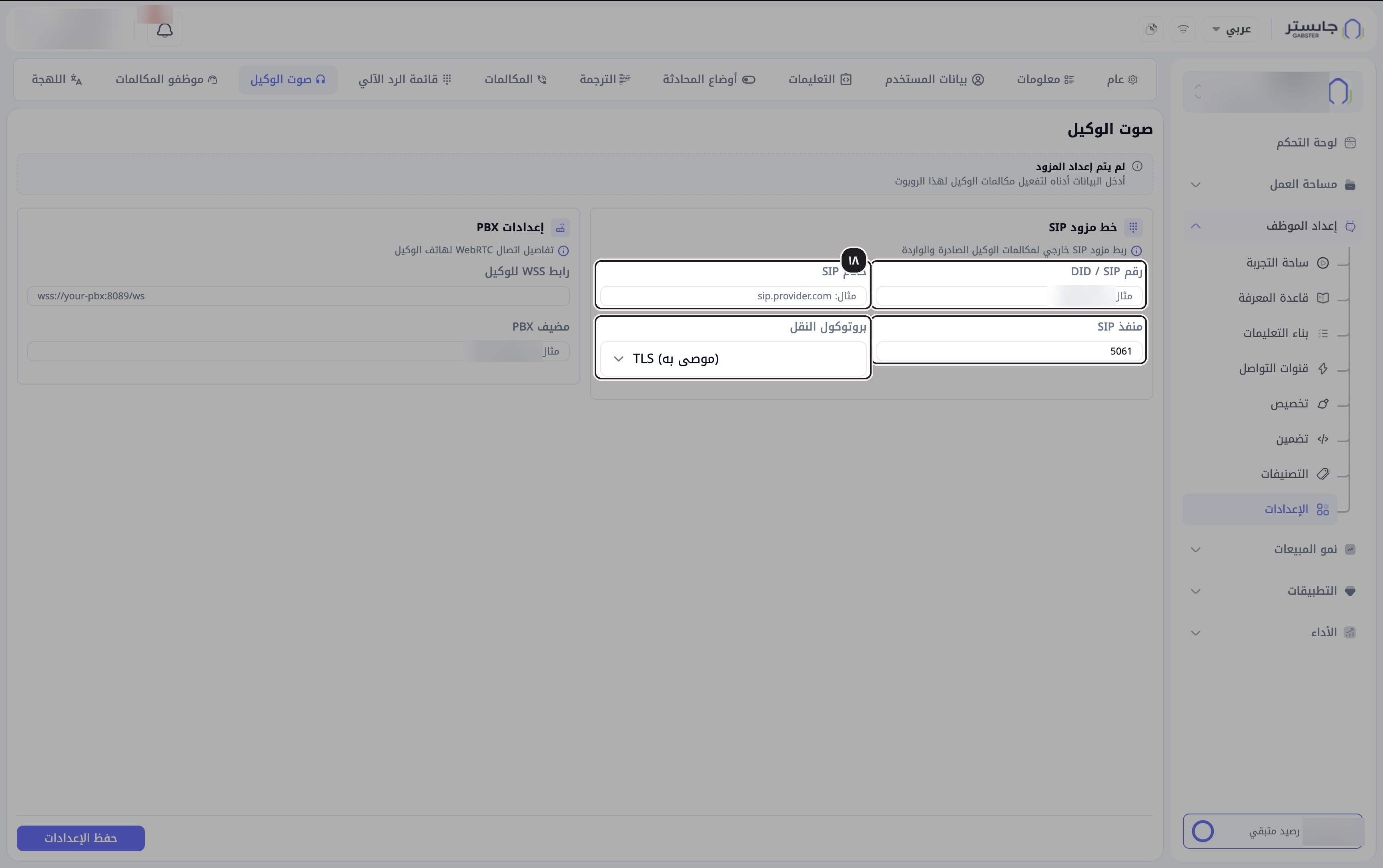
Open the Agent Voice (صوت الوكيل) tab and enter the SIP provider line: DID / SIP number (رقم DID / SIP), SIP server (خادم SIP), SIP port (منفذ SIP) and Transport protocol (بروتوكول النقل). The port defaults to 5061 and the protocol to TLS (recommended) (TLS (موصى به)).
A Provider not set up (لم يتم إعداد المزود) notice shows at the top while the line is not connected.
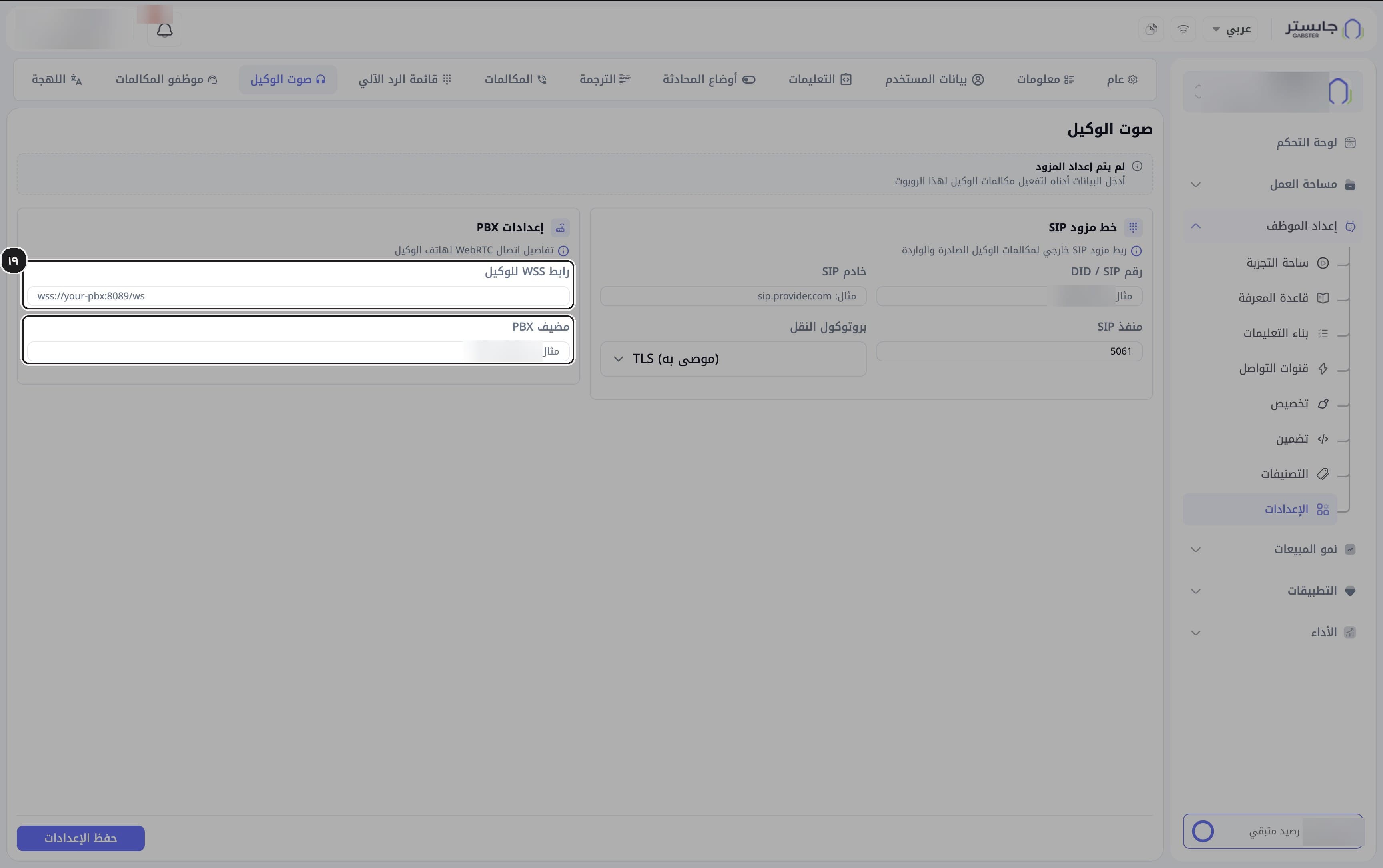
Enter the PBX settings: Agent WSS URL (رابط WSS للوكيل) and PBX host (مضيف PBX).
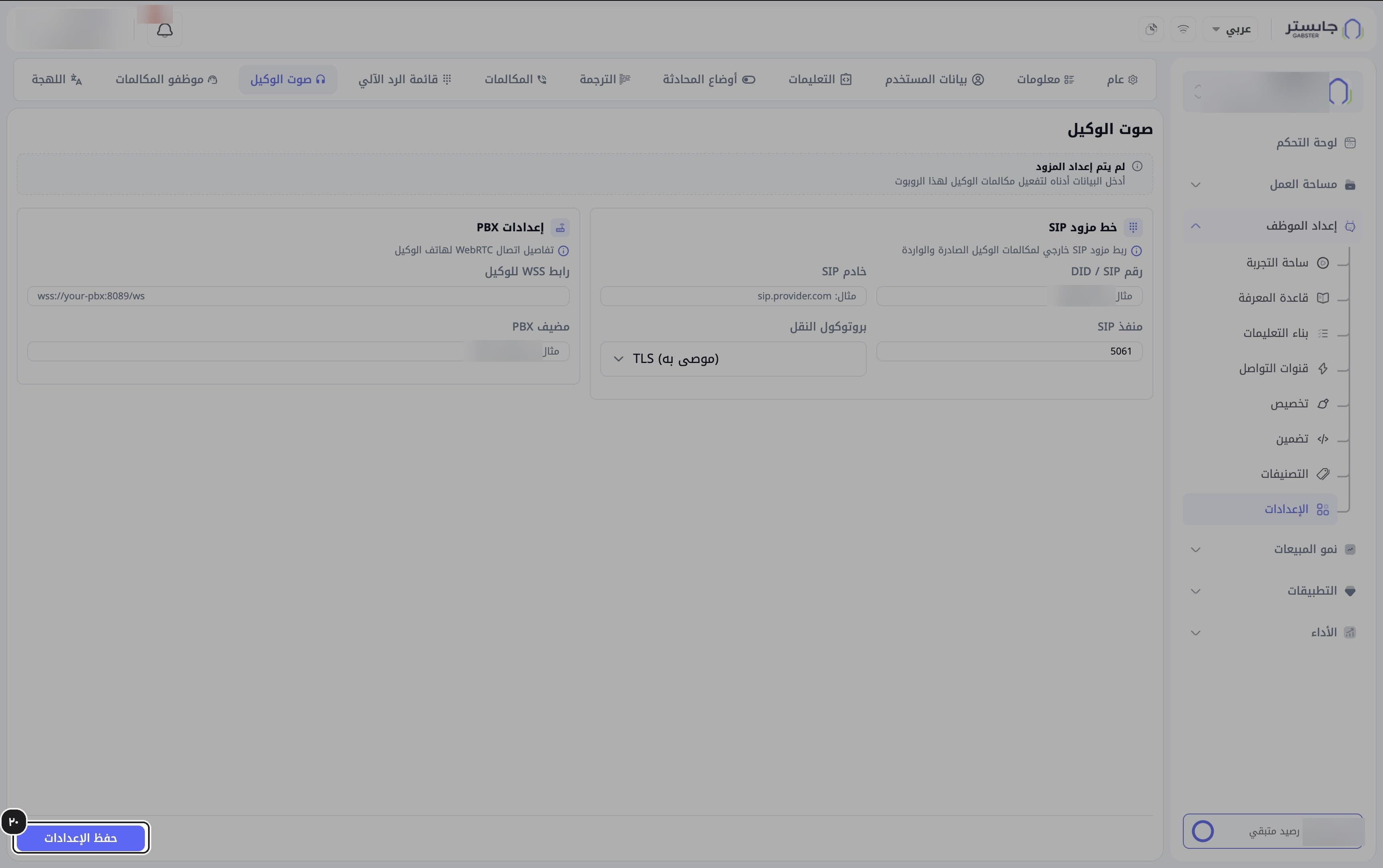
Click Save settings (حفظ الإعدادات).
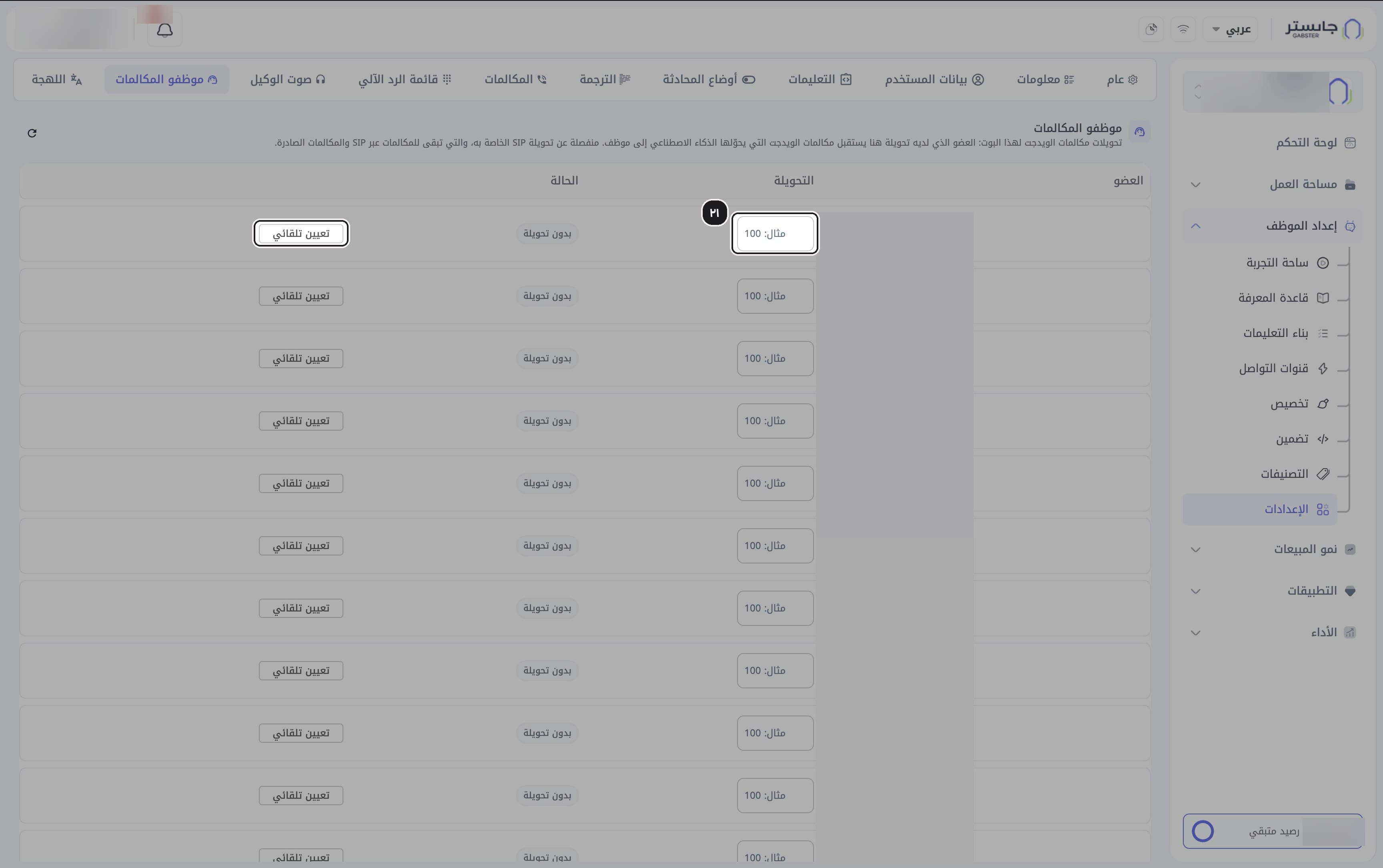
Open the Call Staff (موظفو المكالمات) tab. For each staff member, enter a widget-call extension, or click Auto-assign (تعيين تلقائي).
A staff member with an extension here receives the widget calls your AI Agent hands over to the team. Members without one show No extension (بدون تحويلة) in the Status (الحالة) column.
D. Check a test call
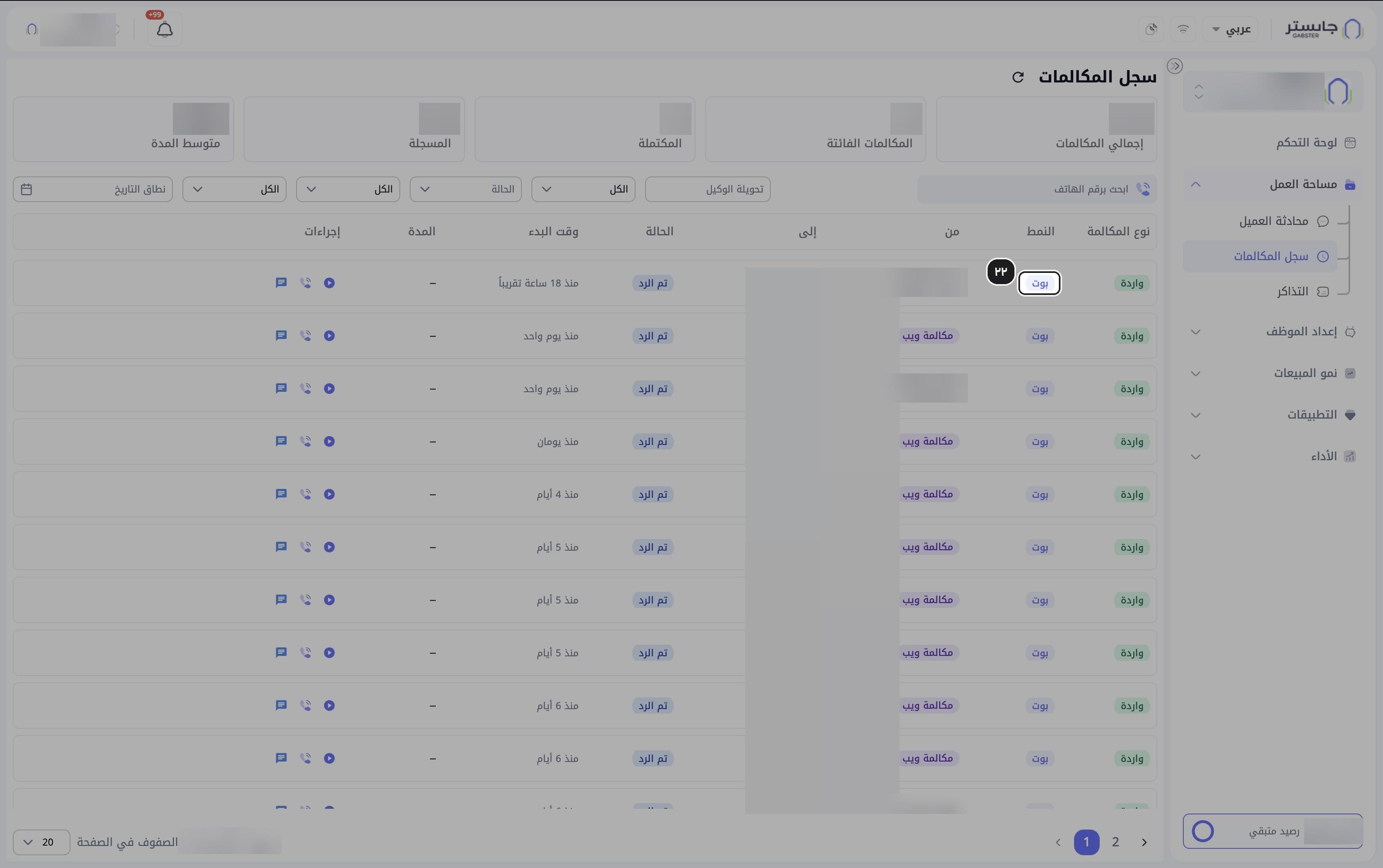
After a test call, open the Call Log and find it. AI Agent (بوت) in the Mode (النمط) column means your AI Agent handled the call.
Related
Set up a calendar and take bookings
Create a calendar, build its booking form, set each member's working hours, then read the calendar and open a booking's details.
Top up the WhatsApp Wallet and track your balance
Read your WhatsApp Wallet balance, free replies and transactions, and start a top-up before the balance runs out.