
Workspace
Functions and handoff
Create functions your AI Agent uses to collect data and open tickets, and control when it hands conversations to your team.
Functions (الدوال) are tools your AI Agent calls during a conversation to collect specific data from the customer and open a ticket with it. On this page you find the built-in Hand off to customer service staff (التحويل إلى موظف خدمة العملاء) function, which controls how conversations are handed to your team, the list of functions you created, and the function builder for adding a new one.
How to open it
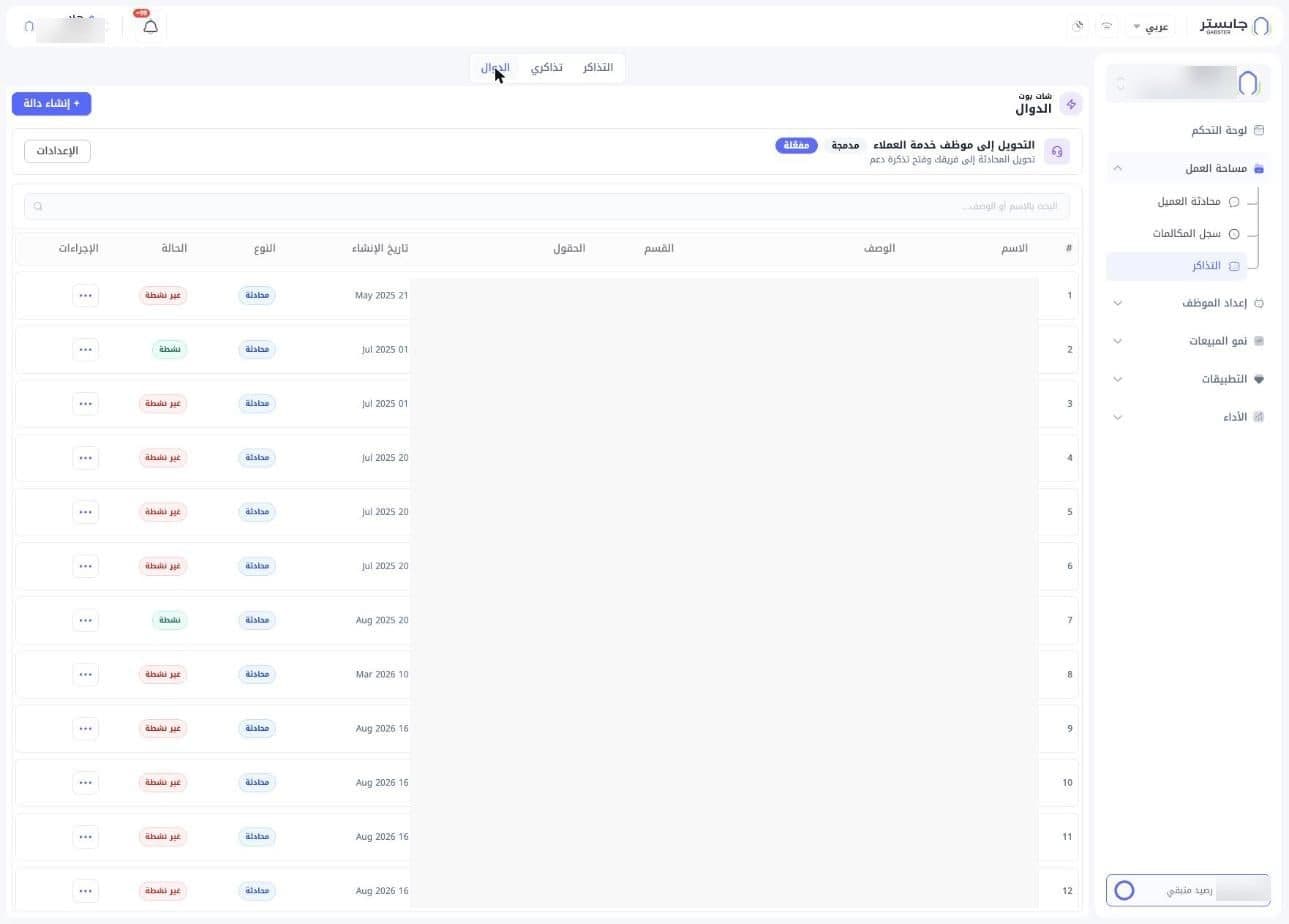
In the sidebar, open Workspace (مساحة العمل), then Tickets (التذاكر), and choose the Functions (الدوال) tab at the top.
Built-in handoff function
At the top of the page is the Hand off to customer service staff card, described as "Hand the conversation to your team and open a support ticket". This function exists in every account and does not appear as a row in the table.
- The Built-in (مدمجة) badge: a ready-made function from Gabster.
- The Enabled (مفعلة) badge: handoff is currently on.
- The Settings (الإعدادات) button: opens the handoff settings. See "Handoff settings" below.
Functions list
Below the card, the Search by name or description... (البحث بالاسم أو الوصف...) field searches your functions, followed by the functions table:
| Column | Meaning |
|---|---|
| # | Row number |
| Name (الاسم) | The function's name |
| Description (الوصف) | What the function does |
| Department (القسم) | Where the ticket goes. Shows "—" when none is set |
| Fields (الحقول) | The names of the data the function collects from the customer |
| Created (تاريخ الإنشاء) | When the function was created |
| Type (النوع) | Conversation (محادثة) or Calls (مكالمات) |
| Status (الحالة) | Active (نشطة, green) or Inactive (غير نشطة, red) |
| Actions (الإجراءات) | The … button for the actions menu |
Department (القسم) is the team a ticket of this type goes to. When your AI Agent opens one, the least-busy member of that department gets it; with no department set, any staff member can.
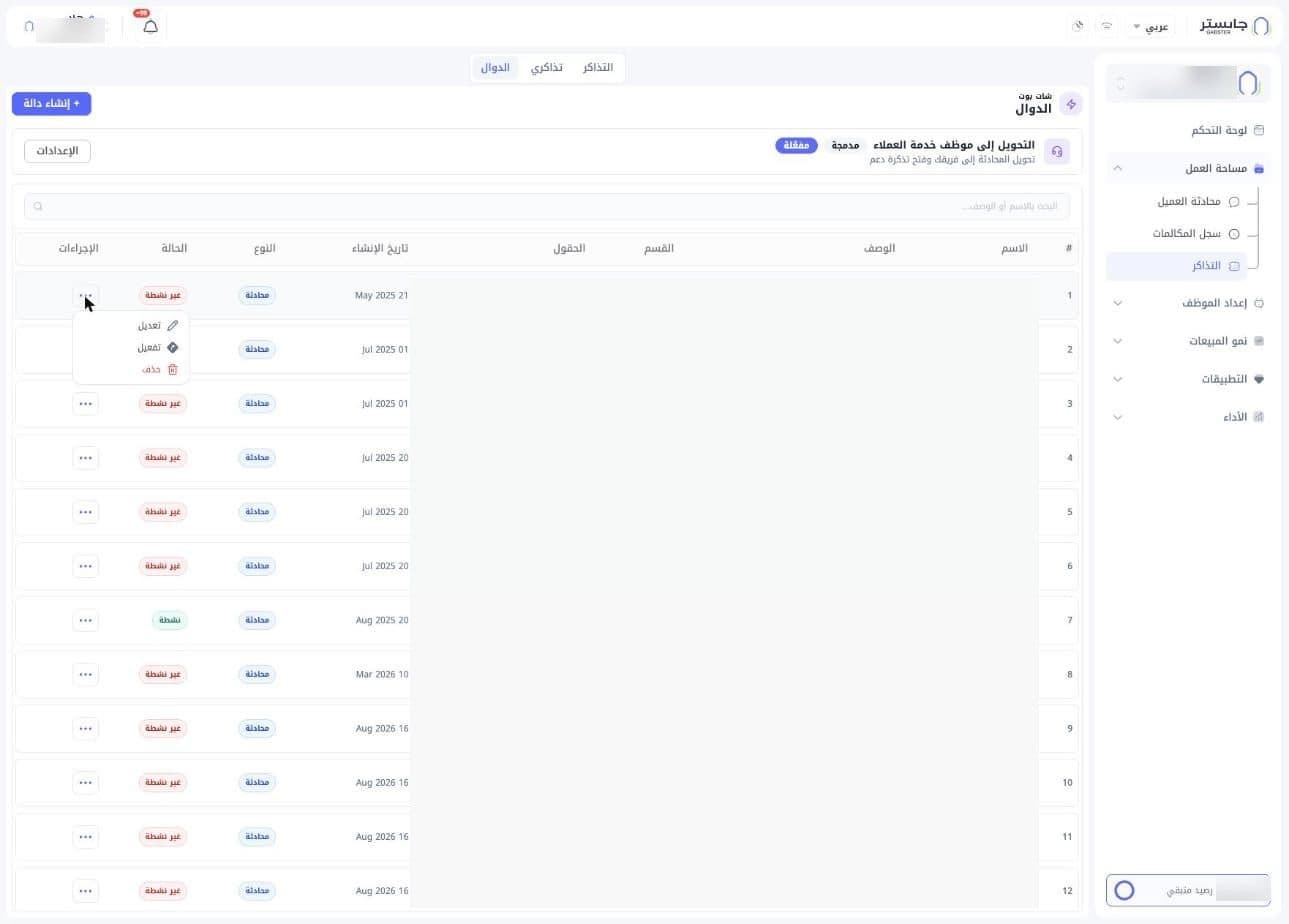
Click … on a function's row to see its actions:
- Edit (تعديل): change the function.
- Activate (تفعيل): shown for inactive functions, to turn the function on.
- Delete (حذف): delete the function.
Create a function
Click + Create function (+ إنشاء دالة) to open the Create function (إنشاء دالة) page. A back arrow sits next to the title, with the Functions (الدوال) breadcrumb above it.
A switch at the top offers two modes: Creator (المنشئ) and Classic (كلاسيكي).
Creator mode
In this mode you describe the function in your own words and AI generates it.
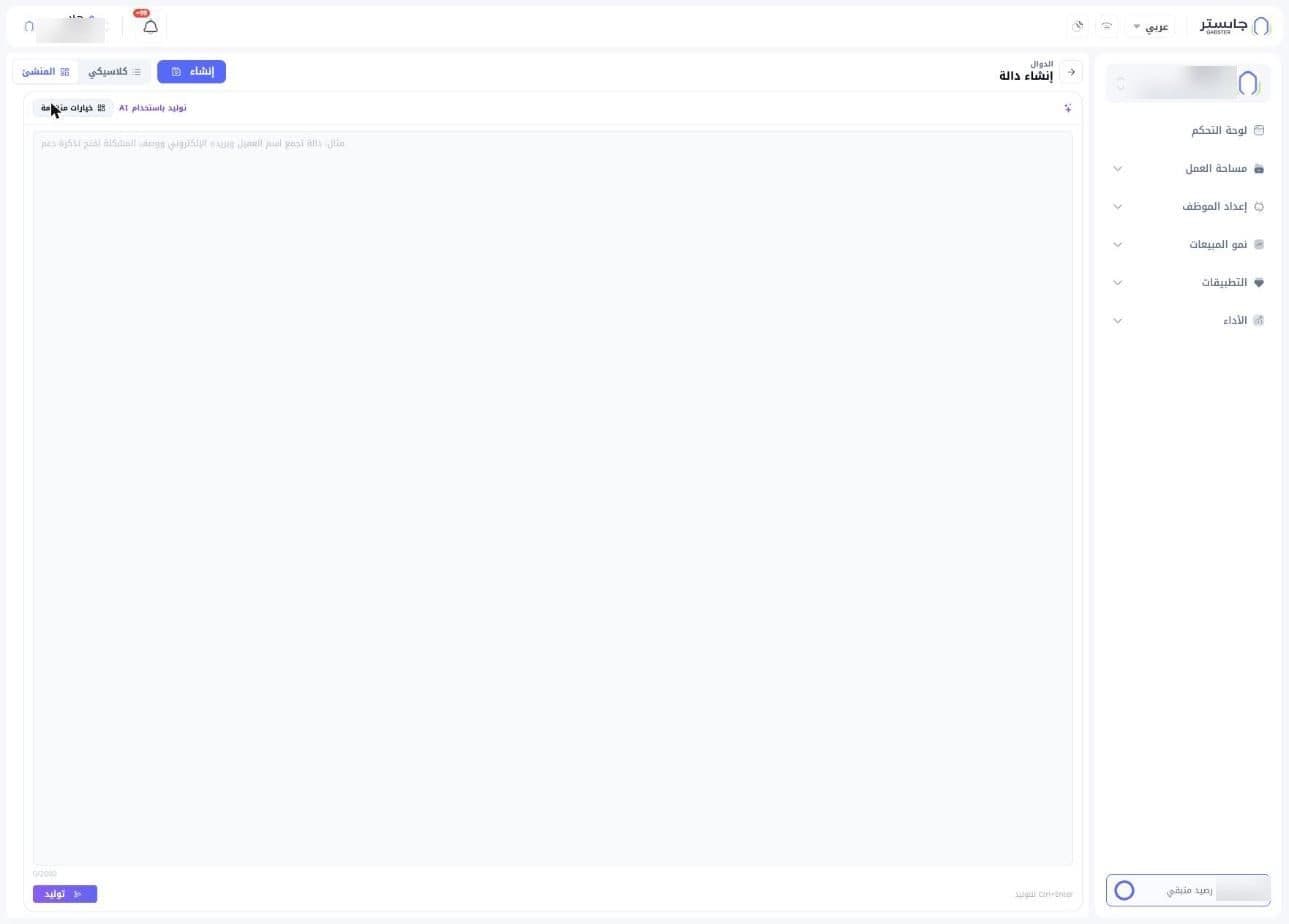
- In the Generate with AI (توليد باستخدام AI) box, describe what the function should do — for example, a function that collects the customer's name, email and problem description to open a support ticket. Up to 2000 characters.
- Click Generate (توليد), or press Ctrl+Enter.
- Click Create (إنشاء) to save the function.
An Advanced options (خيارات متقدمة) option sits next to the heading.
Classic mode
In this mode you fill in the function definition yourself.
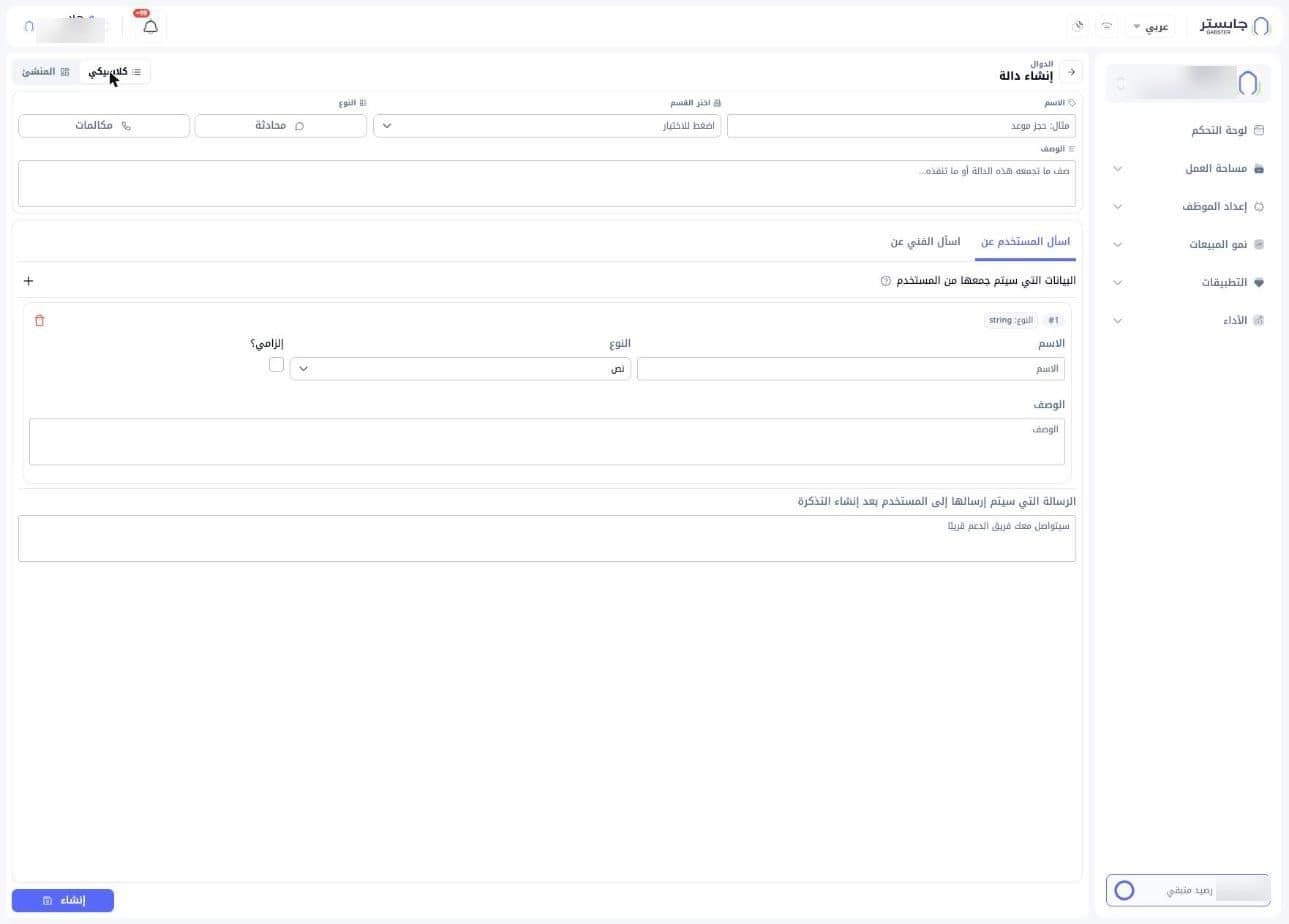
Basics:
- Name (الاسم): the function's name, e.g. "Book an appointment".
- Choose department (اختر القسم): the department the ticket goes to.
- Type (النوع): Conversation (محادثة) or Calls (مكالمات).
- Description (الوصف): describe what the function collects or does.
Fields to collect: on the Ask the customer for (اسأل المستخدم عن) tab you define the Data to collect from the customer (البيانات التي سيتم جمعها من المستخدم). Each field has a card with:
- Name (الاسم): the field's name.
- Type (النوع): the data type, Text (نص) by default.
- Required? (إلزامي؟): tick it if the field is required.
- Description (الوصف): an explanation of the field.
Add another field with the + button, and remove a field with the red trash icon.
Next to it is a second tab, Ask the technician for (اسأل الفني عن).
Message after the ticket is created: in the Message sent to the customer after the ticket is created (الرسالة التي سيتم إرسالها إلى المستخدم بعد إنشاء التذكرة) box, write what the customer receives once the ticket is open, e.g. "Our support team will contact you soon" (سيتواصل معك فريق الدعم قريبًا).
Click Create (إنشاء) at the bottom of the page to save the function.
Tickets the function opens then appear on the Tickets page, and the data it collected appears in the Requirements tab of the ticket's details.
Handoff settings
Click Settings on the Hand off to customer service staff card to open the settings drawer. It decides what happens when the customer asks to talk to a staff member, shows clear frustration, or needs help the AI can't give.
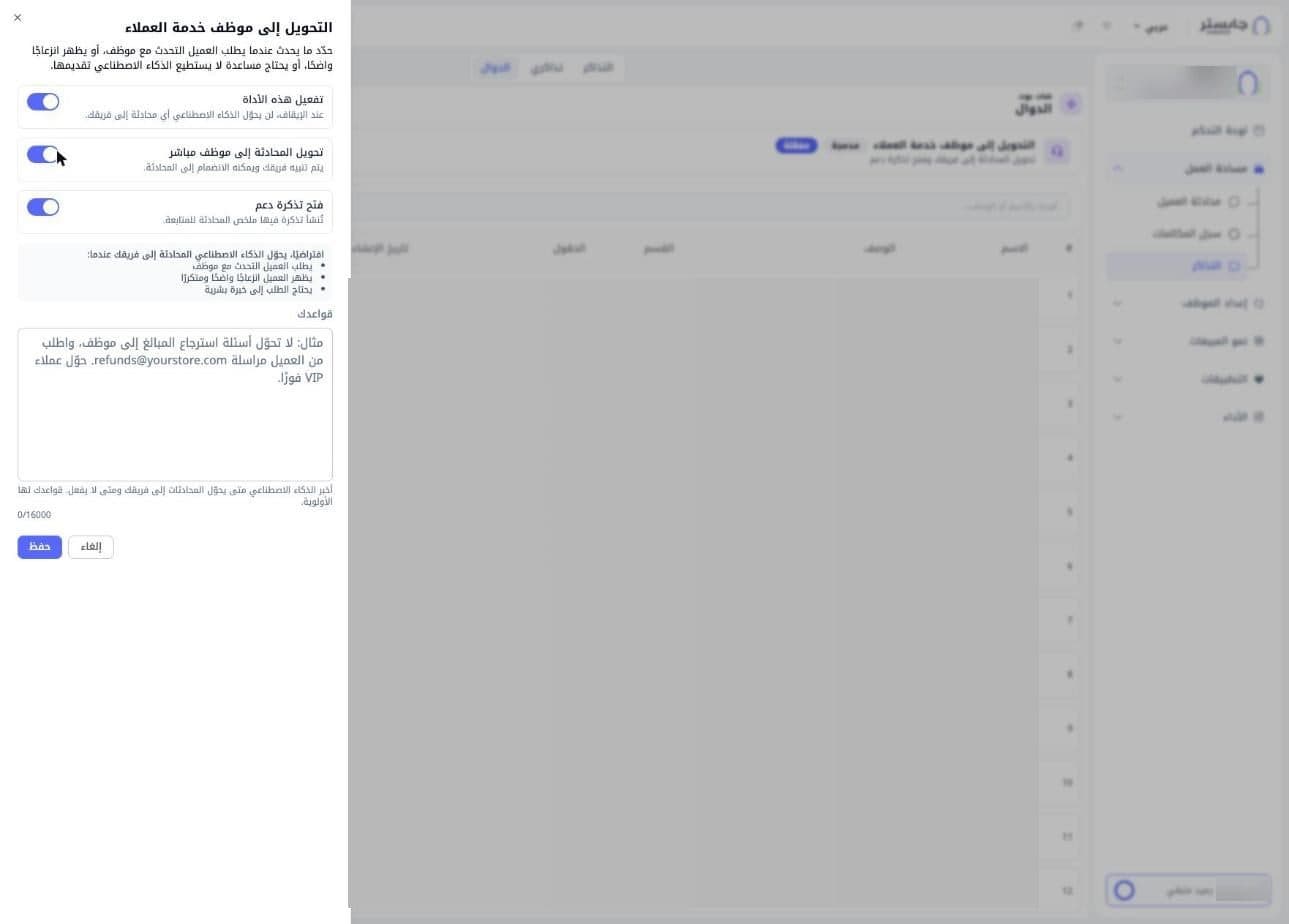
Switches
| Switch | What it does |
|---|---|
| Enable this tool (تفعيل هذه الأداة) | The main switch. When it is off, the AI hands no conversation to your team |
| Live handoff to a staff member (تحويل المحادثة إلى موظف مباشر) | Your team is alerted and can join the conversation |
| Open a support ticket (فتح تذكرة دعم) | A ticket with a summary of the conversation is created for follow-up |
All three switches are on by default.
When handoff happens
By default, the AI hands the conversation to your team when:
- The customer asks to talk to a staff member.
- The customer shows clear, repeated frustration.
- The request needs human expertise.
Your rules
In the Your rules (قواعدك) field, tell the AI in your own words when to hand conversations to your team and when not to. Your rules take priority over the defaults. Up to 16000 characters. For example:
- Don't hand refund questions to staff; ask the customer to email your refunds address.
- Hand VIP customers over immediately.
Click Save (حفظ) to keep the settings, or Cancel (إلغاء) to leave without saving.
How handoff works
- During a conversation, your AI Agent decides to hand off in the default cases or according to Your rules.
- If Live handoff to a staff member is on, your team is alerted and a staff member can join the conversation from Customer Conversations with Join conversation (انضم للمحادثة).
- If Open a support ticket is on, a ticket with a summary of the conversation is created and appears on the Tickets page.
When a conversation is handed off, it moves to the Needs staff (يتطلب موظفًا) filter in Customer Conversations, and its header shows Customer status: Waiting for staff (حالة العميل : بانتظار موظف). The customer sees Transferring you to a customer service agent... (جارٍ تحويلك إلى موظف خدمة العملاء...), then their place in the queue, such as There are … users in the queue (يوجد … من المستخدمين في قائمة الانتظار). The staff chosen for your AI Agent's conversations get an in-app Human support request (طلب دعم بشري) notification; if none are chosen, your organization's admins do. Email alerts for handoffs are off by default. Your AI Agent keeps replying until a staff member joins.
To choose the language of the messages customers see when a conversation is handed to your team, see Conversations and translation.