Workspace
Tickets
Follow up on support tickets opened from conversations, and review each ticket's details, data and history.
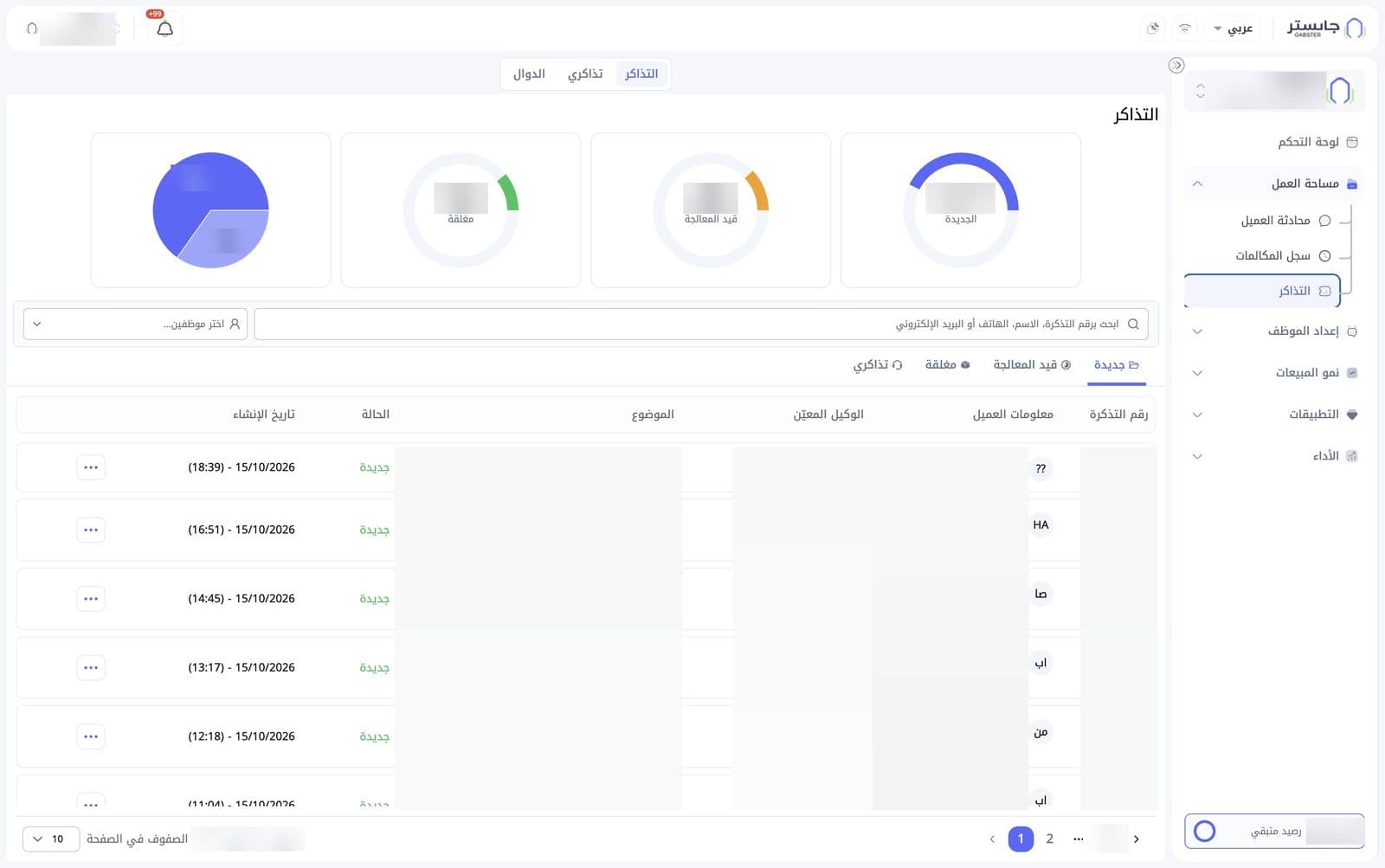
The Tickets (التذاكر) page collects the support requests your team needs to follow up on. A ticket is usually opened when your AI Agent hands a conversation to your team, or when one of your functions collects data from a customer. Here you see how many tickets are in each status, search for a ticket and open its details.
How to open it
In the sidebar, open Workspace (مساحة العمل) and choose Tickets (التذاكر).
Top tabs
Three tabs sit at the top of the page:
- Tickets (التذاكر): the ticket list (this page).
- My tickets (تذاكري): your own tickets.
- Functions (الدوال): the functions your AI Agent uses to open tickets, including handoff to your team. See Functions and handoff.
Summary charts
Four charts sit under the page title:
| Chart | What it shows |
|---|---|
| New (الجديدة, blue arc) | Number of new tickets |
| In progress (قيد المعالجة, orange arc) | Number of tickets being worked on |
| Closed (مغلقة, green arc) | Number of closed tickets |
| Untitled pie chart | Two values in dark blue and light blue |
Search and filter
- Search by ticket number, name, phone or email (ابحث برقم التذكرة، الاسم، الهاتف أو البريد الإلكتروني): type any of these to find the ticket.
- Select staff… (اختر موظفين...): a list for choosing staff members to see their tickets.
Ticket statuses
A ticket goes through three statuses. Choose a status tab above the table to see its tickets:
| Tab | Meaning |
|---|---|
| New (جديدة) | The ticket was opened and work has not started yet. This tab is open by default |
| In progress (قيد المعالجة) | Someone is working on the ticket |
| Closed (مغلقة) | Work on the ticket is finished |
| My tickets (تذاكري) | Your own tickets |
Tickets table
Each ticket has one row:
| Column | Meaning |
|---|---|
| Ticket number (رقم التذكرة) | The ticket's unique number |
| Customer info (معلومات العميل) | The customer's initials, name, email and phone. ?? appears when the customer is unknown |
| Assigned staff member (الوكيل المعيّن) | The staff member the ticket is assigned to |
| Subject (الموضوع) | The ticket subject, which can include the name of the function that opened it |
| Status (الحالة) | Ticket status, e.g. New (جديدة) |
| Created (تاريخ الإنشاء) | The time and date the ticket was created |
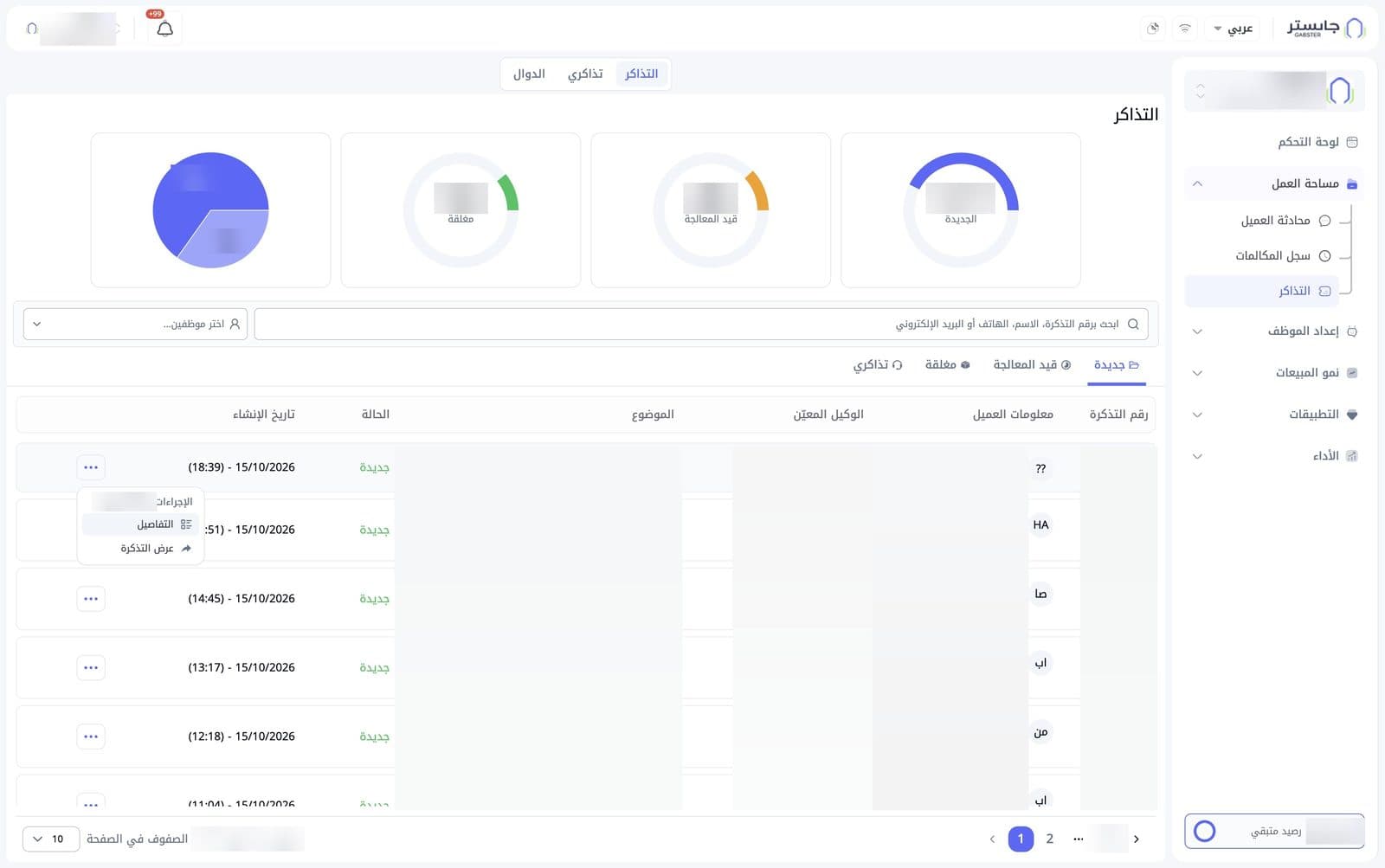
At the end of each row, the … button opens the Actions (الإجراءات) menu, titled with the ticket number:
- Details (التفاصيل): opens the Ticket Details window.
- View ticket (عرض التذكرة): view the ticket.
Below the table you can move between pages, see which rows are shown out of the total (e.g. «عرض 1–10 من …»), and change the Rows per page (الصفوف في الصفحة, 10 by default).
Ticket Details
The Ticket Details (تفاصيل التذكرة) window shows everything about one ticket.
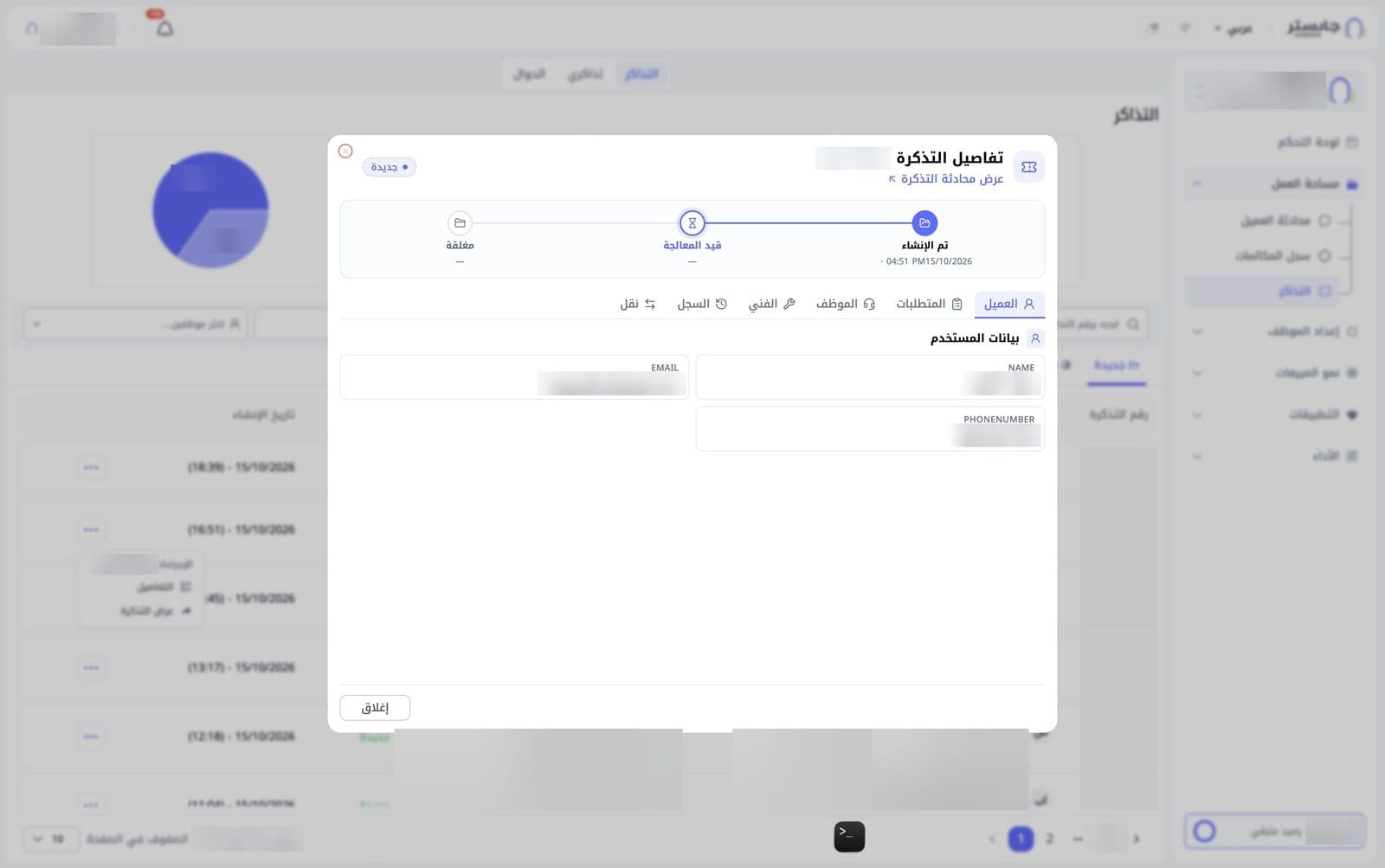
Window header
- The Ticket Details title and the ticket number.
- View ticket conversation (عرض محادثة التذكرة): a link to view this ticket's conversation.
- A status badge, such as New (جديدة).
- A close button, plus a Close (إغلاق) button at the bottom of the window.
Status stepper
The stepper shows the ticket's path in three steps: Created (تم الإنشاء, with the creation time and date), then In progress (قيد المعالجة), then Closed (مغلقة). Created shows as completed in blue, In progress with a blue ring, and Closed in grey. The last two steps show "—" until the ticket reaches them.
A ticket moves to In progress when the staff member it's assigned to opens it, which also puts them in the conversation, or when a staff member is assigned. Replying doesn't change the status. A closed ticket goes back to In progress by itself when the customer writes again, unless the message is only a thank-you.
Window tabs
| Tab | What it shows |
|---|---|
| Customer (العميل) | The User data (بيانات المستخدم) section: the customer's name, email and phone (NAME, EMAIL, PHONENUMBER), read-only |
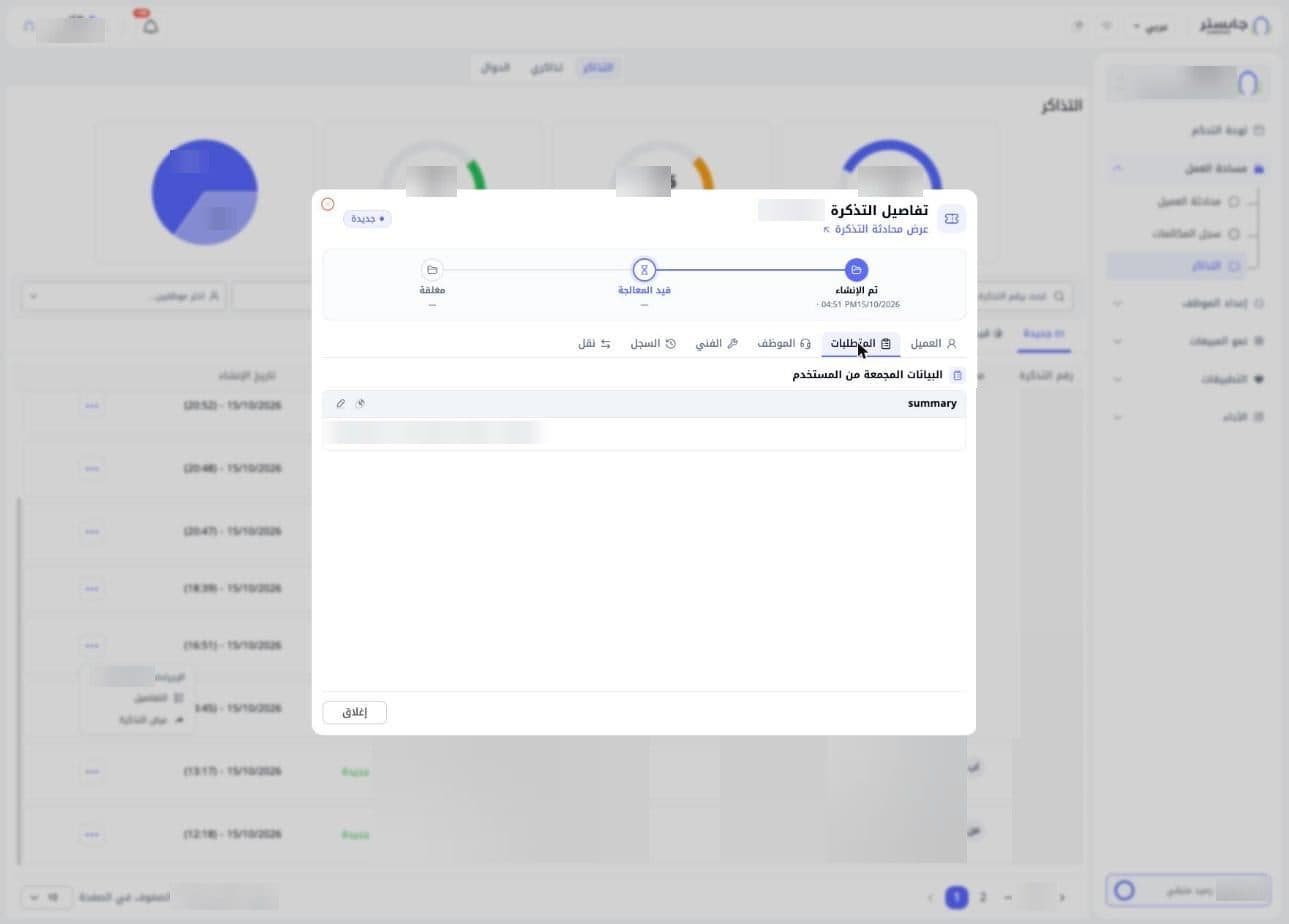
| Requirements (المتطلبات) | The Data collected from the customer (البيانات المجمعة من المستخدم) section: a card for each field collected from the customer, with the field name and its value, and a pencil icon and another small icon in its header |
| Staff (الموظف) | The Assigned staff member details (تفاصيل الموظف المعين) section: the staff member the ticket is assigned to |
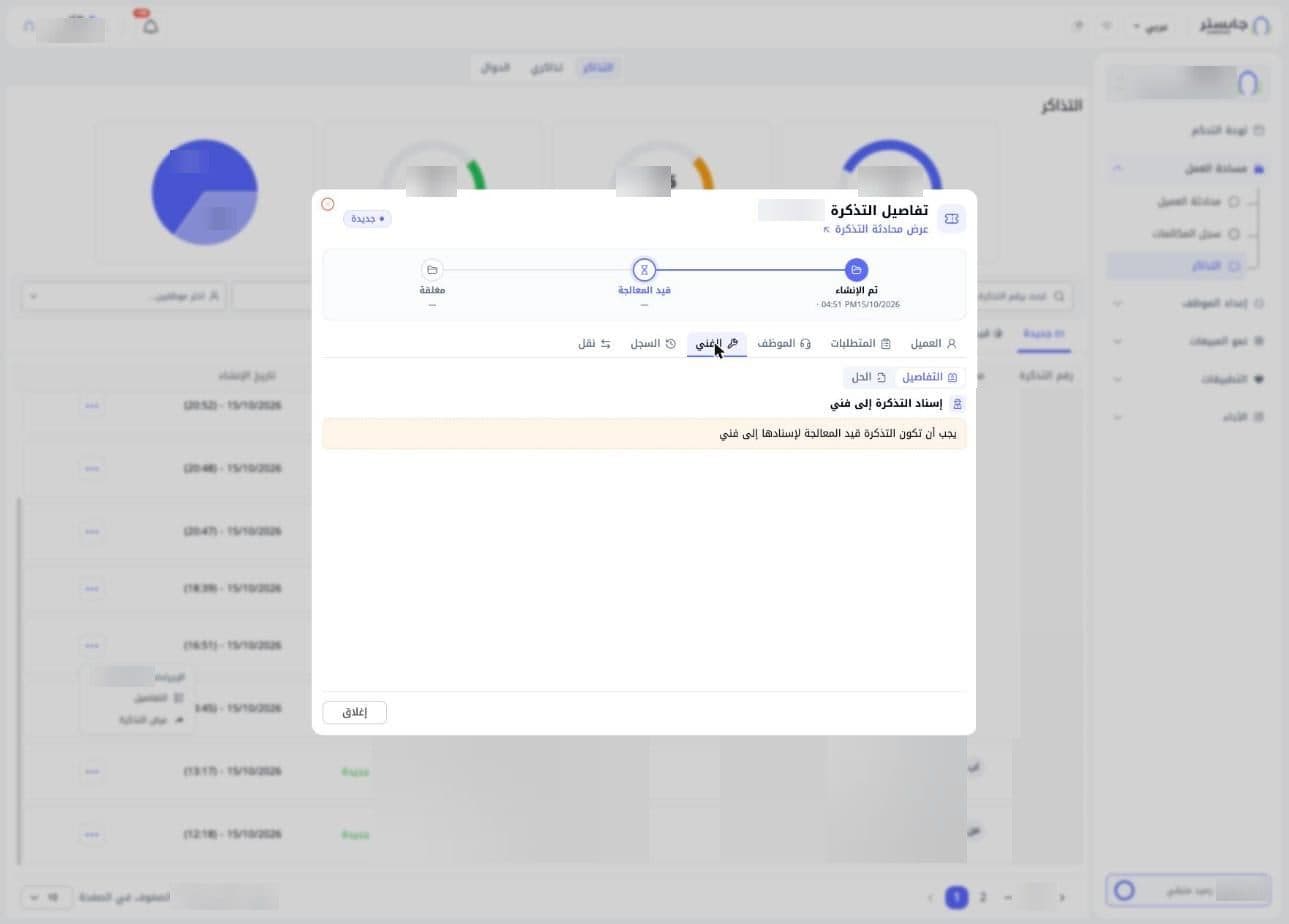
| Technical (الفني) | The Assign the ticket to a technician (إسناد التذكرة إلى فني) section, with two sub-tabs: Details (التفاصيل) and Solution (الحل) |
| History (السجل) | The Ticket history (سجل التذكرة) section: a timeline of the ticket's events, such as its creation, with date and time |
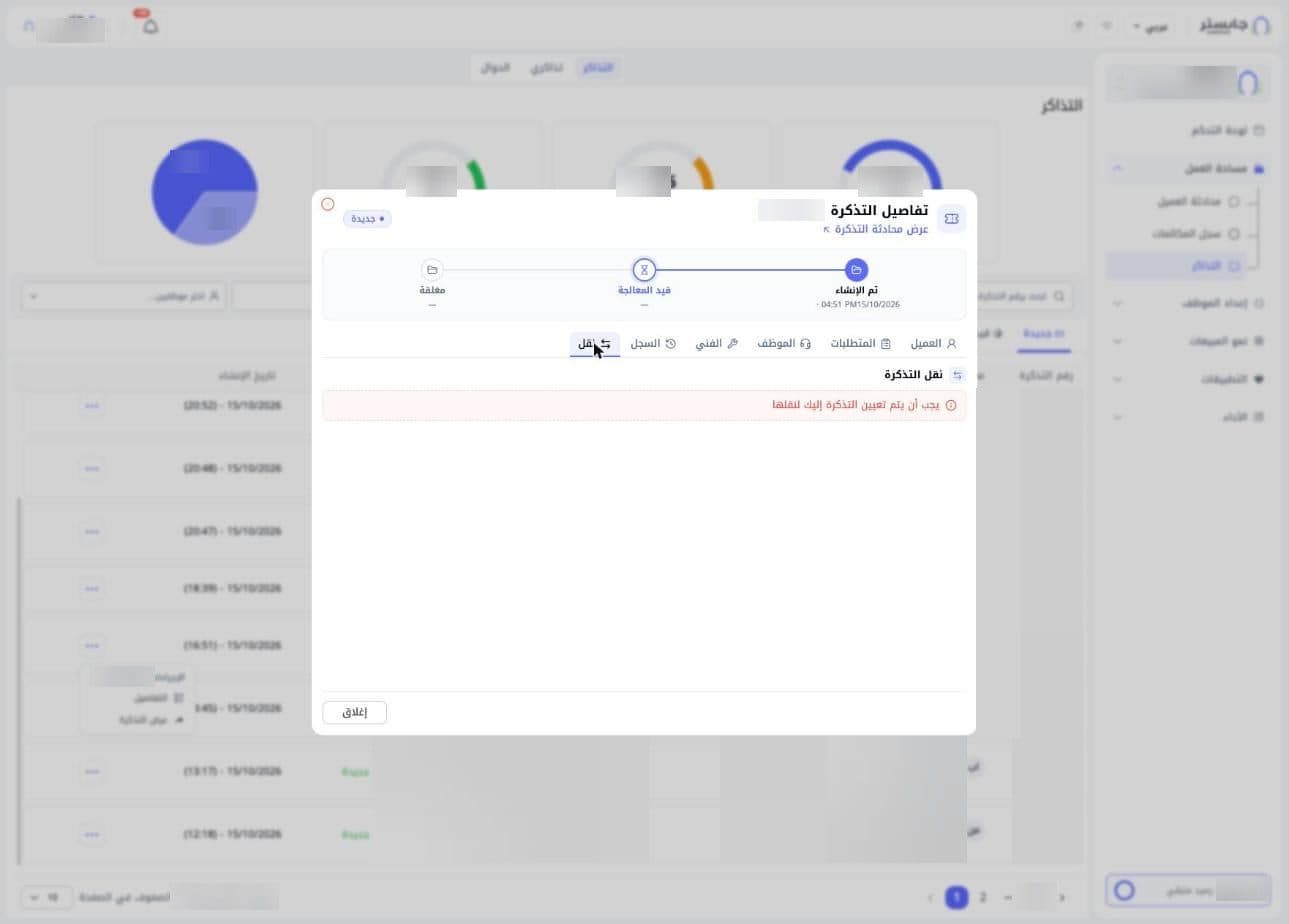
| Transfer (نقل) | The Transfer ticket (نقل التذكرة) section |
A ticket can be transferred to a department: the least-busy member of that department gets it, and the ticket goes back to New. Only the staff member it's assigned to can transfer it.
Rules for the Technical and Transfer tabs
- Technical: you can only assign a ticket to a technician when its status is In progress. While the ticket is New, the tab shows "The ticket must be in progress to assign it to a technician" (يجب أن تكون التذكرة قيد المعالجة لإسنادها إلى فني) and no assign option.
- Transfer: you can only transfer a ticket that is assigned to you. Otherwise the tab shows "The ticket must be assigned to you to transfer it" (يجب أن يتم تعيين التذكرة إليك لنقلها).