
Getting started
Organization and projects
Move between projects and AI Agents, and keep your organization's profile up to date.
Your Gabster account has three levels: the organization is your business, it holds projects, and each project holds its own AI Agents. This page shows how to move between them with the project switcher, and how to view and edit your organization's details.
Project switcher
How to open it
Click the project card at the top of the sidebar. The card shows the current project's name and, below it, the selected AI Agent.
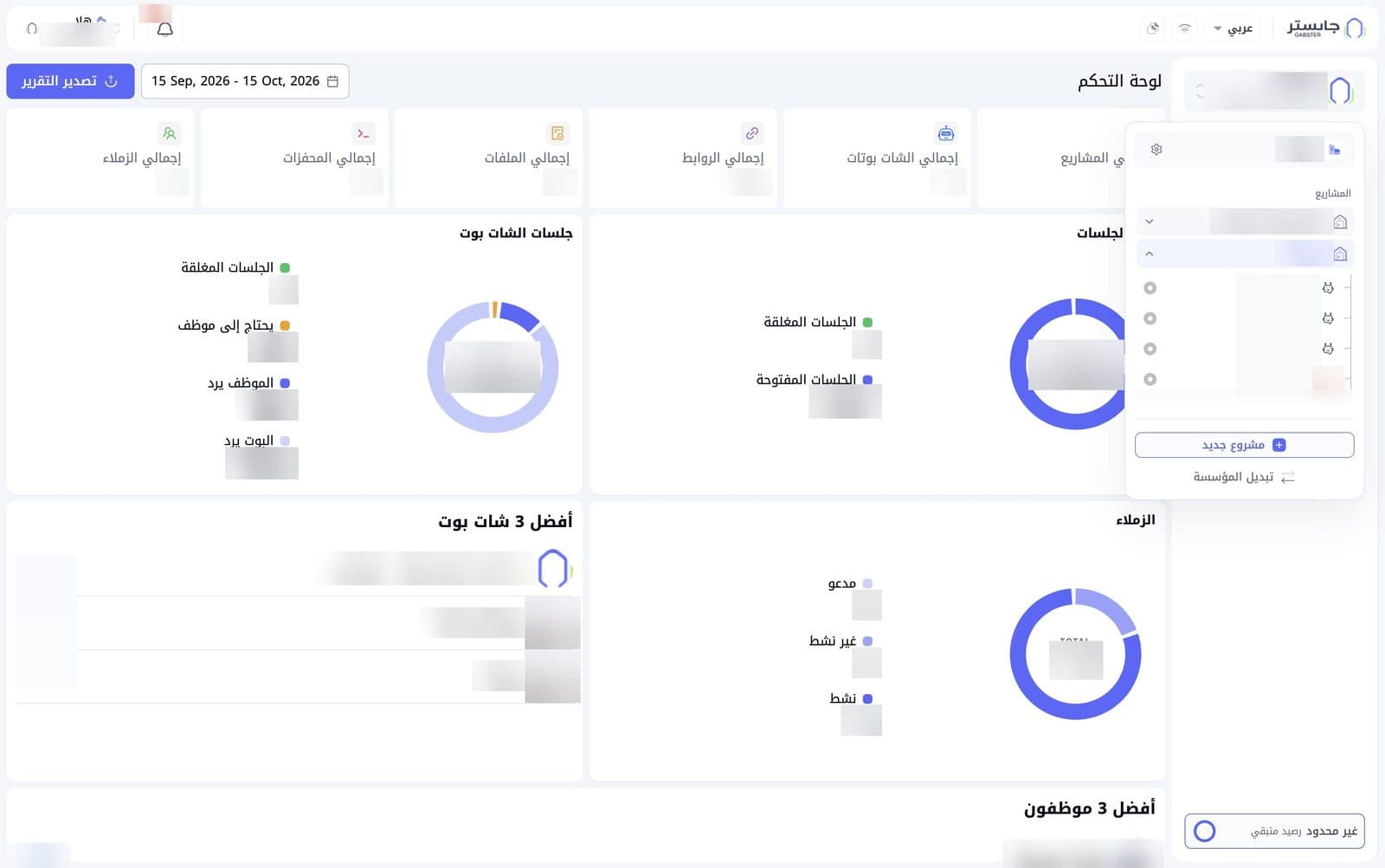
Organization
At the top of the panel, a card shows your current organization's name with a gear icon next to it. When you hover over the gear, the tooltip Organization (المؤسسة) appears. Use it to open the Organization Details (تفاصيل المؤسسة) page.
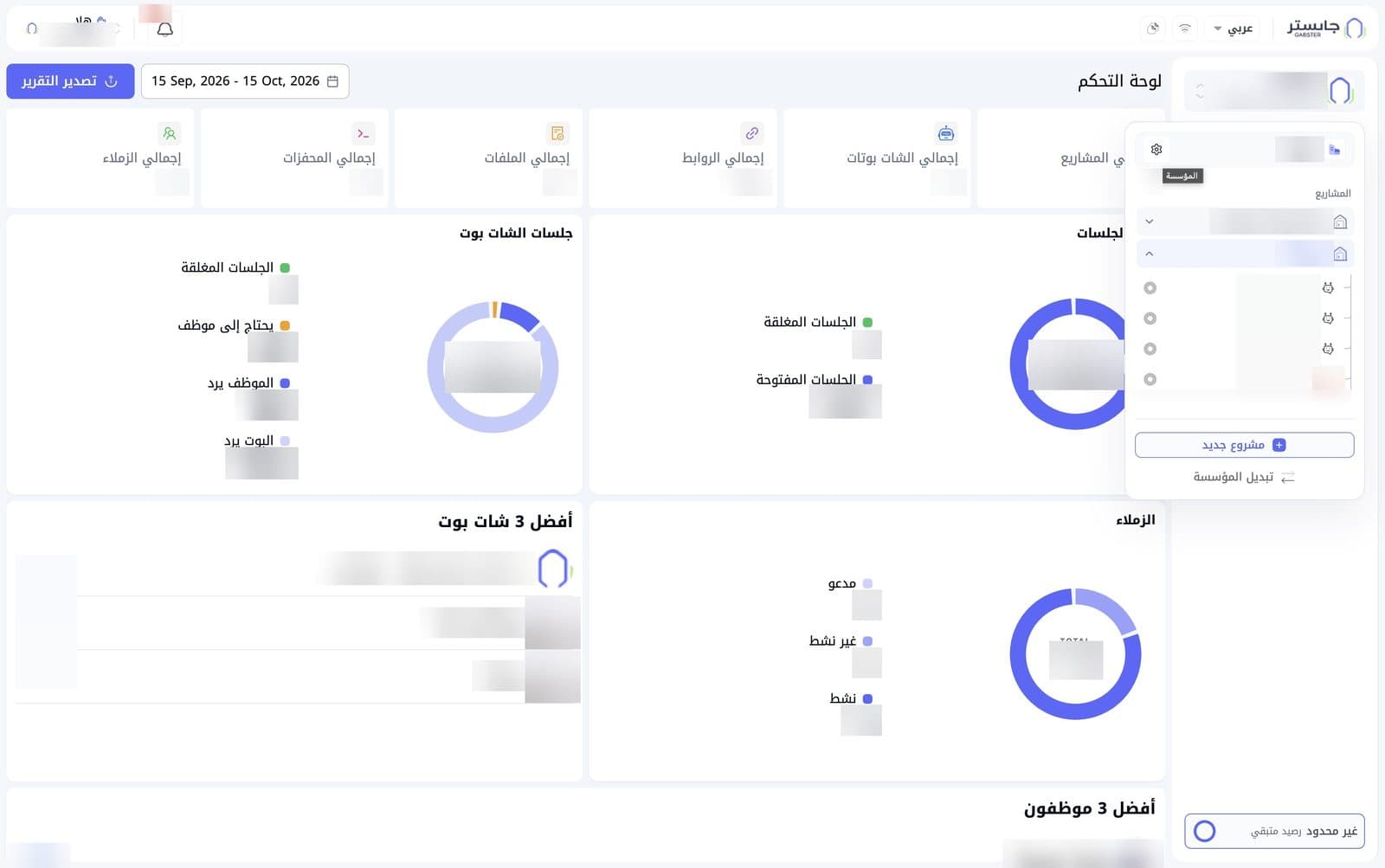
Projects and AI Agents
Under Projects (المشاريع) you see your organization's projects, each with an arrow:
- The open project is shown in blue with its arrow pointing up, and beneath it a tree of the AI Agents in that project.
- Other projects are collapsed, with their arrow pointing down.
- Each AI Agent has a selection circle next to it.
If you have many projects, you may need to scroll the list to see the rest.
Bottom of the panel
- New project (مشروع جديد): create a new project in your organization.
- Switch organization (تبديل المؤسسة): for moving to another organization.
Organization Details
The Organization Details (تفاصيل المؤسسة) page shows your organization's profile: name, website and contact details. This is the information your team and customers see about your organization.
How to open it
Open the project switcher, then click the gear icon next to the organization name.
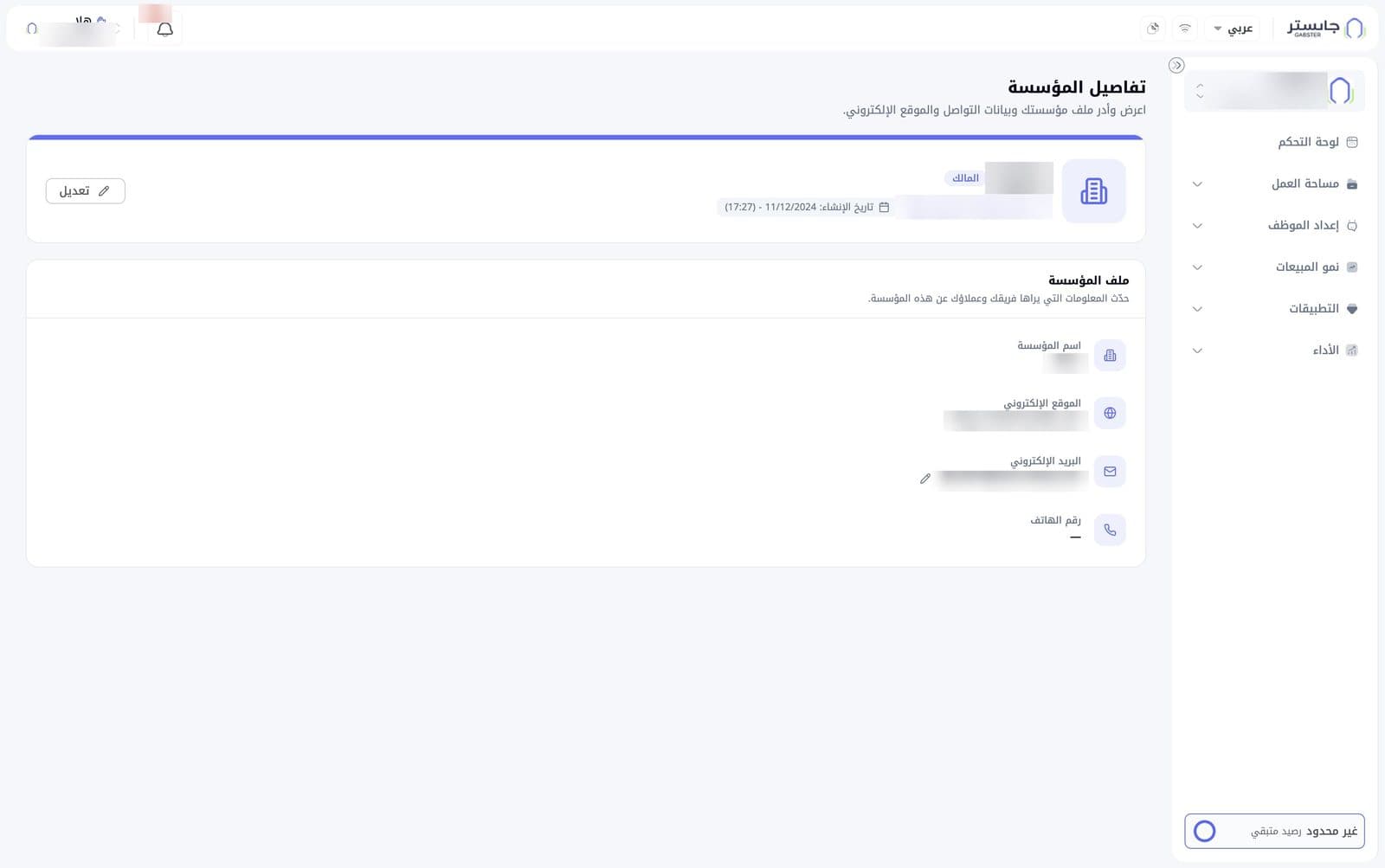
Summary card
The card at the top of the page shows:
- The organization's name.
- A badge with your role in the organization, e.g. Owner (المالك).
- A link to your website.
- Created on (تاريخ الإنشاء): the date and time the organization was created.
- An Edit (تعديل) button on the left.
Organization profile
In view mode, the Organization profile (ملف المؤسسة) card lists the fields read-only:
| Field | What it shows |
|---|---|
| Organization name (اسم المؤسسة) | Your business name |
| Website (الموقع الإلكتروني) | Your website address |
| Email (البريد الإلكتروني) | The organization's contact email |
| Phone number (رقم الهاتف) | The contact number; shows "—" when empty |
Edit the organization profile
- Click Edit (تعديل). In edit mode the Organization profile card shows a form, and the button at the top becomes Cancel (إلغاء).
- Change the Organization name, Website and Phone number.
- Click Save changes (حفظ التغييرات), or Cancel (إلغاء) to leave without saving.
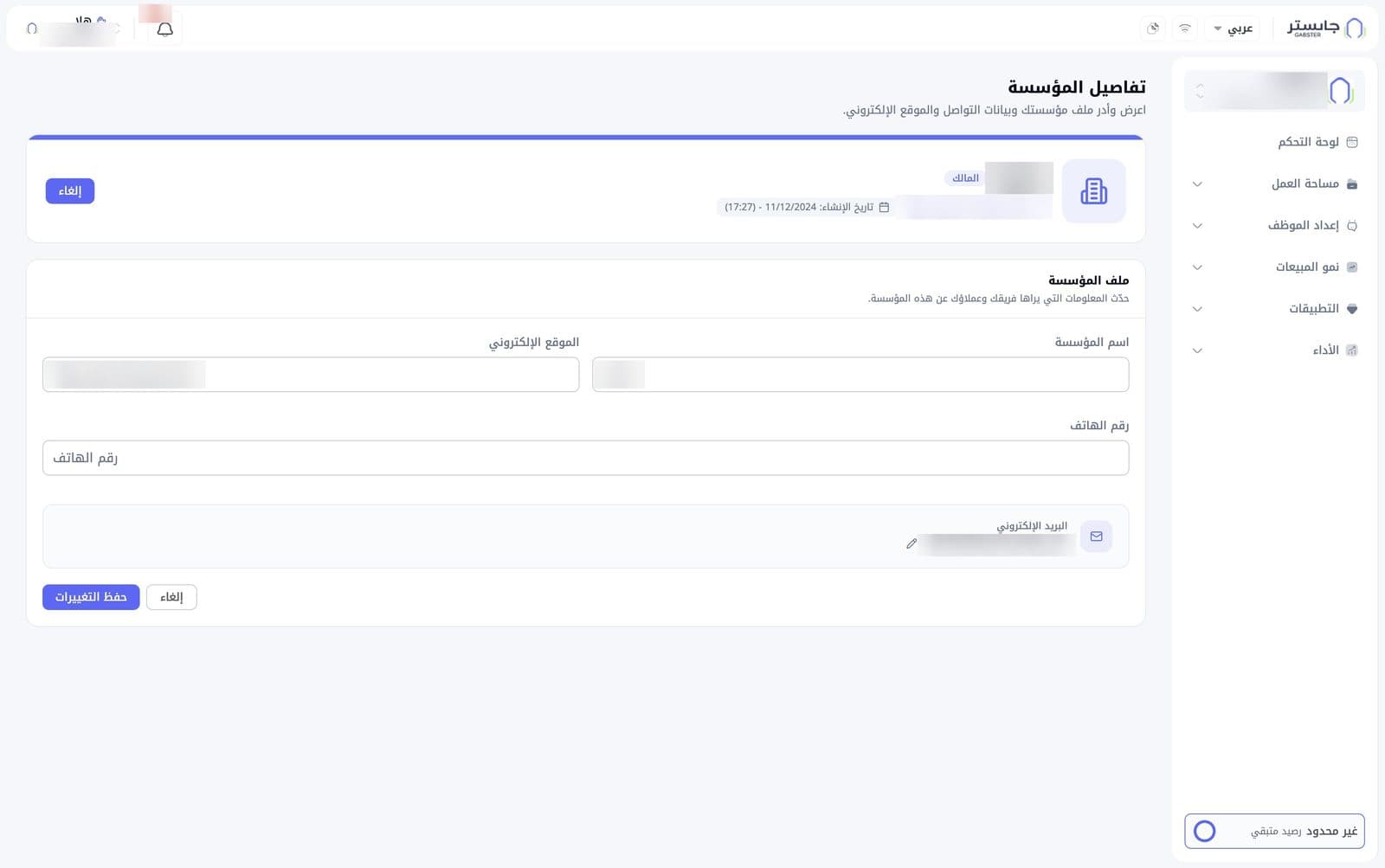
You cannot change the Email from the edit form. It stays read-only and has its own pencil icon next to it.