
Settings
Dialect
Choose the default Arabic dialect for improving staff messages, add custom dialects, and set banned words with their alternatives for each dialect.
On the Dialect (اللهجة) tab you manage the Arabic dialects used when a staff member improves a draft message, choose the default one, and list words or phrases to replace in those messages, together with preferred alternatives.
The Settings tab bar
Settings (الإعدادات) has eleven tabs. This page covers Dialect, the last tab in the bar. The other tabs are on General settings (General, Info, User Data, Instructions), Conversations and translation (Conversation Modes, Translation) and Calls and voice (Calls, IVR Menu, Agent Voice, Call Staff).
How to open it
In the sidebar, open AI Agent Setup (إعداد الموظف), then Settings (الإعدادات), and choose Dialect (اللهجة) at the end of the tab bar. The tab has two sub-tabs: Translation dialects (لهجات الترجمة) and Banned words (الكلمات المحظورة).
Translation dialects
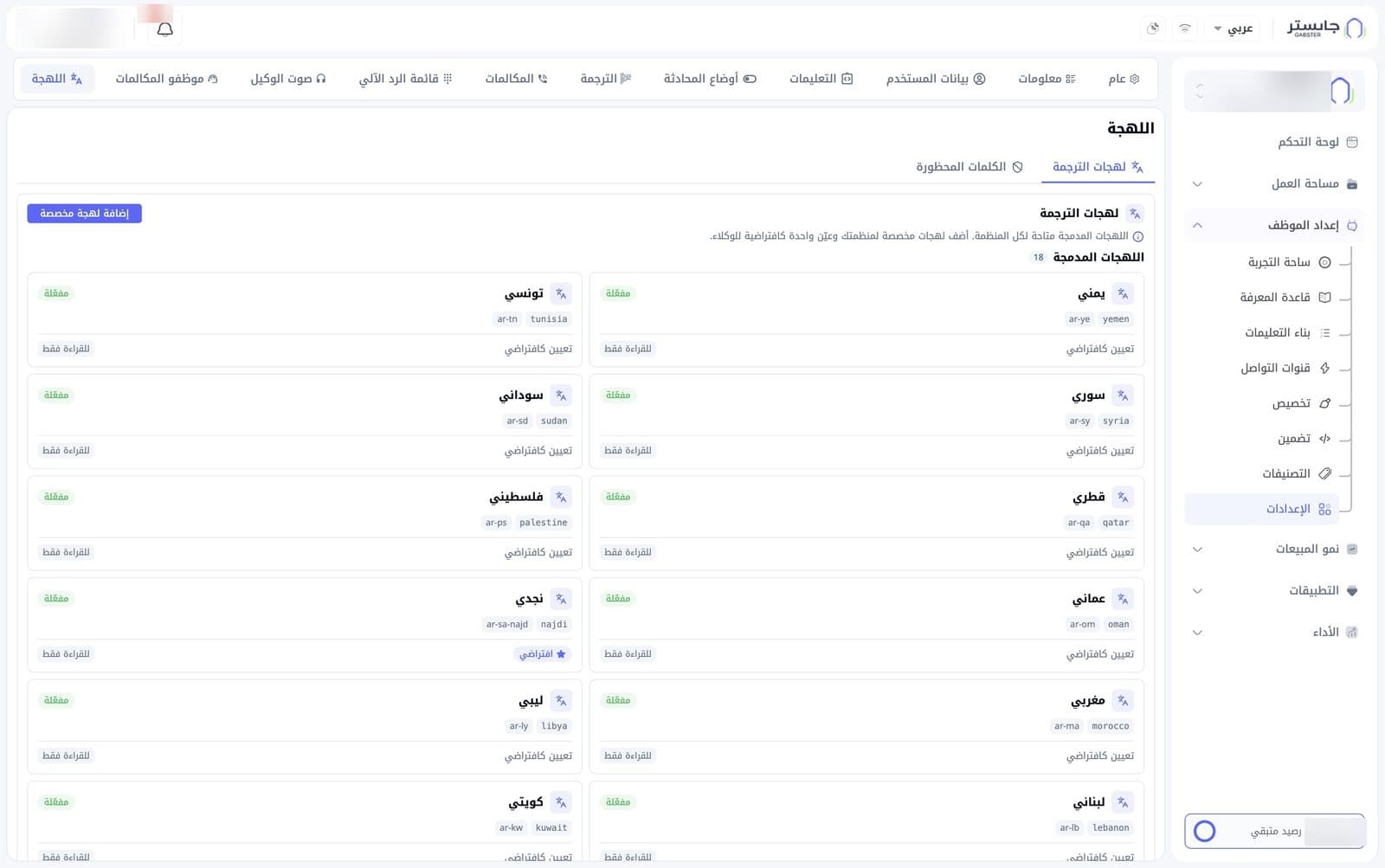
Built-in dialects are available to your whole organization; their count shows next to the Built-in dialects (اللهجات المدمجة) heading. Each dialect has a card showing:
- The dialect name, such as Yemeni (يمني), Syrian (سوري) or Moroccan (مغربي), and two codes for it.
- Its status, such as Enabled (مفعّلة).
- Set as default (تعيين كافتراضي), to make it the dialect used when staff improve a draft message. The change takes effect at once. The current default shows a ★ Default (★ افتراضي) badge instead of this link.
- A Read-only (للقراءة فقط) tag: built-in dialects cannot be edited or switched off.
Dialects and banned words don't change your AI Agent's own replies, its calls or translations. They are used only when a staff member improves a draft message in Customer Conversations.
To add a dialect for your organization, click Add custom dialect (إضافة لهجة مخصصة).
Banned words
The Banned words (الكلمات المحظورة) sub-tab holds a Banned words and phrases (الكلمات والعبارات المحظورة) card, where you set banned words or phrases and their preferred alternatives for each dialect. The card's hint says these rules are applied automatically when messages are improved.
These rules apply only when a staff member improves a draft message. They don't change your AI Agent's automatic replies or staff messages sent without improving, and each rule applies only to the dialect it was saved under.
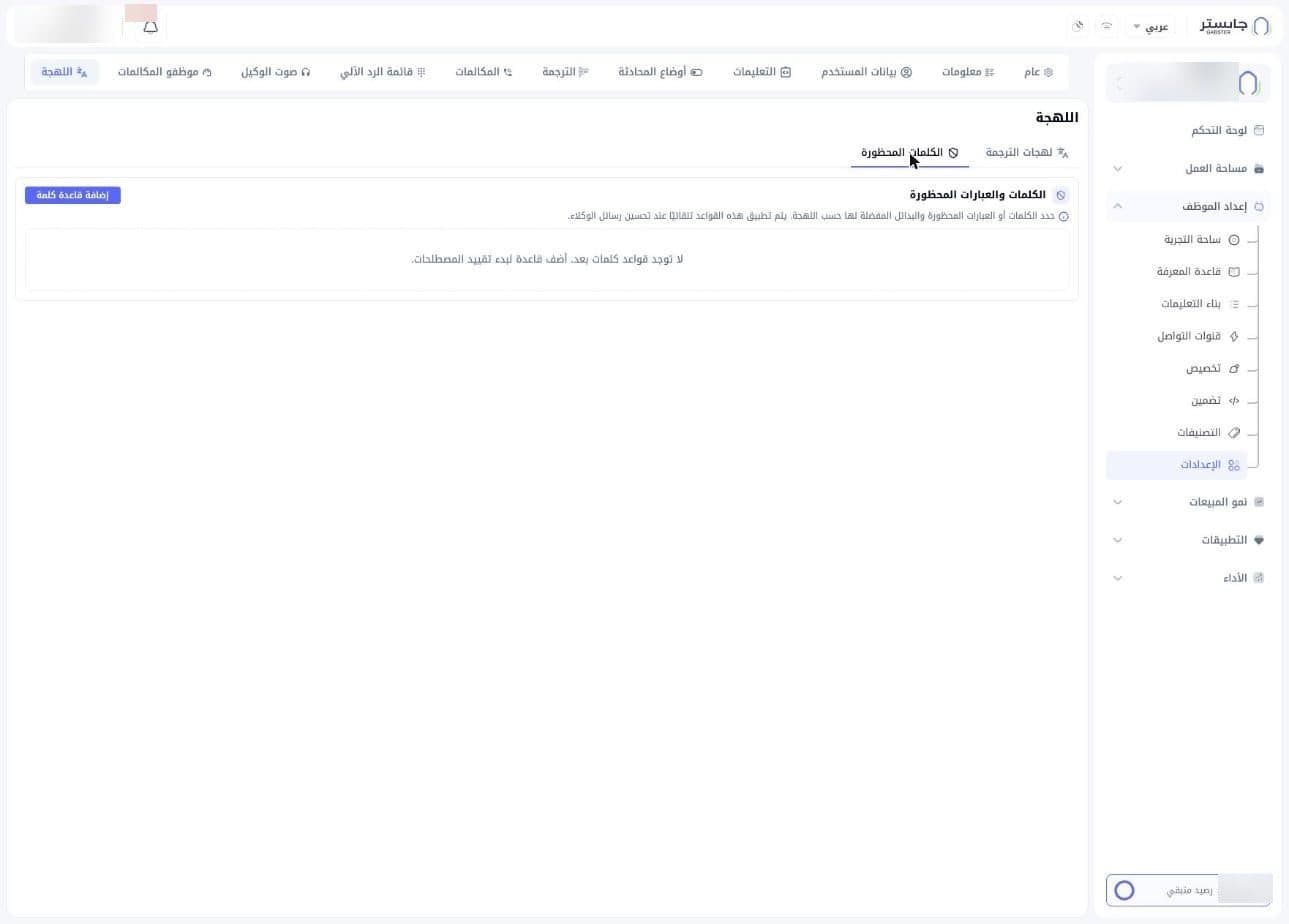
Until you add a rule, the message No word rules yet (لا توجد قواعد كلمات بعد) shows.
Add a word rule
- Click Add word rule (إضافة قاعدة كلمة). A dialog with the same title opens.
- Choose the Dialect (اللهجة) the rule applies to.
- Type the Banned word or phrase (الكلمة أو العبارة المحظورة).
- Type the Preferred alternatives (البدائل المفضلة). You can add one or more, separated by commas.
- Optionally, fill in Explanation (optional) (توضيح (اختياري)) to note why the rule exists.
- Leave the Enabled (مفعّلة) switch on for the rule to apply. It is on by default.
- Click Save (حفظ), or Cancel (إلغاء) to leave without saving.
