
AI Agent setup
Instruction Builder
Describe in your own words a rule your AI Agent should follow, and let AI turn it into a ready-made instruction.
In the Instruction Builder (بناء التعليمات) you write your AI Agent's behaviour rules as a conversation: describe a rule in plain language, and AI replies with an instruction card that has a title and structured text. This is where you build and edit your AI Agent's instructions.
How to open it
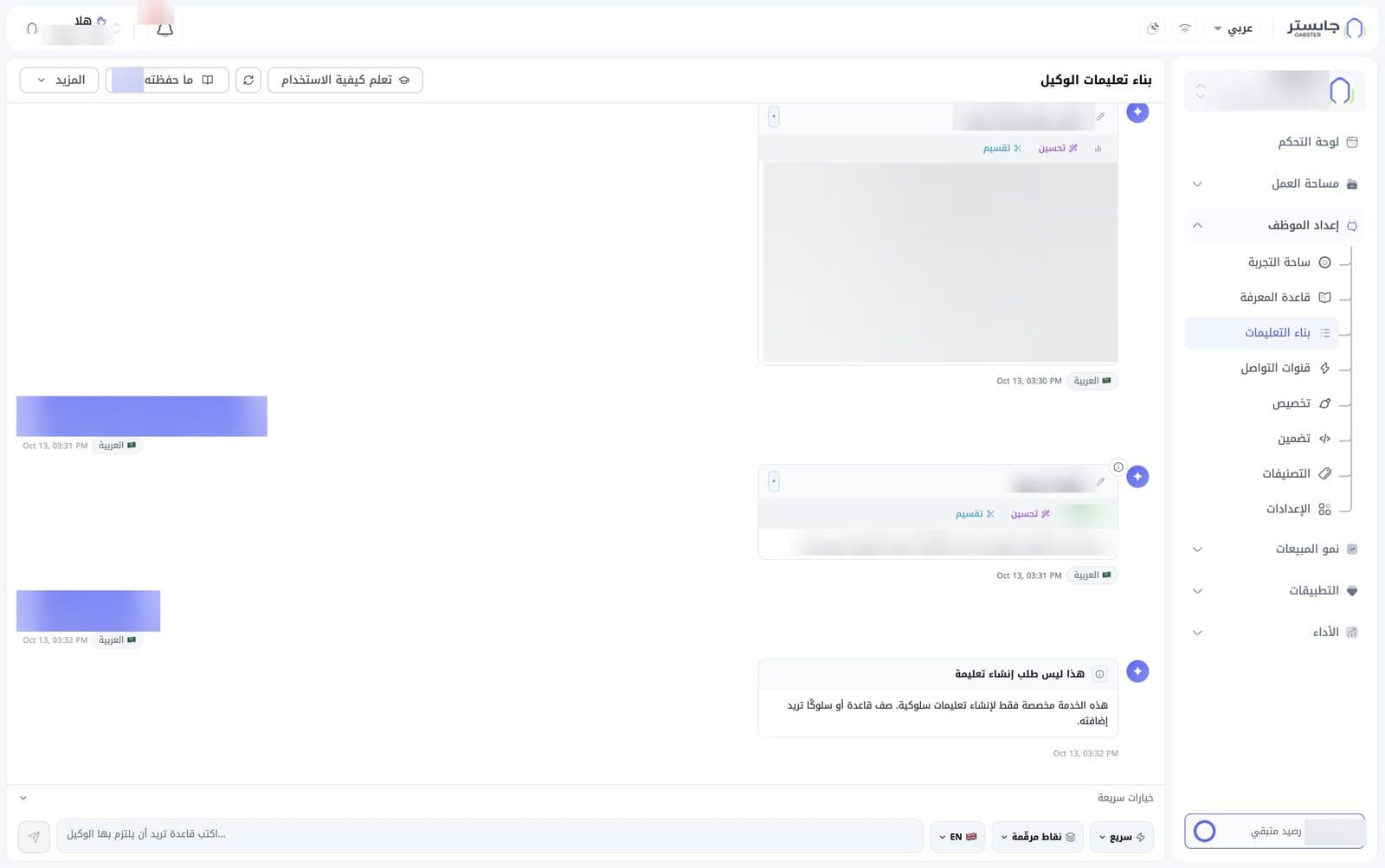
In the sidebar, open AI Agent Setup (إعداد الموظف) and choose Instruction Builder (بناء التعليمات). The page title reads AI Agent Instruction Builder (بناء تعليمات الوكيل).
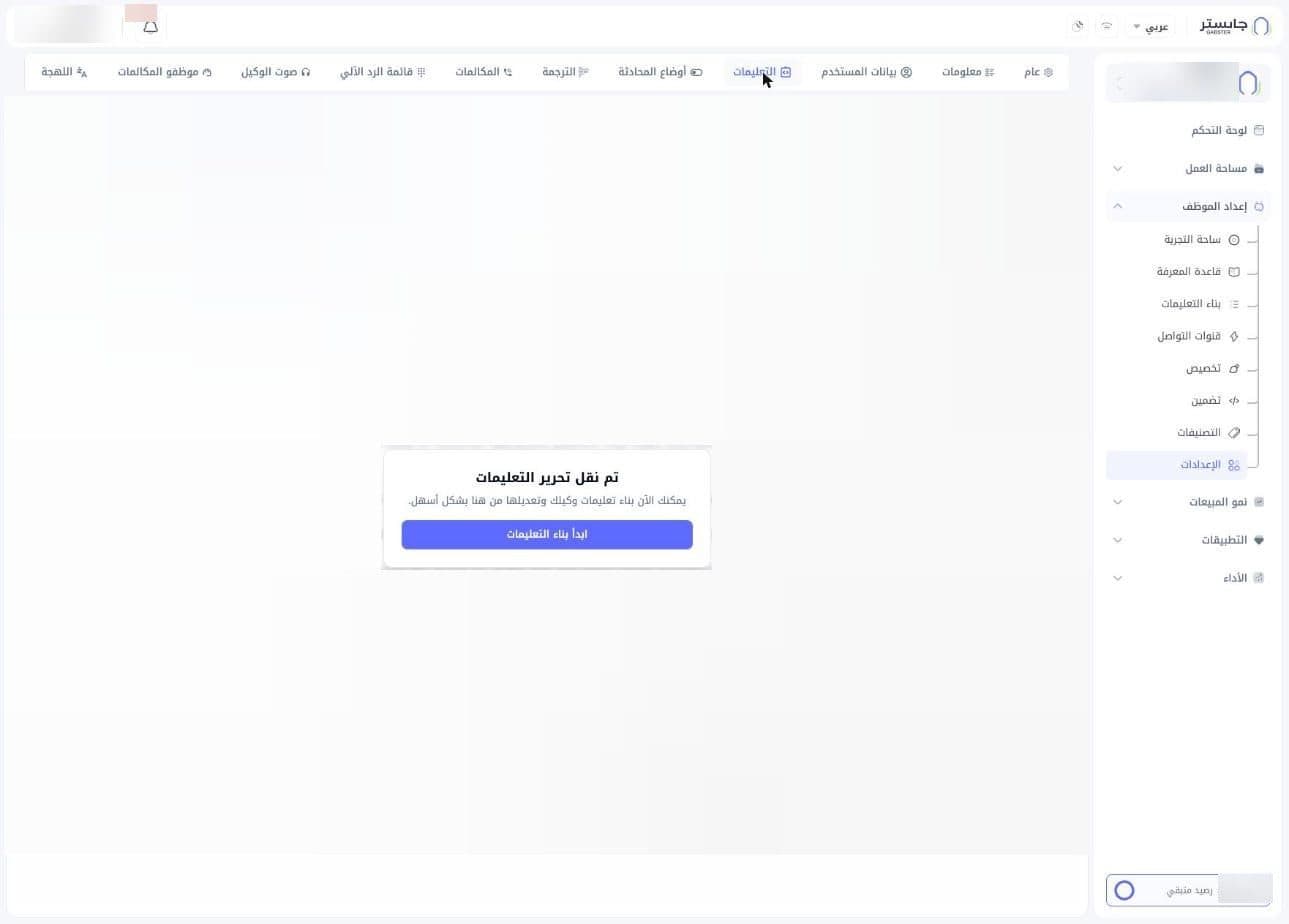
Instruction editing has moved from Settings to this page. If you open Settings (الإعدادات) and the Instructions (التعليمات) tab, you'll see the notice Instruction editing has moved (تم نقل تحرير التعليمات) over the old, disabled editor, with a Start building instructions (ابدأ بناء التعليمات) button that sends you to the Instruction Builder.
Header buttons
- Learn how to use (تعلم كيفية الاستخدام): a button with a graduation-cap icon.
- A refresh icon.
- Saved (ما حفظته): carries a badge with the number of saved instructions.
- More (المزيد): a drop-down menu.
Conversation thread
Your requests appear in blue bubbles; AI replies appear next to a sparkle icon. Your requests and the instruction cards each show their time and language, e.g. Arabic (العربية).
Instruction card
For each rule you describe, AI replies with a card that holds:
- The instruction title, with a pencil icon next to it.
- The instruction text: the rule written as structured lines.
- Improve (تحسين): the AI rewrites the card the way you ask. You can select part of the text to change only that part, and undo the change.
- Split (تقسيم): the AI proposes several smaller cards, one per topic, and warns about anything it could not place, such as links, prices or contact details.
- The card may carry a green score badge, e.g. PASS with a score, and other small icons, such as a bar-chart icon or an ⓘ icon.
The score comes from an AI review of the card, from 0 to 10, covering clarity, specificity, consistency with your other cards, scope, failure cases and the risk of made-up answers. PASS means 7 or above, REVIEW 5 to 6.9 and FAIL below 5. The review lists the issues it found, each with a suggested fix.
When a request isn't an instruction
If you write something that doesn't describe a behaviour rule, AI replies with a This is not an instruction request (هذا ليس طلب إنشاء تعليمة) card. It explains that the service only creates behaviour instructions and asks you to describe a rule or behaviour you want to add.
Composer
At the bottom of the page:
- Quick options (خيارات سريعة): a row of options with a chevron at its end:
- Fast (سريع)
- Numbered points (نقاط مرقّمة)
- EN
- The text box: type your rule here, as its hint suggests — "Write a rule you want the AI Agent to follow…" (اكتب قاعدة تريد أن يلتزم بها الوكيل...).
- The send button (paper-plane icon).
The quick options set how the card is written:
- Fast (سريع): the writing mode. Fast writes a quick draft; High quality (جودة عالية), marked Higher cost (أعلى تكلفة), writes against the scoring rules and the card arrives already scored.
- Numbered points (نقاط مرقّمة): the text format. Pick one or more of bullet rules, Numbered steps (خطوات مرقّمة), Paragraph (فقرة) and If-then (إذا-فعندها), or All (4) (الكل (4)) for one card per format.
- EN: the language of the generated cards: EN, AR, FR, ES, DE, TR, PT or IT.
Build an instruction
-
In the text box, type the rule you want your AI Agent to follow, e.g. "If a customer asks about their order status, ask for their order number first."
-
Click the send button.
-
Review the instruction card that appears, and use Improve or Split if needed.
-
To keep the card, click Add (إضافة) under Save this section? (هل تريد حفظ هذا الجزء؟). Nothing is saved automatically. The card is first checked against your saved cards; if they conflict, you choose to keep the new card, keep the existing one, merge them, keep both, or save anyway.
Saving updates your live AI Agent straight away, including conversations in progress. Saved (ما حفظته) lists everything active on your AI Agent, including Gabster's system cards, which carry a badge.
Write one clear rule per request, describing the situation and the expected behaviour. Short, specific rules are easier to review and change later.
Common tasks
Related
- Playground — the instructions also appear in its Instructions (التوجيهات) section.
- Knowledge Base
- General settings