
AI Agent setup
Tags
Create the tags your team and AI Agent apply to conversations, and follow how often they're used.
Tags are labels applied to conversations to organize them, such as "Important customer" or "Needs follow-up". Both staff members and your AI Agent apply them. On the Tags (التصنيفات) page you create and manage tags and see how often each one is used.
How to open it
In the sidebar, open AI Agent Setup (إعداد الموظف) and choose Tags (التصنيفات). The page has two tabs: Statistics (الإحصائيات), the first tab, and Tags (التصنيفات).
Statistics
The Statistics tab, titled Tag statistics (إحصائيات التصنيفات), shows how many times each tag was applied over a period you choose.
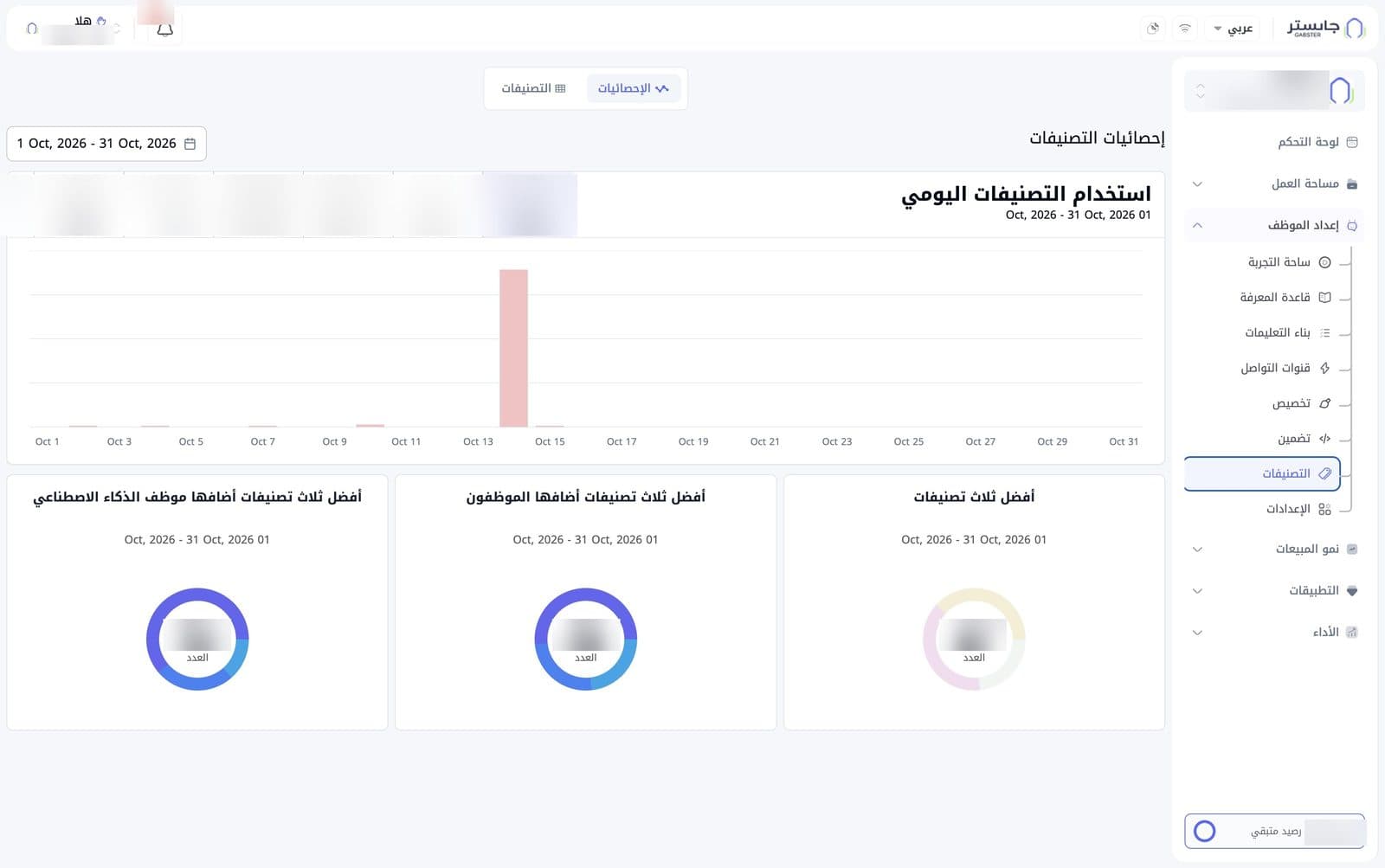
- Date range: next to the title, it shows the period on display, which defaults to the current month. The same period is repeated under each card's title.
- Daily tag usage (استخدام التصنيفات اليومي): a strip with a tile per tag showing its name and how many times it was applied in the period, above a bar chart of usage day by day. The selected tile has a light-blue background.
Below are three donut-chart cards, each with the Count (العدد) in the center:
| Card | What it shows |
|---|---|
| Top three tags (أفضل ثلاث تصنيفات) | The three most-used tags overall |
| Top three tags added by staff (أفضل ثلاث تصنيفات أضافها الموظفون) | The three tags staff members applied most |
| Top three tags added by the AI Agent (أفضل ثلاث تصنيفات أضافها موظف الذكاء الاصطناعي) | The three tags the AI Agent applied most |
The number in the middle of each donut is the total for its three tags. Top three tags counts every time a tag was applied, whether by staff, by your AI Agent or by an import, so its total can be larger than the other two.
Tags list
The Tags (التصنيفات) tab lists all your tags in a table.
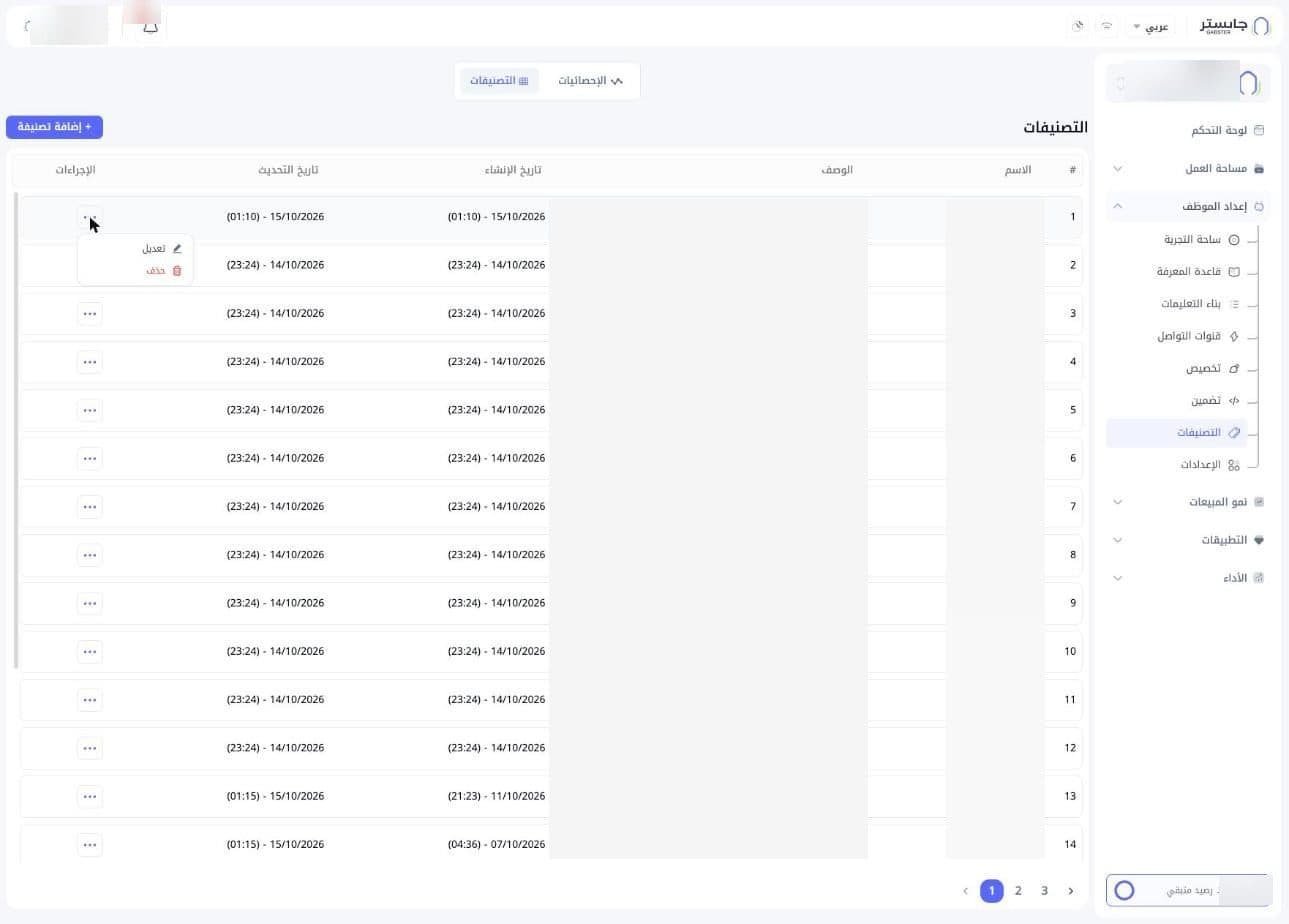
| Column | Meaning |
|---|---|
| # | Row number |
| Name (الاسم) | The tag name |
| Description (الوصف) | When the tag applies. Long text is shortened |
| Created date (تاريخ الإنشاء) | Date and time the tag was created |
| Updated date (تاريخ التحديث) | Date and time of the last change |
| Actions (الإجراءات) | Three-dot button (⋯) that opens the actions menu |
The Actions menu has two items:
- Edit (تعديل): change the tag.
- Delete (حذف): delete the tag.
Below the table you can move between pages.
Create a tag
- On the Tags tab, click + Add tag (إضافة تصنيفة). The Create tag (إنشاء تصنيفة) dialog opens.
- Type the tag's name in Name (الاسم).
- In Description (الوصف), describe when this tag applies.
- Click Create (إنشاء). To close the dialog, use the Close (إغلاق) button or the ✕ icon.
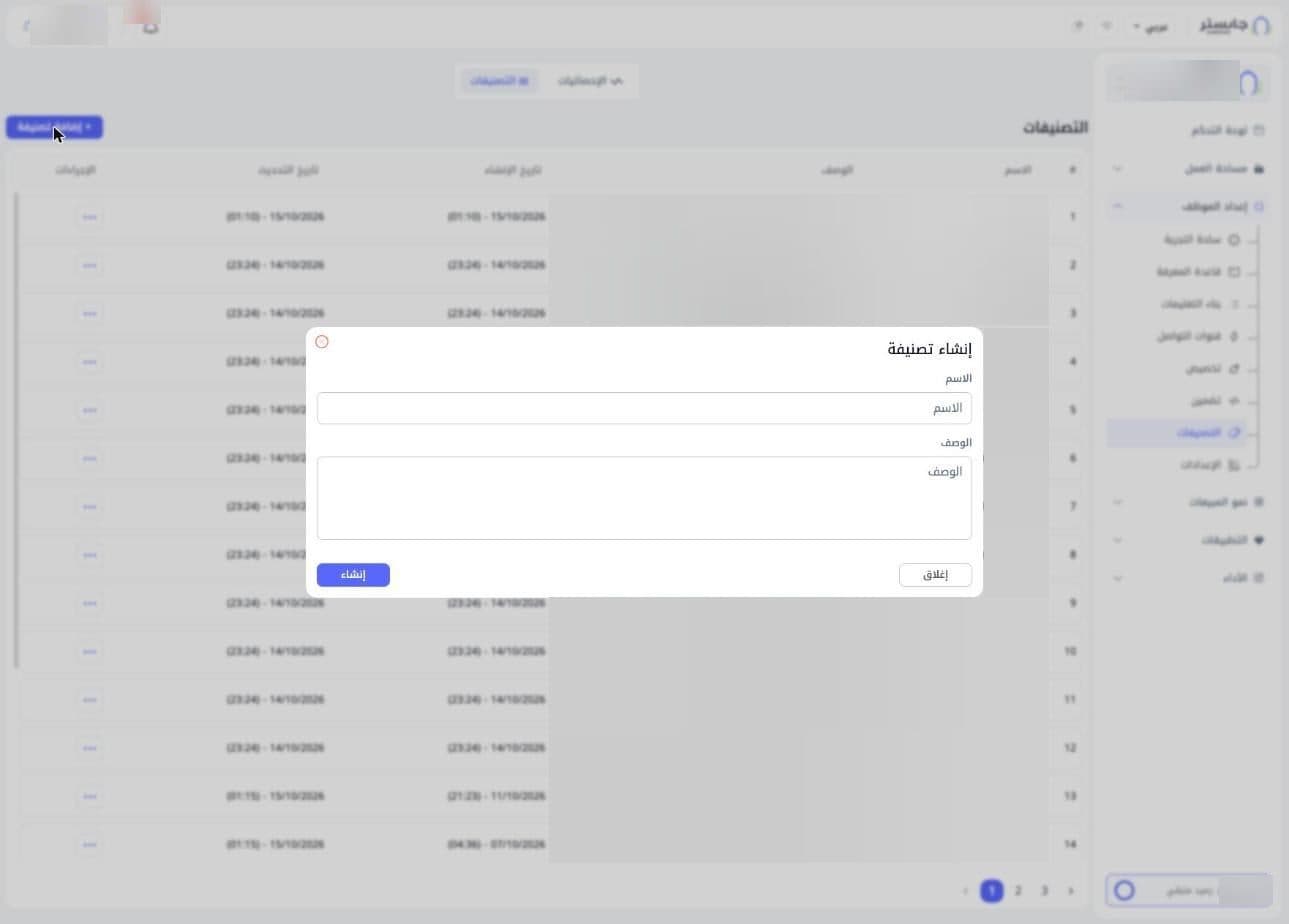
Write a clear description: it says when the tag applies, and existing tags use it as guidance for the AI Agent.
After each customer message, your AI Agent checks the conversation against every tag it has, using each tag's name and description, and applies the tags that match what the customer said. Any tag can be applied this way, so keep the list short and write each description as the rule, for example "Apply when the customer asks about delivery times." To keep your AI Agent from applying a tag, say so in its description.