
Sales growth
Customers
See your project's customers from every channel, add them one by one or by importing a file, and export them by filter.
The Customers (العملاء) page lists your project's customers from every channel in one place. From here you add a new customer or import a group of customers from a file, export the list, search for a customer and preview their conversation without leaving the page.
How to open it
In the sidebar, open Sales Growth (نمو المبيعات) and choose Customers (العملاء).
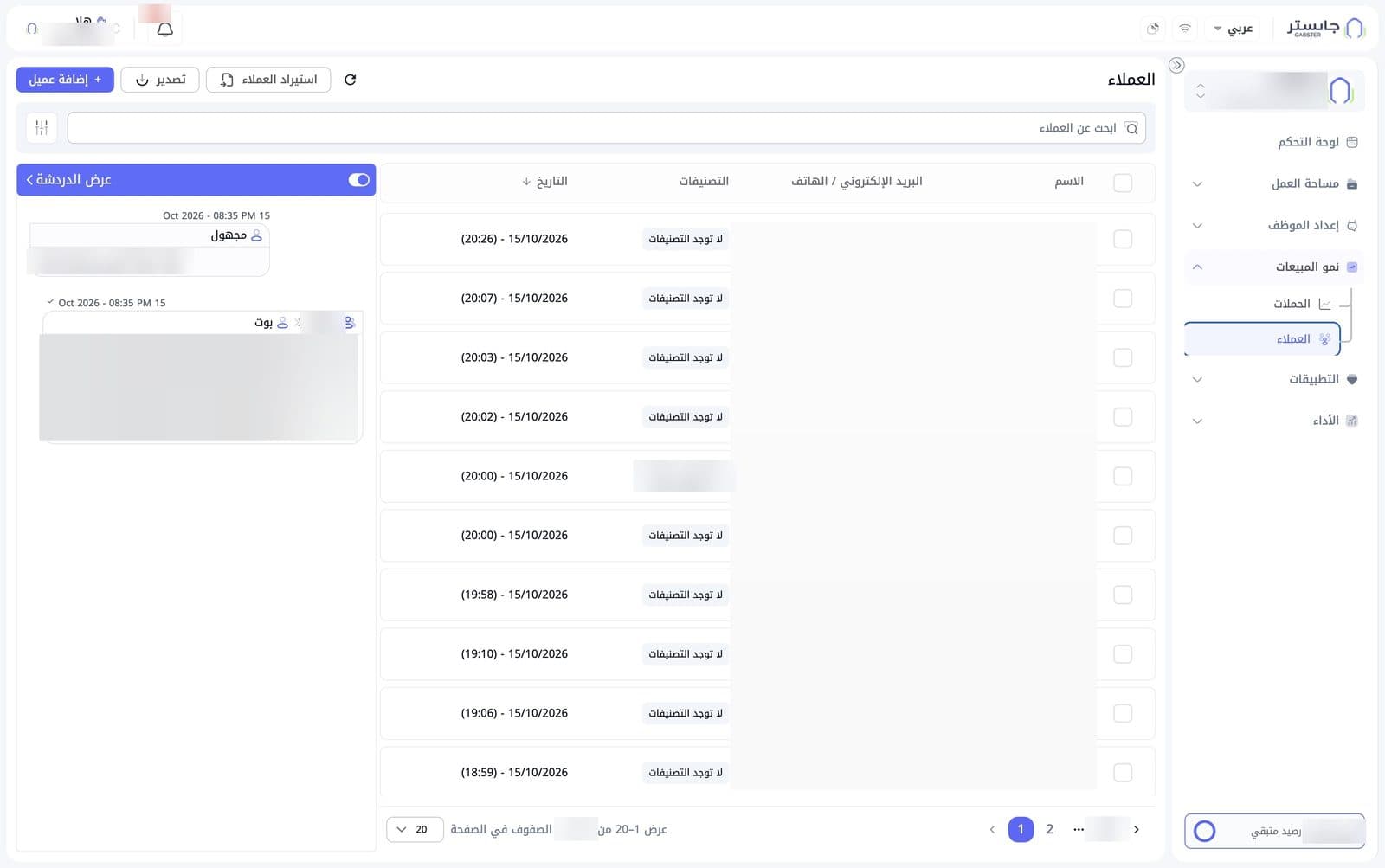
Top of the page
Next to the page title:
- Add customer (إضافة عميل): opens the window to add one customer.
- Export (تصدير): opens the Export filters (فلاتر التصدير) window.
- Import customers (استيراد العملاء): opens the add window on the Bulk add customers (اضافة مجموعة عملاء) tab to upload a file.
- A refresh icon (circular arrow).
Search and filters
- Search customers (ابحث عن العملاء): type to find a specific customer.
- A filters button next to the search box.
Customer table
Each customer has one row:
| Column | Meaning |
|---|---|
| Name (الاسم) | The customer's name with a small channel icon, such as WhatsApp. Many rows show a phone number in this column |
| Email / Phone (البريد الإلكتروني / الهاتف) | The customer's contact details |
| Tags (التصنيفات) | Tags on the customer, or No tags (لا توجد التصنيفات) |
| Date (التاريخ) | Date and time of the customer entry, newest first |
Each row starts with a checkbox, and the table header has a select-all box.
Below the table you can move between pages and change the Rows per page (الصفوف في الصفحة, default 20).
Chat view
On the left, the Chat view (عرض الدردشة) panel shows the messages of a customer's conversation: the customer's messages (shown as Anonymous (مجهول) when they have no name) and your AI Agent's replies, labelled AI Agent (بوت), each with its time. The panel header has a toggle and an arrow.
To follow up and reply, use Customer Conversations.
Add one customer
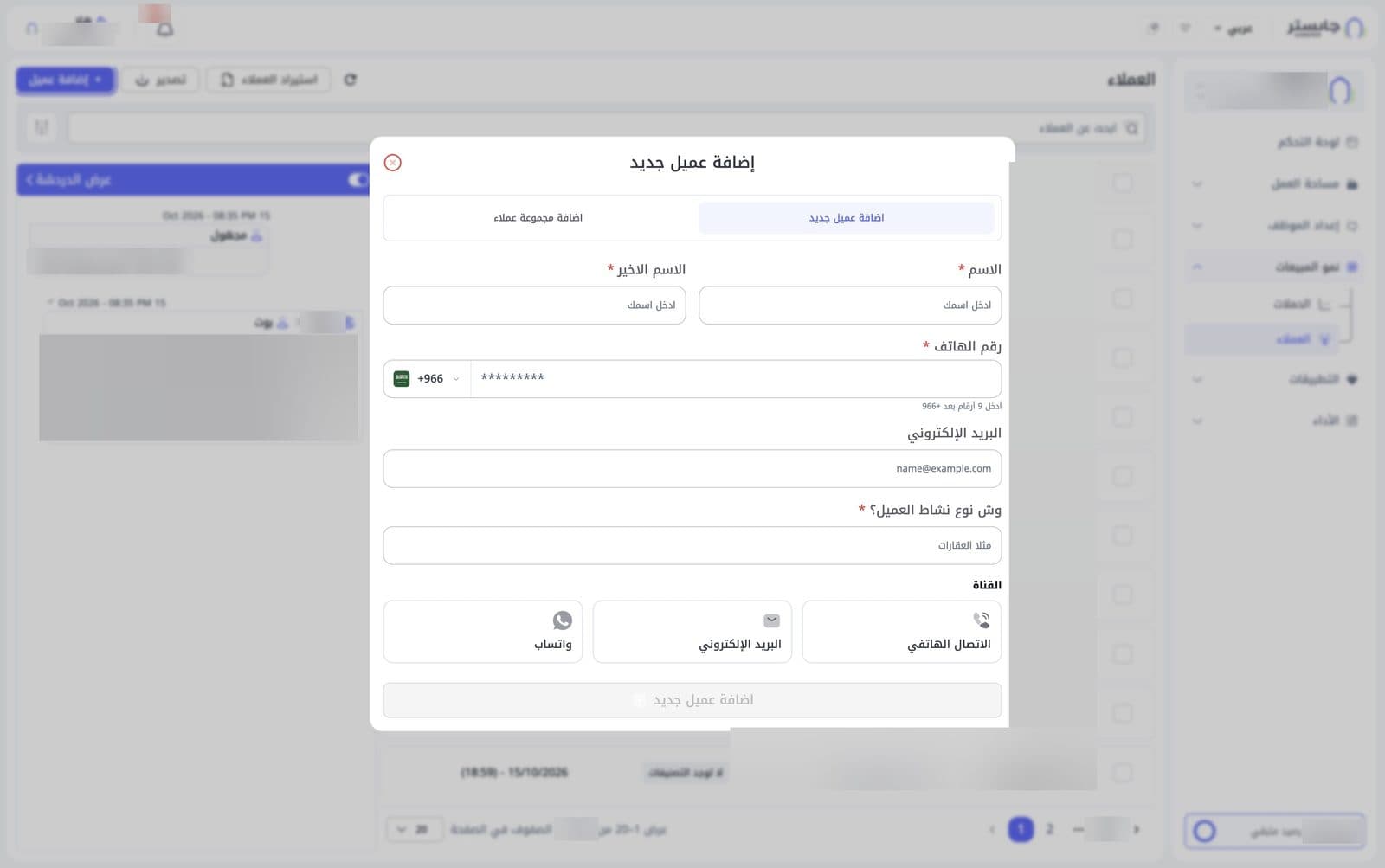
Click Add customer to open the Add new customer (إضافة عميل جديد) window on the Add new customer (اضافة عميل جديد) tab.
| Field | Details |
|---|---|
| First name (الاسم) | Required |
| Last name (الاسم الاخير) | Required |
| Phone number (رقم الهاتف) | Required. The country code sits at the end of the field (default +966); a hint below asks for 9 digits after +966 |
| Email (البريد الإلكتروني) | Optional |
| Customer's business type (وش نوع نشاط العميل؟) | The customer's line of business, e.g. real estate. Required |
| Channel (القناة) | Phone call (الاتصال الهاتفي), Email (البريد الإلكتروني) and WhatsApp (واتساب) cards; none is selected when the window opens |
The Add new customer button at the bottom is inactive while the form is empty.
Import a group of customers
Click Import customers, or switch to the Bulk add customers (اضافة مجموعة عملاء) tab inside the window.
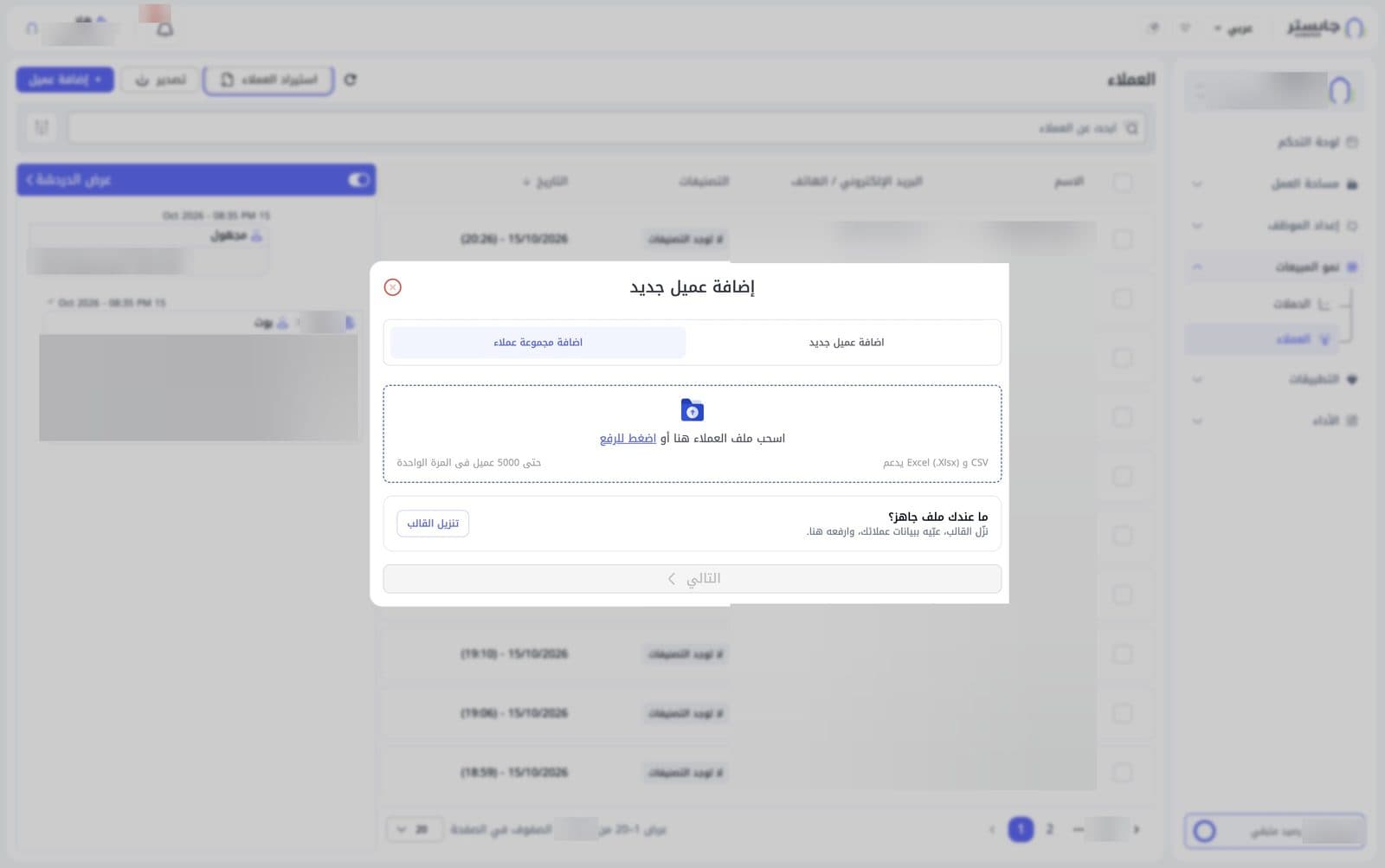
- If you don't have a file ready, click Download import template (تنزيل القالب) and fill it with your customers' data.
- Drag the file onto the upload area, or click Click to upload (اضغط للرفع) to pick it. Supported formats: CSV and Excel (.xlsx), up to 5,000 customers at a time.
- Click Next (التالي). The button is inactive while no file is uploaded.
Export customers
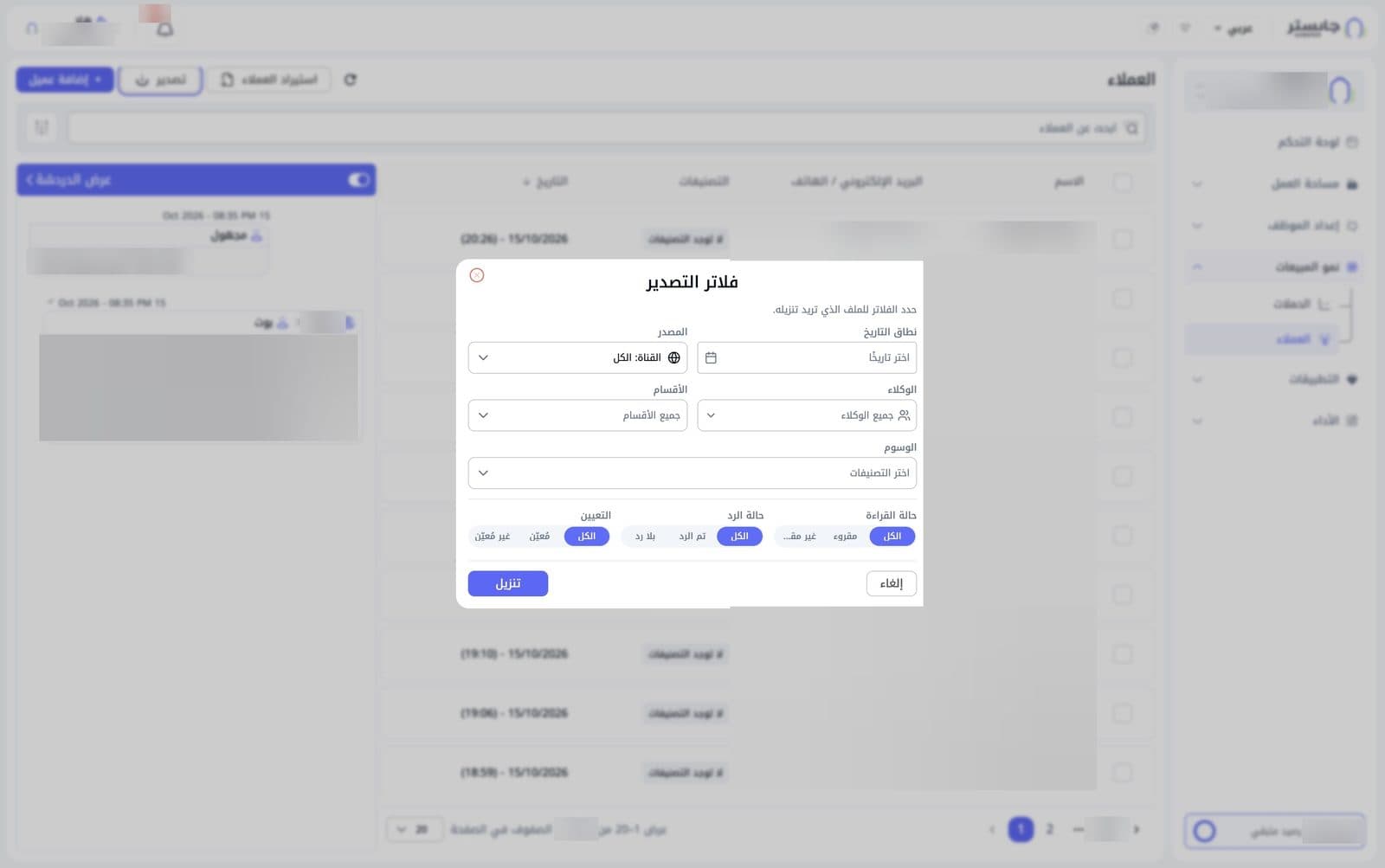
Click Export to open Export filters (فلاتر التصدير) and choose which customers go into the file.
| Filter | What it sets |
|---|---|
| Date range (نطاق التاريخ) | The time period |
| Source (المصدر) | The channel (default Channel: All (القناة: الكل)) |
| Staff (الوكلاء) | Staff members (default All staff (جميع الوكلاء)) |
| Departments (الأقسام) | Departments (default All departments (جميع الأقسام)) |
| Tags (الوسوم) | Tags on the customers |
| Read status (حالة القراءة) | All (الكل), Read (مقروء) or Unread |
| Reply status (حالة الرد) | All (الكل), Replied (تم الرد) or Not replied (بلا رد) |
| Assignment (التعيين) | All (الكل), Assigned (مُعيّن) or Unassigned (غير مُعيّن) |
Click Download (تنزيل) to get the file, or Cancel (إلغاء) to close without exporting.
The file downloads straight away. It holds each matching customer's name, email, phone, date added and tags, using the filters you set in this window.