
Performance
Project analytics
See numbers for the whole project, its AI Agents, and the project's info and settings.
The Project analytics (تحليل المشروع) page shows numbers for the current project as a whole, not for a single AI Agent: sessions, your top staff members and top AI Agents, and the most frequent questions. It also holds a card for each AI Agent in the project, and the project's info and settings.
How to open it
In the sidebar, open Performance (الأداء) and choose Project analytics (تحليل المشروع). The page opens on the Analytics (التحليلات) tab; next to it are the AI Agents (الشات بوت) and Info (معلومات) tabs.
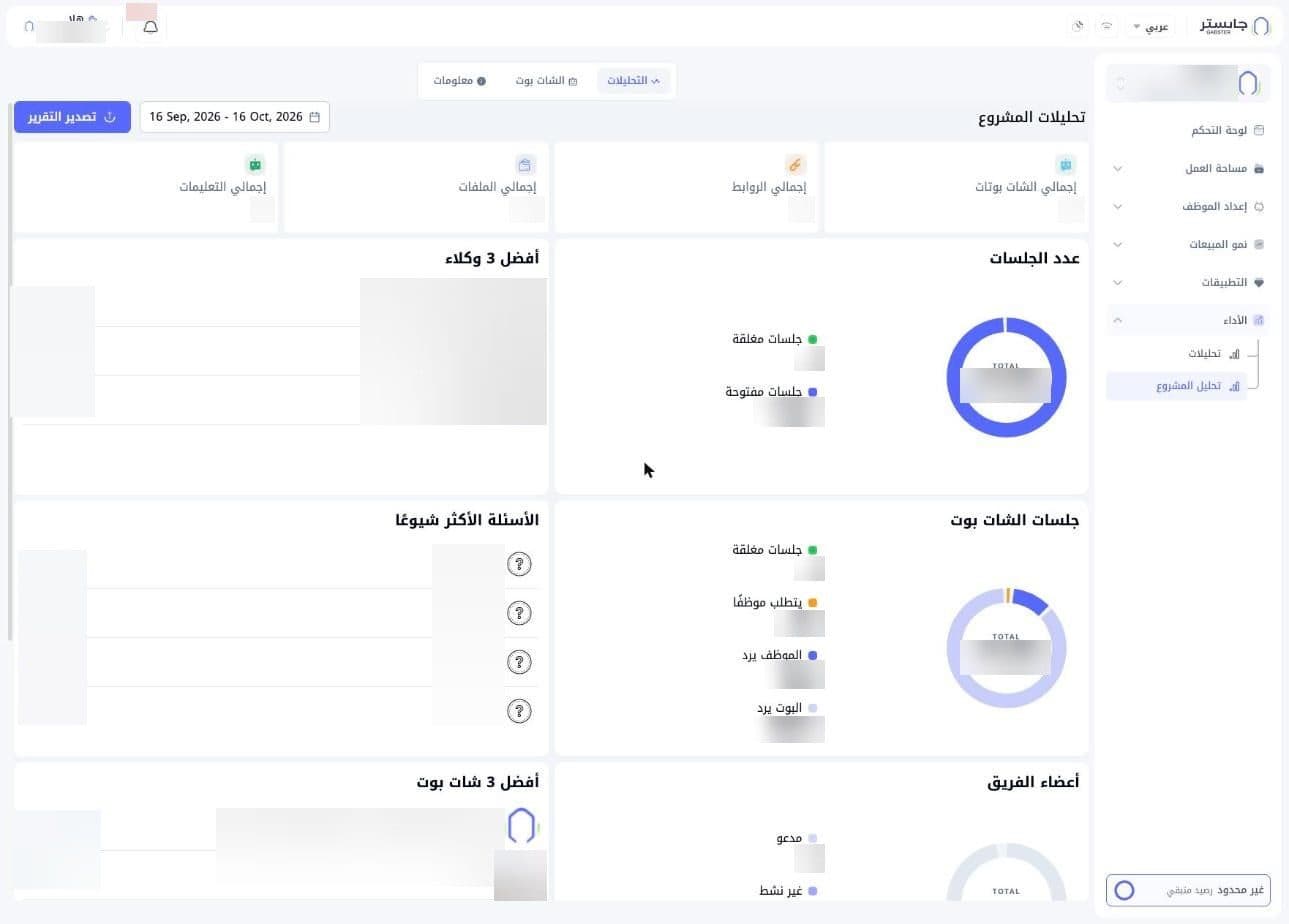
Analytics tab
The tab is titled Project analytics (تحليلات المشروع). Next to the title are the date range field (the last 30 days by default) and the Export report (تصدير التقرير) button.
Summary cards
| Card | What it shows |
|---|---|
| Total AI Agents (إجمالي الشات بوتات) | AI Agents created in the selected period |
| Total links (إجمالي الروابط) | Web links in the project's Knowledge Bases |
| Total files (إجمالي الملفات) | Files in the project's Knowledge Bases |
| Total instructions (إجمالي التعليمات) | Quick prompts on the project's AI Agents |
Each total counts what was created in the selected period, so Total AI Agents can show 0 while the AI Agents (الشات بوت) tab still lists your older ones.
Charts and lists
- Number of sessions (عدد الجلسات): a donut with total sessions, split into Closed sessions (جلسات مغلقة) and Open sessions (جلسات مفتوحة).
- Top 3 staff members (أفضل 3 وكلاء): a ranked list of three staff members, each with their message count.
- AI Agent sessions (جلسات الشات بوت): a donut that splits sessions into Closed sessions (جلسات مغلقة), Needs a staff member (يتطلب موظفًا), Staff replying (الموظف يرد) and AI Agent replying (البوت يرد).
- Most frequent questions (الأسئلة الأكثر شيوعًا): the questions customers ask most, with how many times each was asked.
- Team members (أعضاء الفريق): a donut of your staff by status, Invited (مدعو), Inactive (غير نشط) or Active (نشط).
- Top 3 AI Agents (أفضل 3 شات بوت): a ranked list of AI Agents, each with its message count.
AI Agents tab
Shows one card per AI Agent in the project. Each card has the AI Agent's picture, name and creation date, a small chart, and at the bottom its number of Integrations (التكاملات) and Instructions (التعليمات). While the cards load, the header reads Loading AI Agents (جارٍ تحميل الروبوتات).
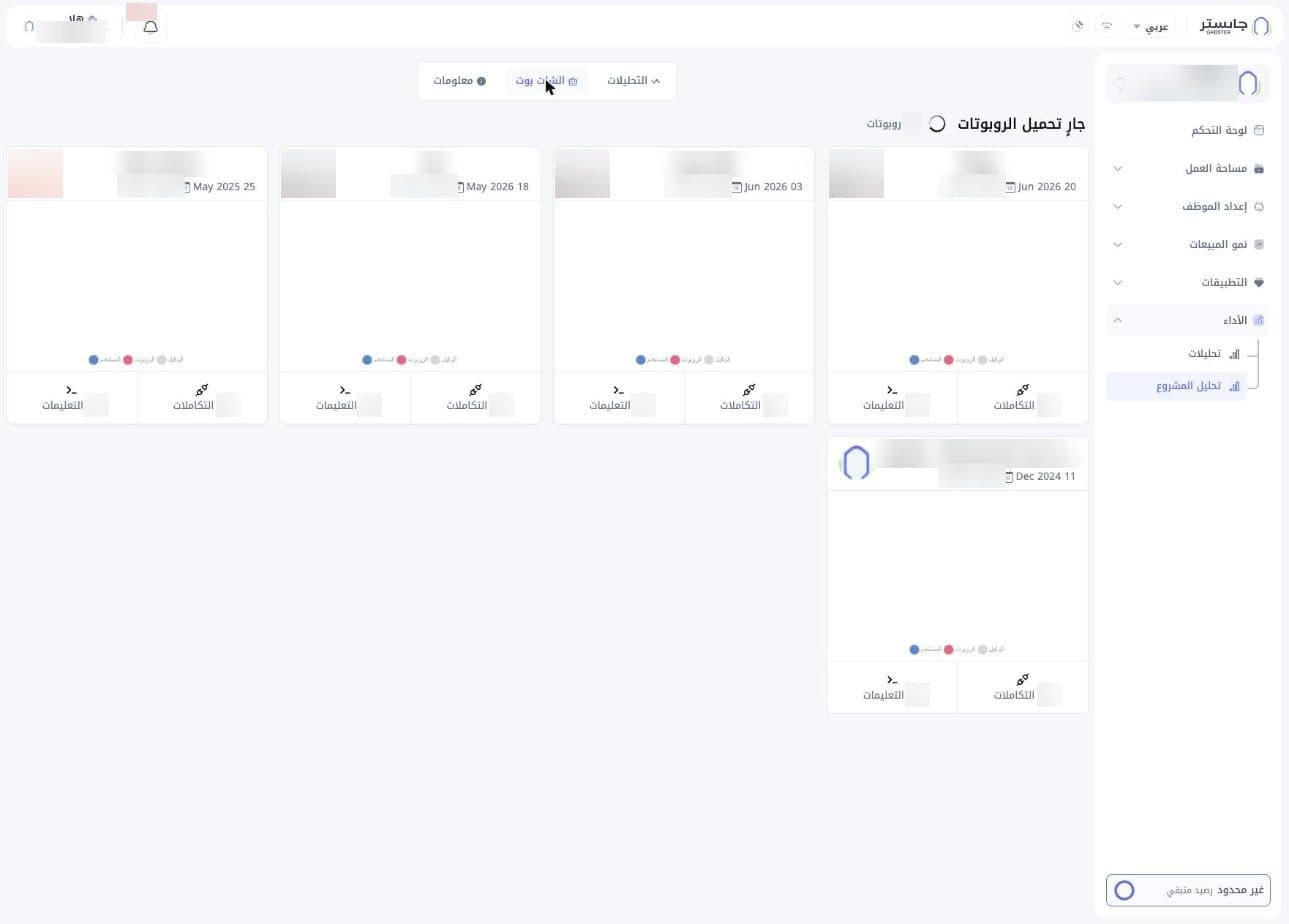
Info tab
Shows Project info (معلومات المشروع) in four cards:
- Project (المشروع): the project's name, picture and description, the dates it was created and last updated, and the number of AI Agents in it.
- Organization (المنظمة): your organization's name and website, the date it was created and its number of current projects.
- User (المستخدم): your name and email.
- Settings (الإعدادات): the Update project info? Click here (تحديث معلومات المشروع؟ اضغط هنا) link to edit the project's details, and the Delete project (حذف المشروع) button. Delete project deletes every AI Agent in the project, with their channel connections and Knowledge Base files and pages, then removes the project and your staff's access to it.
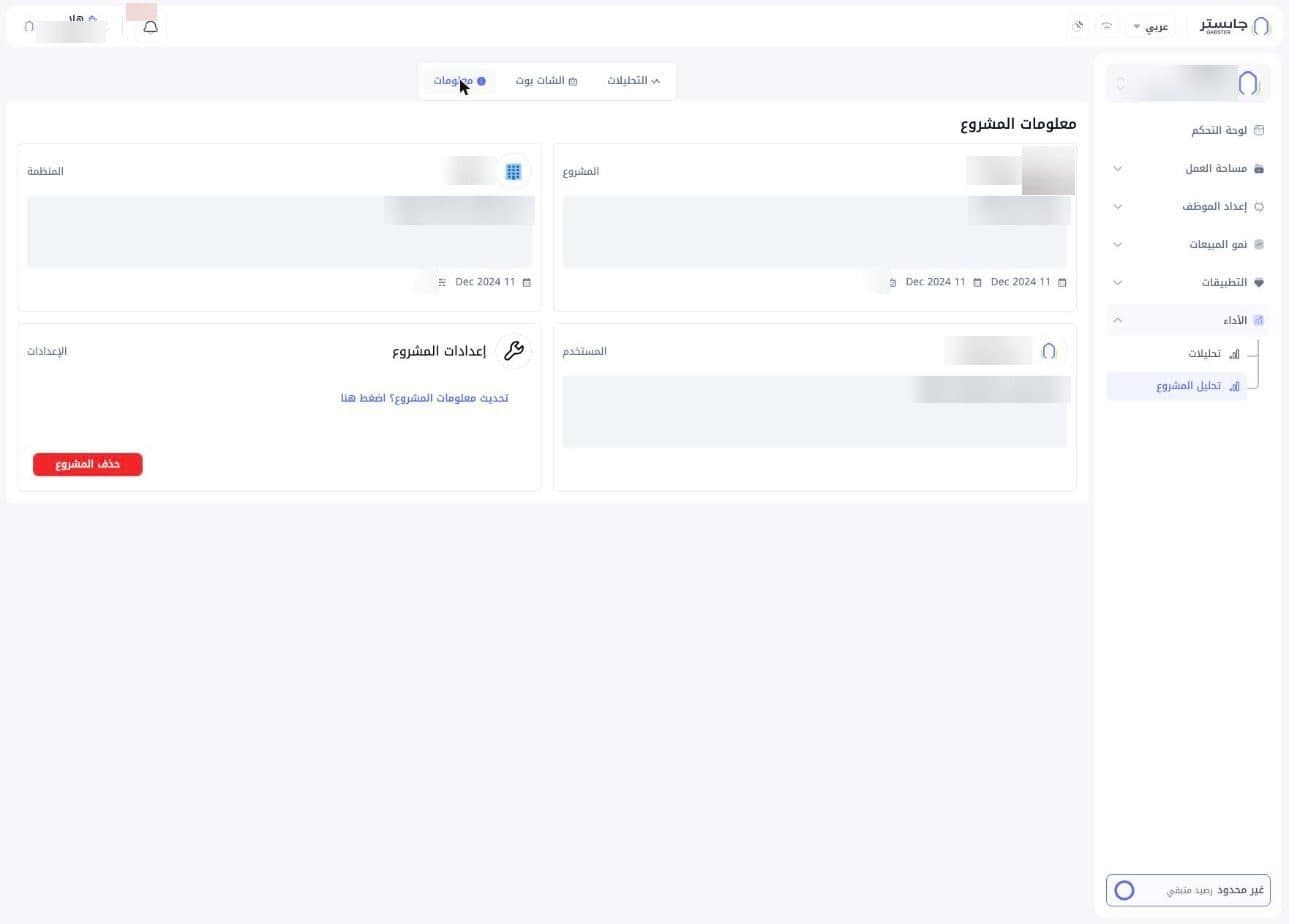
Delete project deletes the project. Be completely sure before you use it.